Automations
An automation is work that runs on its own: a report that lands every weekday at 7 AM, an export that refreshes monthly, an ingest that runs when somebody asks. It keeps the record of every run and carries its state from one run to the next. An agent builds an automation as a script, a program the platform stores and runs for you, so asking an agent to "automate this" or "run this every Monday" is enough; you do not need to ask for a script. Every automation is a script today, and the listing states each one's kind.
A script runs as soon as it is saved, under the access its author holds. The Automations
page (/portal/automations) is where you see what you have, when it fires, and how it has
been going, over three tabs: Automations, Schedules and Runs. A link built
under the old /portal/scripts address, such as one in an email sent before the section
was renamed, opens the same page under /portal/automations.
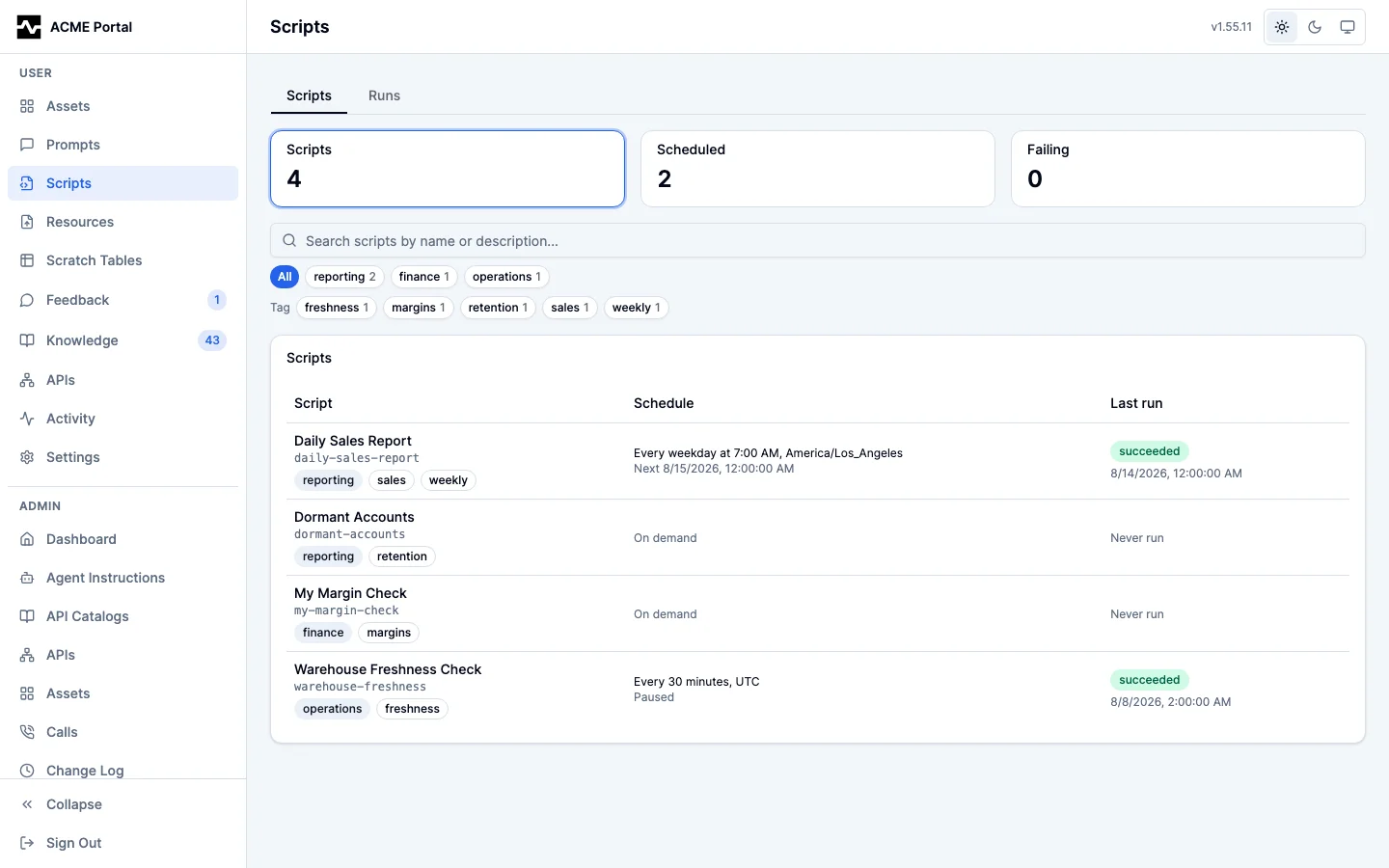
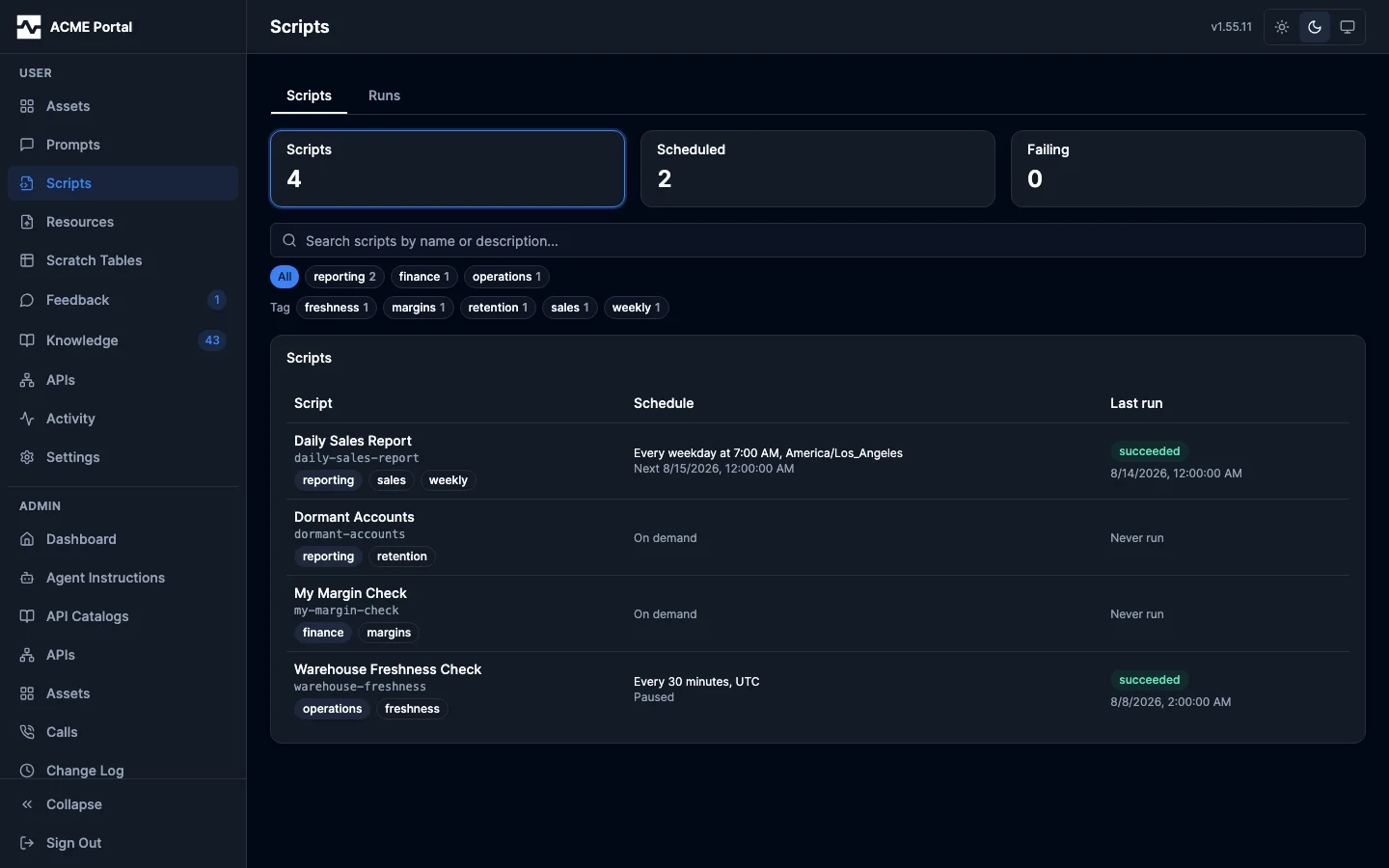
Above the table is one line of numbers: how many scripts, how many are scheduled (anything with a cadence, paused or not), and how many failed their last run. Only the last one is a control, because it is the number most people open this page for: pressing it narrows the table to those scripts, and pressing it again shows all of them. The first two counts are the server's, over every script the filters match rather than over the rows this page happened to load, so the line says "showing 200" beside the total when the listing was capped.
A script is visible to everyone, and so is how it is written. The Mine / All tabs decide which you are looking at, and the page opens on Mine. A script you do not own opens on its details, what it says about itself, when it runs, and its source and version history, read only (#1866): a script is how a resource or a report you were given was produced. Its run history, its state and every action stay with its owner. An administrator can move a script to another owner, which is how one arrives in Mine that you did not write.
Each row states what is worth knowing at a glance: what the automation is called, its kind (Script, for every automation today), its schedule and next fire, and how its most recent run ended. A script that will execute nothing carries a badge beside its name — disabled, or its lifecycle status — because that is the exception you scan a list for; the version a run executes is true of every healthy script and is stated on the script's own page. Opening a row opens the script, the way every other list in the portal opens a record. A script with no schedule runs on demand; a paused schedule says so rather than showing a next fire that will not happen.
A row states its category once, beside the name. Tags are not on the row: a tag is how a script is found, which is what the filter bar is for, and repeating every script's tags down the table buried the two facts a row exists to report.
One filter bar sits above the table: the scope tabs, a search box, and a facet each for author, category, tag and status. The search matches what a script is called and what it says about itself. Every axis is applied by the server, so each covers every script you can see rather than only the ones already on screen.
The Automation, Author and Updated headers order the listing, and clicking one again reverses it. The ordering is the server's, which is why it is trustworthy: the listing is capped, so sorting the rows already on screen would have meant "A–Z within the most recently updated 200" while reading as "A–Z". Last run carries no sort control, because it is attached to a page after the query and ordering by it would order the page.
The schedule is stated in words, always — "Every weekday at 7:00 AM, America/Los_Angeles", "Every 30 minutes, UTC" — because this is the column you scan to answer what is running and when, and a cron expression is not an answer to that. A schedule with no phrase for it is named as a custom schedule; the expression itself is in the schedule editor on the script's own page, which is where one is read and written.
The two buttons at the top right of the listing switch it between the table and a grid (#1909). In the grid each script is a card whose tile is its flow diagram (see The flow of the work), above the same name, schedule and last run a row states, so a loader, a report and an export are told apart by the work they do. The page opens on the table; the choice you make is remembered in this browser.
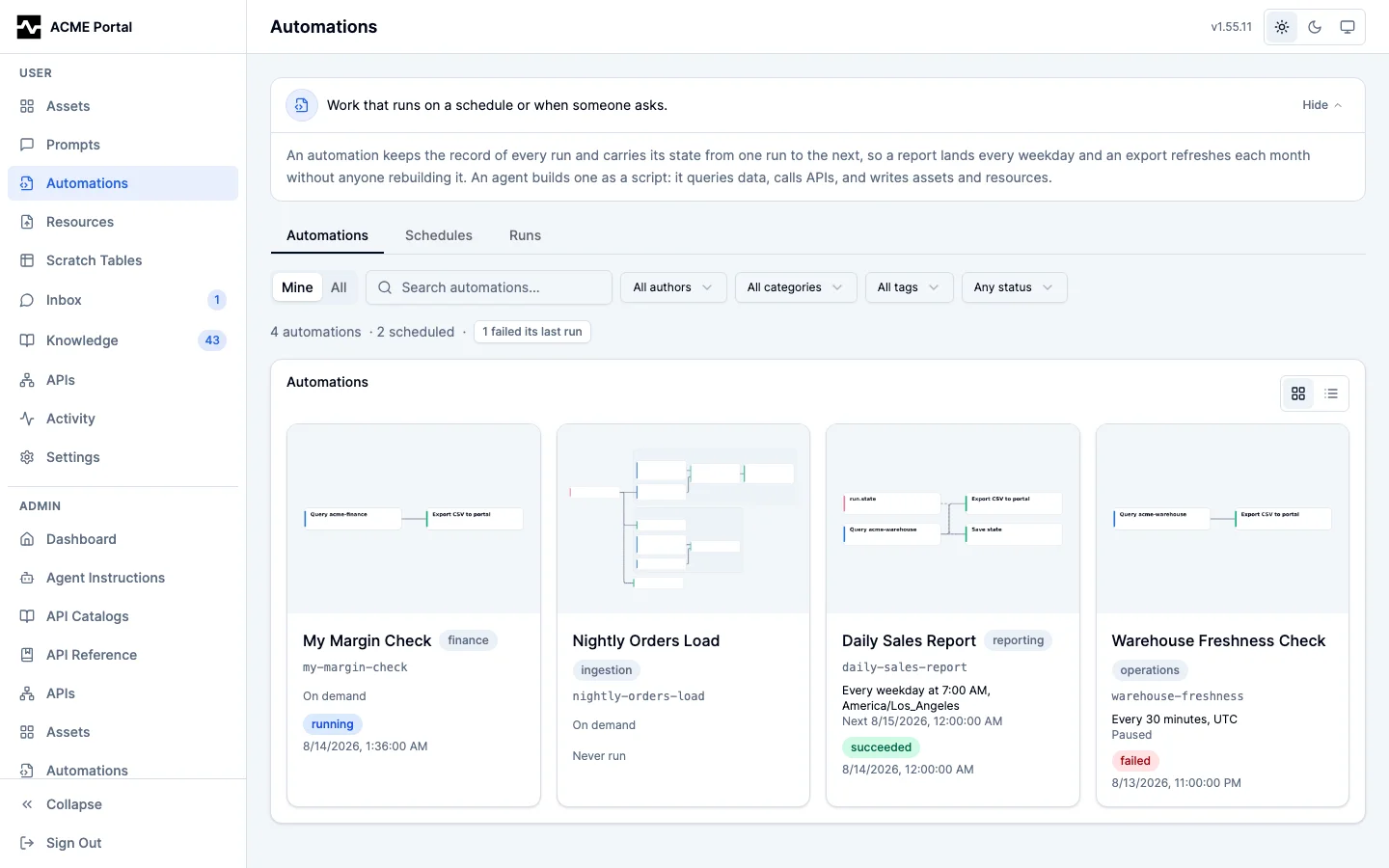
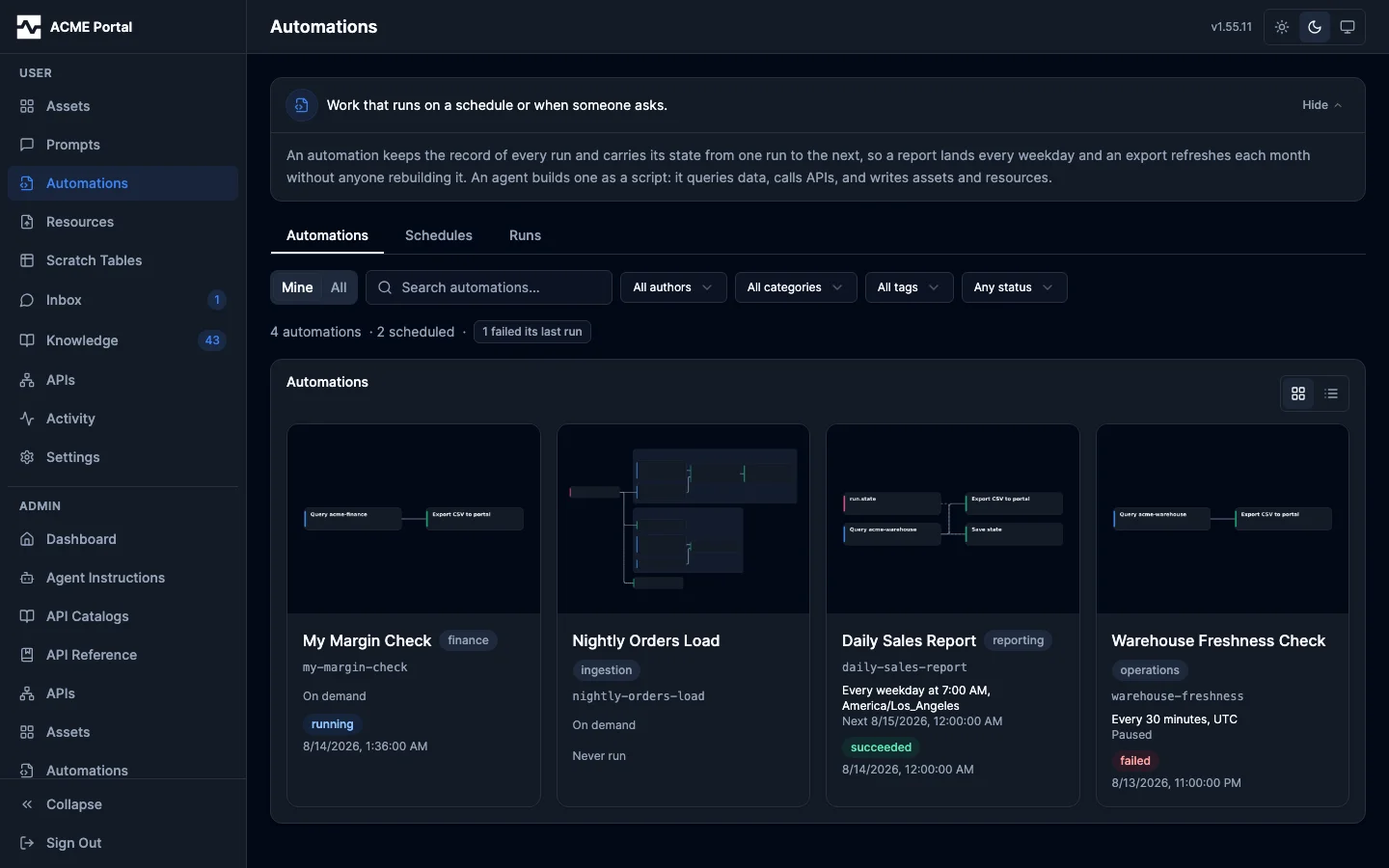
The platform draws the tiles itself, in light and dark, with the same thumbnail worker that
draws asset tiles, and draws a new one when a new version is saved. A script whose latest
version does not parse keeps the placeholder, and the reason is recorded with it. A
deleted script's tiles are removed. The tile is served at
GET /api/v1/portal/scripts/{id}/thumbnail (?variant=dark for the dark one) to everyone
who can read the script.
Before an agent has built anything for you, the page says so rather than showing an empty table, and suggests asking an agent to automate a report or an export you run repeatedly.
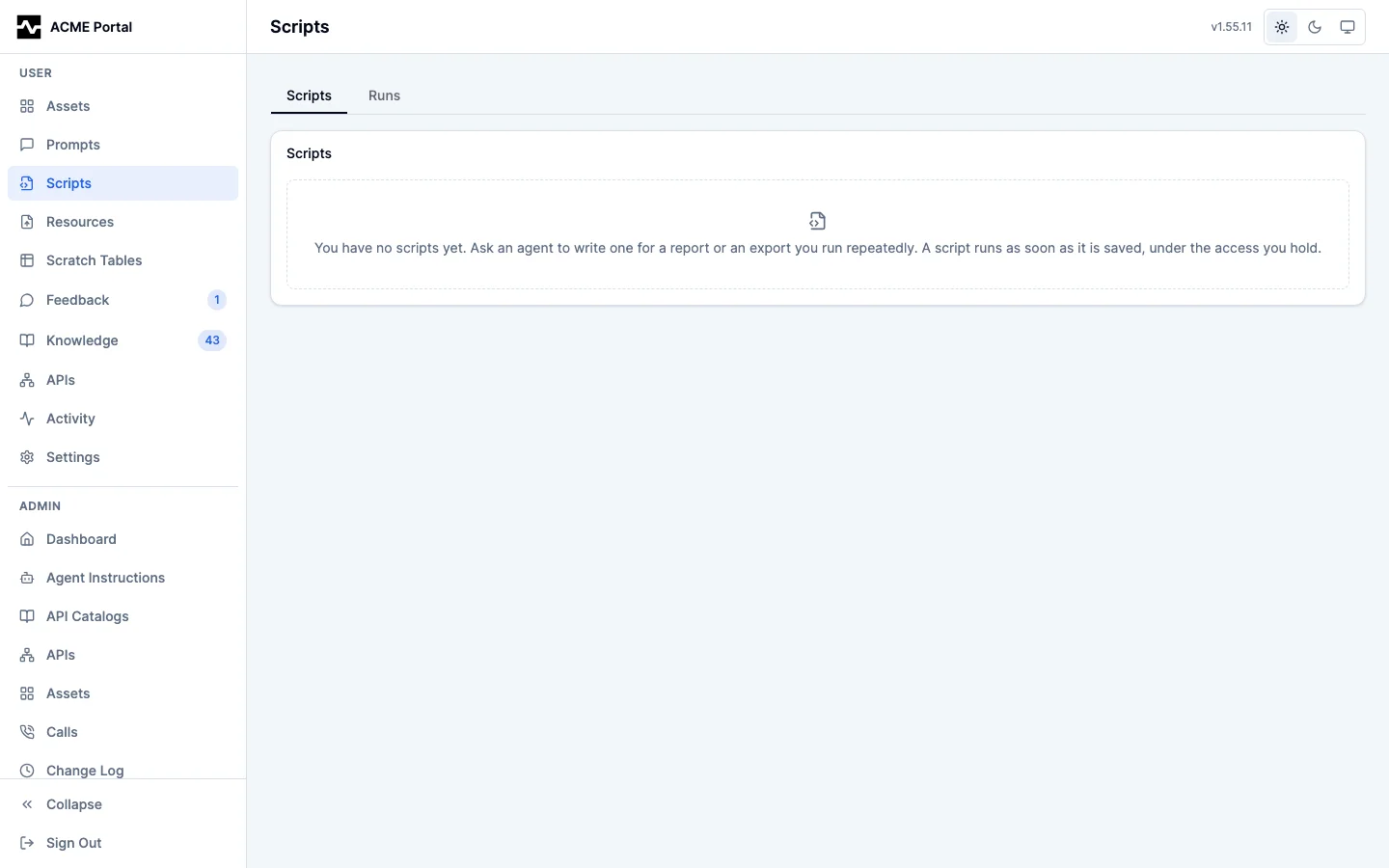
When your automations fire
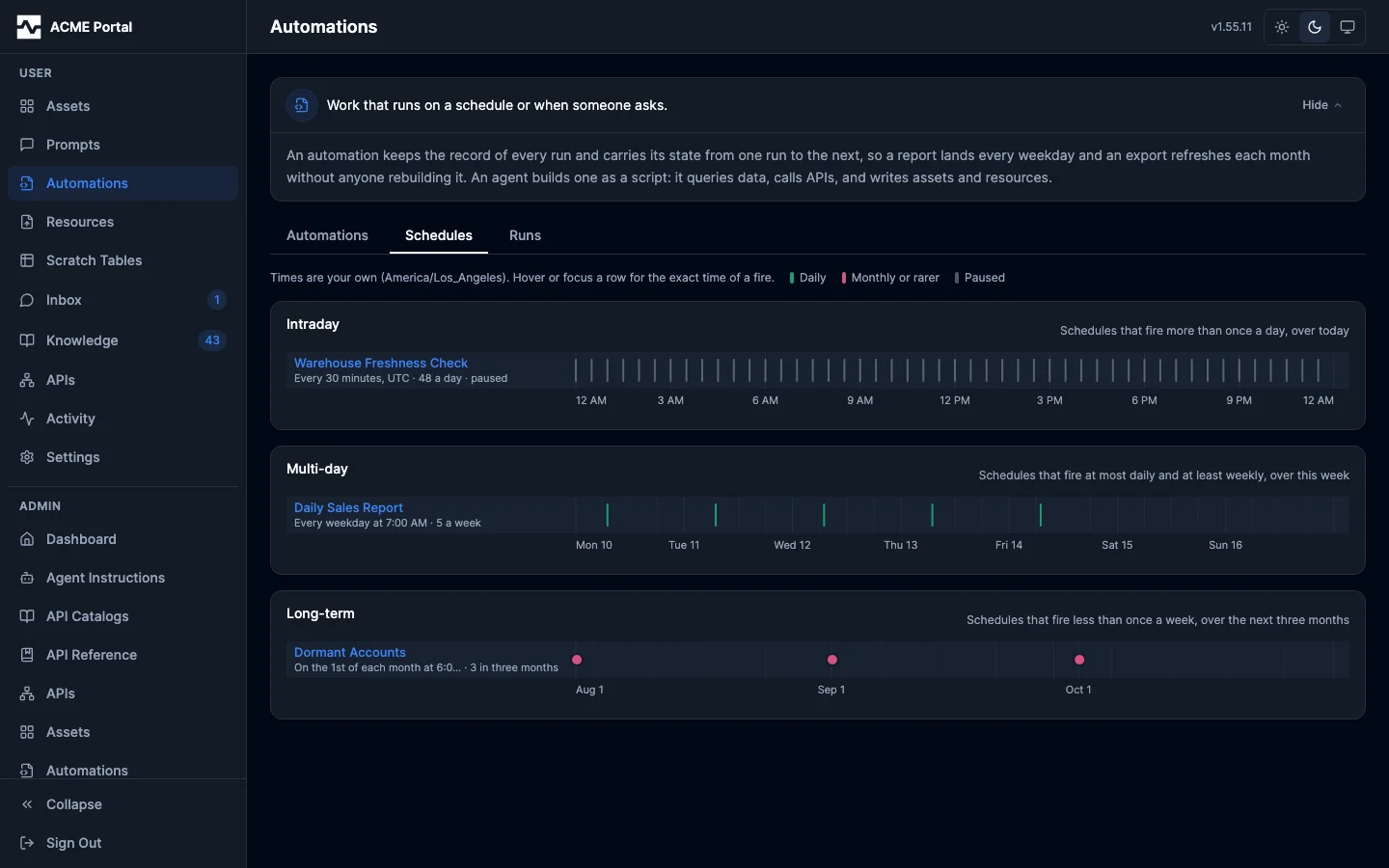
The Schedules tab draws when every scheduled script fires: one row per script, a mark at each fire, on the viewer's own clock. Schedules that fire more than once a day are drawn across today, daily-to-weekly ones across this week, and rarer ones across three months. A paused schedule is drawn muted. Rows in every section are in script-name order, ignoring case. The author, category and tag filters are the ones the Automations list has, and they combine; a section the filters leave empty says so rather than disappearing. Hovering a row gives the exact time of a fire, and clicking it opens the script. Seeing every schedule at once covers how a schedule's section and color are chosen.
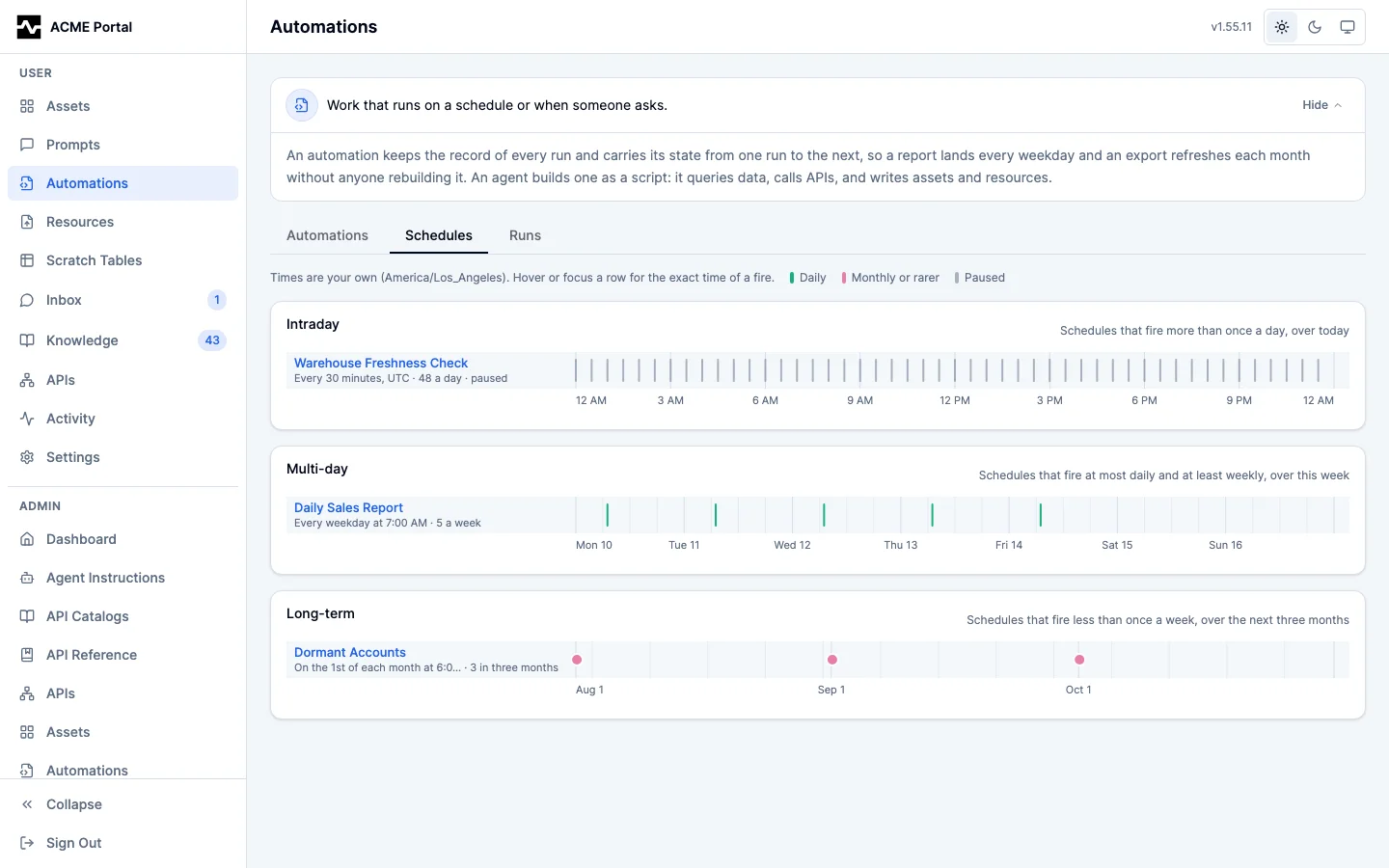
Every run, across your automations
The Runs tab answers the question the run history on one script cannot: not how is this report going, but how are your automations going, all of them. Every run of every automation you own, newest first, with what triggered it, how it ended, how long it took, and — when it failed — the reason, in the row rather than behind it.
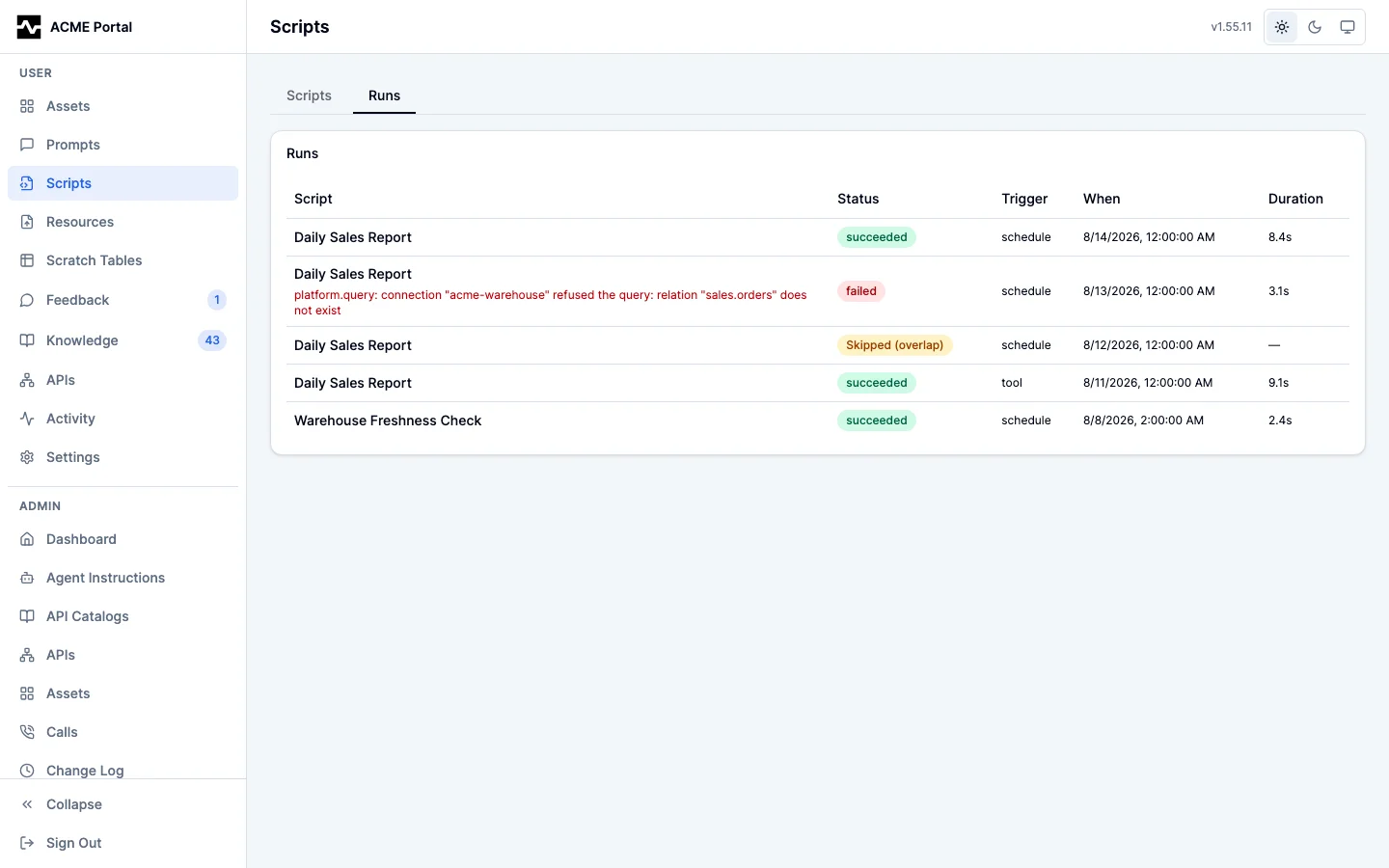
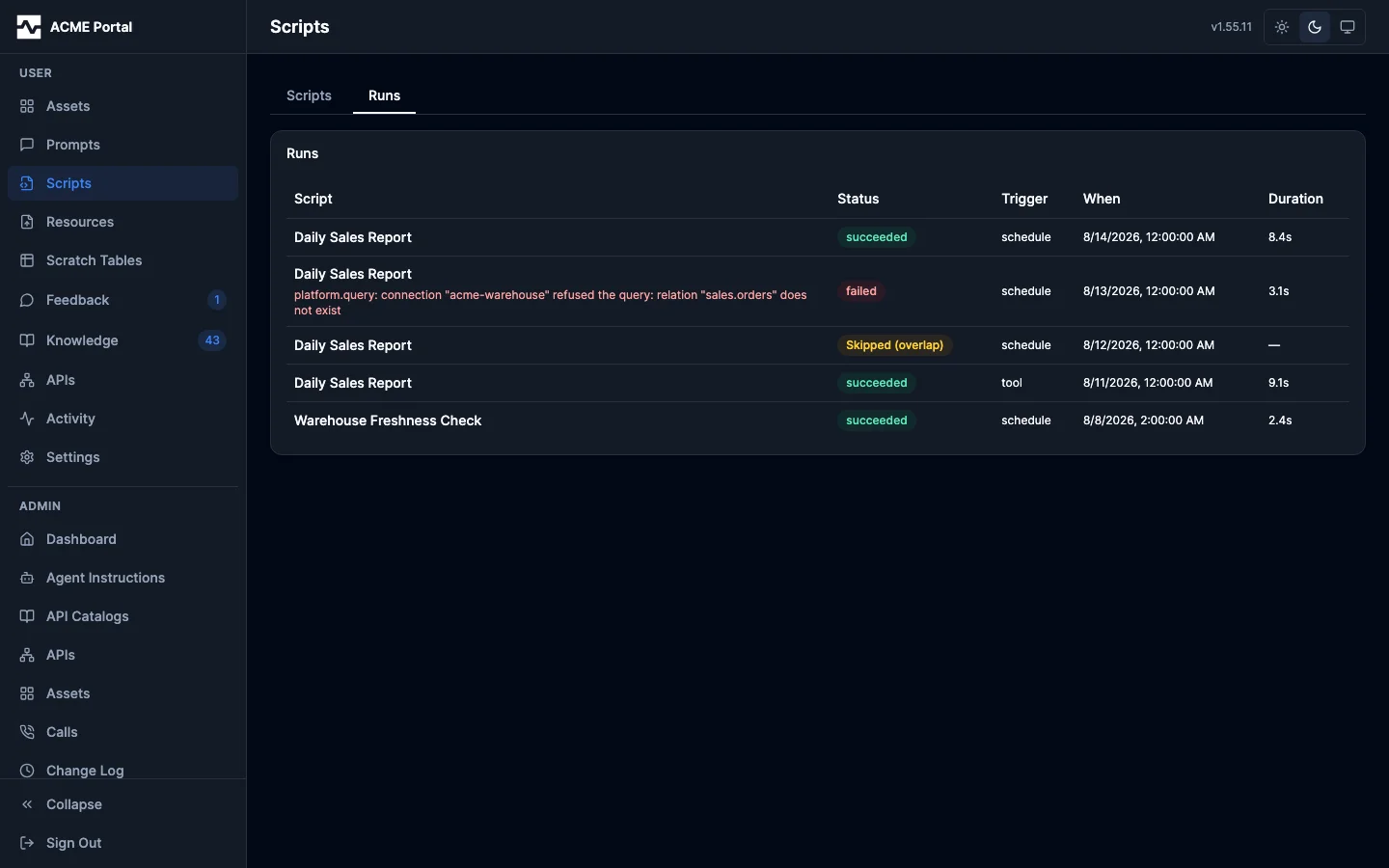
Opening a row opens that run: the script's page, with the run's log, its parameters and what it produced already open. The script's name in the row opens the script itself. A listing that fills its cap says so, and each script's own page carries its full history.
One script
Opening a script shows its Details: who owns it, which version runs, the schedule it fires on, when it fires next, and the parameters a run binds against. These are the same facts an agent gets when it resolves a reference to the script, so the page and your agent describe the script identically.
The page is ordered the way a script is debugged. Details first, then the schedule, then what the script says about itself, then the code — and the run history directly under the code, so an error in the history is answered by the text above it.
The schedule is folded, and says what the script runs without being opened: "Runs: Every weekday at 7:00 AM, America/Los_Angeles", or "Not scheduled". Open it to change the cadence; pausing and resuming are on the header either way. About starts open, because what a script is for is what you came to read, and folds away when the document is long enough to be in the way.
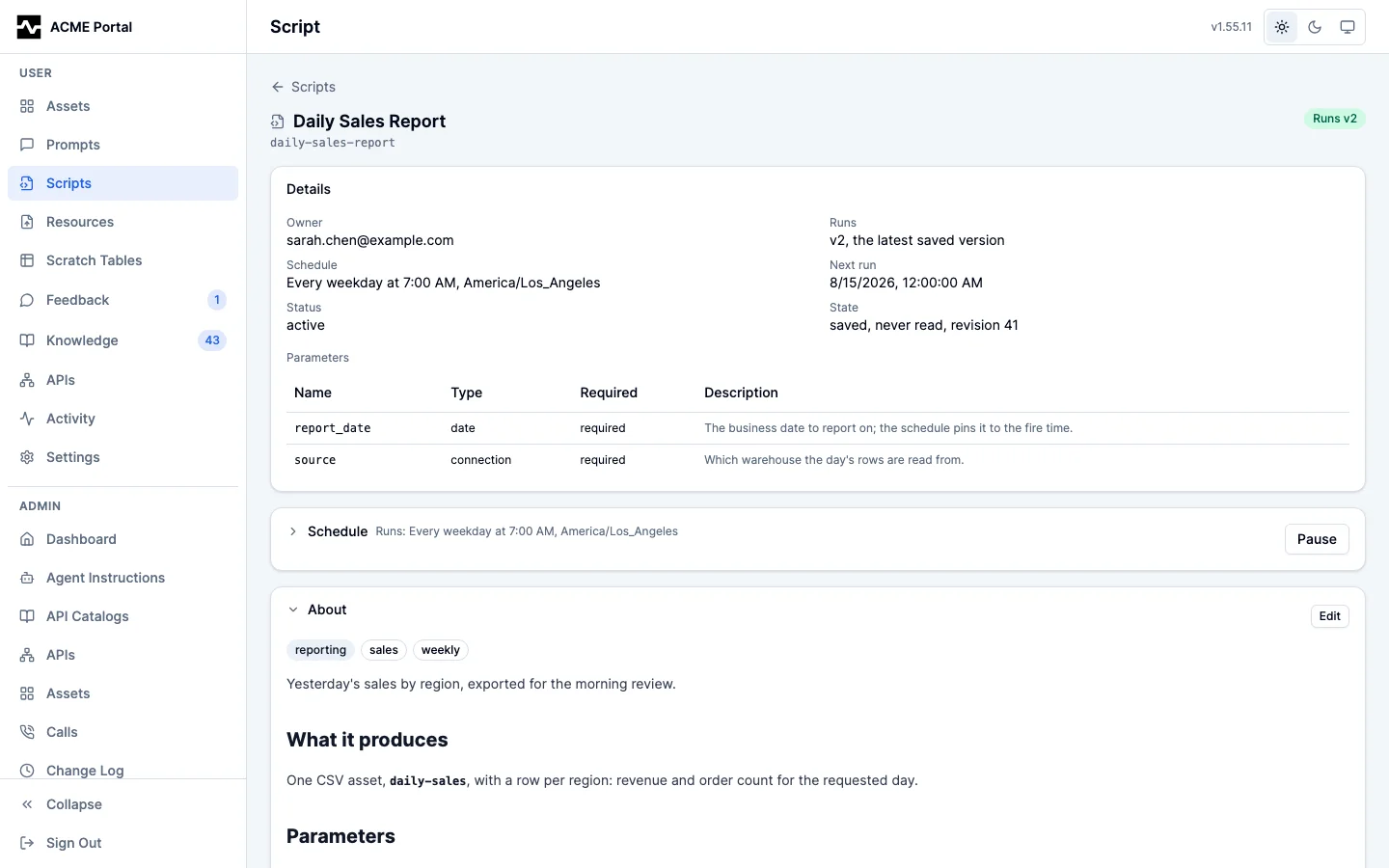
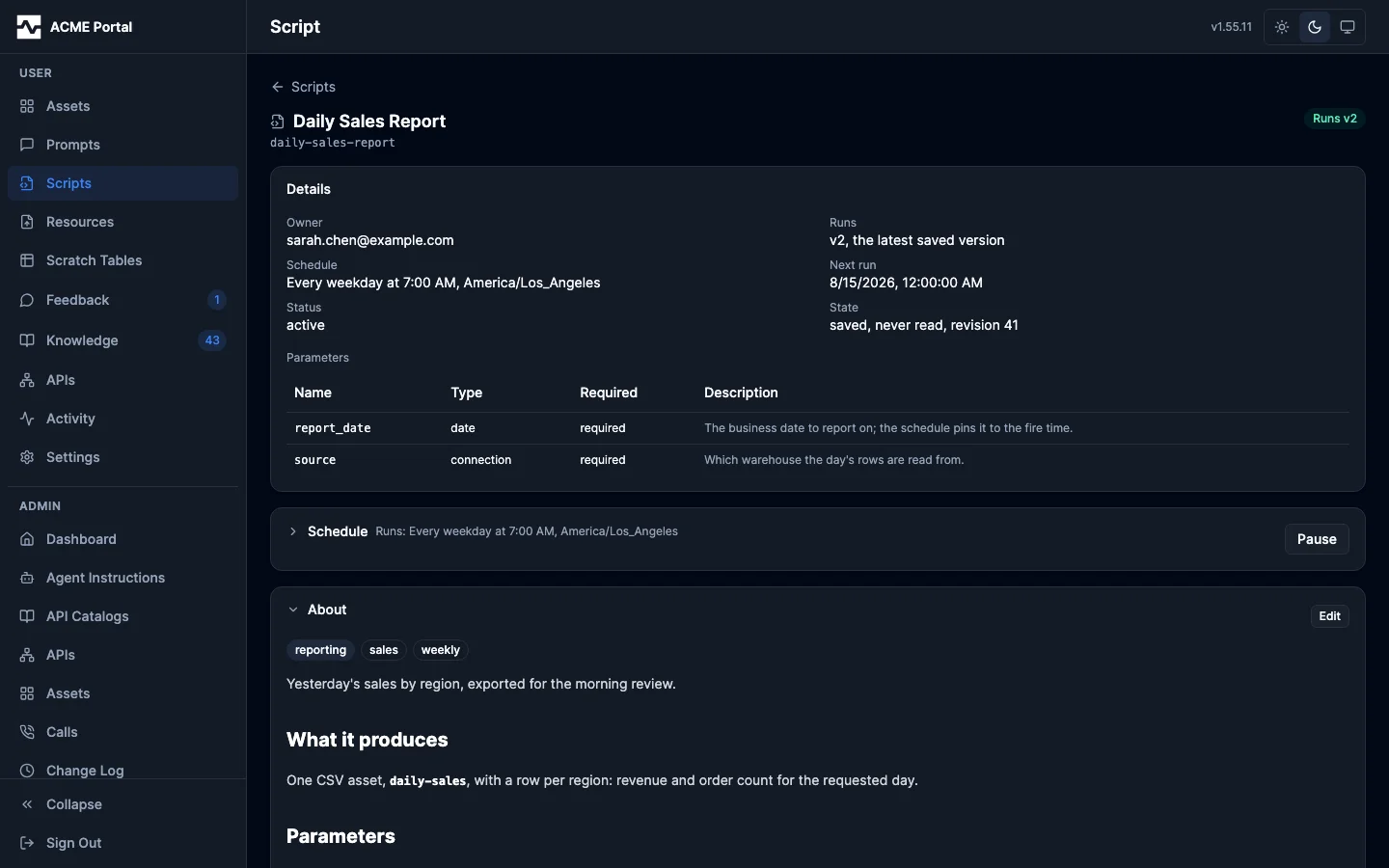
When a run would be refused — the script disabled or retired — the page carries the platform's own reason for the refusal rather than leaving you to work it out from the status.
The schedule
Below the details, on a script you own, is when it runs — folded, with what it does now in the header. Open it and pick how often — hourly, daily, weekdays, chosen days of the week, or a day of the month — set the time and the timezone it is read in, bind the value every fire passes, and pause or resume the whole thing.
You do not have to know cron. The page states what it will save in words ("Every weekday
at 7:00 AM, America/Los_Angeles") and shows the expression it produces underneath, and
there is a Custom choice for a schedule the builder cannot express. A schedule an
agent wrote through manage_script that the builder cannot express opens there, as
itself, rather than being rewritten into something near it.
The time is read in the zone beside it, so a report keeps its wall clock across a daylight-saving change, and the floor is one fire a minute. A monthly schedule past the 28th says plainly that the months without that day are skipped rather than moved.
A date parameter usually wants ${fire_date}, which expands to the day the schedule
fires rather than to the day you typed it — that is what makes a scheduled run
reproducible, because the run records the date it was computing for.
Pausing is its own control rather than a schedule you have to clear and retype. A paused schedule resumes on the fire it was parked on, and there is no way to delete one: the schedule is part of the explanation of the runs it produced. Fires that came due while the platform was not running them are counted and stated rather than caught up on, so a gap in a script's schedule is visible instead of turning into a burst of stale reports.
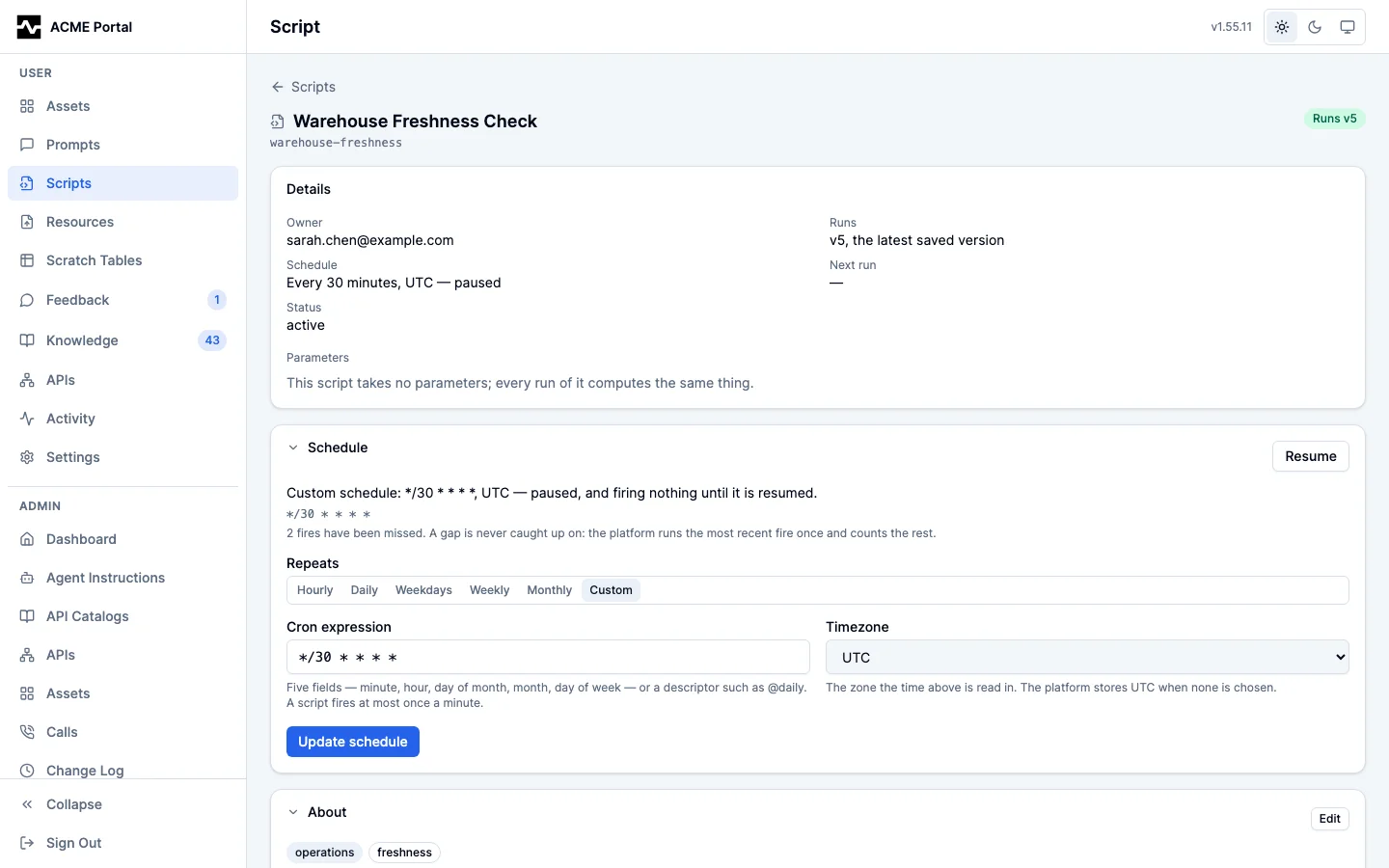
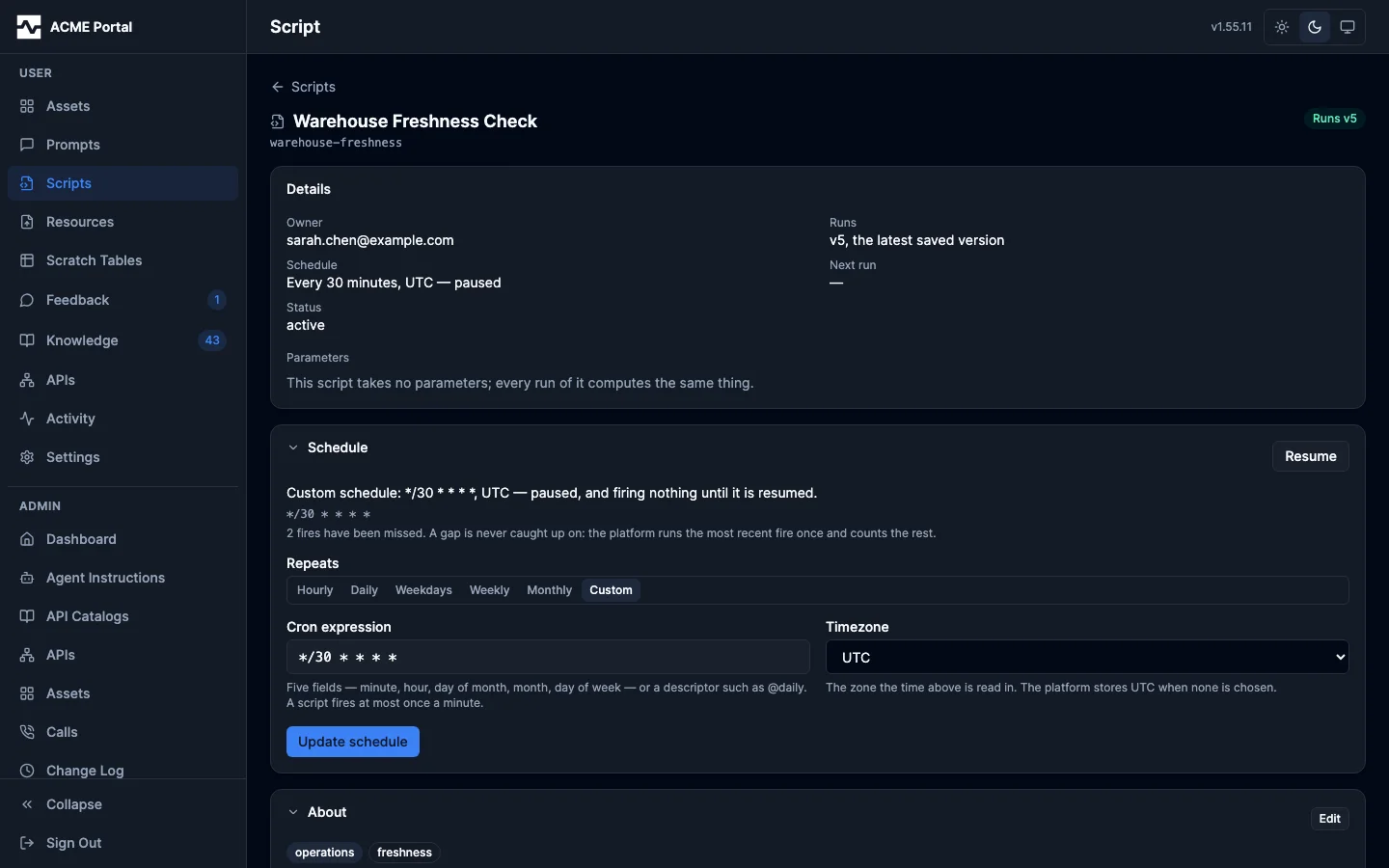
A schedule on a disabled or retired script saves, and fires nothing until the script is back in service, which the page says plainly rather than leaving you waiting on a run that was never going to happen.
About
What the script says about itself, written as a document rather than a caption: markdown, rendered the way an asset's description and a knowledge page are, with the category and tags it is filed under above it. On a script you own, Edit opens the four fields together — display name, category, tags, and the description, with a live preview beside what you type.
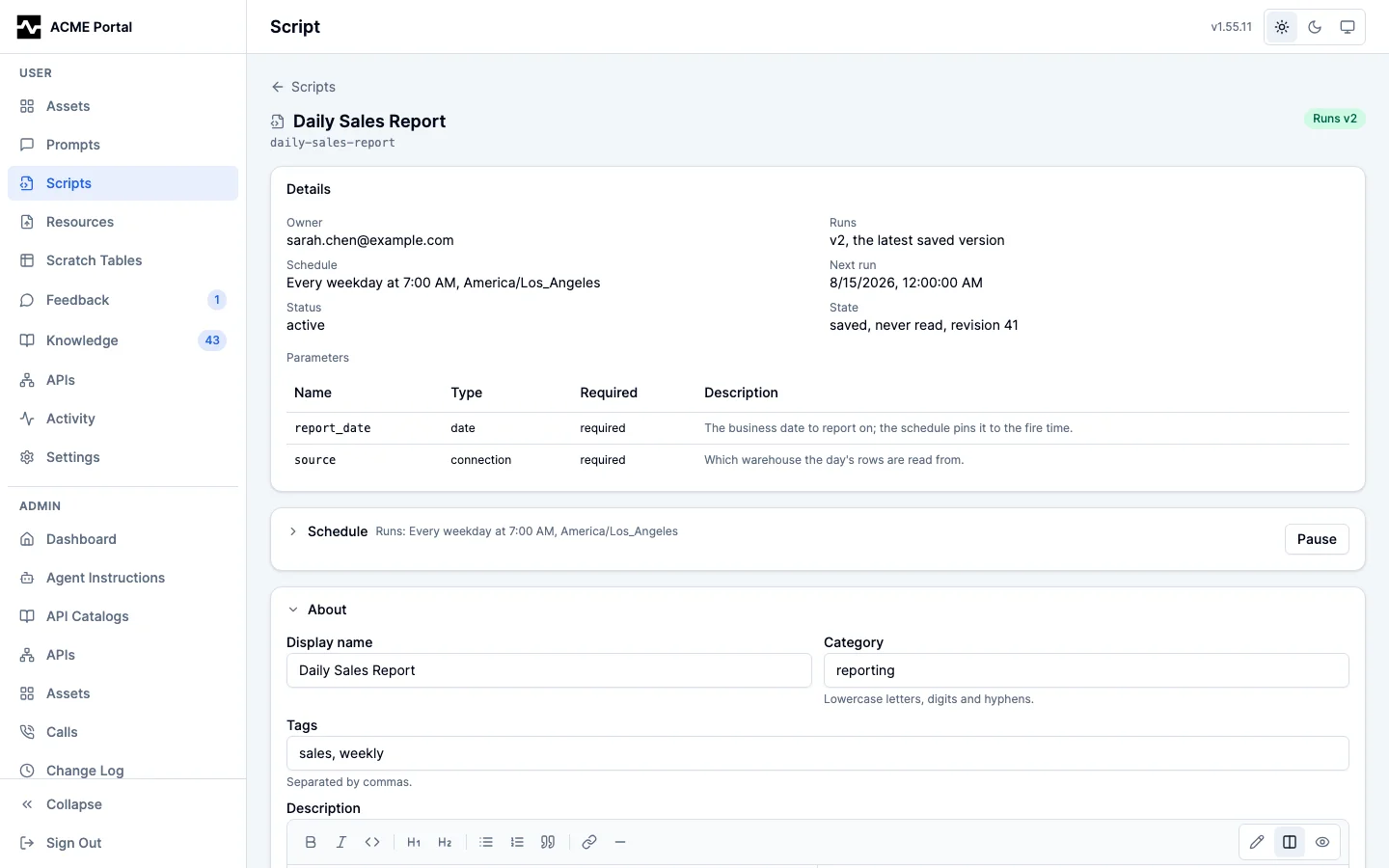
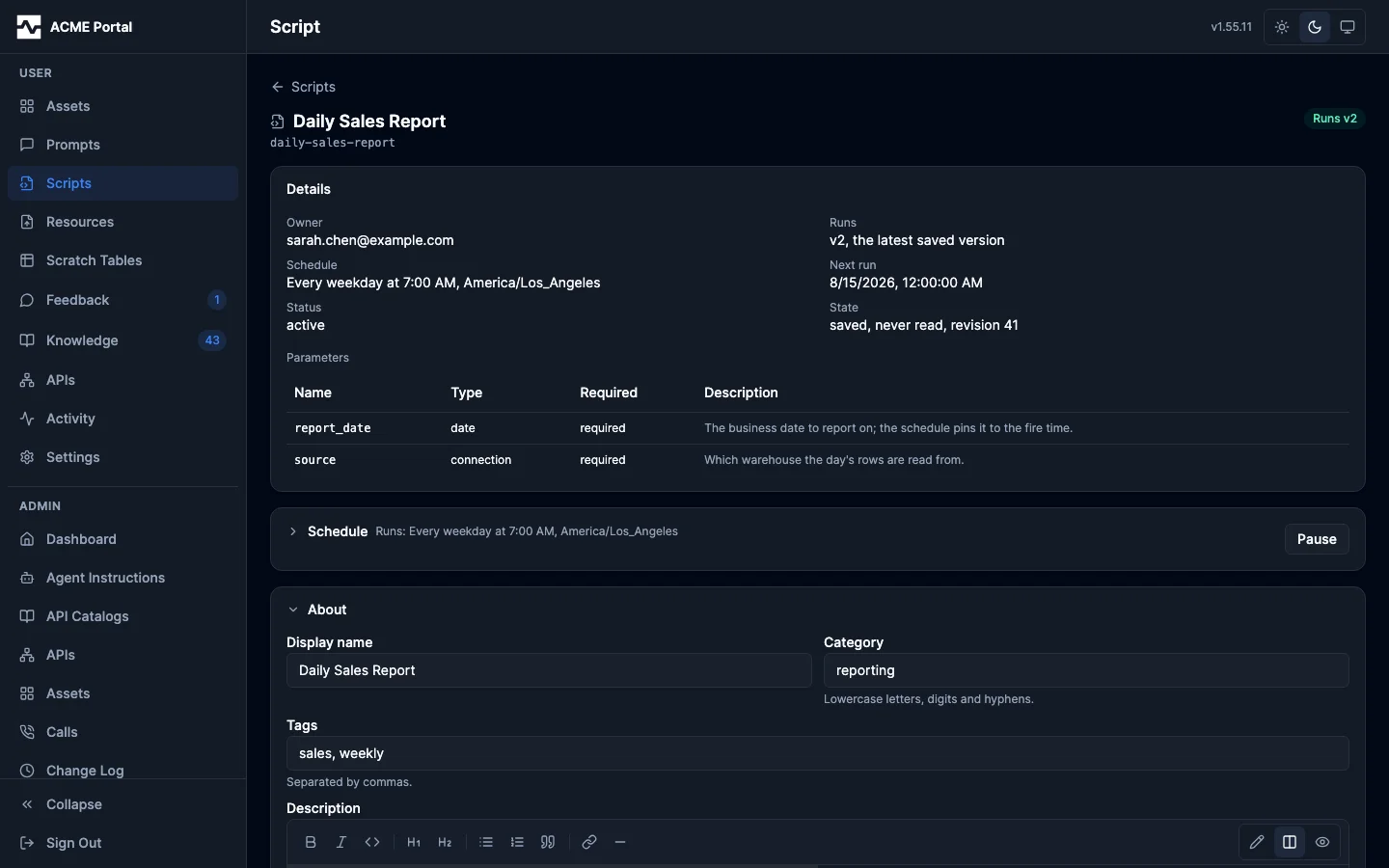
None of the four changes what the script does, so saving them applies at once: nothing is sent for review, and the version that is running is untouched. Write what the script produces, what each parameter means, and what it assumes about the data — this is what somebody reading the script in six months has instead of the code, and it is part of what search matches the script on. A description long enough to be a document in its own right is still saved, with a suggestion that the background might belong in a knowledge page you link to.
The flow of the work
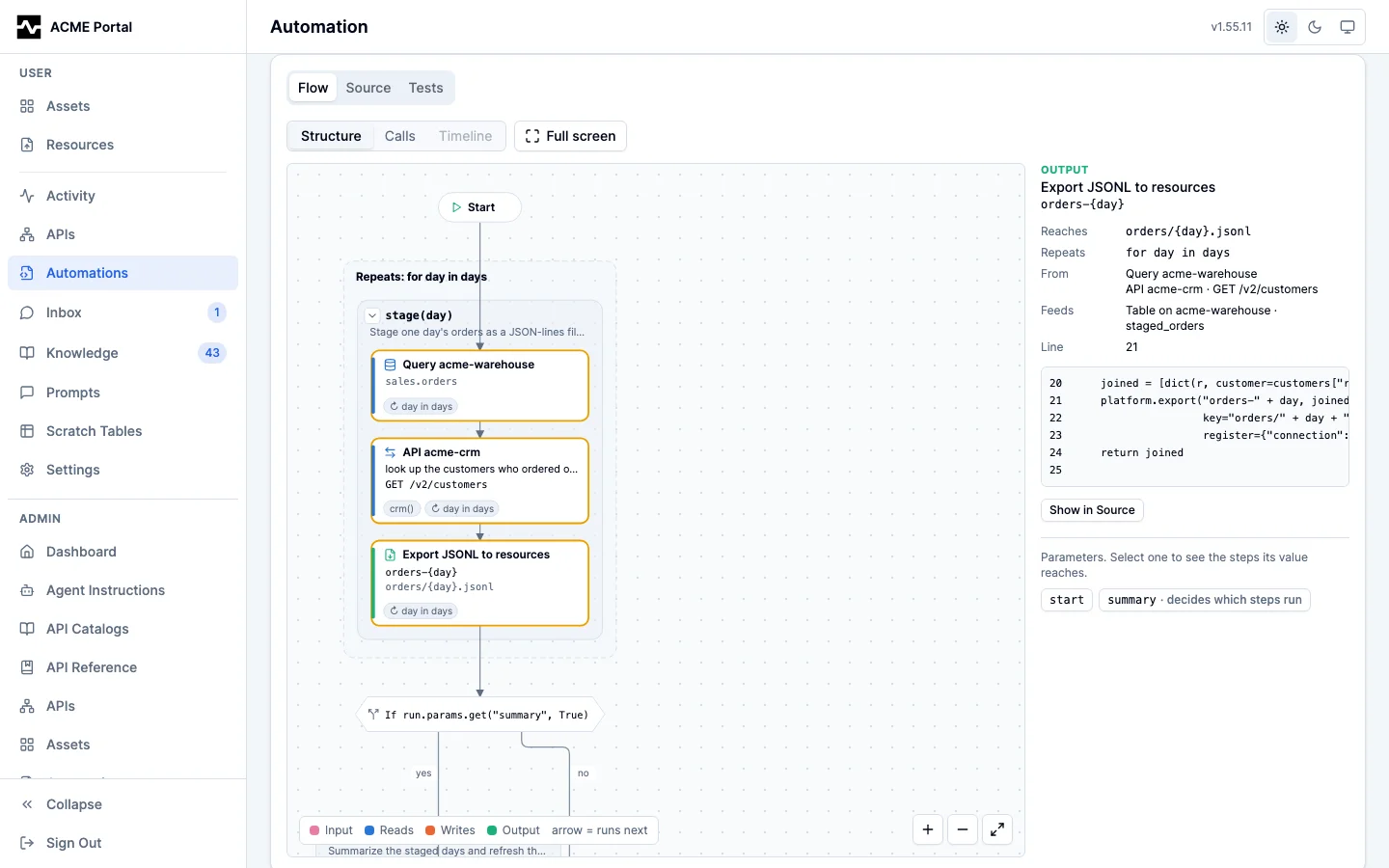
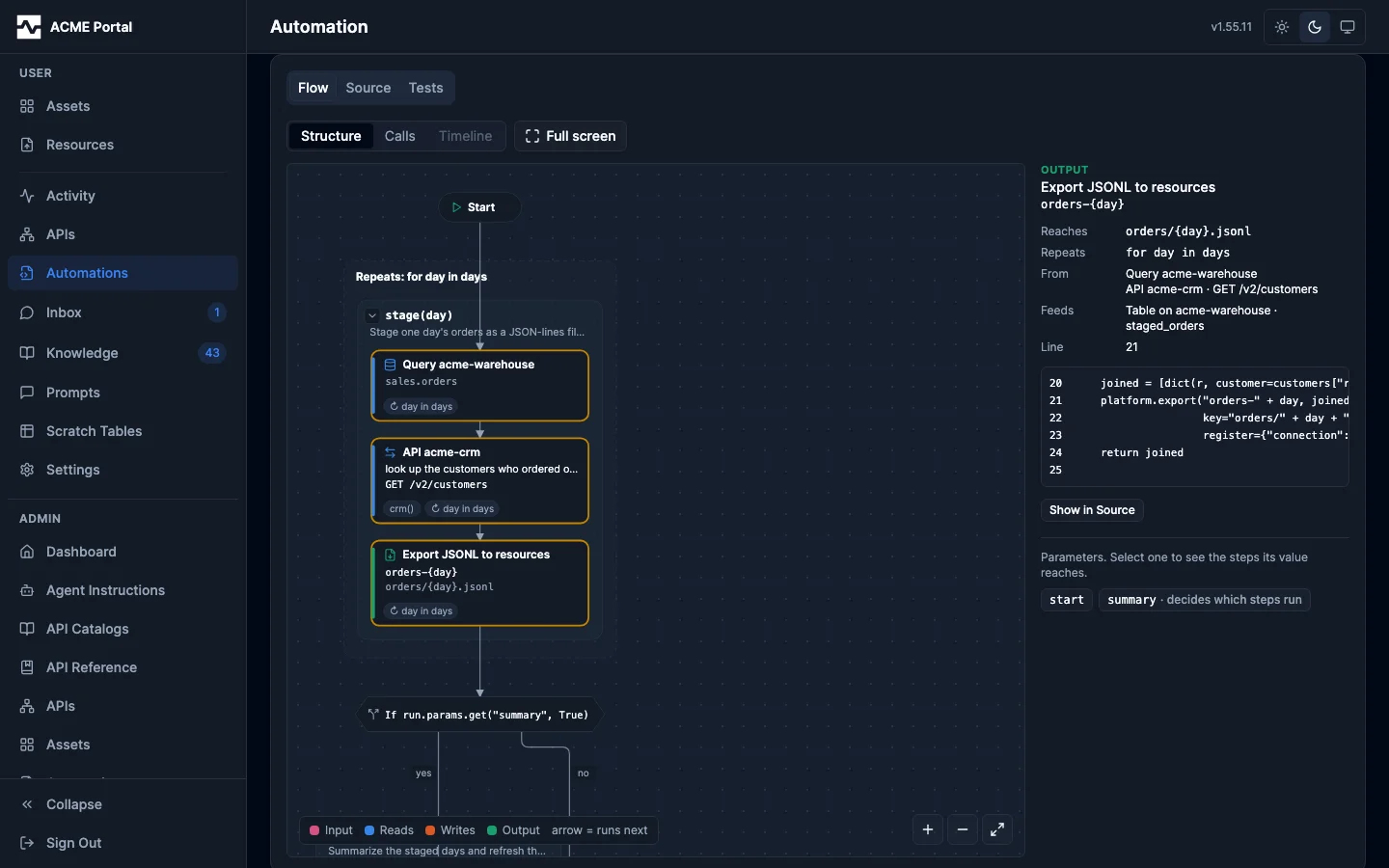
The code is one card with three tabs, Flow, Source and Tests, and Flow is the one that opens, for the script's owner and for everyone else who reads it (#1906). Nobody draws it. The platform reads the diagram off the saved version's source, so a new version has a new diagram and the diagram cannot disagree with the code. An edit you have not saved yet is drawn once you save it.
Above the diagram sit the Run menu (on a script you own), the view switch, which draws the script three ways, Structure, Calls and Timeline, and Full screen, which gives the diagram and the panel beside it the whole window until you press it again or Escape (#1972). The view you pick is kept for you, and in the page's address, so a link you copy opens on the same view.
Structure
Structure is the view the tab opens on: the script in the order it runs, drawn top to bottom the way a flowchart or a pipeline's job graph is (#1972). It has no cycles.
- Start is where a run begins and End where it finishes. An arrow means "runs next".
- Each card is one call the script makes on the platform: a query, an API call, a write, an export, a notification, the state it saves. The colored bar says whether it reads, writes or produces an output.
- If is a decision, with the condition as the source writes it. Its two arrows are its yes and no arms, which meet again where the script goes on.
- A dashed box repeats: its heading is the loop,
Repeats: for page in range(2, pages), and the cards inside run once per pass. - A grey box is a function of the script, drawn where it is called, with the first sentence of its comment under its name. Its arrow folds it into one card and opens it again; a function holding more than eight steps opens folded. A function whose only effect is one call is not a box: it is the card.
- Stops is a
fail(), with its message: the run ends there. Returns early is areturnfrommain()before its end. - run.state is read at the top and saved by a card at the bottom, so the picture has no arrow back.
Select a card to read it in full beside the diagram: what it reaches, what feeds it and what it feeds, and the lines it came from. Selecting a card also lights the cards it takes data from and the cards its result feeds. Select a decision, an exit or a box to read its line and open it in Source. Double-click a card, or press Show in Source, to open its lines on the Source tab; lines you select on the Source tab light up the cards they produce when you come back. When the saved version kept its test report, a small diamond marks each step the tests do not reach.
Calls
Calls draws the same cards by what feeds what: an arrow means the result of one call is used
by the next, left to right. Hovering an arrow names the functions that reshaped the data on
the way, and an arrow a longer path already implies is left out. A dashed card names
something the script only computes when it runs, written as {the code}; the diagram never
guesses a name. The parameters a run takes are listed beside either diagram rather than
drawn as wires; selecting one lights up exactly the steps its value reaches.
A version that does not parse (one saved before a rule of the language changed) shows what
is wrong with it in place of a diagram. Both views are served from
GET /api/v1/portal/scripts/{id}/versions/{version}/graph (the Structure view is its
structure), readable by everyone who can read the source, and
GET /api/v1/admin/scripts/{id}/versions/{version}/graph for an administrator. It is not
part of any tool response: an agent reads the code.
A run on the diagram
On a script you own, and on every script for an administrator, the Flow tab opens on the
latest run drawn on the diagram (#1907). The Run menu lists the newest 25 runs, each by
when it happened and how, then how it ended and its version
(Sep 28, 10:57 PM · manual · failed · v10), and the menu next to it narrows the list to the
newest 25 failed or succeeded runs (#1990). The Runs tab pages through the whole history.
No run draws the saved version on its own. A run of an older version is drawn on that version's diagram.
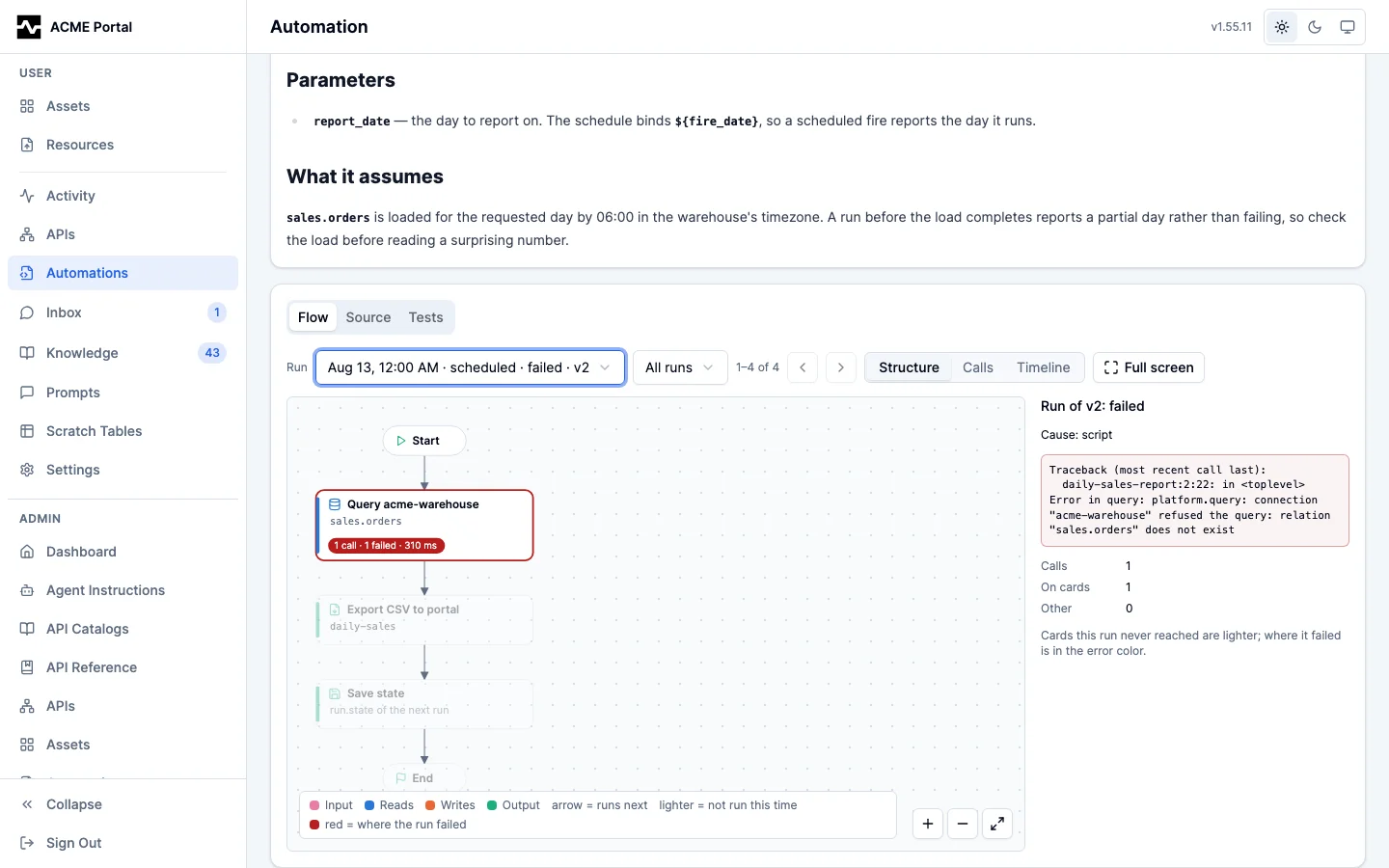
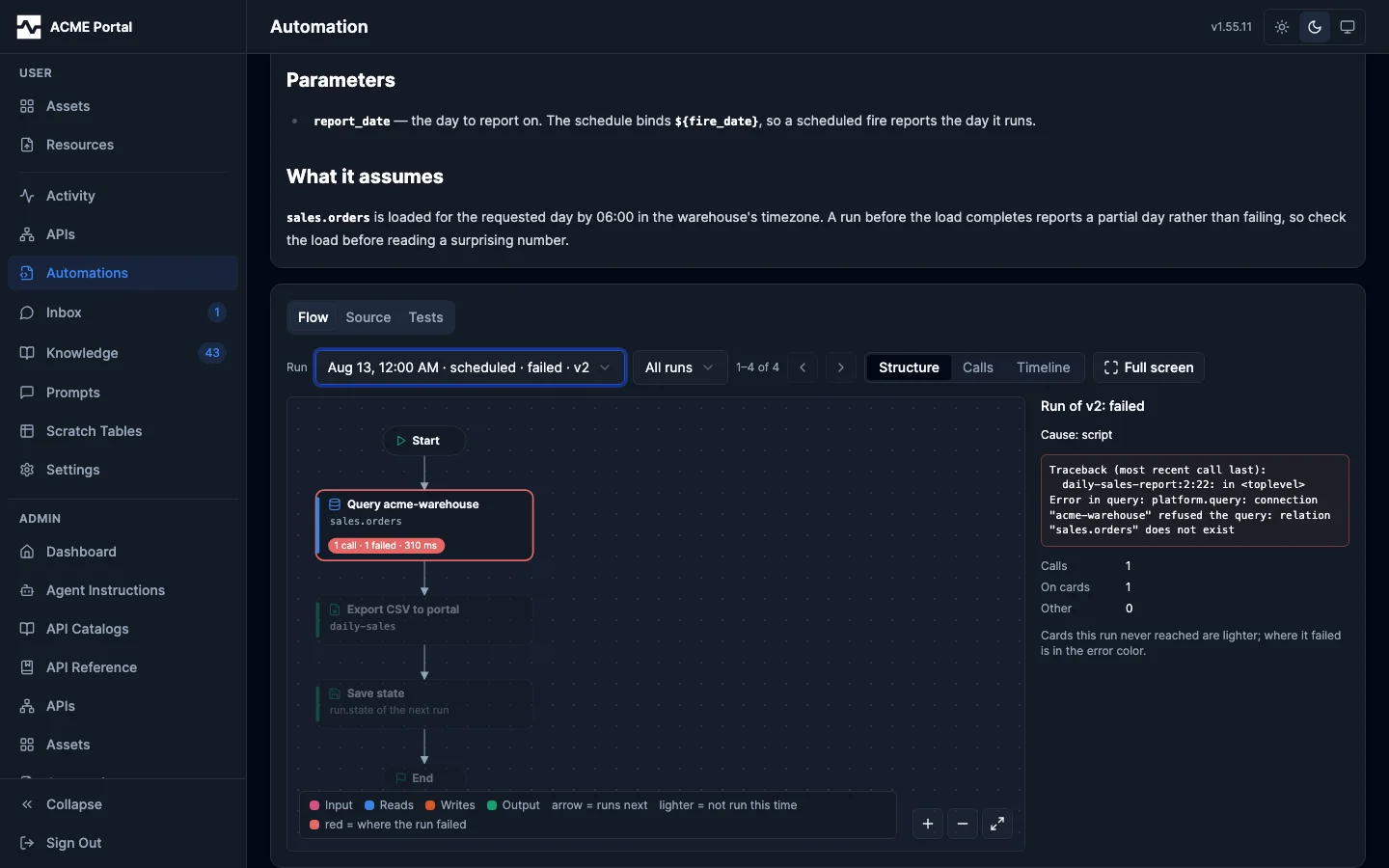
- Each card says what it did in this run: how many calls it made, how many of them
failed, and how long they took (hover the chip for the failed call's message); the rows
it exported; or that it ran. A loop's box counts the passes its calls made,
×54. - What the run did not reach is lighter, End included when the run did not finish.
- Where a failed run stopped is in the error color: the card of the call it failed at,
the Stops of the
fail()it ended in, or the box of the function whose own code failed. The panel beside the diagram gives the run's cause and the error it ended with. - A call that failed in a run that carried on (one a retry answered, say) is counted on its card; only where the run stopped is marked failed.
- The panel counts the run's calls, how many are on cards, and any no card made, grouped by
tool with the failures first and each failure's message counted:
api_invoke_endpoint: 54 succeeded, 144 failed (Not Found 132, Forbidden 12), median 76 ms. Each row opens to its calls.
Every call a script makes is recorded with where in the script it was made: the line and
column of each call on the way down to it, from the top-level line to the platform.* call
itself. The diagram records the same positions on each card, so a call is put on the card
that made it rather than on the first card that looks like it: a helper called from two
places is two cards, and each gets its own calls. A run made before those positions were
recorded cannot be drawn on the cards: the diagram says so, dims nothing, and the panel
groups its calls by tool. The drawn run is served at
GET /api/v1/portal/scripts/{id}/runs/{runID}/flow to the script's owner and to
administrators, and reads at most 10,000 of the run's calls, saying so when there were
more. The run history the menu pages is
GET /api/v1/portal/scripts/{id}/runs?per_page=25&page=2&status=failed, whose total is
every run the filter matches.
Which arm of a decision a run took is not recorded yet: only a call inside an arm shows that the run went that way.
Timeline
With a run drawn, Timeline places each of its calls in time: left to right is the time
since the run started, main() is the top row, each function a call was made through is a
row below it, and the call itself is the bar at the bottom of its stack, as long as the call
took. The gaps between bars are the script's own work between calls, and the line above the
chart says how much of the run was calls in flight and how much was the script. A failed
call is outlined in the error color; hover a bar for its tool, time, the size of its answer
and its error, and select it to read its card beside the chart. The zoom buttons stretch the
time axis.
Tests
The Tests tab lists the version's test_* functions, how each one did when the version
was saved, and the share of its statements they reach, with the lines no test reaches (each
opens in Source). A save runs the tests and keeps what they found on the version it creates
(#1972), and a version written without changing the source, such as an owner transfer, keeps
the report of the version before it. A version saved before reports were kept says so; on a
script you own, Run the tests runs them against the saved version there and then.
The code, and running it
On the Source tab of a script you own, the source is editable in place, with Starlark highlighted as the
Python dialect it is. Saving makes the edit the version that runs: run_script executes
it, any schedule fires it, and it runs under the access you hold when you save.
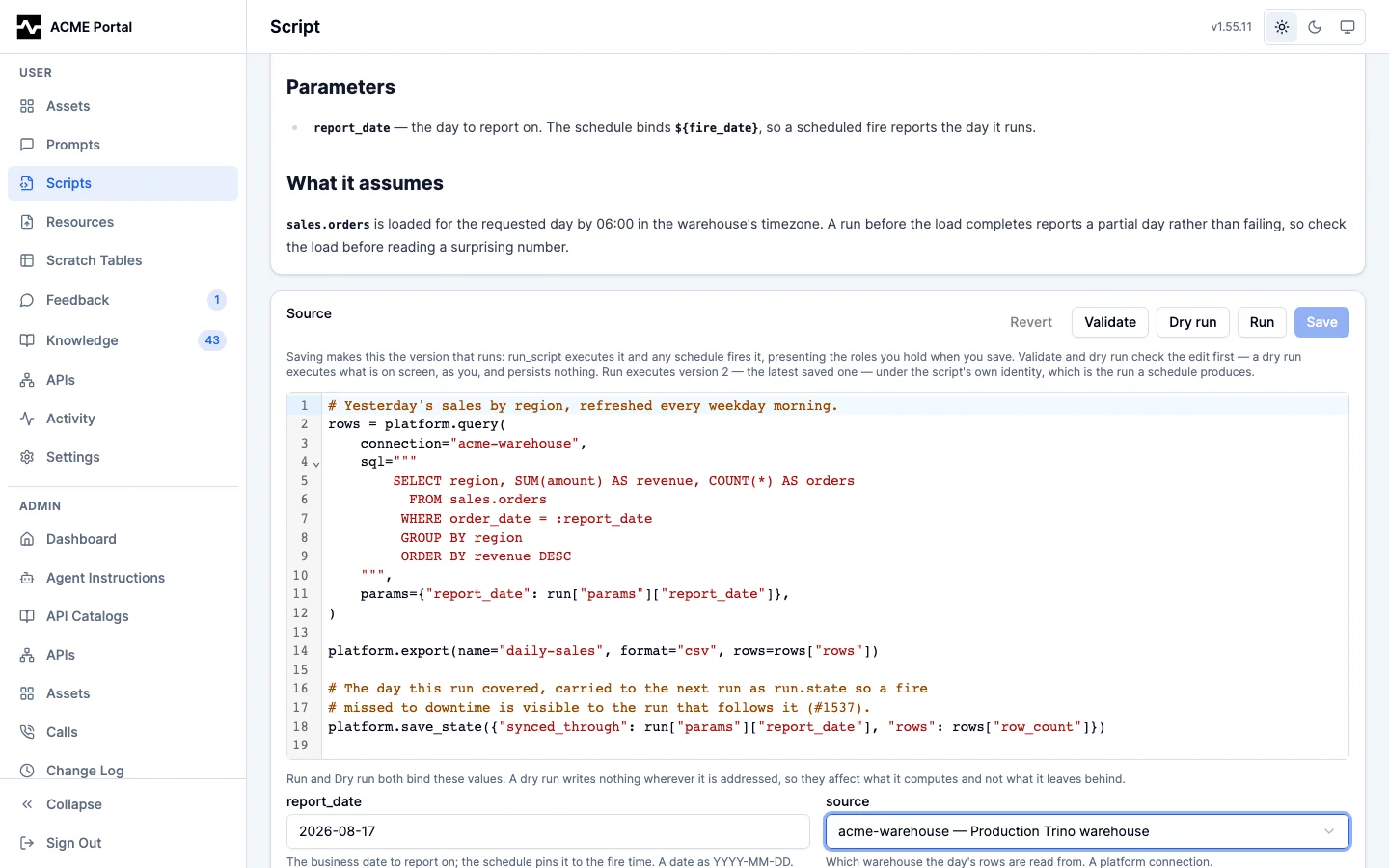
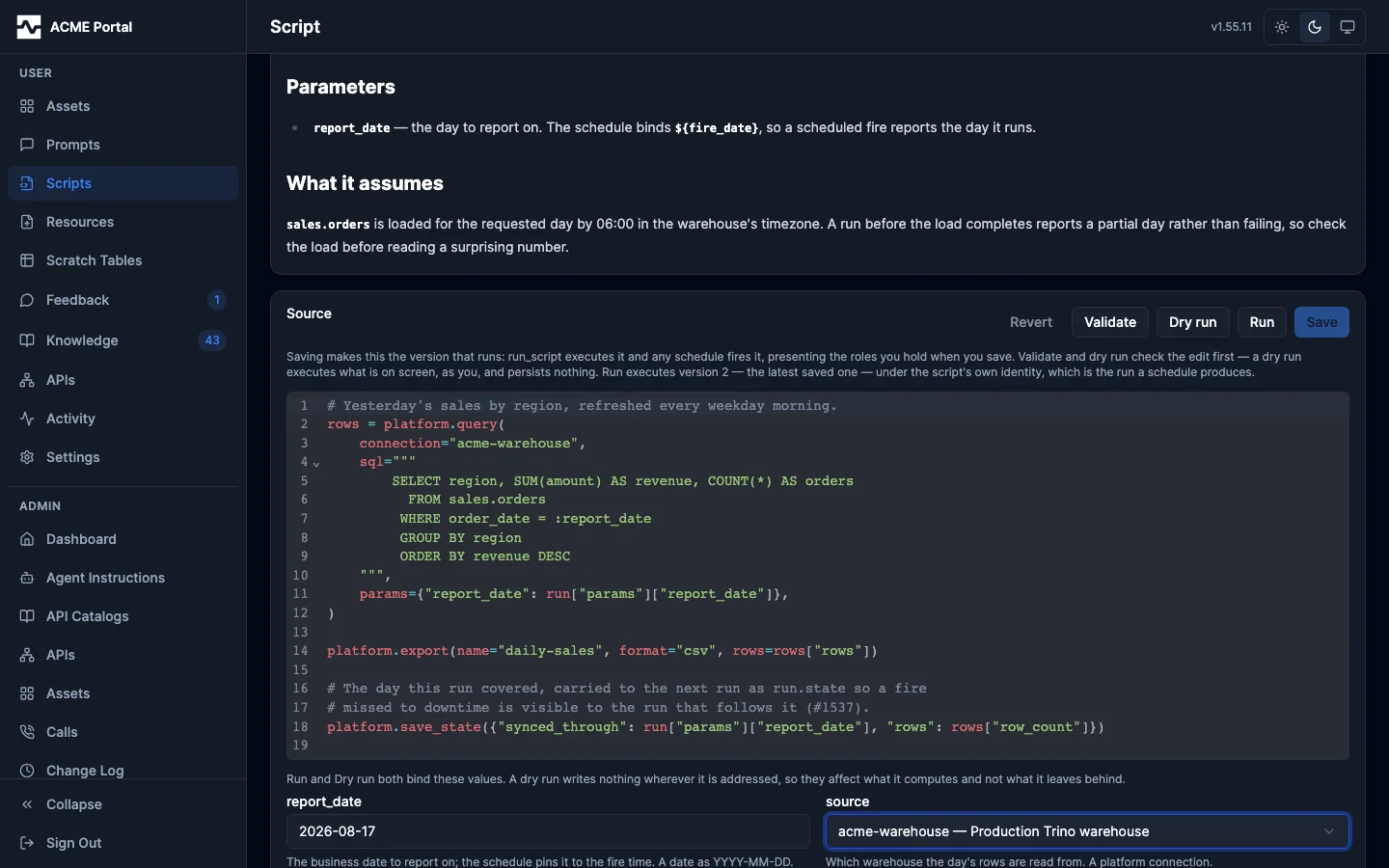
Source that does not parse is refused when you save it, naming what to fix, rather than failing at the next run with nobody watching.
Run and Dry run sit side by side above the editor, on the Source tab, because they are the same question asked of two texts: Run executes the saved version, a dry run executes what is on screen. One parameter form below the editor supplies the values for both.
Run produces fresh output without waiting for the next scheduled fire, and queues exactly
what an agent's run_script queues: the platform executes it the same way a scheduled
fire is executed, and it appears in the run history directly below and updates as it
goes.
One run at a time, the checkbox at the top of the run history, keeps a script from running twice at once (#1986). With it set, a run cannot start while another run of the script is pending or running, whoever or whatever started it: Run is refused with a message naming the open run, nothing is queued, and a scheduled fire that comes due is recorded as skipped with the same name. Set it on a script whose runs send data somewhere or move a cursor, where two runs from the same state would do the work twice. Turning it on while more than one run is open is refused until at most one is.
Where a value comes from a set the platform already knows, the form offers the set rather than asking you to remember the spelling. A parameter naming a connection is a list of the connections your access reaches, each with what it is; a parameter with declared choices is those choices. A box is for a value the platform genuinely cannot enumerate.
A script nothing would execute has no Run control at all, for the reason stated at the top of the page, rather than a button that fails when you press it. Editing, checking and saving stay available, because fixing the script is how it comes back into service.
Checking a change before you send it
Beside Run are the two things you would otherwise have had to ask an agent for.
Validate parses what is on screen and tells you what it would reach — which capabilities, which connections, where it writes — and, if it does not parse, what to fix and where. Nothing runs and nothing is saved.
Dry run actually executes it, as you: your identity, your access, tighter limits, and nothing kept. Outputs are measured rather than written, so you see how many rows and how big each one would be without a dashboard being refreshed or a file leaving the platform. You get the log the script printed, which is usually the whole reason to have run it, and a failure is reported with the same detail a success is.
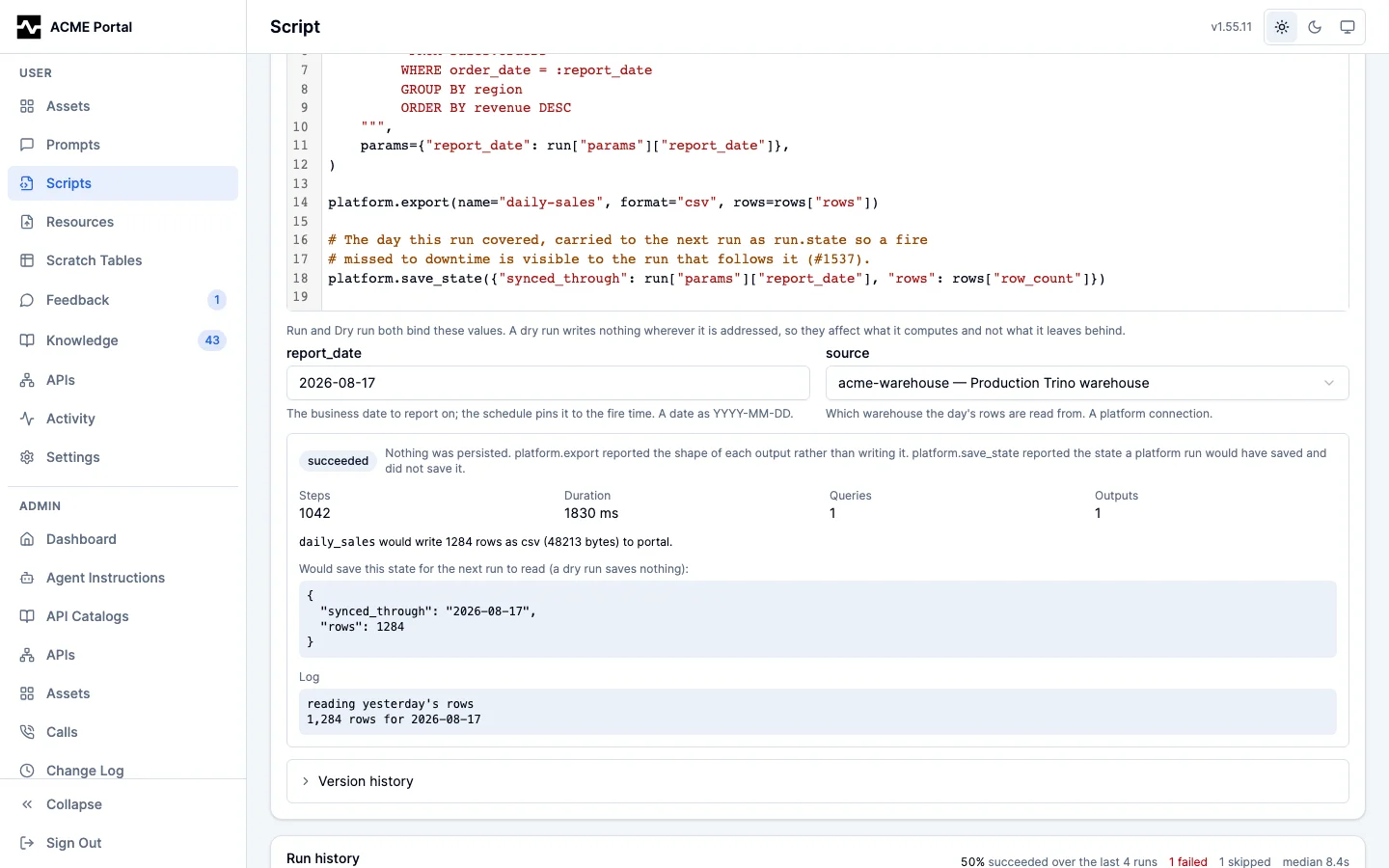
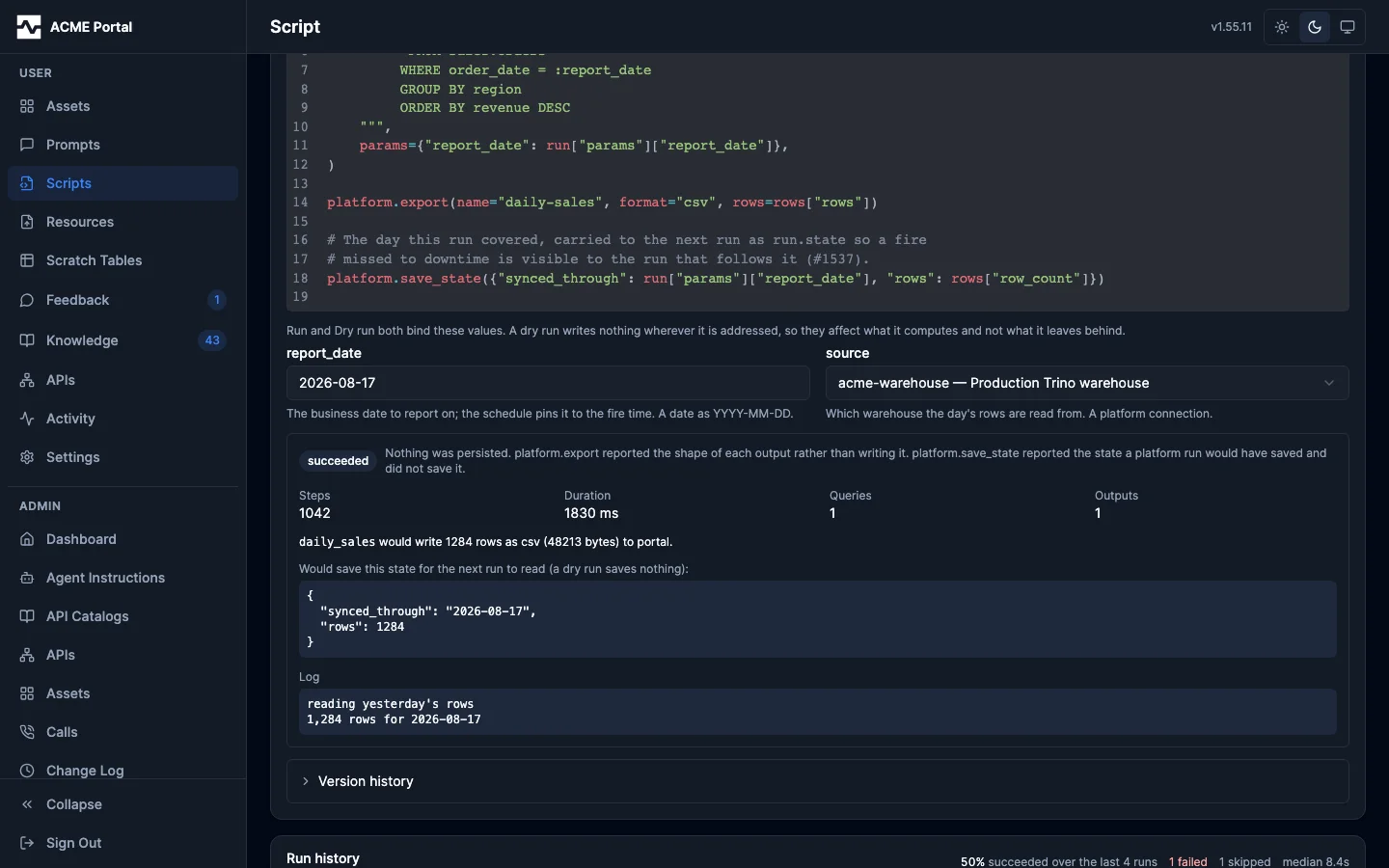
Because a dry run is you running it, it reaches exactly what you reach and nothing more. The record of the run is kept with the script, so anyone reading a version later can see that its exact code was executed, by whom, and what it produced — and a version nobody has dry-run says so.
Version history
Folded into the Source tab is every version of the script, each with its author and, on a script you own, the roles they held at the save, which are the roles a run of that version presents. It opens on a reveal rather than standing as a section of its own: the editor above it already holds the version that runs, so what the history adds is the versions before that one.
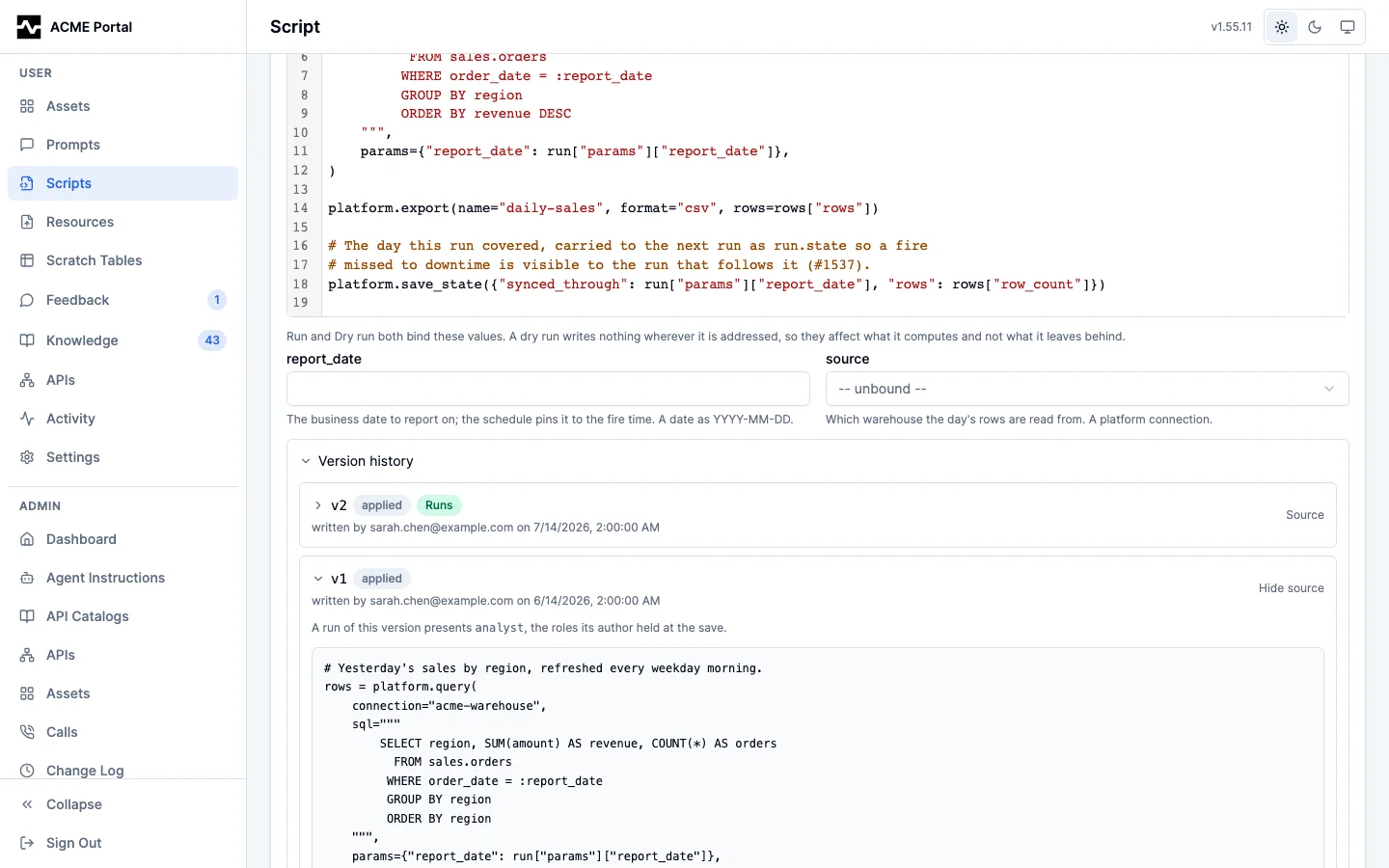
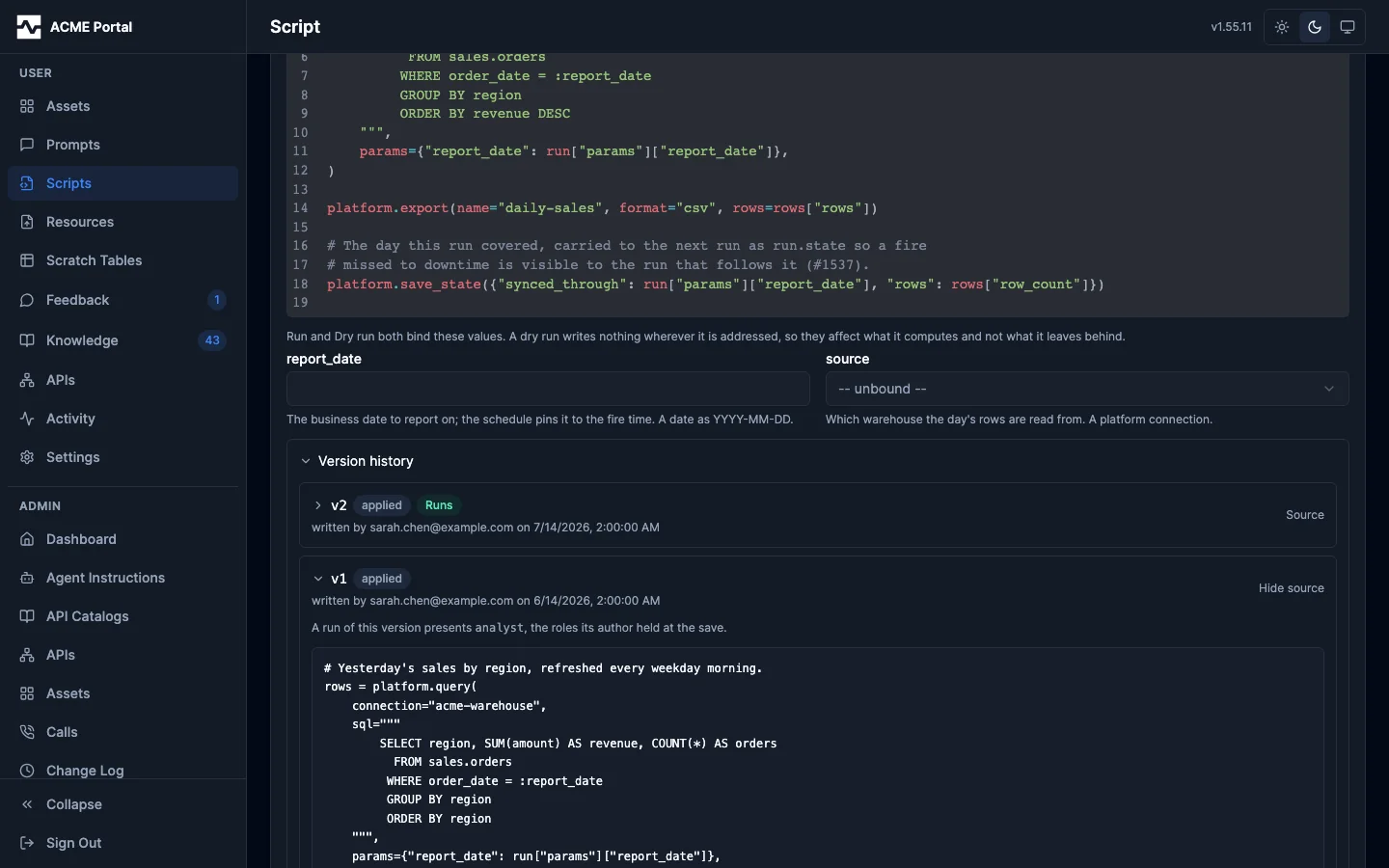
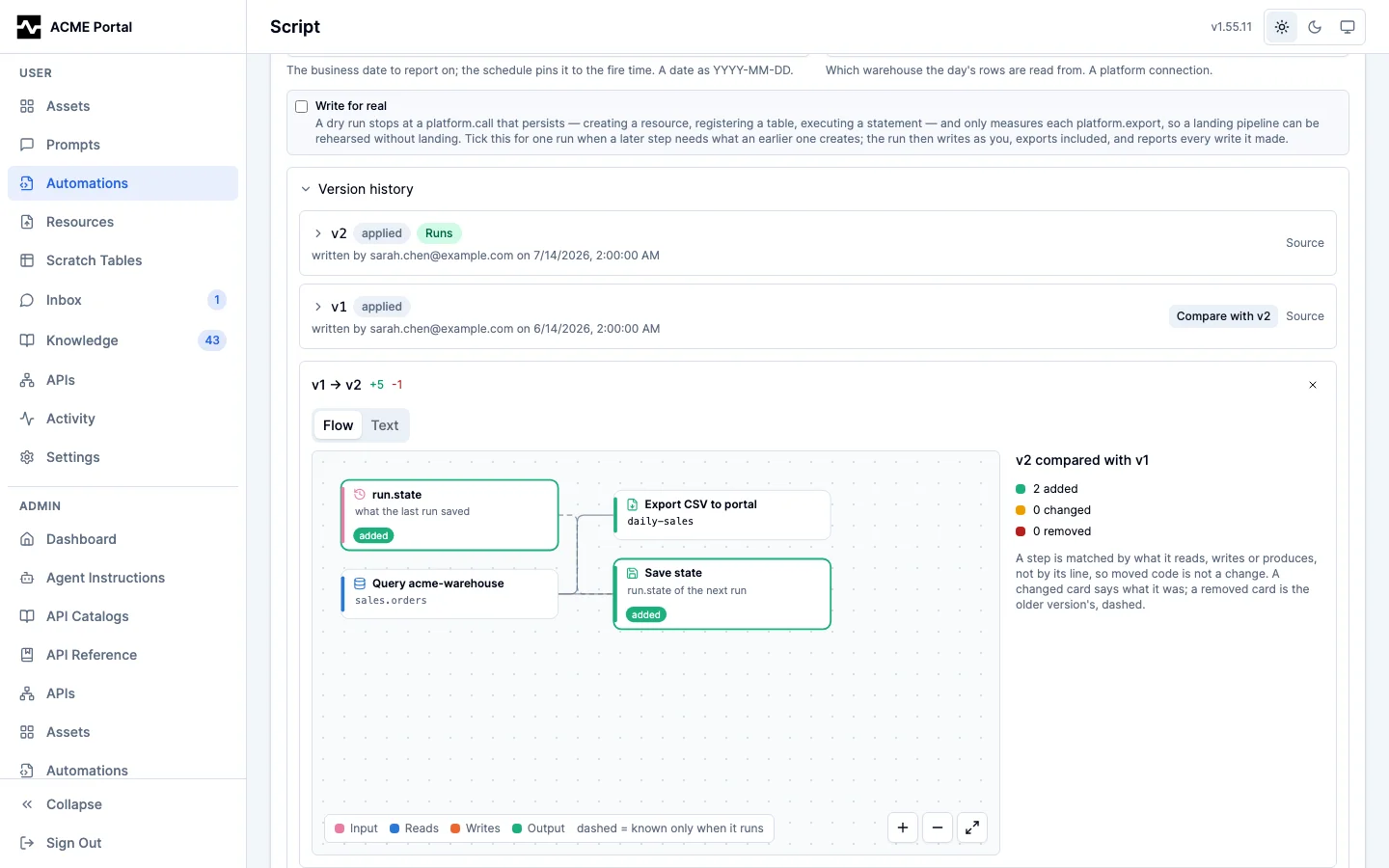
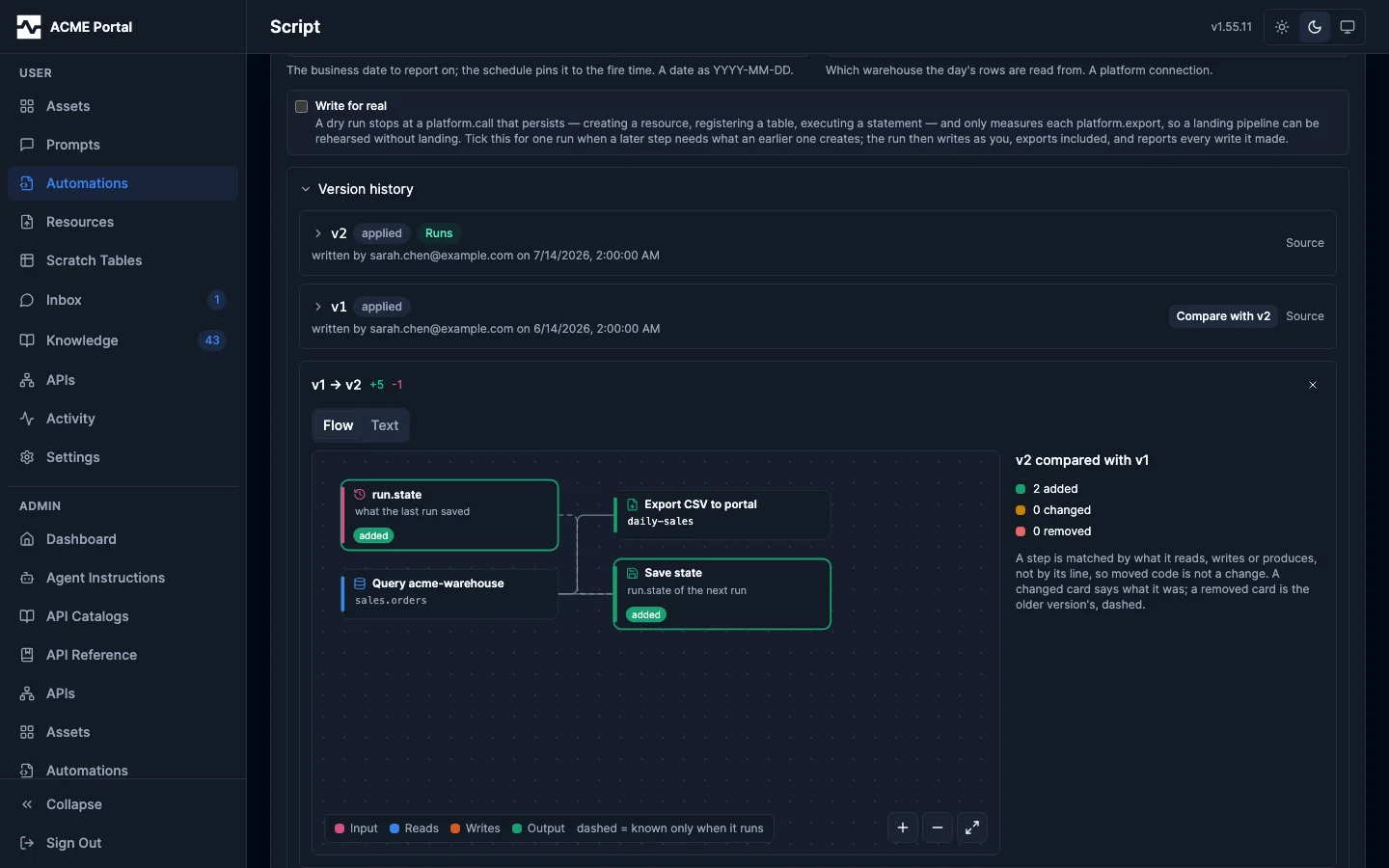
Each version older than the one that runs has a Compare with button (#1908), which
opens the two side by side as a diagram, with the text diff on a second tab. The diagram is
the running version's, marked with what changed since the older one: a card that is new is
added, one whose reach changed is changed and says what it was, and one the running
version no longer has is drawn dashed as removed, beside the cards it fed. A step is
matched by what it reads, writes or produces, not by its line, so code that only moved is
not a change. The comparison is the diagram route with ?compare=<older version>.
Run history
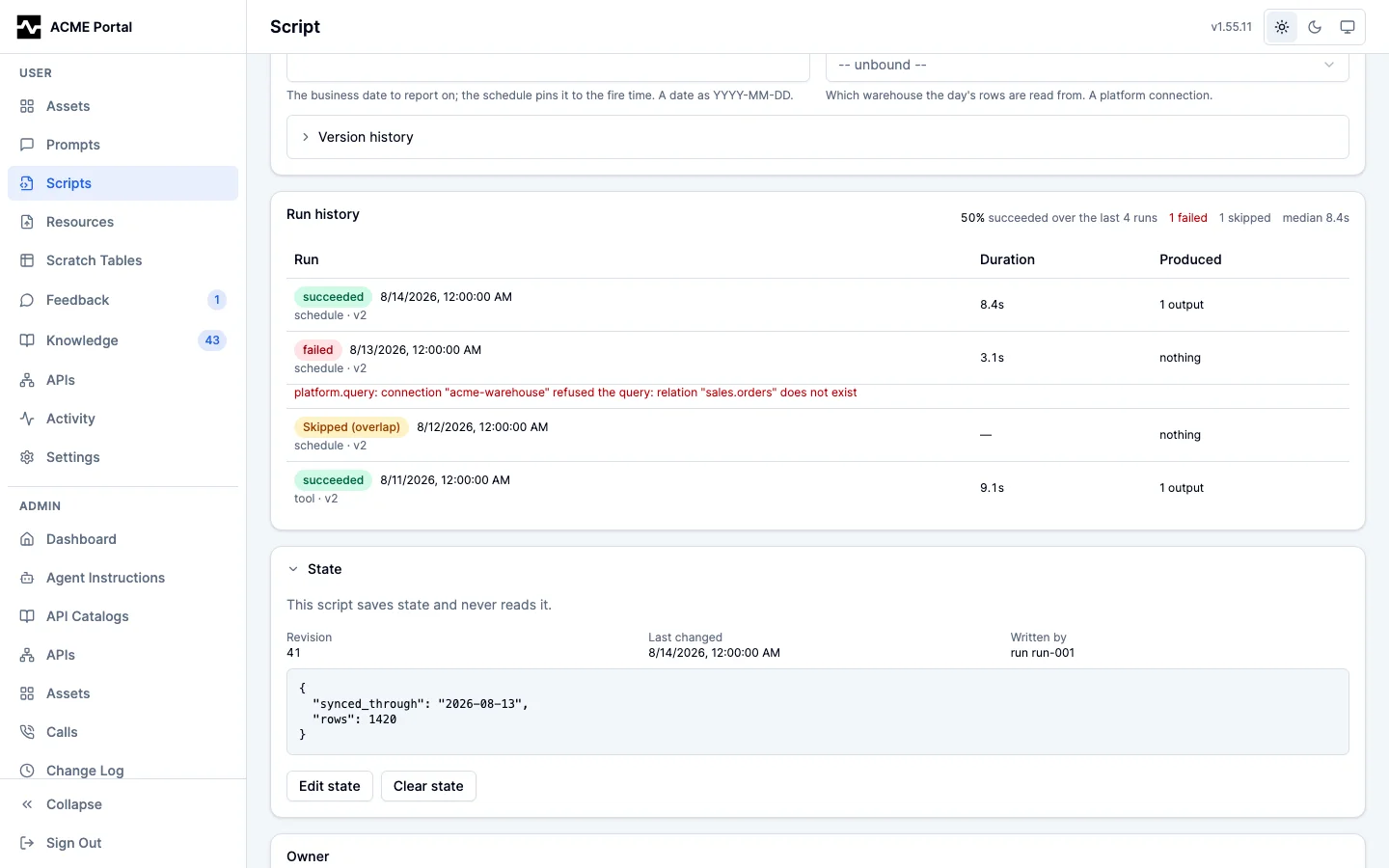
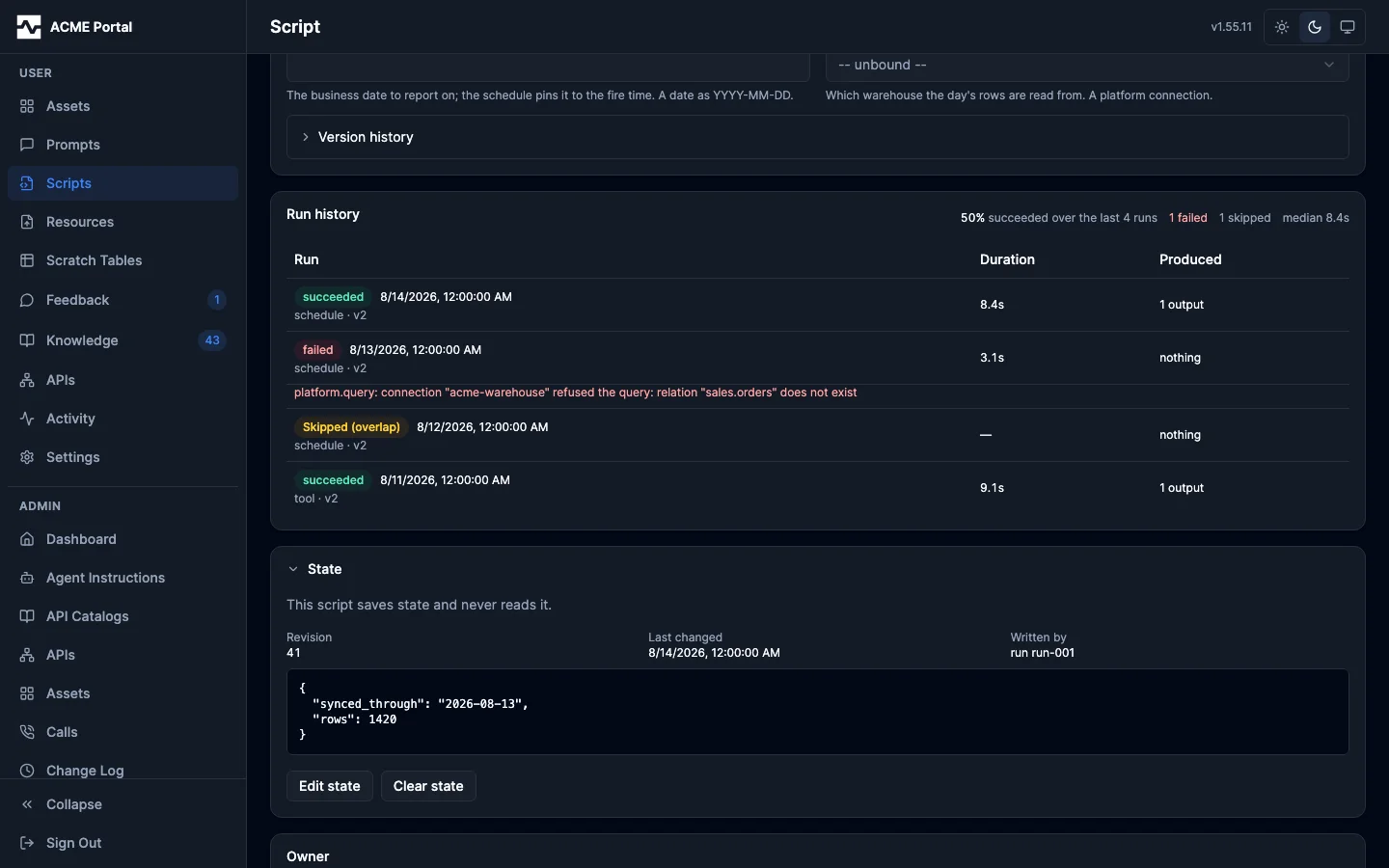
The run history is the refresh record of one script: what triggered each run, which version it executed, how long it took, what it produced, and how it ended. A failure states its reason in the list. A fire that arrived while the previous run was still going is recorded as skipped rather than silently dropped, because a report that stopped producing is exactly what this history has to show.
How a run ended and when it ran are read as one fact and are set as one. What triggered it and which version executed qualify that fact rather than standing beside it — the trigger is a short enumeration and the version is the same number down the whole history — so they sit under it in the row rather than each holding a column open.
The section header carries what the history adds up to — the share that succeeded, how many failed, were skipped or were canceled, and the median duration — over the runs actually loaded, which the sentence names rather than implying it covers all time.
A run still in flight says how far it has got under its status, from the script's latest
platform.progress report (120 of 500 · entities), and says Stopping once somebody has
asked it to stop. Opening it shows the log printed so far, re-read every few seconds
while the run is queued or executing, and a control to stop it: Cancel run for a queued
run, which then never starts, and Stop run for an executing one, which ends canceled
within seconds and keeps what it already wrote (#1847). A run that handed a value back
with platform.result shows it as Result (#1845).
A failed run says, under its error, whether running it again is expected to help (#1859): a service it called that was briefly unavailable reads "Temporary: ... the next run should succeed", a run that held too much memory says to page the work, and a script error keeps only its own message, because it is the script that needs the fix. Opening a run shows the most memory it held under Cost (#1861).
A running run whose worker has stopped reporting -- a replica that was killed, most often by running out of memory -- does not read as running (#1860). Its badge is worker not responding (the worker holds the lease but has been silent for 30 seconds) or worker gone (the lease has ended), with a line saying what happens next. Opening it shows who holds it, when its lease ends, when the worker last reported, and, when an earlier attempt did not finish, how each one ended. Stopping it ends it at once, since no worker would. Runs that have not ended are also listed under Running now above the history, so a run whose worker died is found even when it is older than the history's first page.
It sits directly under the code, because an error here is answered by the text above it, and nothing in it holds the page open sideways: a failure message wraps to as many lines as it needs rather than running off the edge.
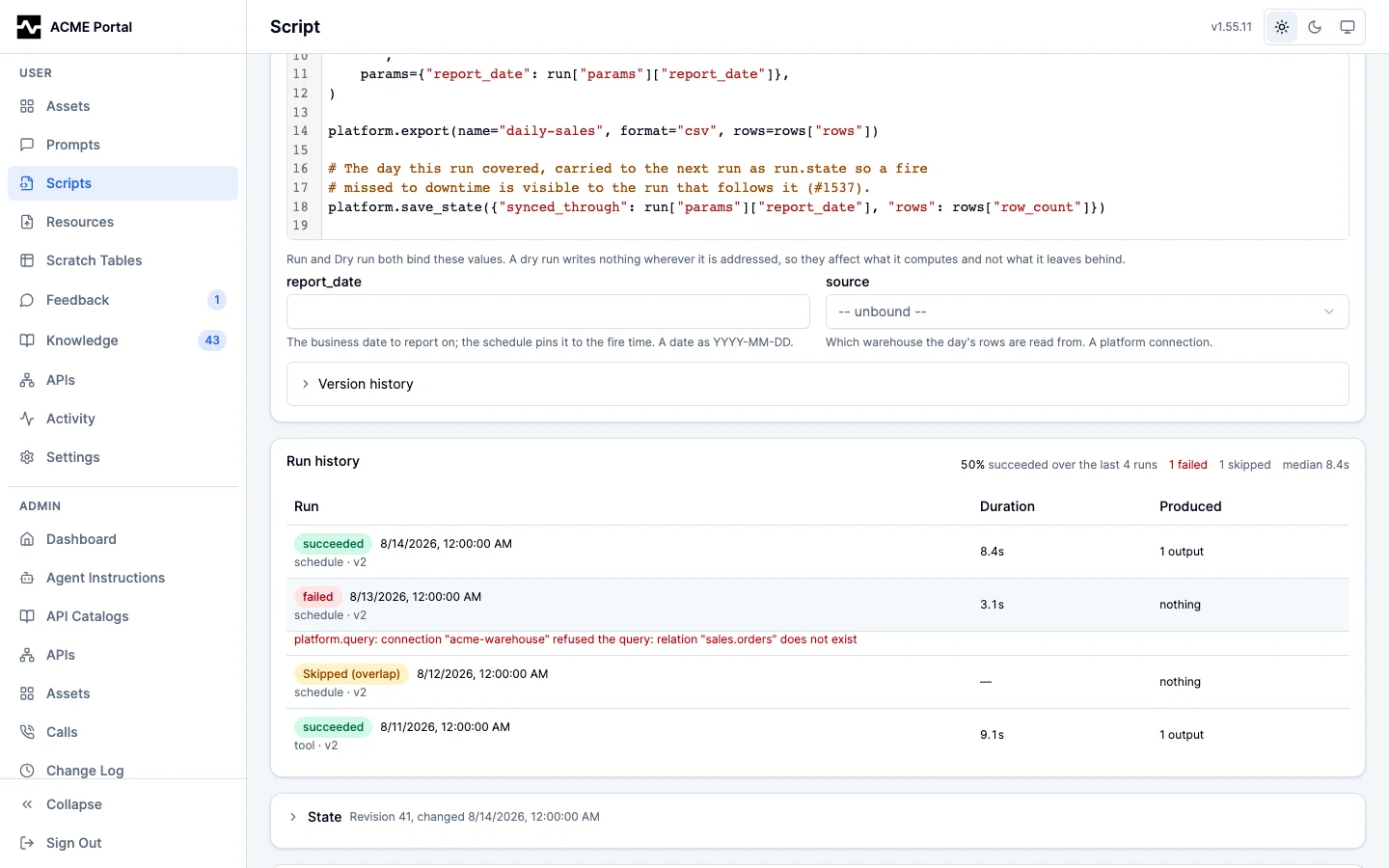
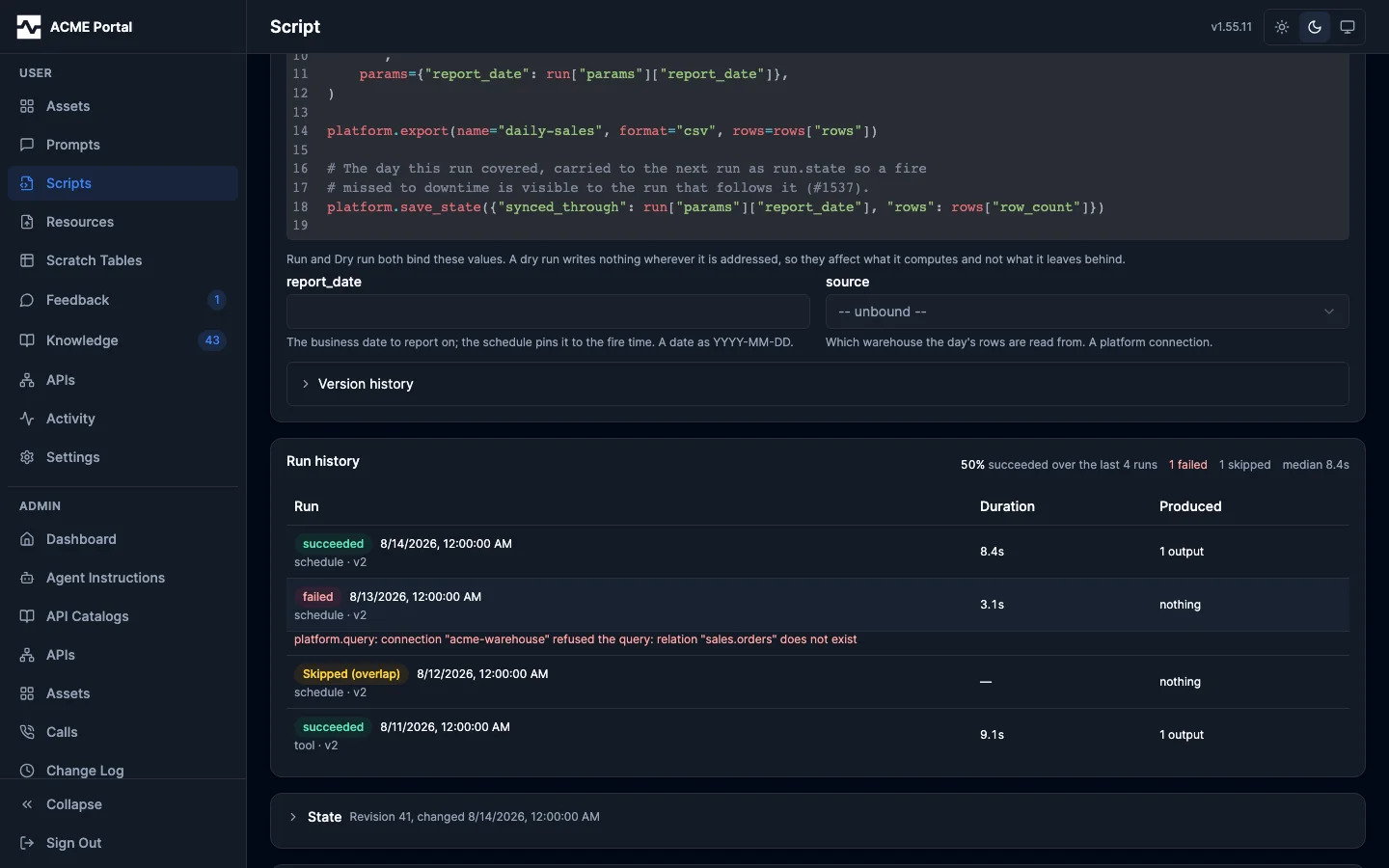
Opening a run shows what it was given, what it cost, what it wrote, and the log it printed while working. A run has an address of its own, which is what the Runs tab links to: following one lands on this page with that run open.
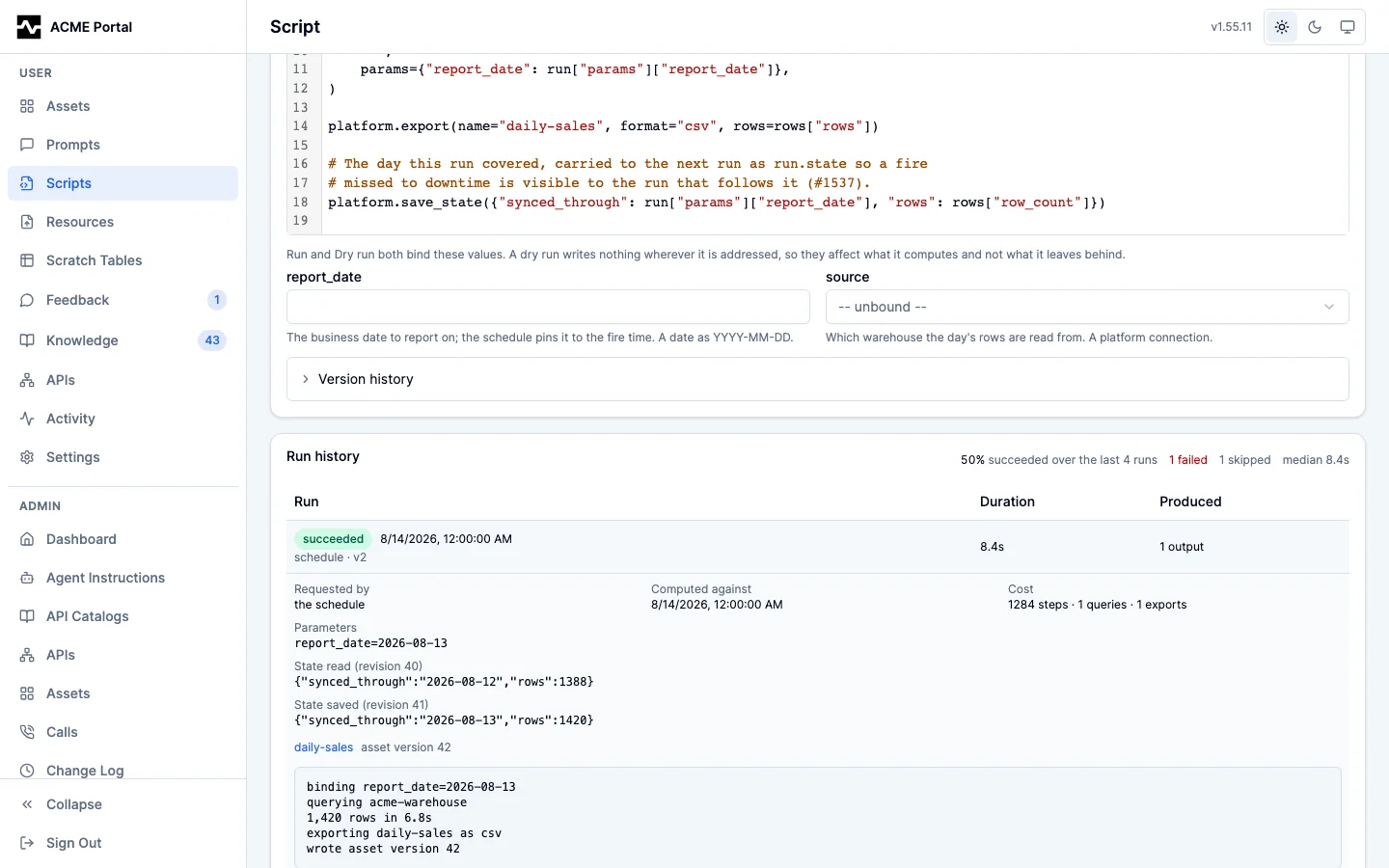
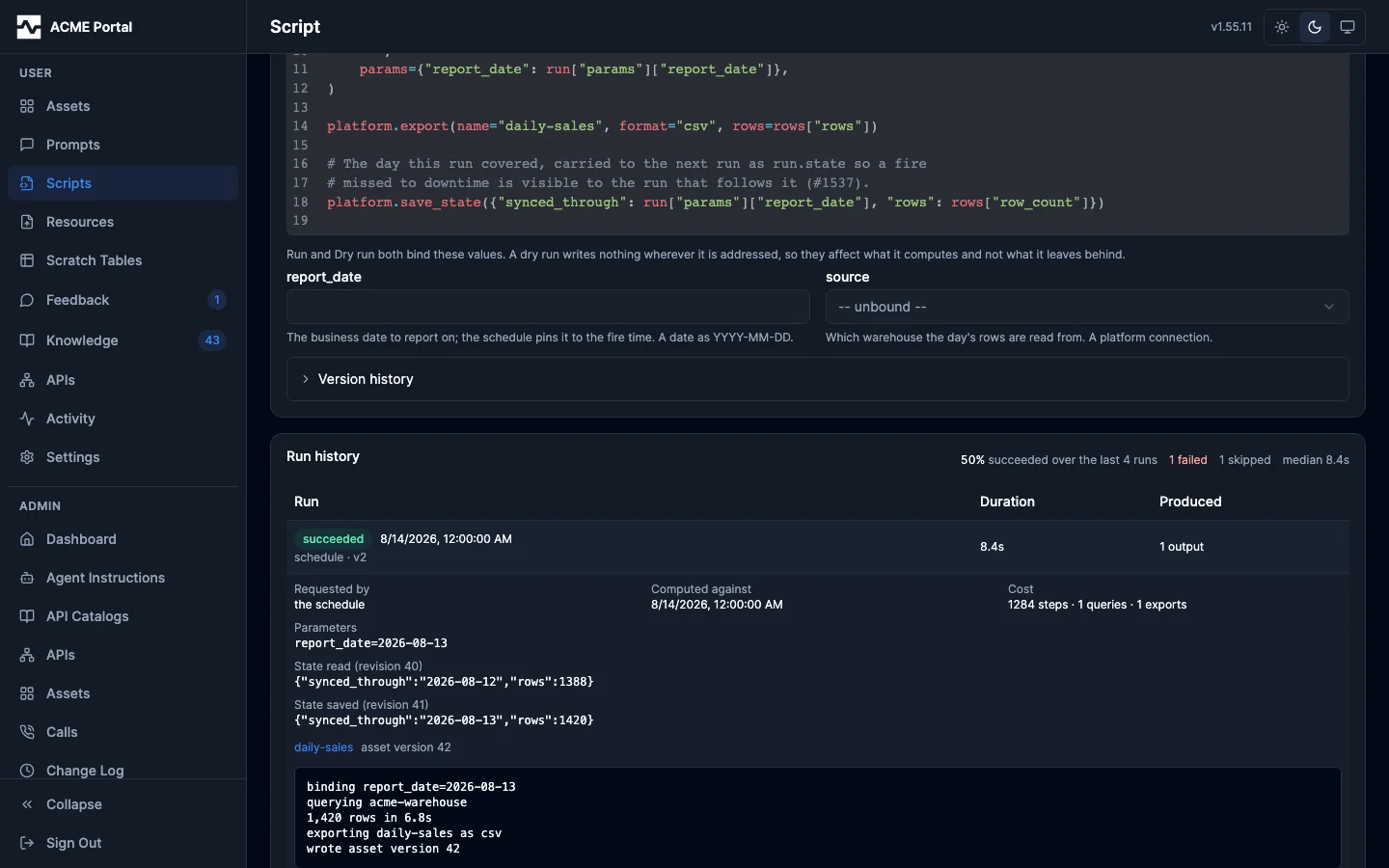
An output that went to the portal links to the asset version it produced. A recurring script writes new versions of the same asset rather than a new asset each time, so that asset's version history is the history of what the dashboard has been showing. An output delivered to a bucket names where it was written and is not a link: those bytes left the platform, and nothing here will serve them back.
The schedule controls of a script belong to its owner and to administrators. A script you do not own shows its details (its schedule and next run among them), what it says about itself, its source and versions, and its run history: how each run went, when, how long it took, and why one failed, with whether the next is expected to pass (#1994). What a run was given, printed and wrote stays with the owner, administrators and whoever requested that run, and there is nothing to run or change.
Automations opens on every automation, including the ones somebody else built that run for you; Mine narrows it to your own, and the choice is remembered. The Schedules and Runs tabs cover every automation too.
Files written
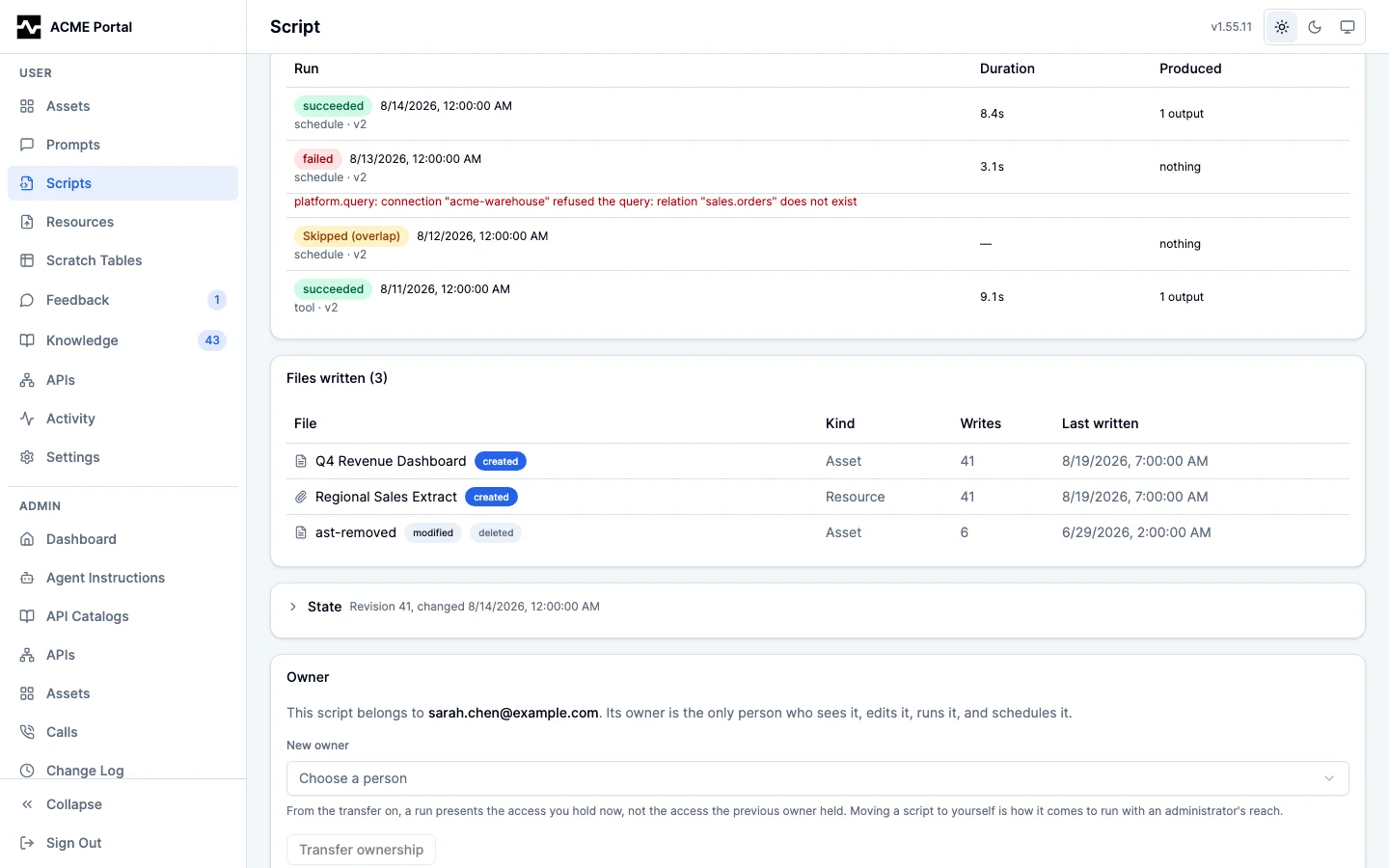
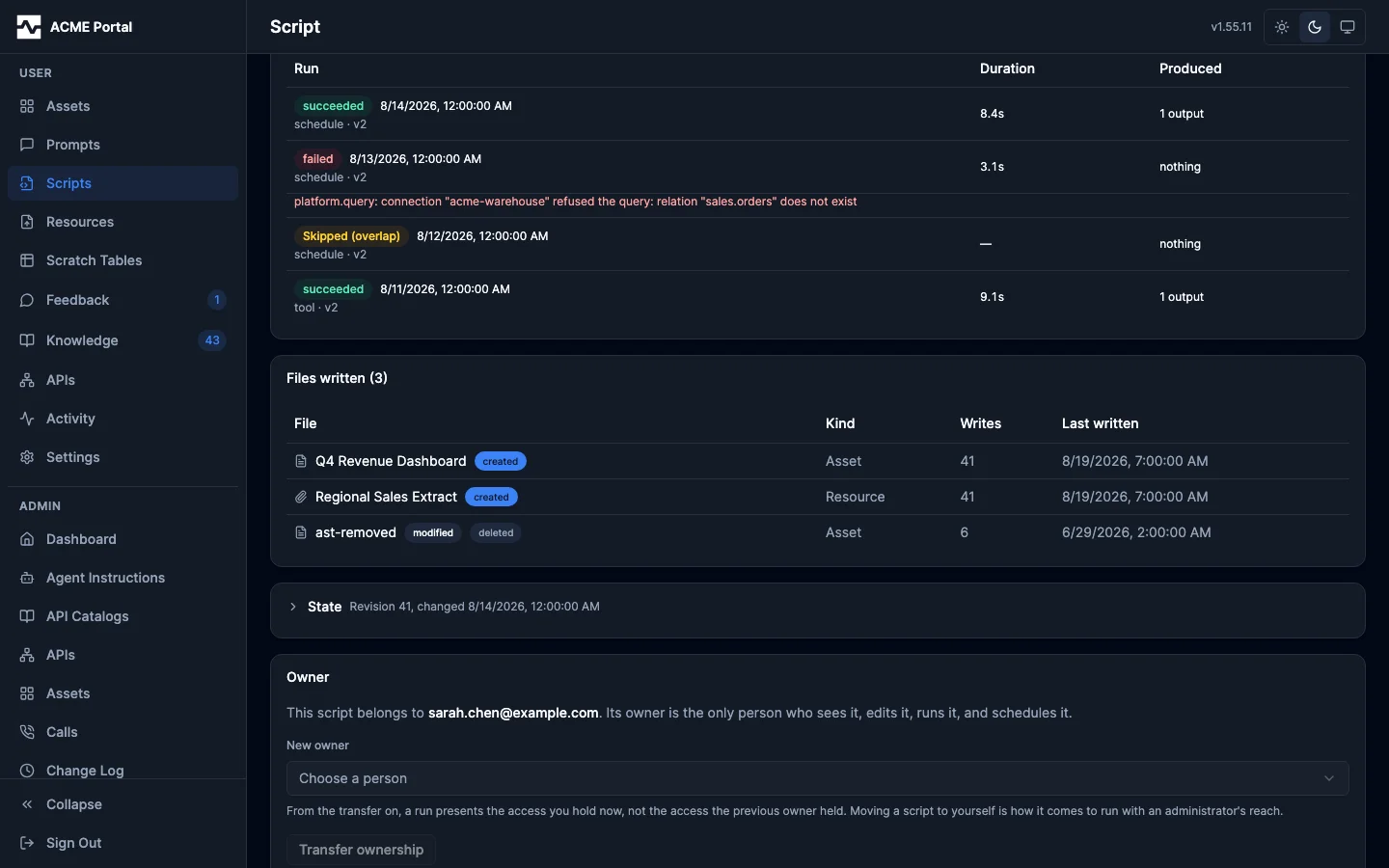
Below the run history, on a script you own, is Files written: every portal asset and managed resource this script has created or modified, across every run, most recently written first. Each row names the file, its kind, how many times this script has written it, and when it last did, and marks whether the script created the file or has only modified it. Clicking a row opens the file.
The run history above answers what one run did, which is a different question. A script
that has run three hundred times has three hundred output lists, and a file the script
modified without declaring it as an output — through manage_asset or manage_resource
— appears in none of them. This is the list that answers what the script actually
touches, and what goes stale if you retire it.
A file the script wrote that has since been deleted stays listed, named by its id and marked deleted: that the script wrote it is still true, and it is part of what somebody deciding whether to retire the script has to see.
State
Below the run history, on a script you own, is the State the script carries from one
run to the next: one JSON object the platform keeps for it, which a run reads as
run.state and saves with platform.save_state when it succeeds. An incremental job
keeps its watermark here, so the run after a gap continues from where the last
successful run stopped instead of recomputing a window from the fire time.
The section is folded, and its header says where the state stands: the revision and when it last changed, or that nothing has been saved, or that the script keeps none. Open it to read the object, the revision, and who wrote it, which is the run that saved it or the person who last reset it. Each run in the history above states the revision it read and, when it saved, what it wrote, so a wrong value is traced to the run that produced it.
Edit state replaces the whole object; Clear state resets it to an empty object so the next run starts over, which is the recovery for a wrong watermark. Both move the revision, and a run already in flight that read the previous revision fails at its write rather than overwriting the reset. A run that reads and saves state fails the same way when another run of the same script wrote in between, and the failure names that run; its outputs stand.
Deleting a script
At the bottom of a script you own is Delete. It is there for the same reason every other control on this page is: creating, editing, documenting, scheduling, running and handing over a script all happen here, and removing one used to be the single thing that sent you back to an agent to ask for it.
The confirmation says what goes rather than asking whether you are sure. Every saved version of the code, including the one a run executes; the schedule, named in words, so nothing fires it again; the whole run history; and the state the script carried from one run to the next. A scheduled script's run history is its refresh history — if a report has been running for months, that record is part of what you are removing, and you should be deciding that rather than discovering it.
It also says what stays. The assets and resources the script wrote are not the script's to take with it: they stay where they are, owned by whoever owns them, and they go on recording that this script wrote them, which is what Written by on each of those files shows. Deleting a script is not deleting the reports it produced.
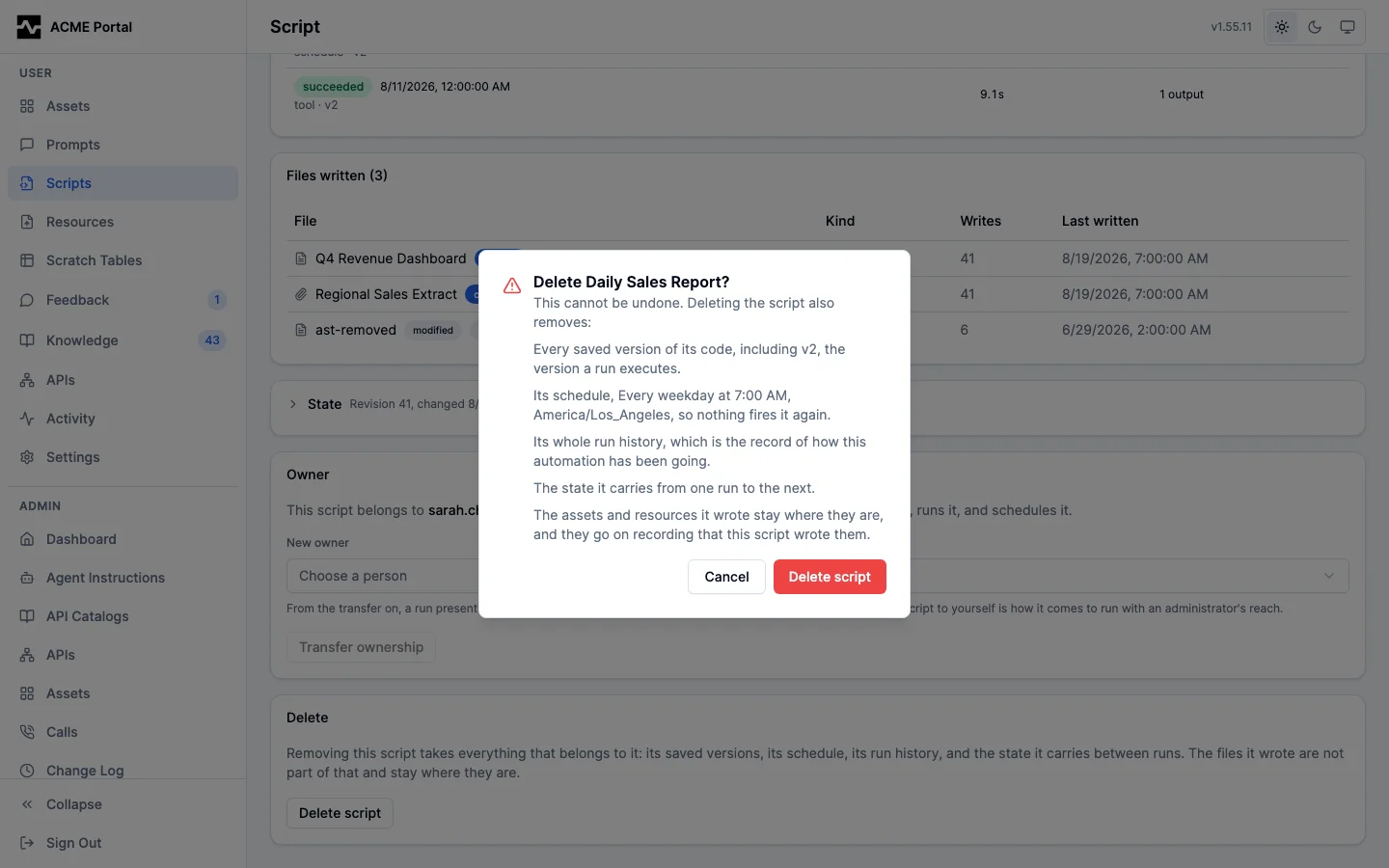
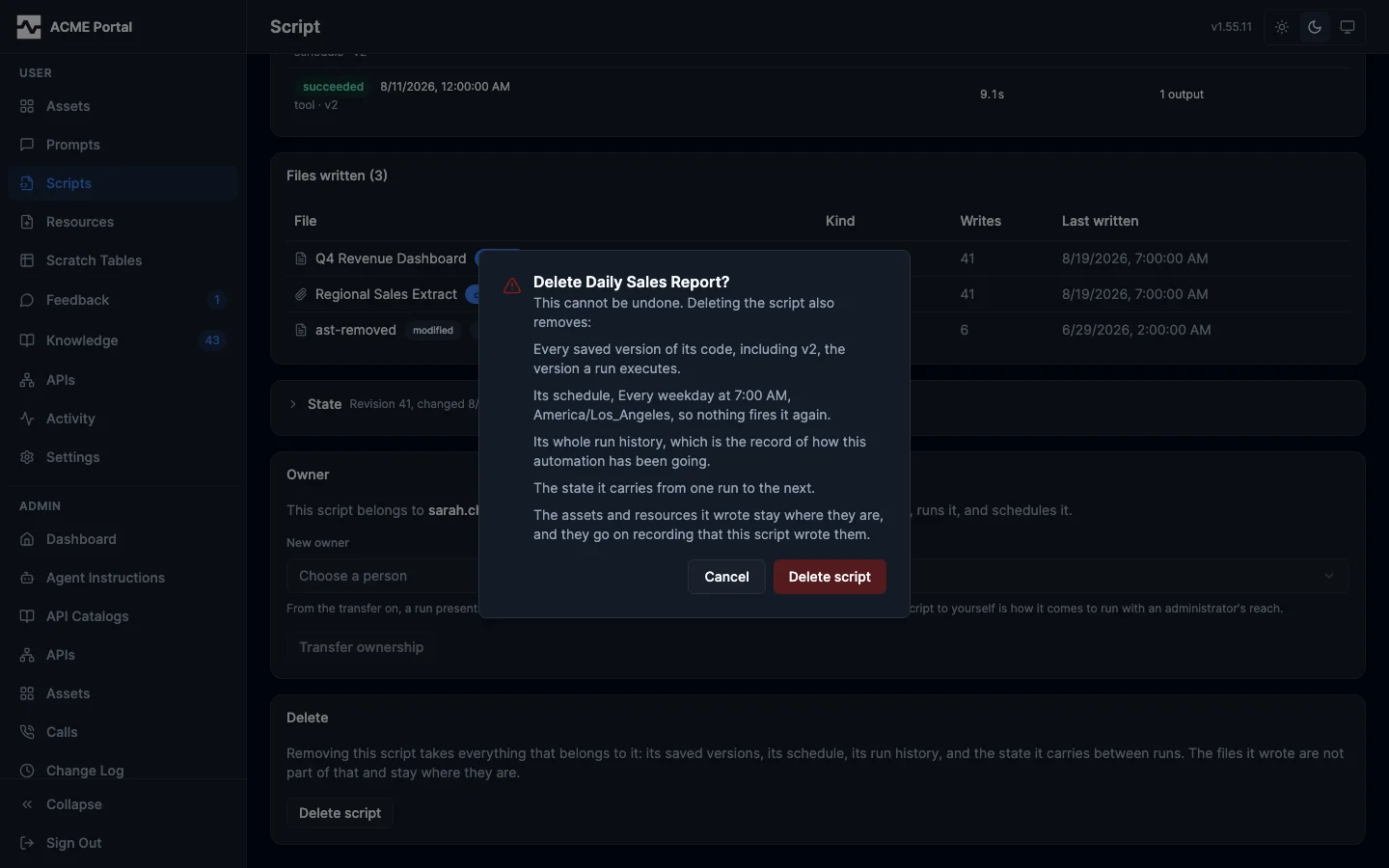
Once the delete lands you are back at the script listing, with the script gone
from it. It cannot be undone. An administrator can delete any script, on the
same page and with the same confirmation; the alternative for anybody is
manage_script command=delete, which removes exactly the same things and
answers with the same account of what went and what stayed.
Asking for the pages
Ask your agent to show you your automations — "show me my automations", "what scripts do
I have", "did the daily report run" — and it opens this page with the show_scripts tool.
Ask it to "automate this" or "run this every Monday" and it builds a script with
manage_script.
That tool only opens the pages; every script operation an agent performs for its own
work uses manage_script, which renders nothing.