MCP Apps
MCP Apps provide interactive UI components that enhance tool results. Instead of raw JSON responses, users see sortable tables, charts, and filters rendered in the MCP host.
How It Works
flowchart LR
    subgraph Host["MCP Host (Claude Desktop)"]
        TC[Tool Call<br/>trino_query] --> Server[MCP Server]
        Server --> Resource[UI Resource<br/>ui://query...]
        Resource --> iframe
        subgraph iframe[Interactive UI]
            Chart
            Table
            Filter
        end
end- User calls a tool (e.g.,
trino_query) - MCP server returns results with a UI resource reference
- Host fetches the HTML app and renders it in an iframe
- App receives tool results via
postMessageand displays interactive UI
Apps Calling Tools
An app can call tools itself, not just render the result that opened it. Those calls travel the same MCP transport as the agent's and meet the same gates, so when the session handle requirement is on, an app must call platform_info first and thread the session_id it returns on every subsequent call. Skipping the handshake produces a SESSION_REQUIRED refusal on the app's first data call.
platform_info itself is never gated, since it is the tool that mints the handle. See Development for the handshake, the expired-handle recovery path, and the response-correlation hazard on hosts that deliver results as notifications.
Platform vs Apps
MCP Data Platform provides:
- MCP Apps infrastructure (resource serving, CSP, config injection)
- Protocol handling between host and apps
- Security controls (path traversal protection, sandboxing)
You provide (for custom apps):
- The actual HTML/JS/CSS apps
- Configuration mapping tools to apps
Built-in App: platform-info
The platform ships with platform-info embedded in the binary. It registers automatically with zero configuration — no volume mounts, no assets_path, no enabled: true required.
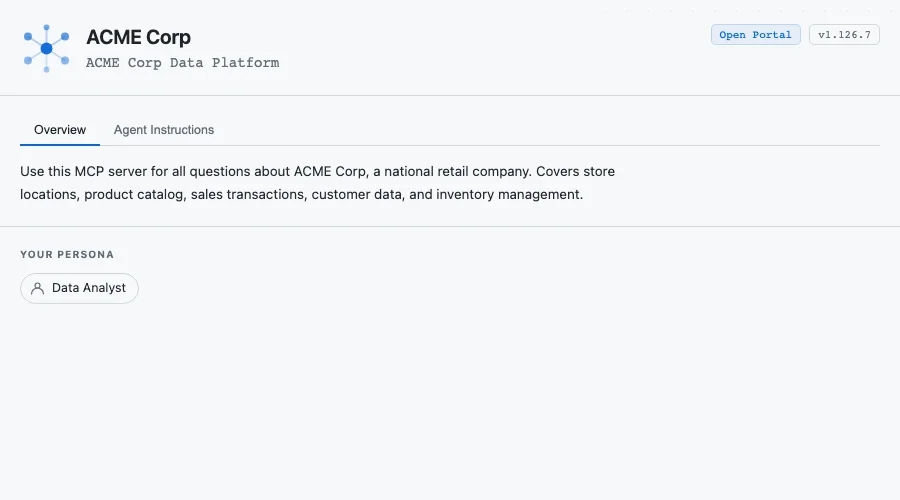
platform-info renders an interactive panel for the platform_info tool. It is
deliberately small: the panel shows who the deployment is and what its agent was
told, in two tabs.
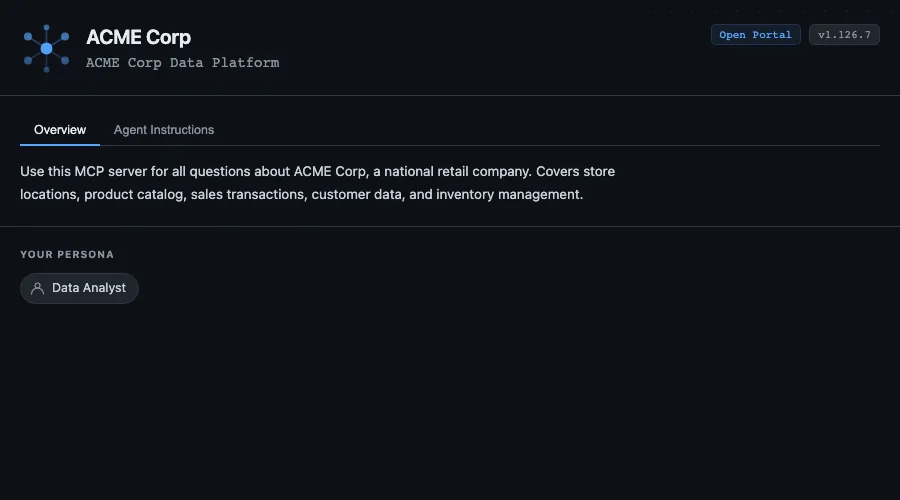
Overview carries the platform's name, version, description and the personas the deployment defines, with a link into the portal:
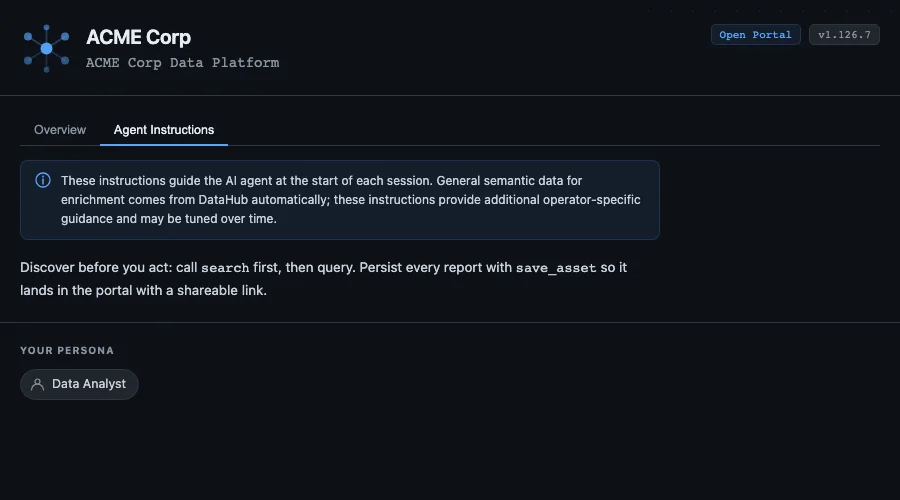
Agent Instructions renders the standing guidance the deployment sets, so a person can read what their agent was told:
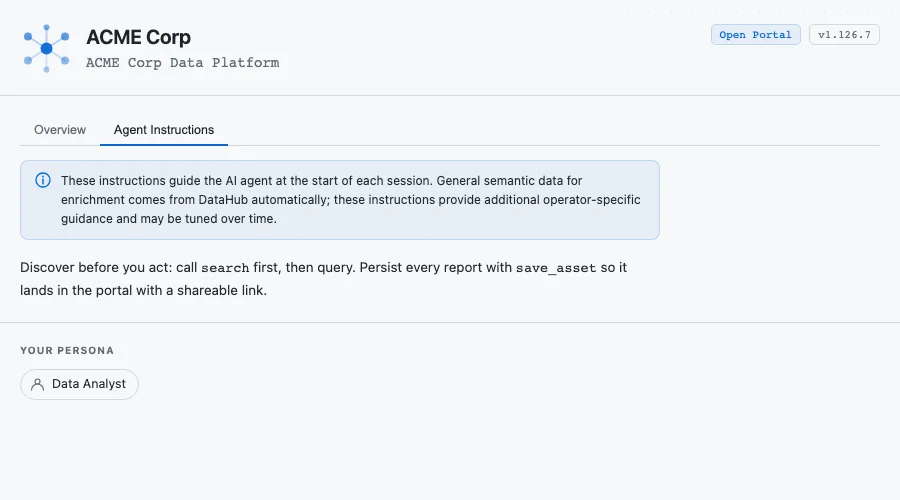
The panel renders from the platform_info result, and that result is the
mandatory first call of every session, delivered to the model like any other
tool result. What an app displays therefore costs context, which is why the
panel shows what a person opening it wants (who this is, what the agent was
told) rather than everything the response happens to carry.
Branding
Operators can inject custom branding via config without touching any HTML:
mcpapps:
  apps:
    platform-info:
      config:
        brand_name: "ACME Data Platform"
        brand_url: "https://data.acme.com"
        logo_svg: "<svg ...>"
All branding fields are optional. When unset the app falls back to the server name and a default data-graph logo. The panels above are captured with a brand_name set, which is where the header's title comes from.
Built-in App: prompt-browser
The platform also ships with prompt-browser embedded in the binary, bound to the presentation-only show_prompts tool. In an MCP Apps-capable host, calling show_prompts renders an interactive prompt library browser for the human. It is bound to show_prompts rather than a data tool so the agent's routine prompt work does not render a UI; the rendered app populates itself from its own manage_prompt calls:
- Search-as-you-type over the ranked prompt query, with My Prompts / Library buckets, collection and tag filters, and usage-based sorting
- Cards showing display name, description, version, and run count
- A detail view with full prompt content, provenance, and a form generated from the prompt's argument specs
- Run resolves the prompt through the
manage_promptusecommand with the filled arguments; when the host supports conversation insertion (ui/message), the rendered prompt is placed directly into the chat, otherwise the app offers the rendered content for copy
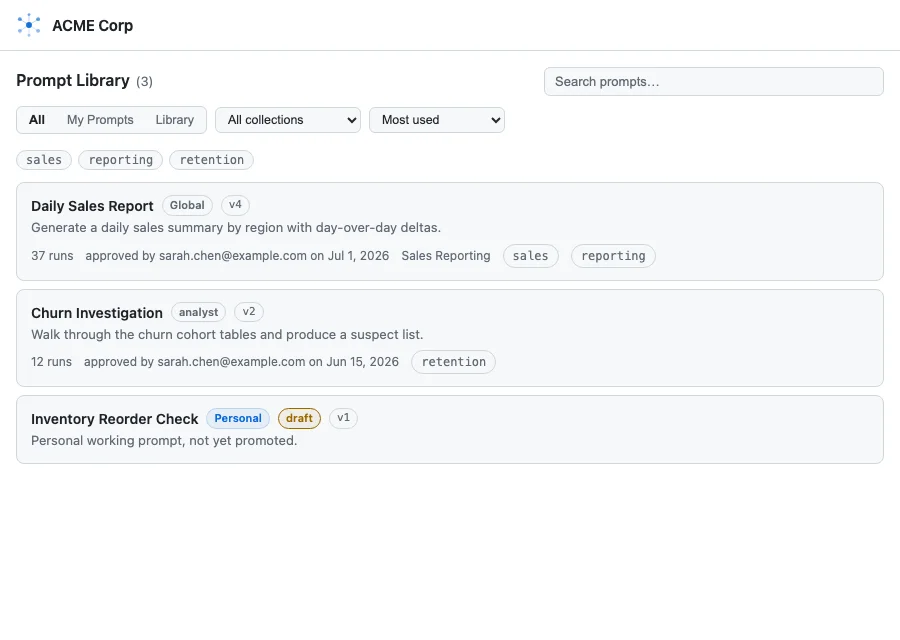
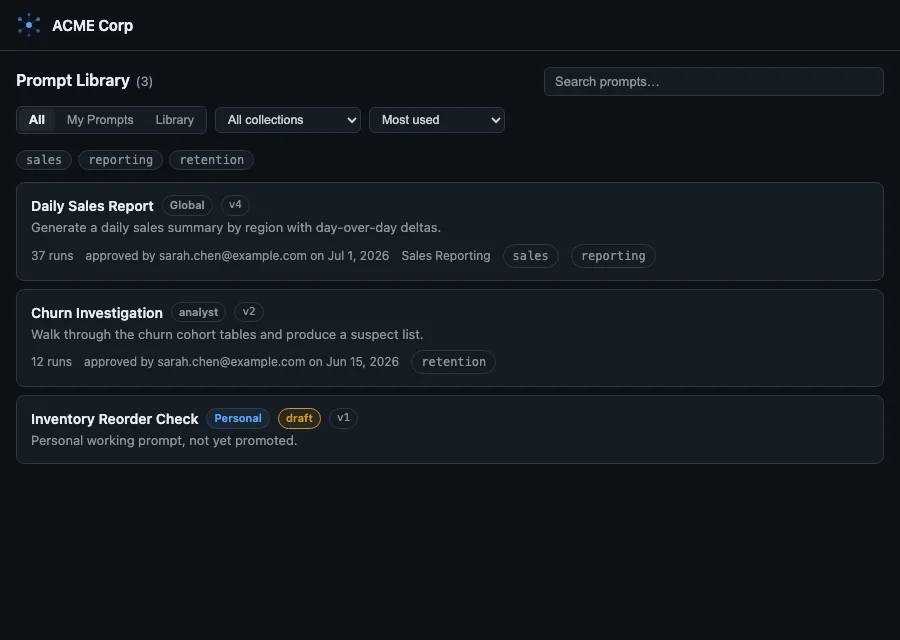
Each card carries the prompt's scope, its version, and, for an approved one, who approved it and when; a personal draft is badged as one.
The app is presentation only: the same manage_prompt calls return complete structured JSON in clients that do not render apps, so nothing is lost outside app-capable hosts. It follows the same organization model as the portal library (collections, buckets, usage) with no app-local state.
Like platform-info, an operator mcpapps.apps.prompt-browser entry can override the injected config or replace the embedded HTML entirely via assets_path.
Example App: query-results
The repository includes a community example app at apps/query-results/ that demonstrates sortable tables, charts, search/filter, and dark mode for trino_query output. It is not built into the binary — operators deploy it as a custom app by mounting the assets directory. See Configuration for details.
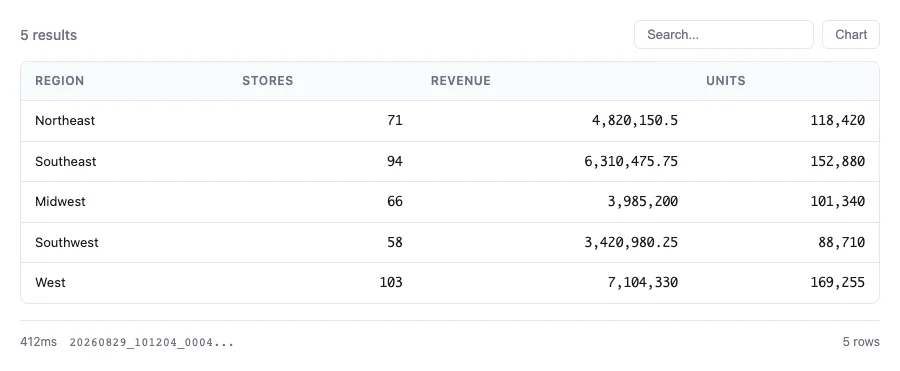
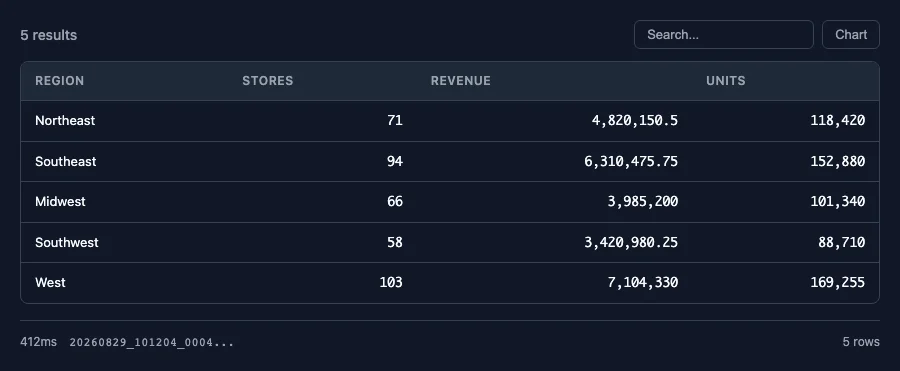
The footer states the query's duration, its id, and the row count, so the panel answers where the numbers came from as well as what they are.
Next Steps
- Configuration - Enable MCP Apps and configure your apps
- Development - Create and test your own apps