Content
The same content surfaces the user portal carries, across every owner rather than only your own.
Assets (Admin)
The admin Assets page shows all platform assets across all users with search and filtering.
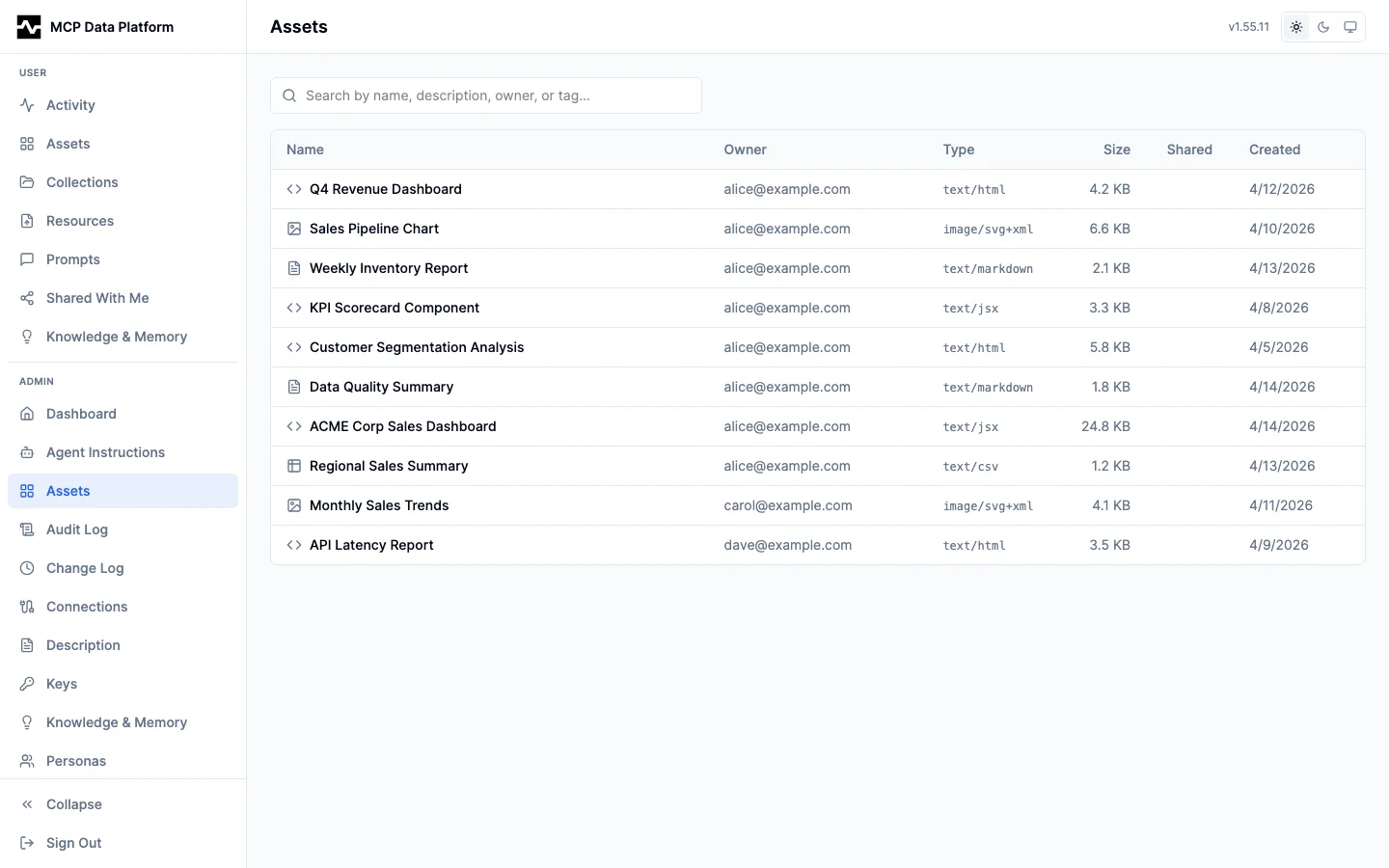
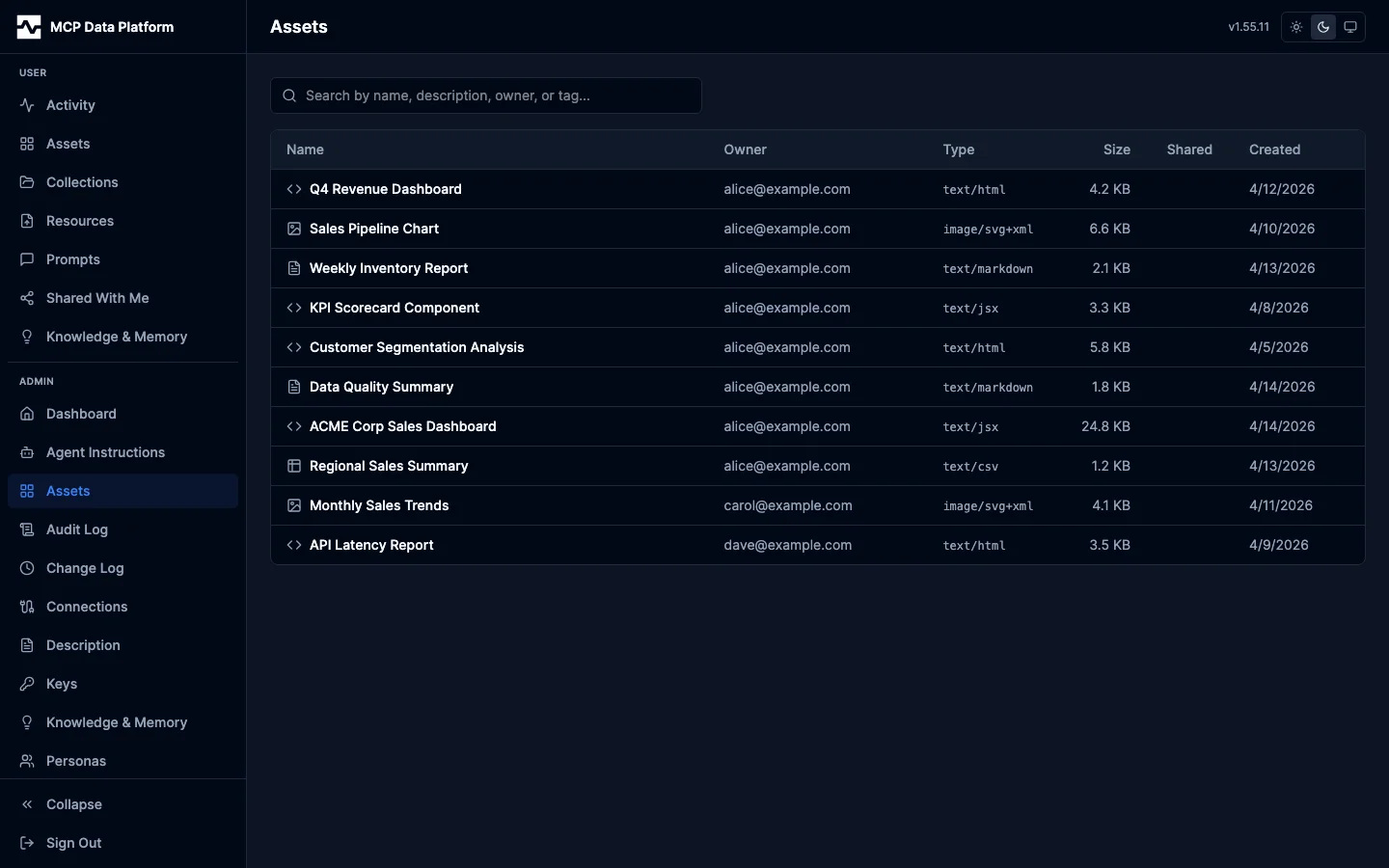
The table displays name, owner email, content type, file size, sharing status, and creation date. Click any asset to open the detail view:
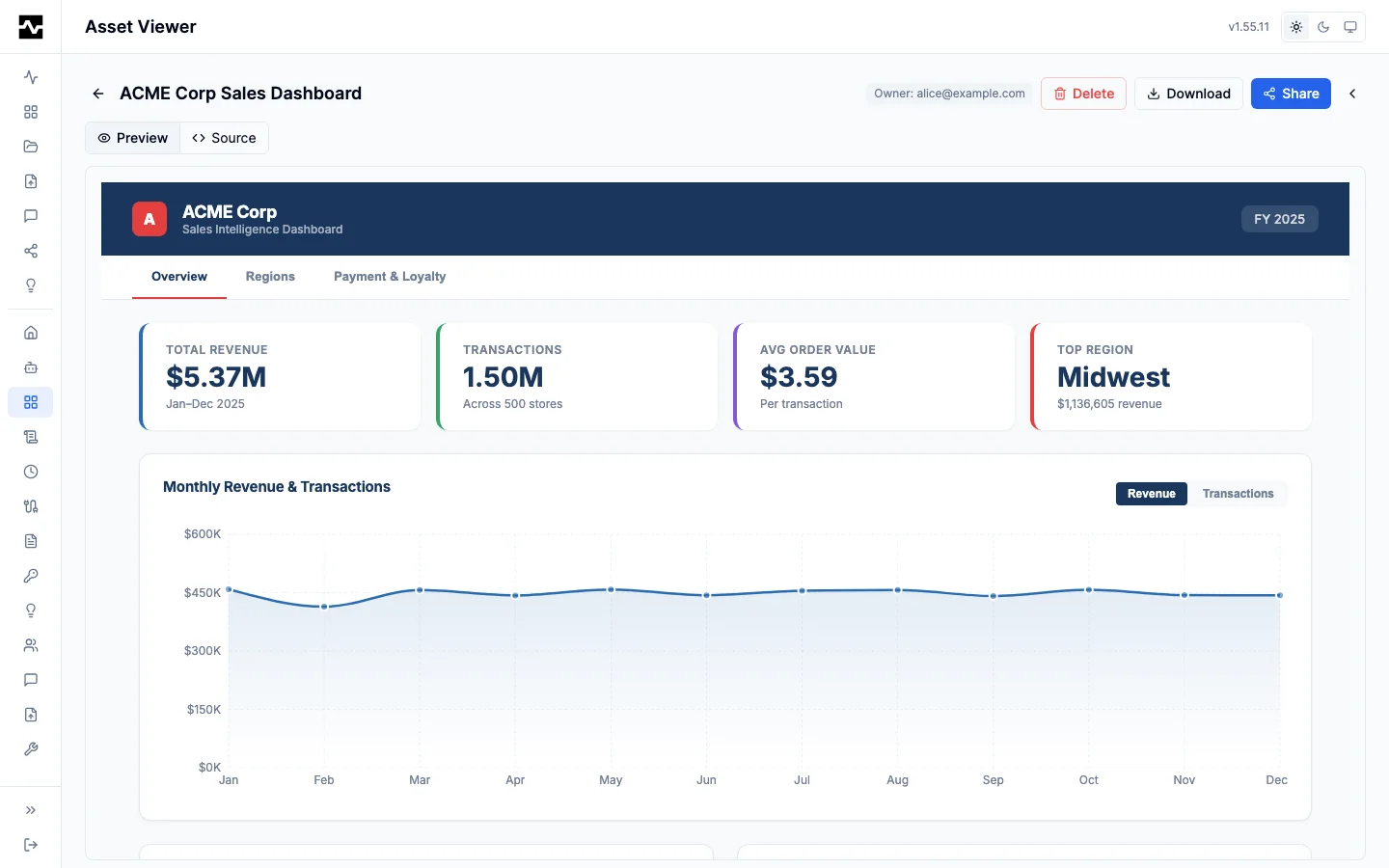
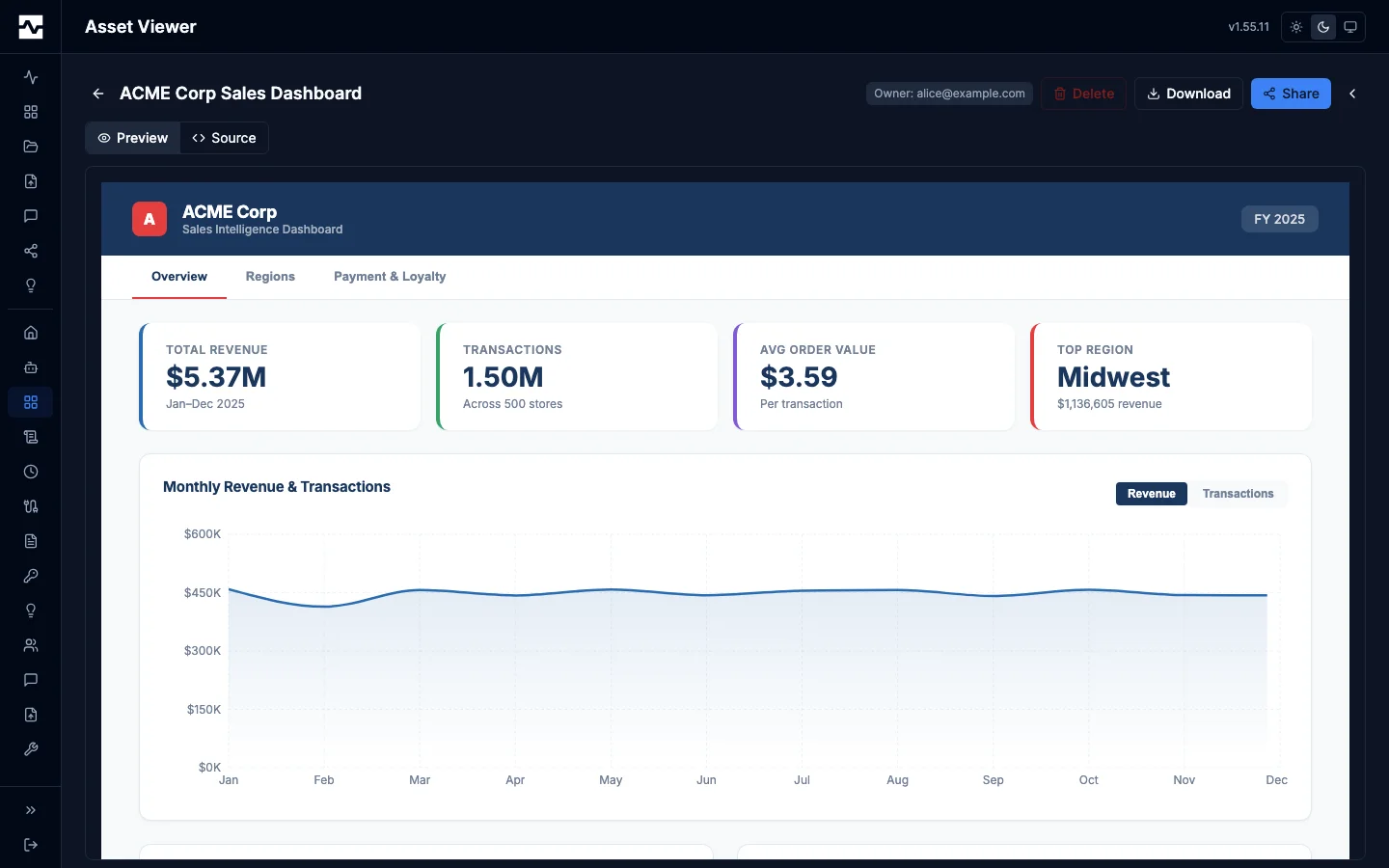
The admin asset detail renders the asset content in a full-screen viewer with Preview/Source toggle, owner display, and management actions (Delete, Download, Share).
Assets and Collections are two faces of one section, so the page opens on a tab strip that moves between them.
Every one of those actions works on an asset the admin does not own, Share included. This matters most for content produced by a non-human principal: an agent session authenticated with an API key owns its assets under an identity like <key name>@apikey.local, which nobody can sign in as. Without an admin share, such an asset could be read but never handed to the person who needs it. The same authority covers collections and personal prompts: an admin can share one, read its share list, and revoke a share on it. Shares an admin creates are attributed to the admin, so the audit trail names who actually granted the access.
Collections (Admin)
The Collections face of the admin Assets page lists every asset collection on the platform, whoever owns it.
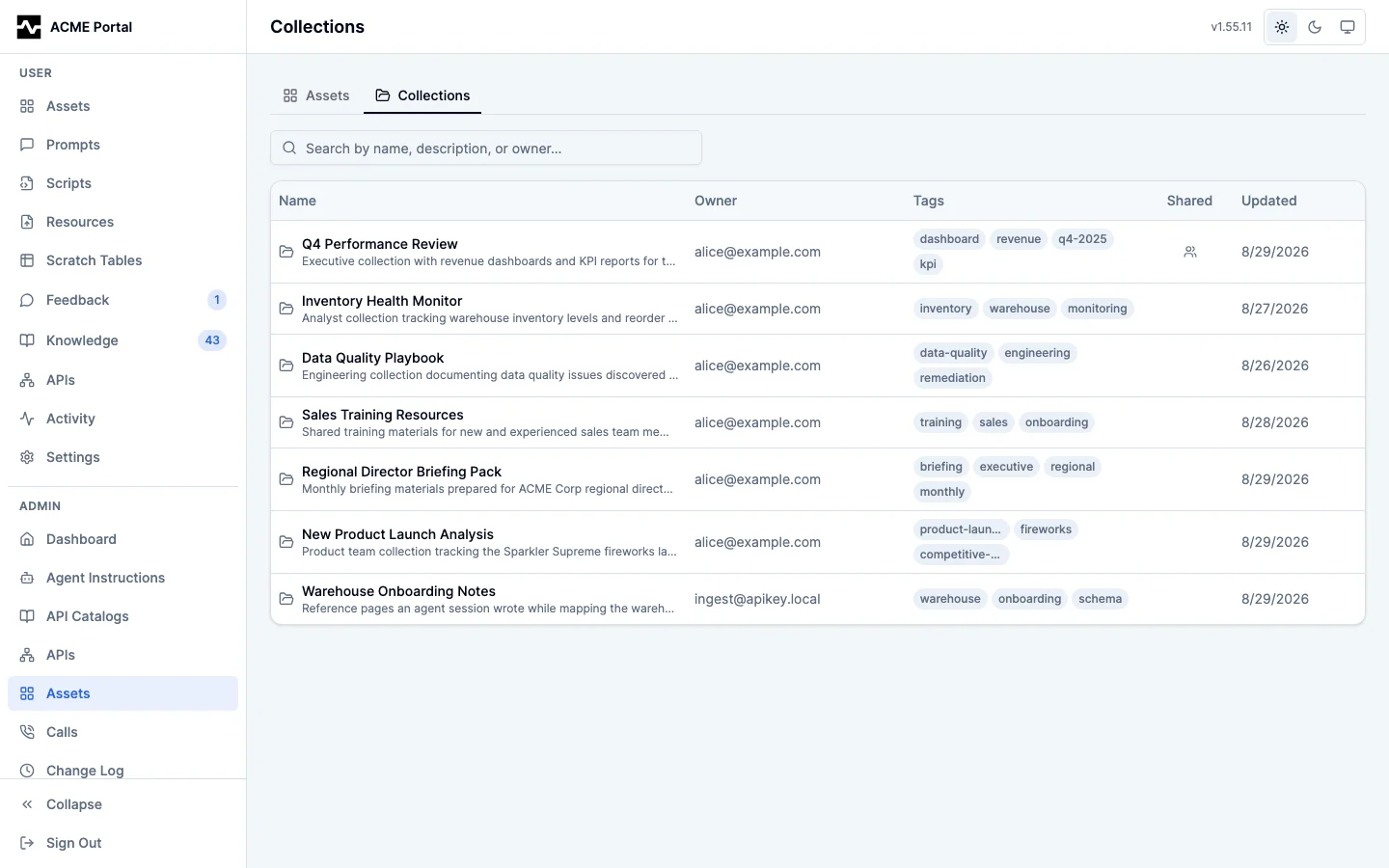
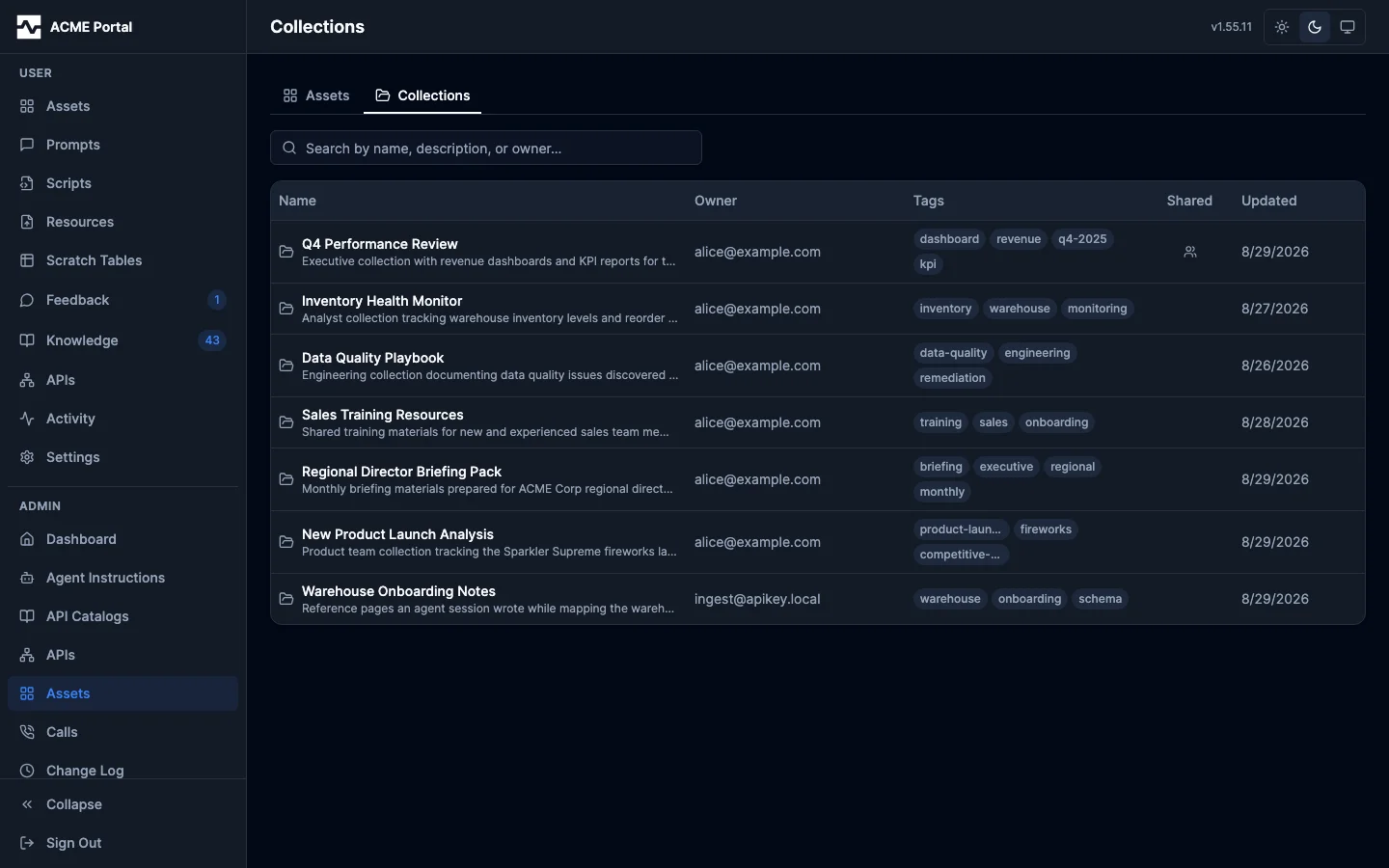
The table displays name, description, owner email, the tags of the assets inside, sharing status, and the date the collection was last touched. Search matches name, description, and owner email. Click any row to open the collection:
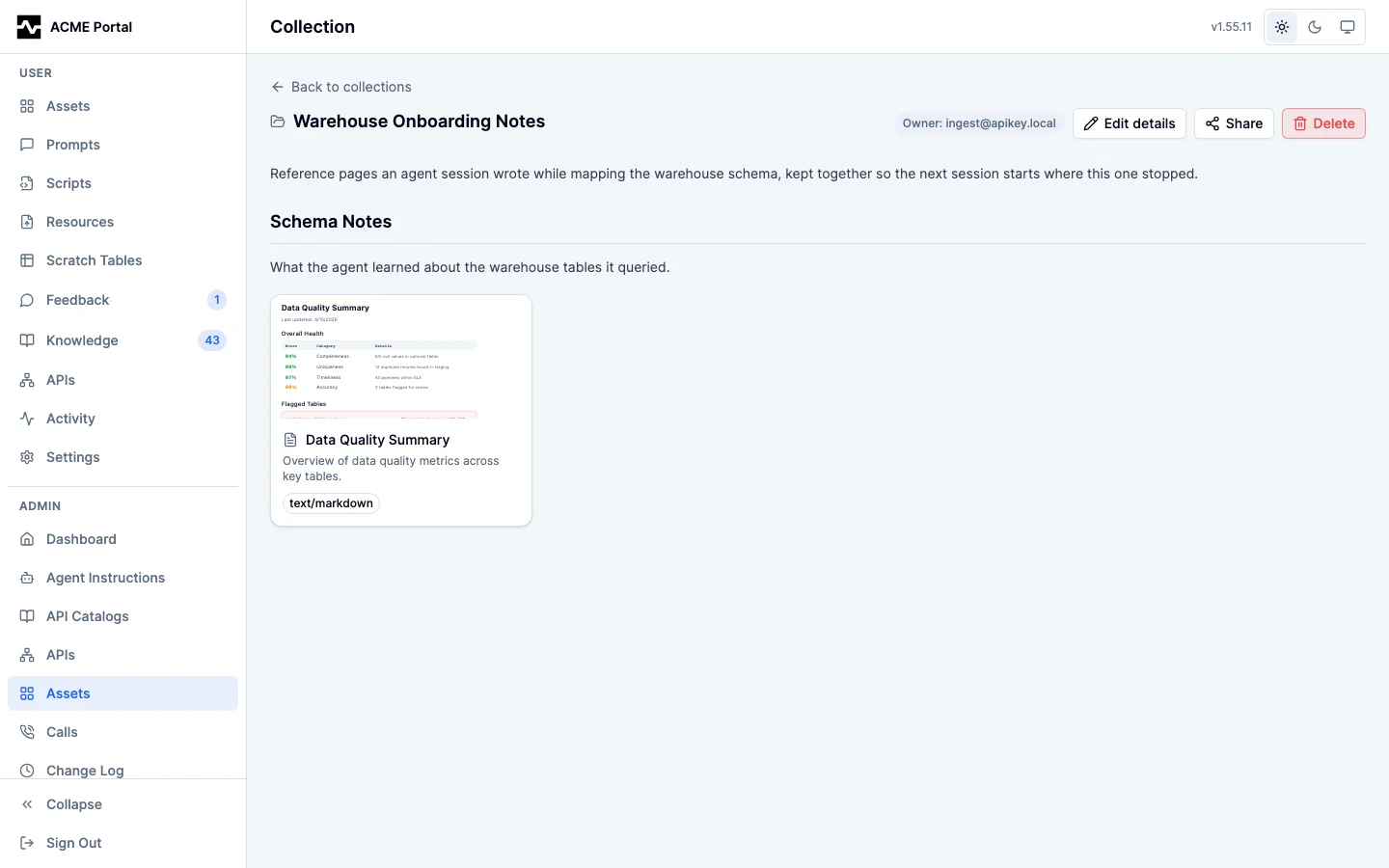
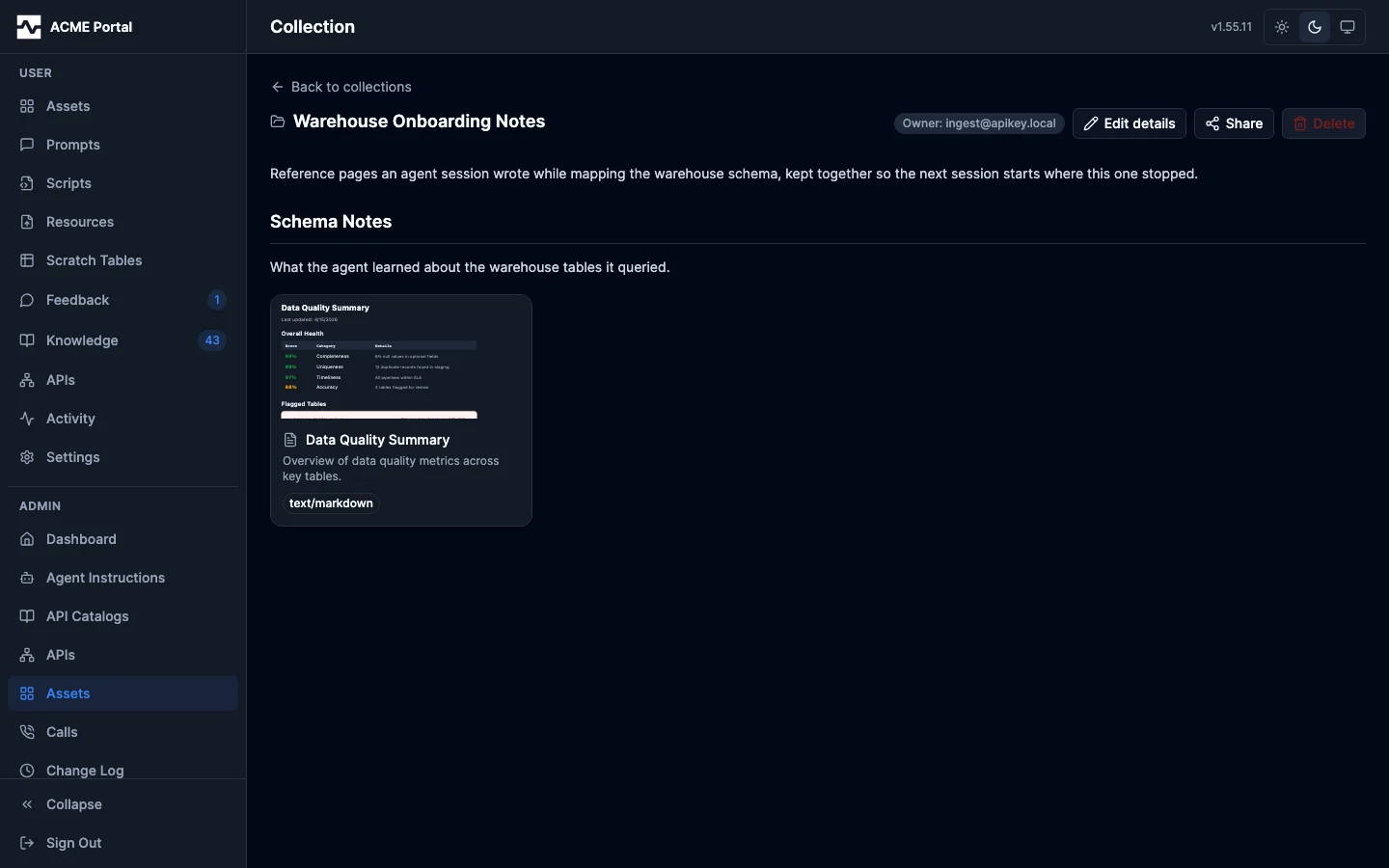
The detail view renders the collection's sections and the assets in each one, with the owner named beside the title. Its items open in the admin asset viewer, so reading a collection never depends on owning what is in it. Share hands the collection to the people who need it; Delete removes the collection and leaves its assets in place. Edit details corrects the two fields the collection carries of its own:
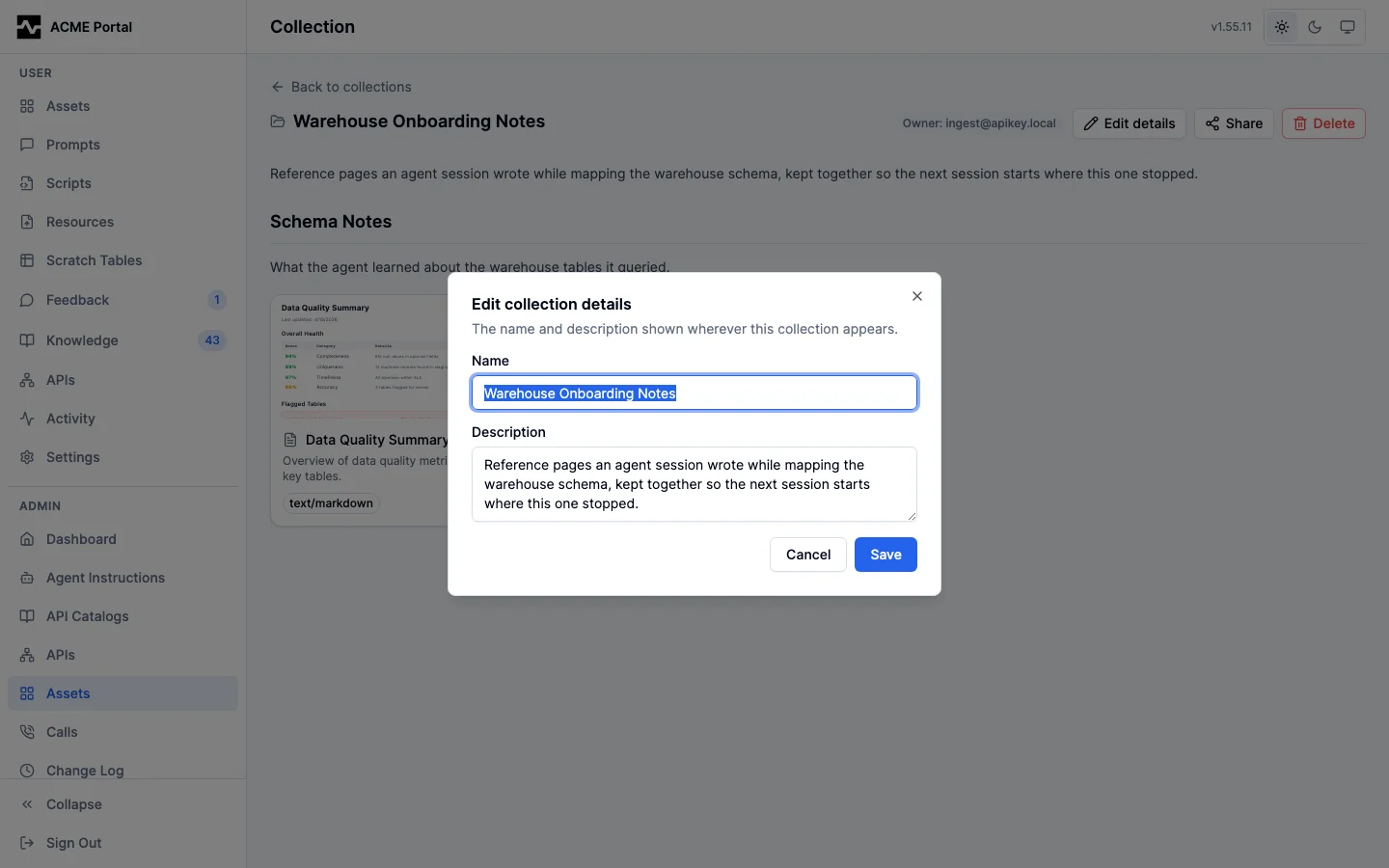
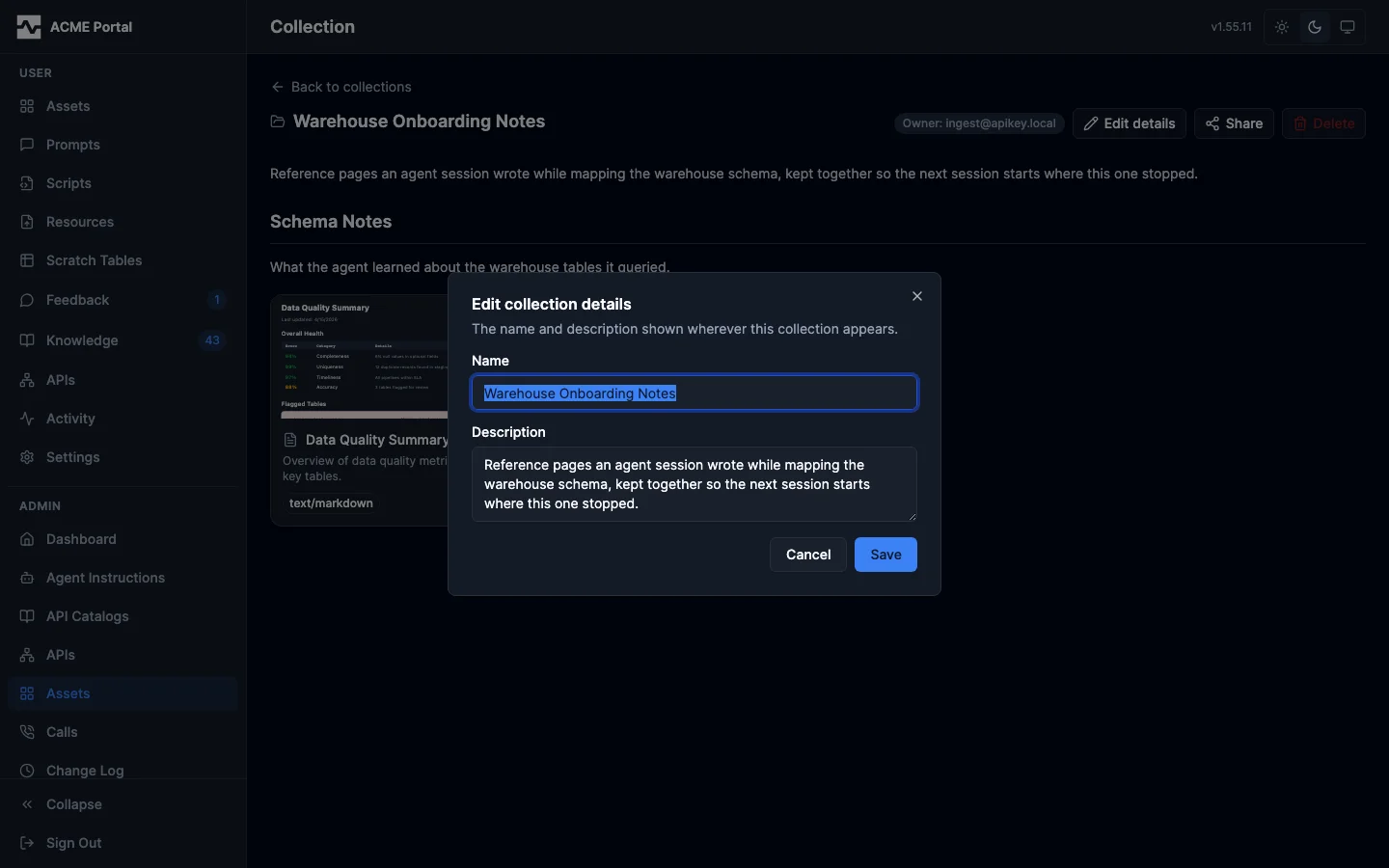
Sections stay with the owner's editor: this page changes the collection's own name and description, not its contents.
This is the collection half of the same authority the asset view carries, and it matters for the same reason. A collection an agent session created belongs to an identity nobody can sign in as, and every owner-scoped list is blind to it — the assets inside it stayed visible one tab over while the thing that grouped them could be seen by nobody at all.
Resources (Admin)
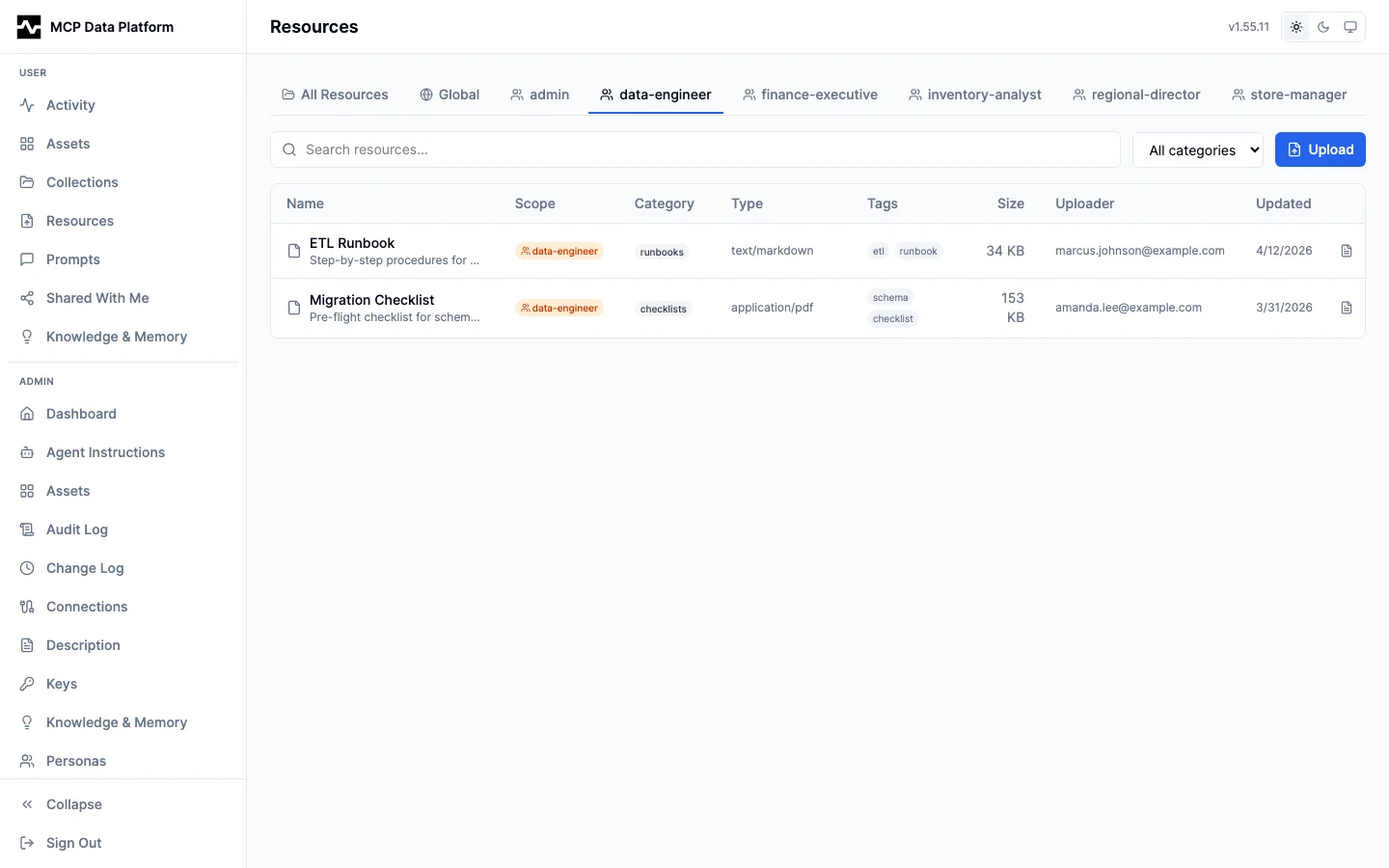
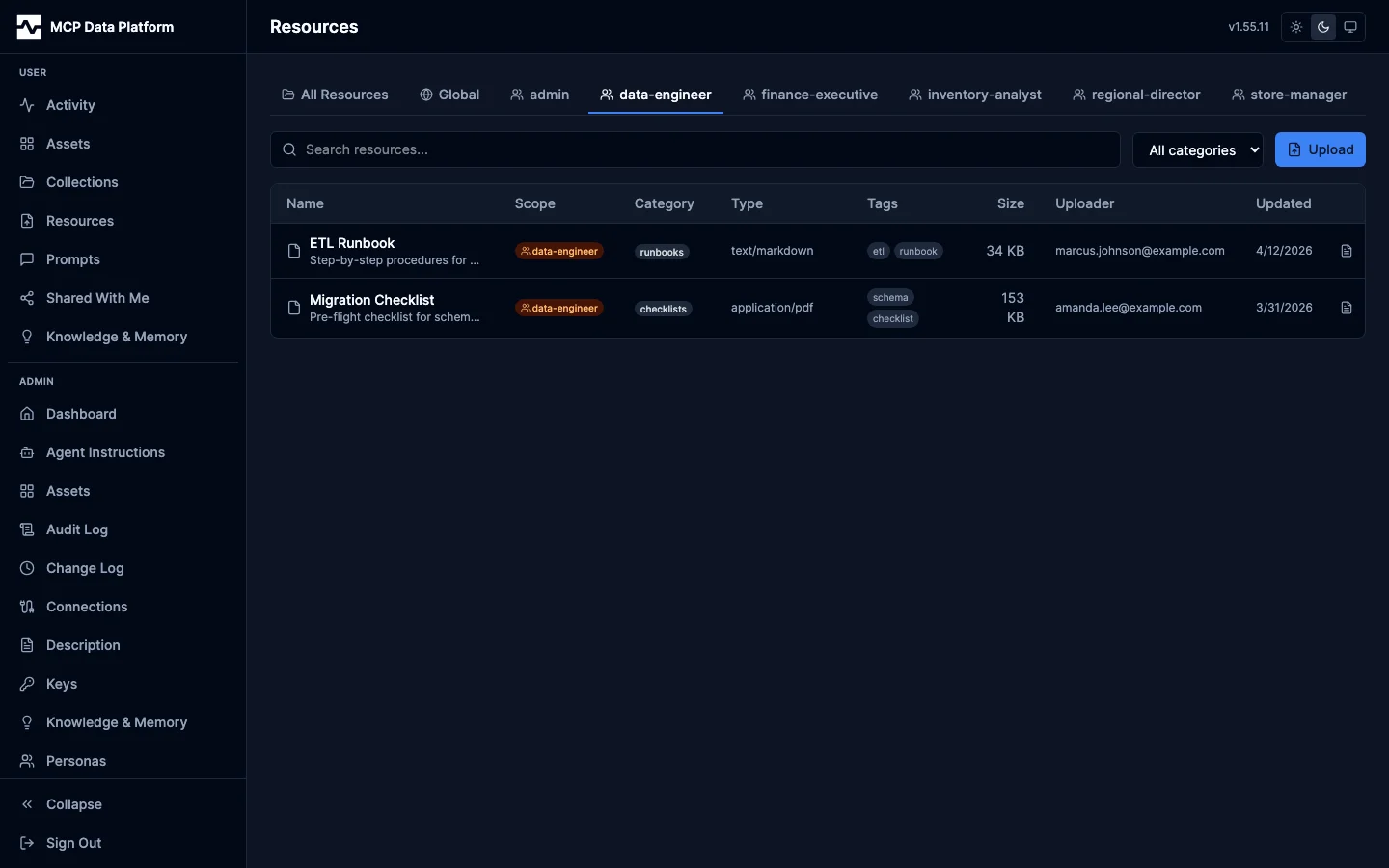
The admin Resources page is the same file manager as the reader's Resources page, over every top-level folder in the deployment.
What it adds:
- Every persona as a top-level folder, whether or not the administrator is a member
- People in the folder tree: one folder per person whose resources exist, named by their address and read when People is opened (
GET /api/v1/resources/people, platform administrators only). It is how an administrator browses, moves and deletes another person's files. - Last read as a column of the listing, sortable, so a curator can find the files nothing reads
- Upload into any top-level folder, Global and a person's folder included; the single-file upload also offers filing one file into several at once, a named person's included
- Top-level folder on a resource's Edit dialog: moves the file to any persona, to Global, or to a named person's folder, addressed by email. See Moving a resource to another library.
Opening a file shows it at /admin/resources/{id}, the same page the reader's section serves at /resources/{id}.
Prompts (Admin)
The admin Prompts page provides global prompt management across all scopes and personas.
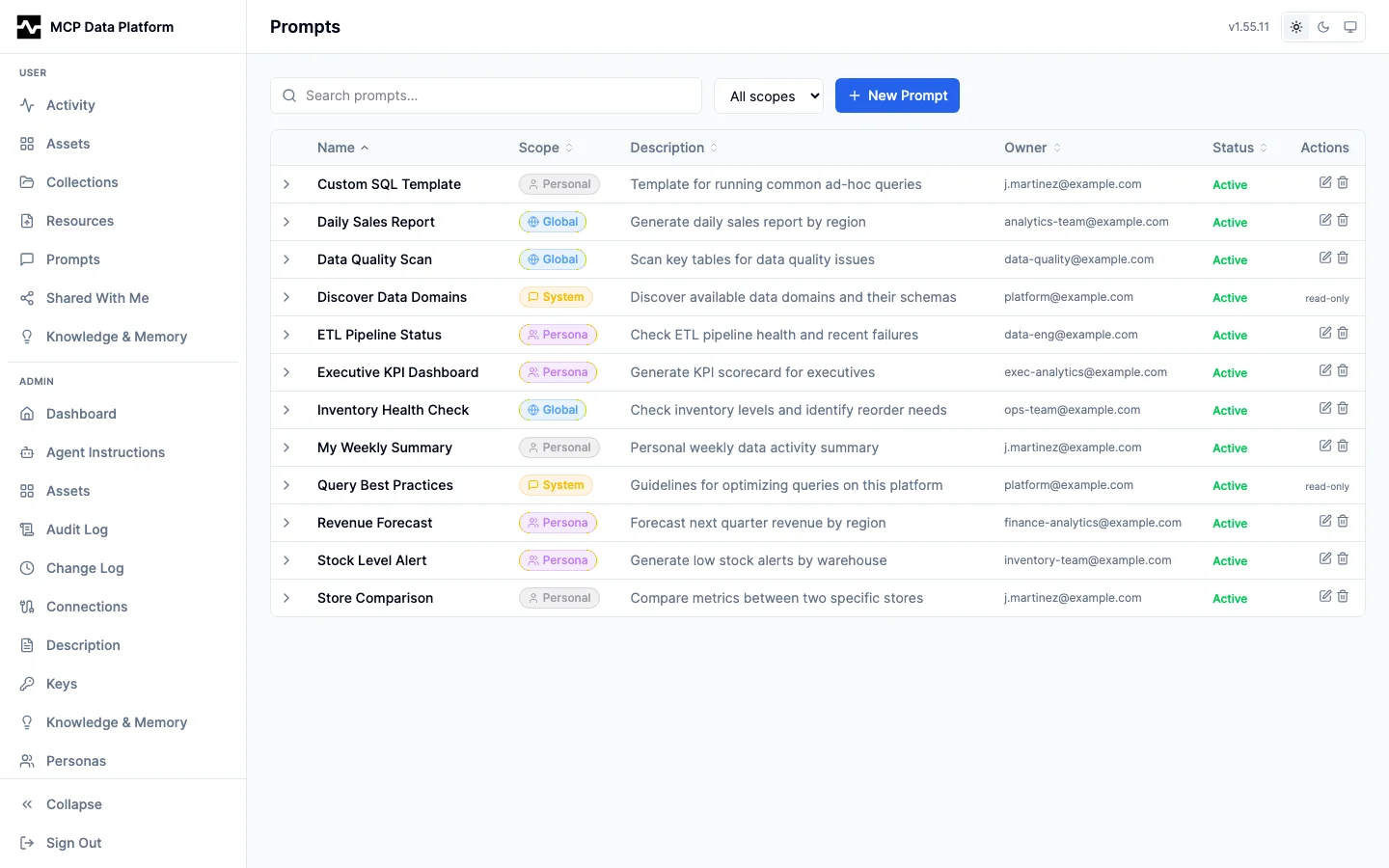
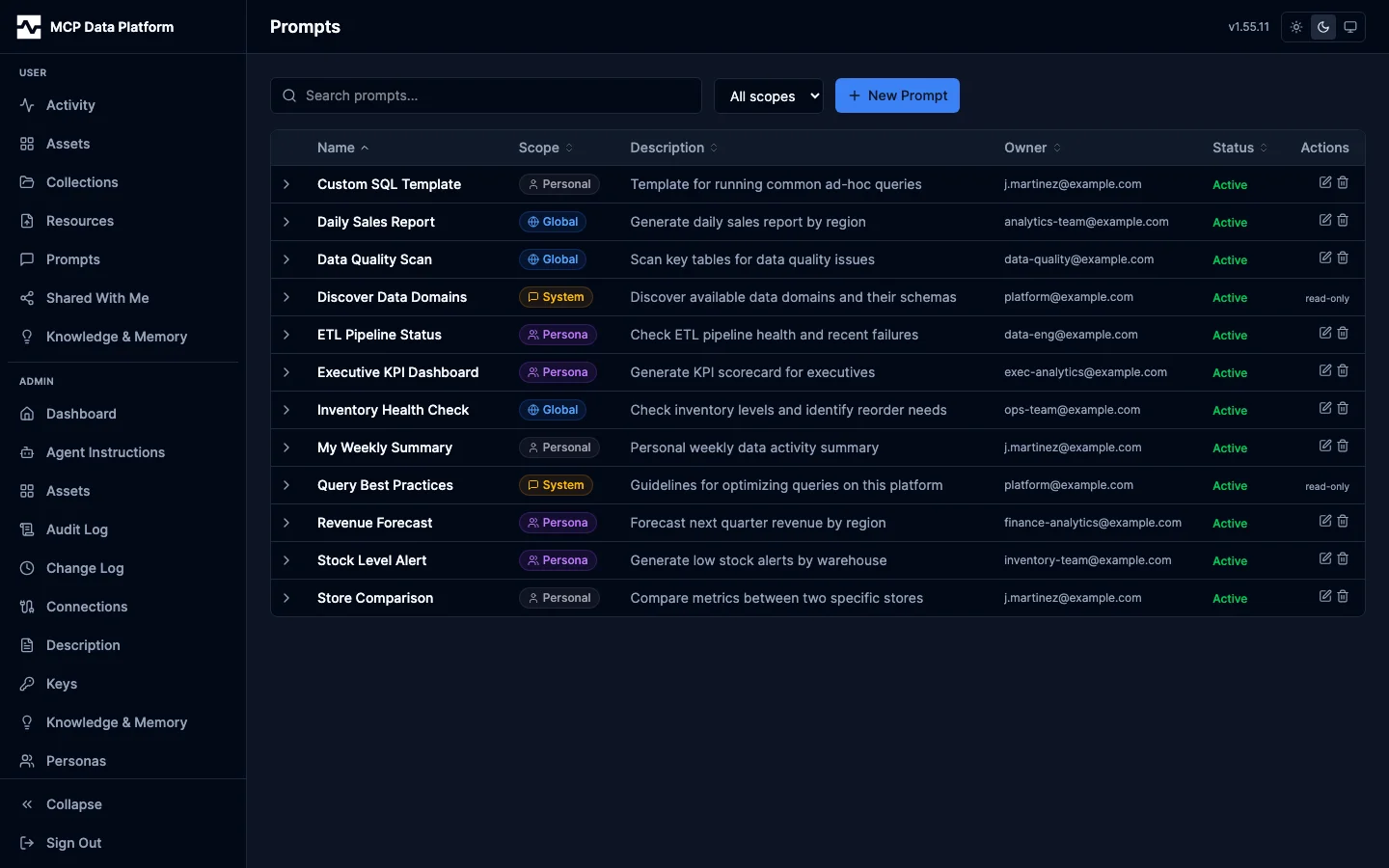
The create/edit form is a markdown editor with auto-extracted {argument} placeholders, a scope selector (global, persona, personal), persona targeting, and lifecycle status. When an author requests promotion, a review-queue banner surfaces pending prompts for approval or rejection.
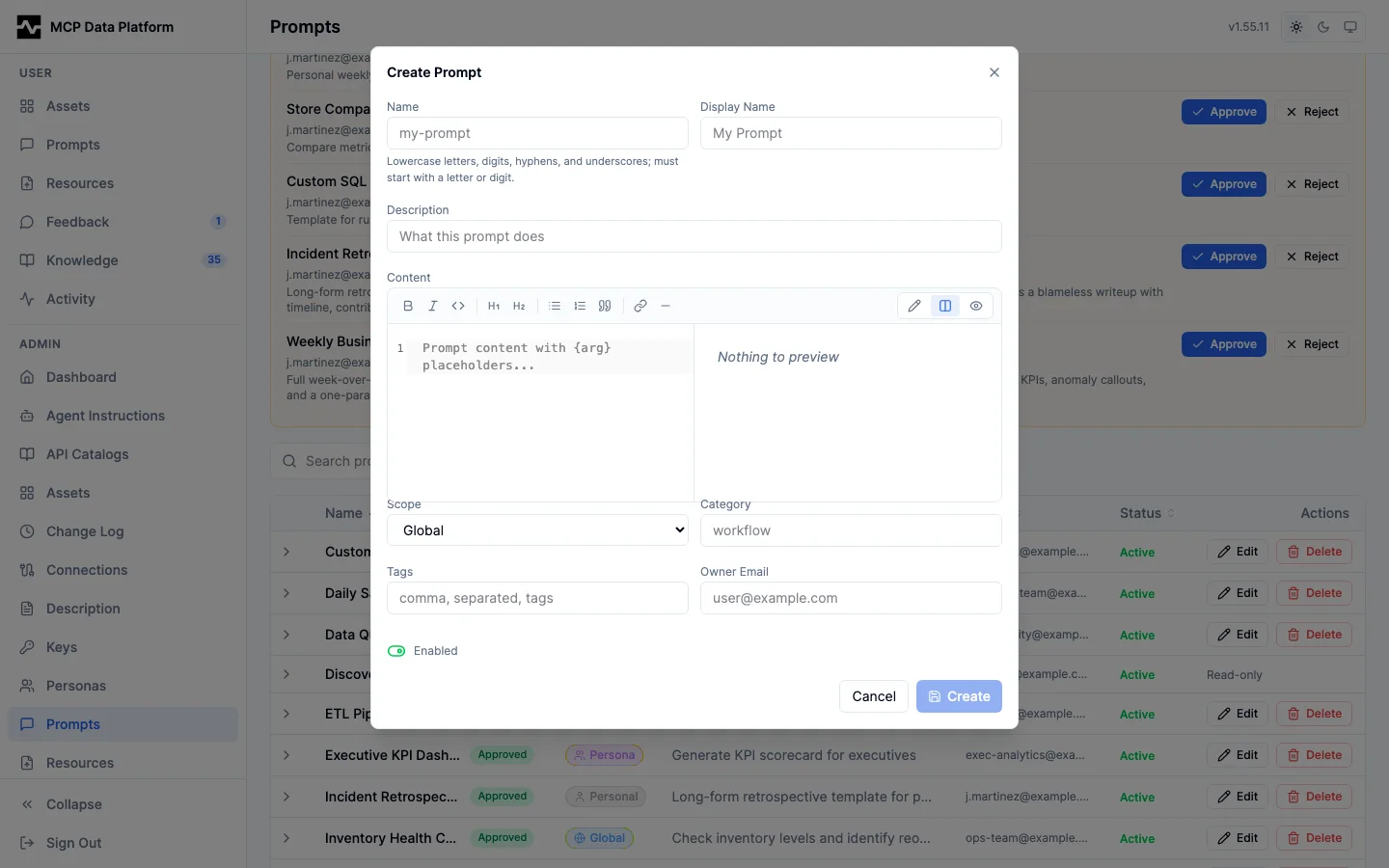
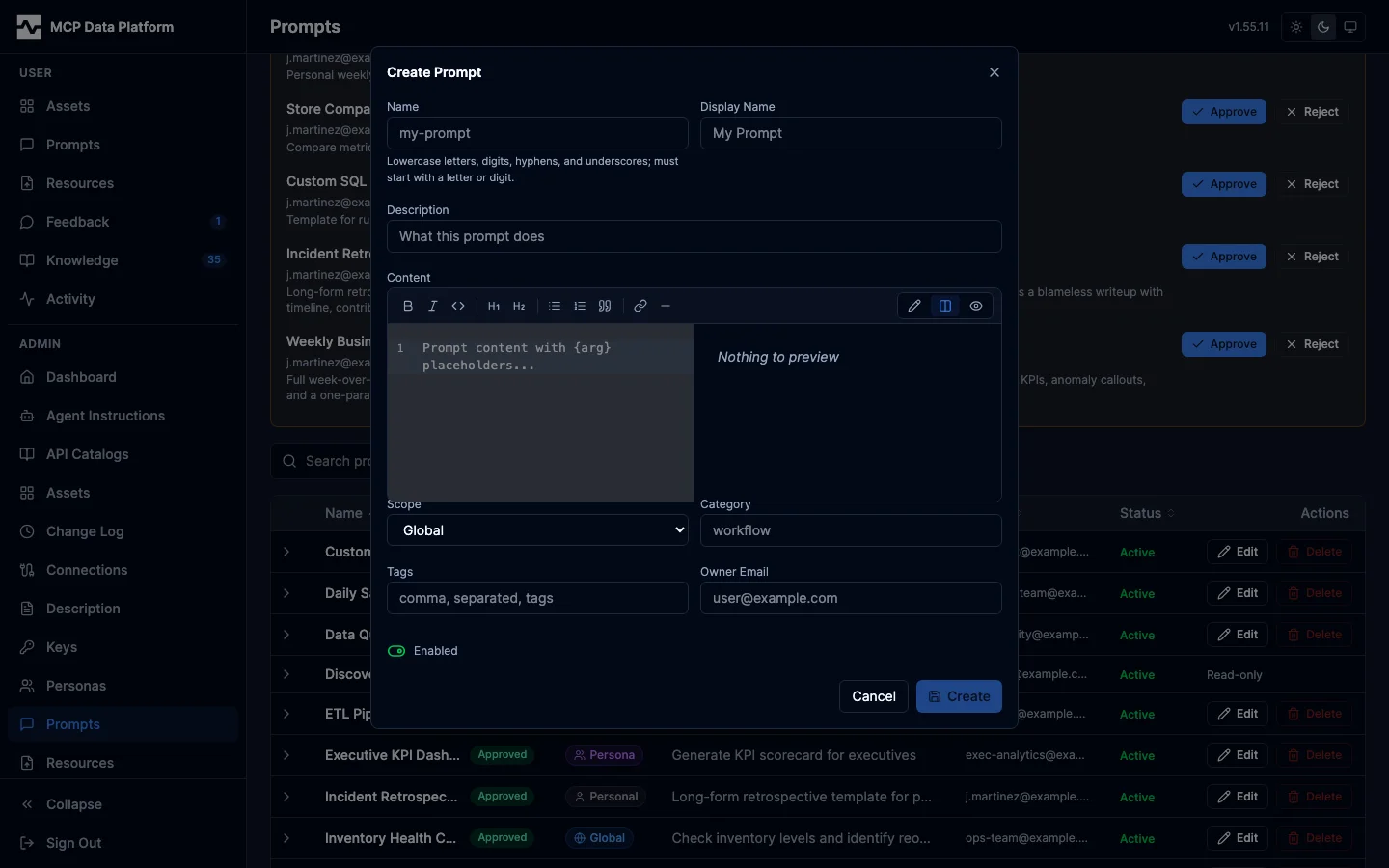
Features:
- Scope filter — Dropdown to filter by Global, Persona, Personal, or System scope
- Search — Full-text search across name and description
- New Prompt — Create prompts with scope, persona assignment, tags, and enabled/disabled state. A global or persona prompt created by an admin lands
approvedwith the creating admin stamped as approver — the creator is the reviewer, so nothing sits in draft with no approve affordance in sight - Sortable table — Name, scope badge, description, owner, category, and actions
- Scope badges — Global (blue), Persona (purple), Personal (gray), System (amber)
- Status badges — Lifecycle state next to each name: draft (gray), approved (emerald), deprecated (amber), superseded (rose)
- Lifecycle controls — Editing a prompt exposes a status selector to move it through draft -> approved -> deprecated/superseded; approval stamps the acting admin. Selecting superseded reveals a field to record the replacement prompt name.
- Tags — Comma-separated labels set on create and edit, shown as chips in the expanded row
- Promotion review queue — A panel at the top of the page lists personal prompts whose owners have requested promotion, showing the owner, the requested scope (persona with the target personas, or global), and the description. Approve applies the requested scope/personas and marks the prompt approved; Reject clears the request and leaves it personal. If the promoted name already exists in the shared namespace, approval is blocked with a conflict so the owner renames first. The panel is hidden when no requests are pending.
Automations (Admin)
The Automations page (/portal/admin/automations) is the operator's view of the
platform's automations, each of which is a managed script: every script that
exists, and what has been running. A saved script runs — the
latest saved version is what run_script and a schedule execute, presenting
the roles its author held at the save — so this page lists and explains rather
than gating anything. See
Managed Scripts: Security Model.
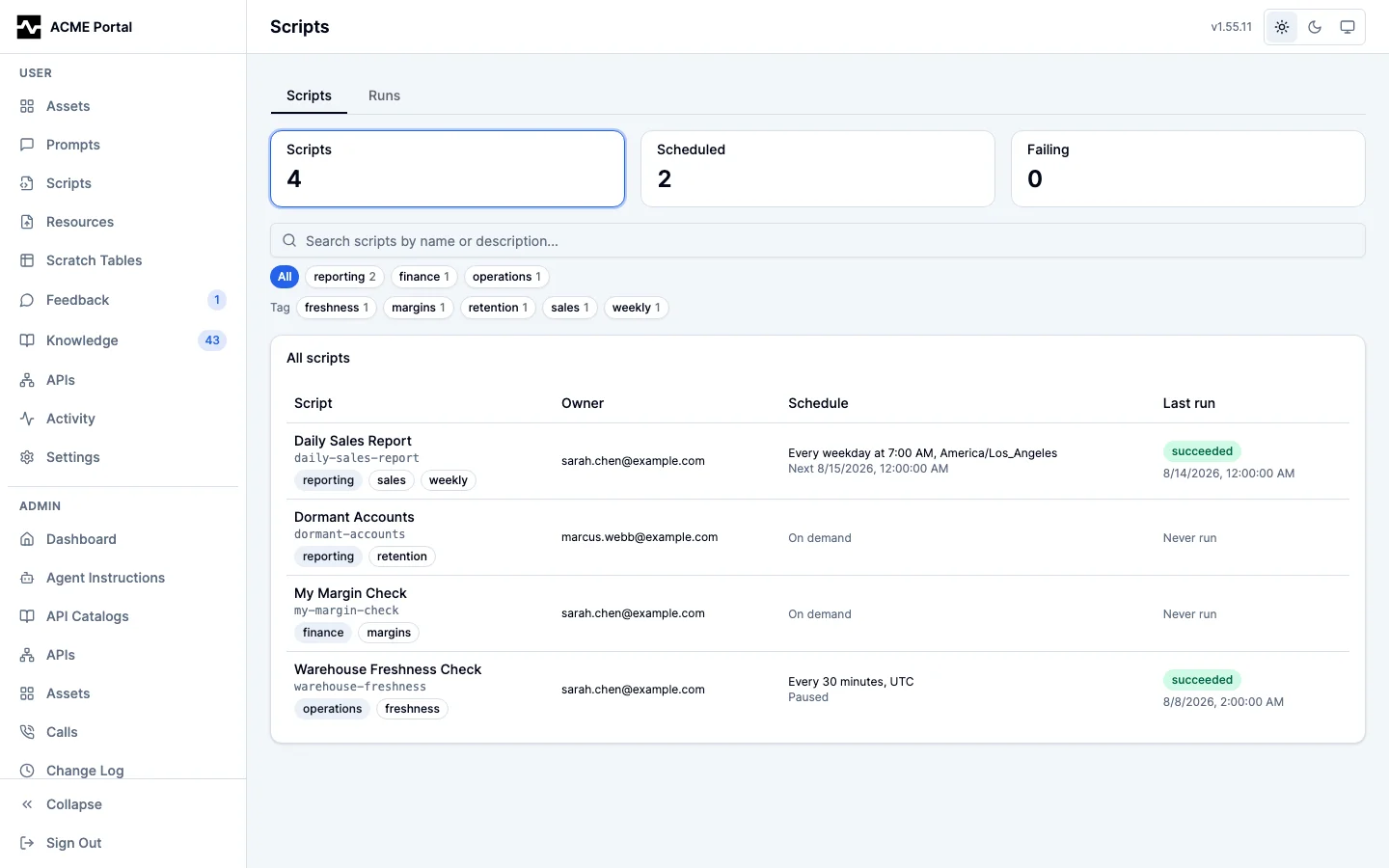
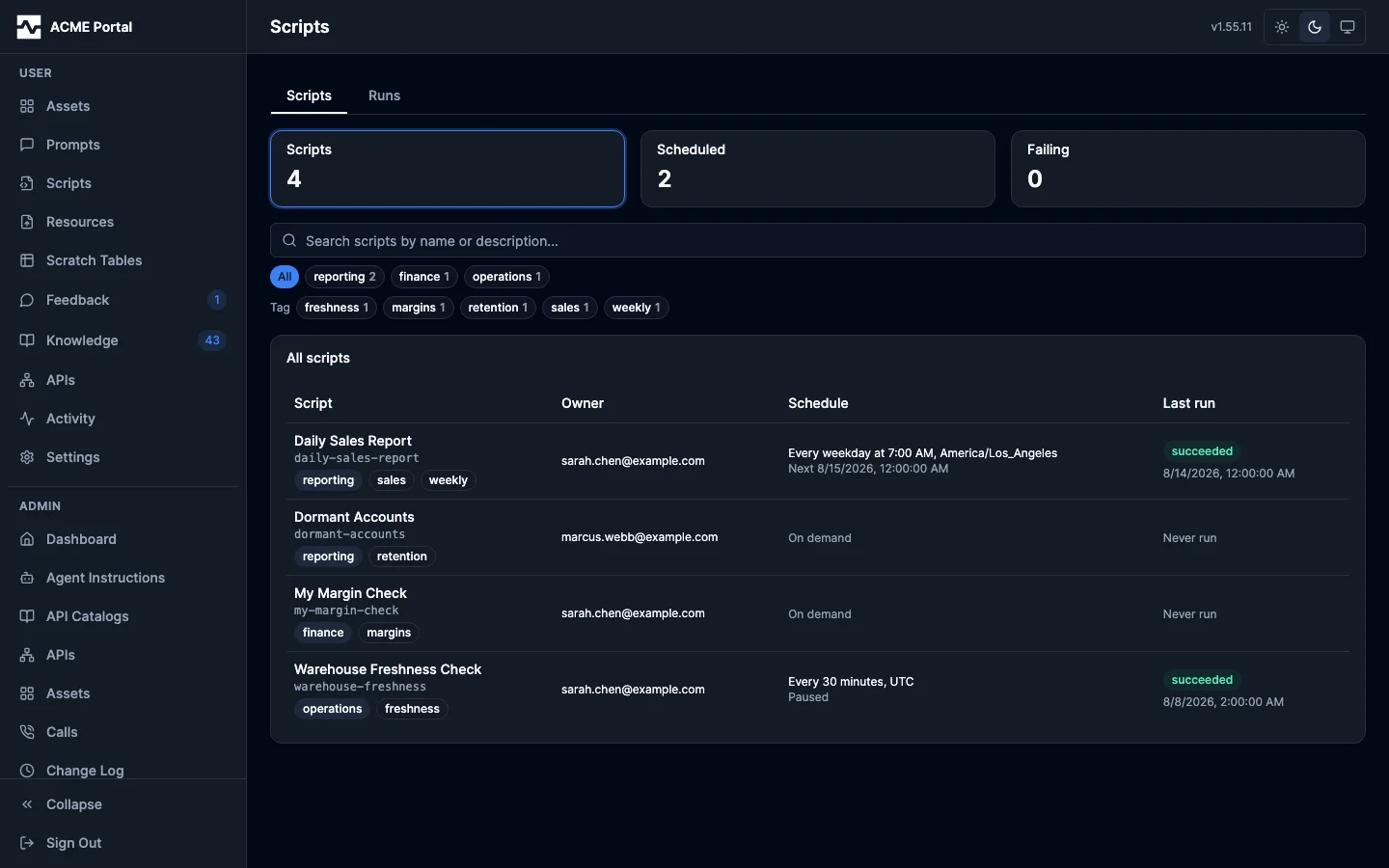
All automations lists every script by name, kind, owner, schedule and last run. The schedule is the cadence in words — "Every weekday at 7:00 AM, America/Los_Angeles" — with what it is doing underneath it (the next fire, paused, or no fire due), and a script with no cadence reads On demand; the cron expression is read and written in the schedule editor on the script's own page and appears nowhere else. A script that will execute nothing carries a badge beside its name (disabled, or its lifecycle status), which is the exception a listing is scanned for; the version a run executes is a fact about every healthy script and is stated on the script's page rather than in a column here.
A script is one person's, so its owner is who sees it, runs it, and under whose authority a scheduled run executes; a script showing nobody as its owner was authored by a principal carrying no address and is visible only to administrators. Opening a row opens the script.
One health line above the table counts the listing — how many scripts, how many are scheduled, how many failed their last run, the last of which also filters to them — and one filter bar narrows it: a search box and a facet each for author, category, tag and status, every one a query predicate answered by the server over every script rather than over the rows this page happened to load. The Script, Author and Updated headers order it, in the store and ahead of the page cap. It is the same listing the owners read on their own Automations page, without the scope tabs, which an administrator has no use for: one listing, so the two surfaces cannot drift apart.
One script
The script page an administrator opens is the page its owner opens.
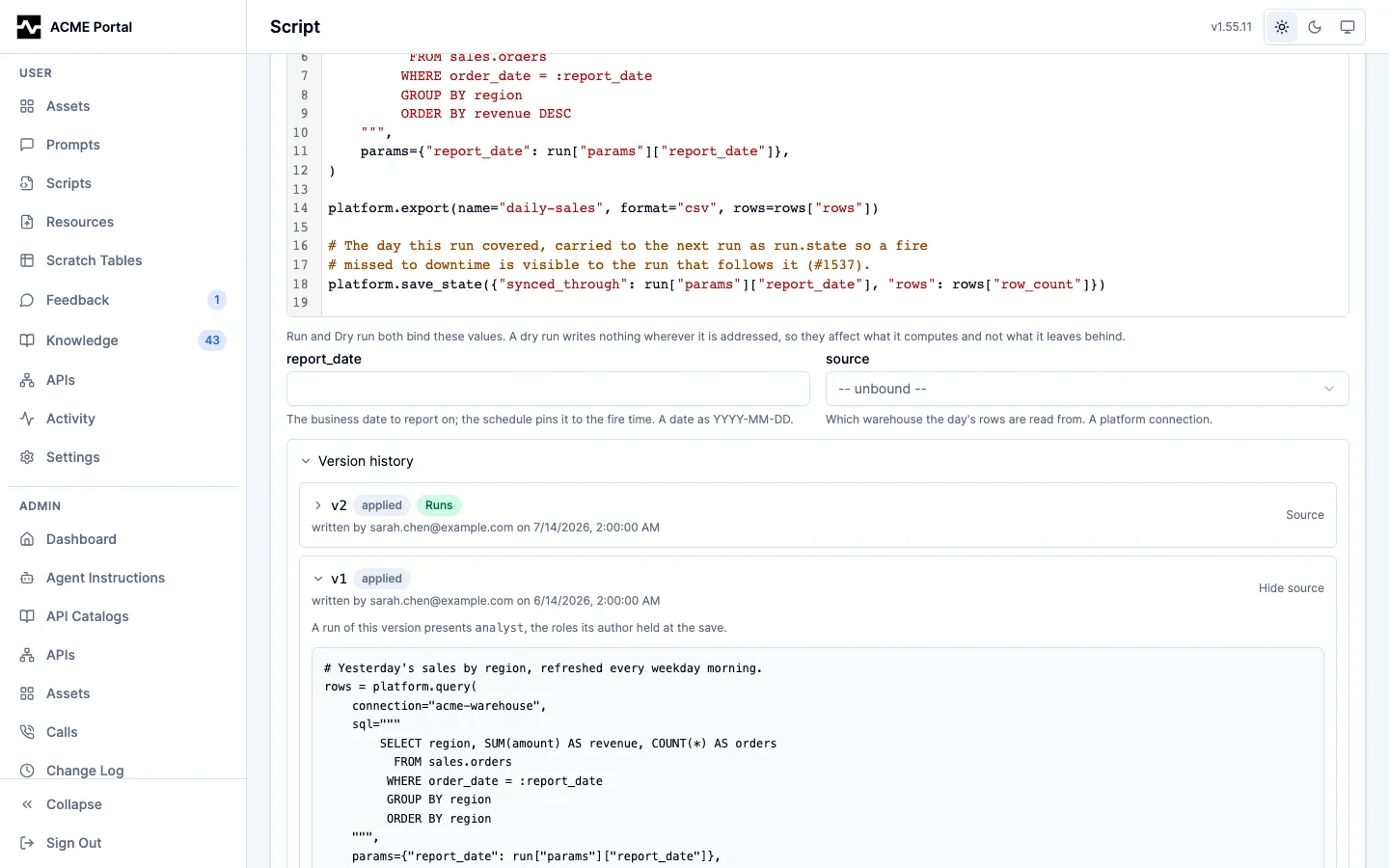
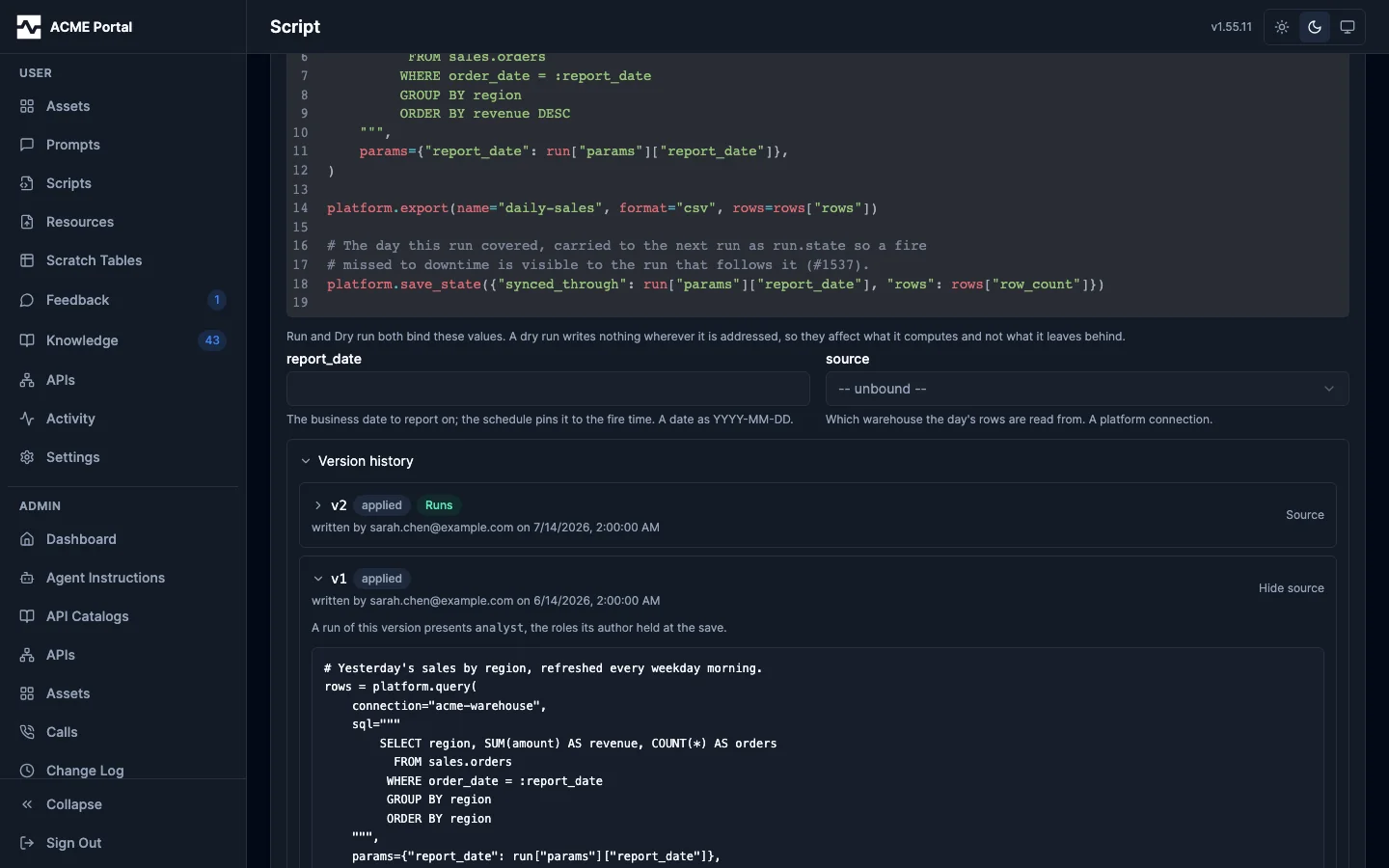
Everything an owner does is here for every script — edit the source, validate and dry-run the edit, run it, set or pause the schedule, read the version history and the run history — plus the one thing only an administrator does: Owner, which moves the script to another person.
Two of the sections fold. Schedule is folded by default and states what the script runs in its header ("Runs: Every weekday at 7:00 AM, America/Los_Angeles", or "Not scheduled"), with the builder and the bindings behind the reveal and the pause control on the header either way: the cadence is set once and read constantly. About is open, because a reader who opens a script wants to know what it is, and folds away when the document is long enough to be in the way.
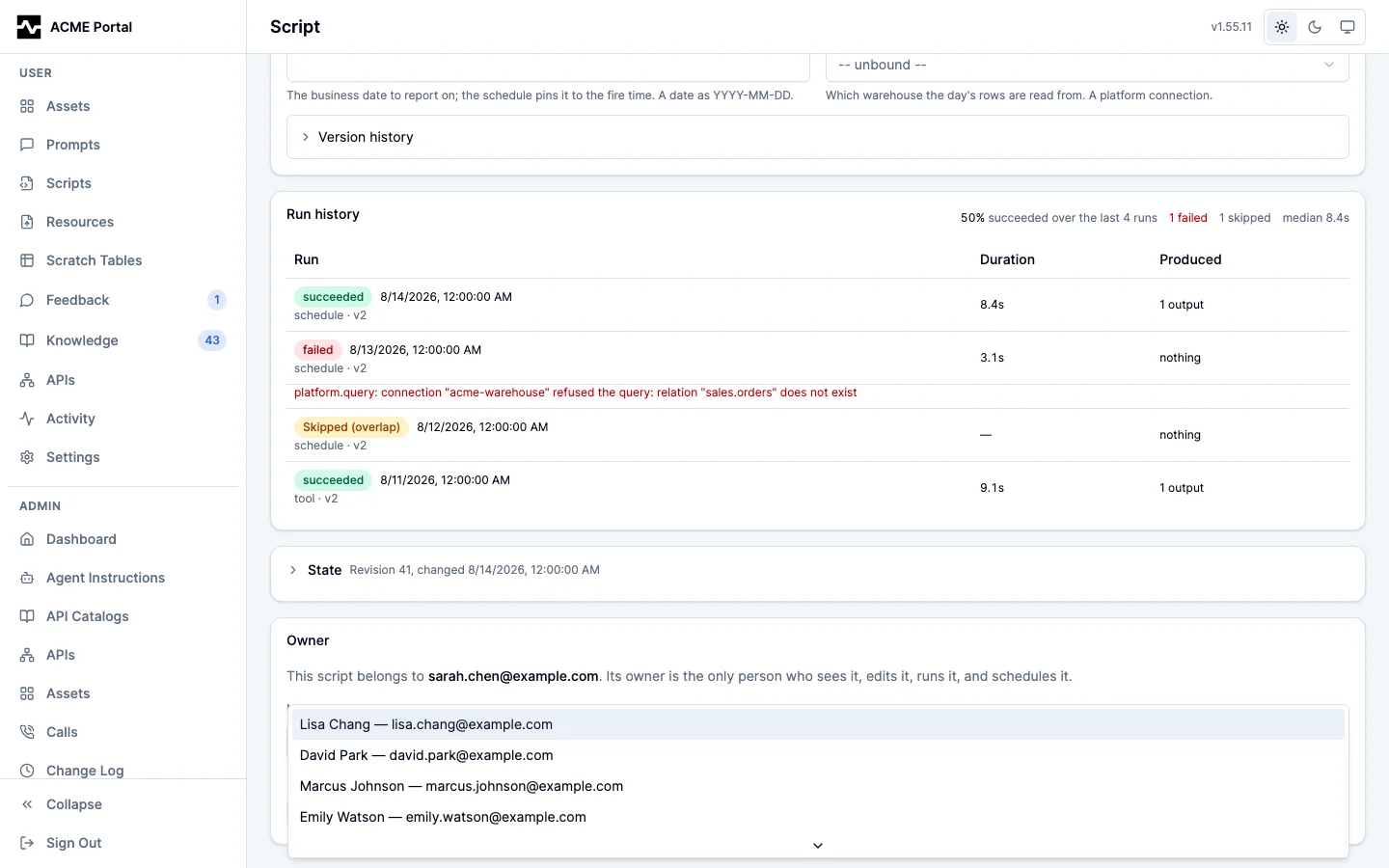
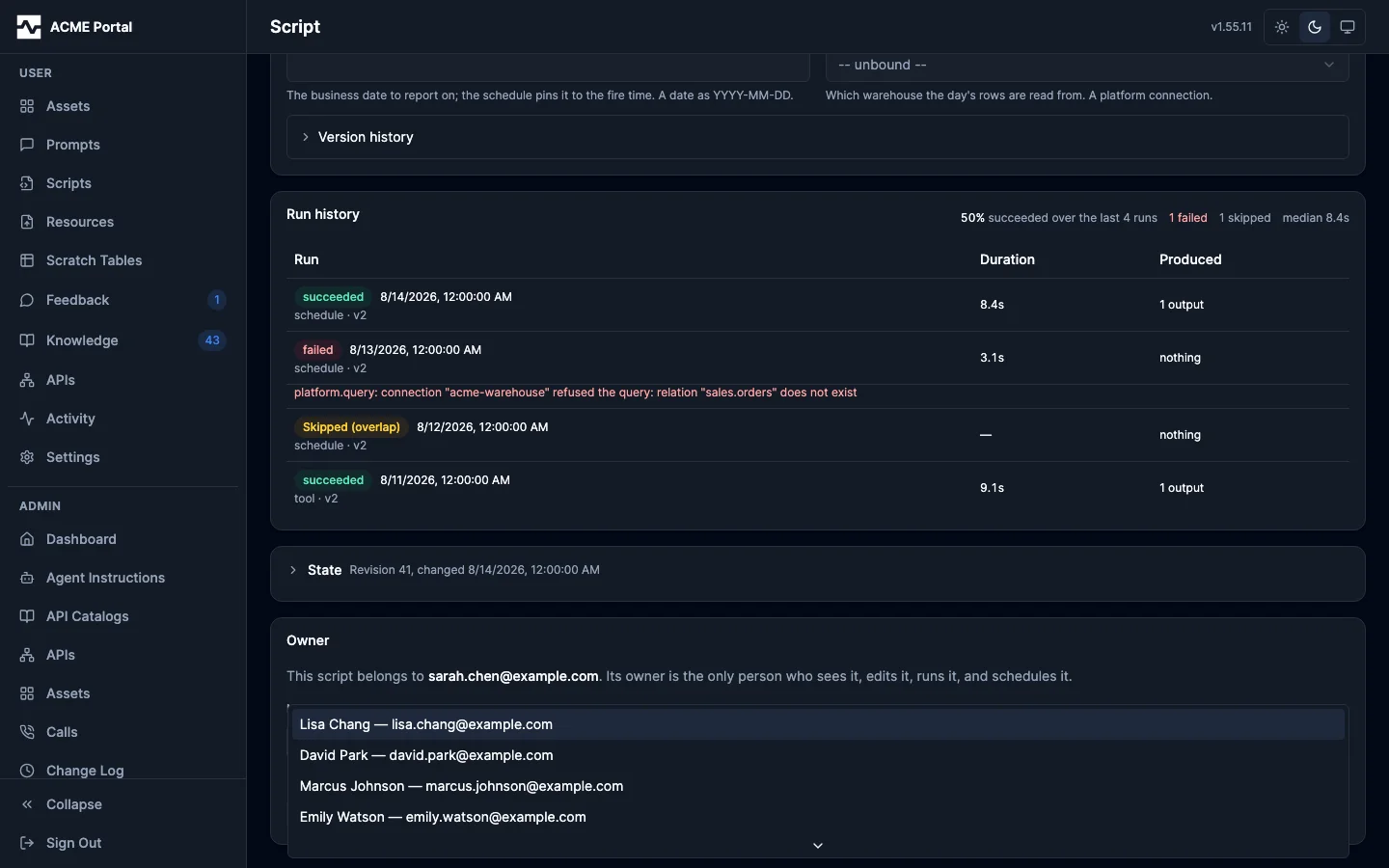
The new owner is chosen from the people who have signed in to this deployment at least once, rather than typed: an address nobody has ever authenticated with cannot open the portal, so a script handed to one would be a script only administrators could see. A deployment where nobody else has signed in says so instead of offering the control.
A transfer hands over everything at once, since ownership is the whole of what a
script is: what its owner sees, edits, runs, and schedules. It is recorded as a
new version authored by the administrator making it, and from then on a run
presents THAT administrator's roles — which is how a script comes to run with an
administrator's reach, and the reason to move one to an administrator in the
first place. The move is refused when the receiving owner already keeps a script
of the same name, and it is recorded in the audit log as a script_transfer_owner
event naming both ends of the move. It is also how an ownerless script gets an
owner. The version history shows each version's
author and the roles they held, which are the roles a run of that version
presents. A version's detail states whether its exact source has been dry-run,
by whom, and how it ended — the account is matched by the source itself, so it
describes the code in front of the reader and no other version.
There is deliberately one script page rather than two. Two would have meant the administrator's and the owner's answers to "what can I do with this script" drifting apart, one feature at a time.
Schedules
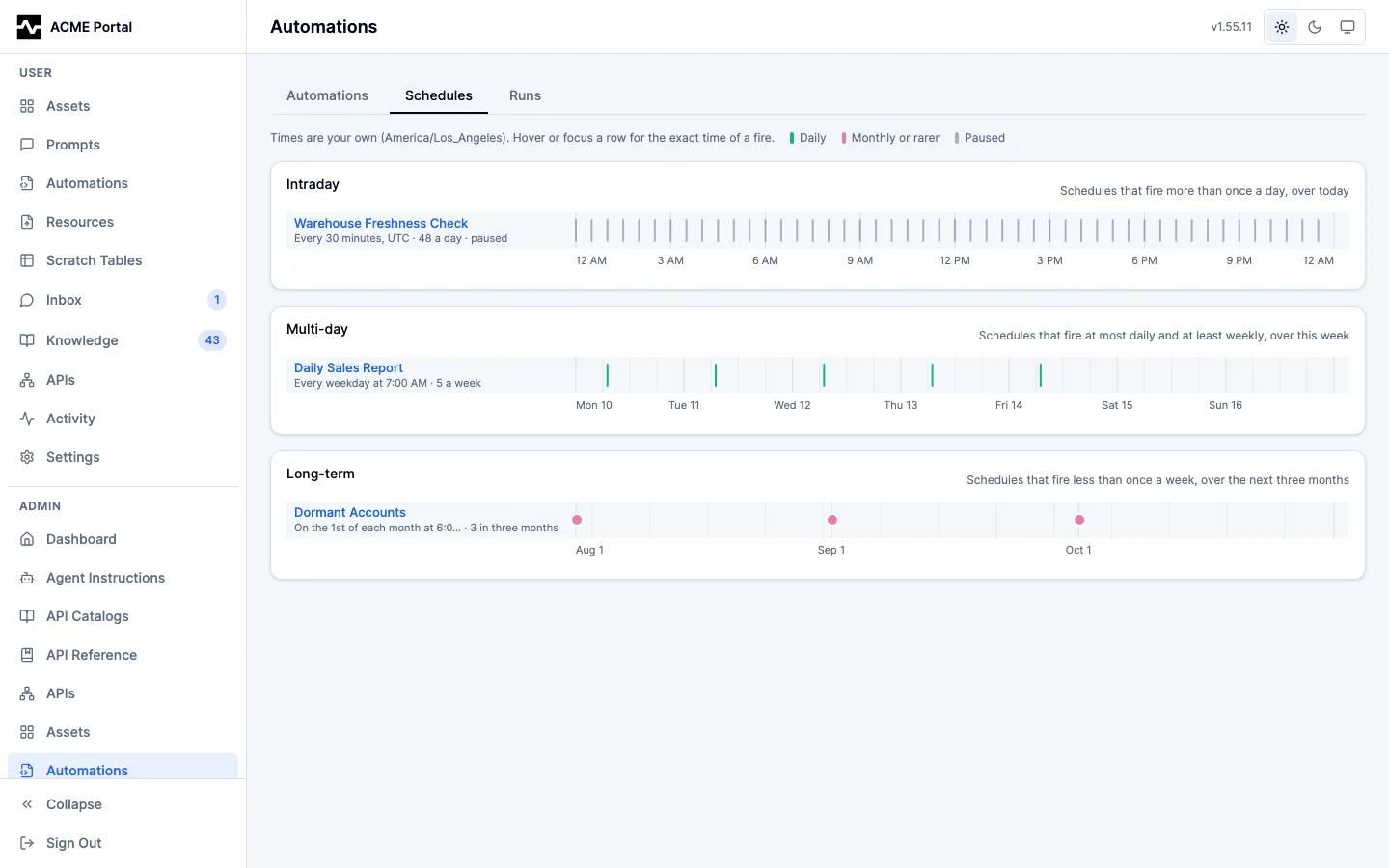
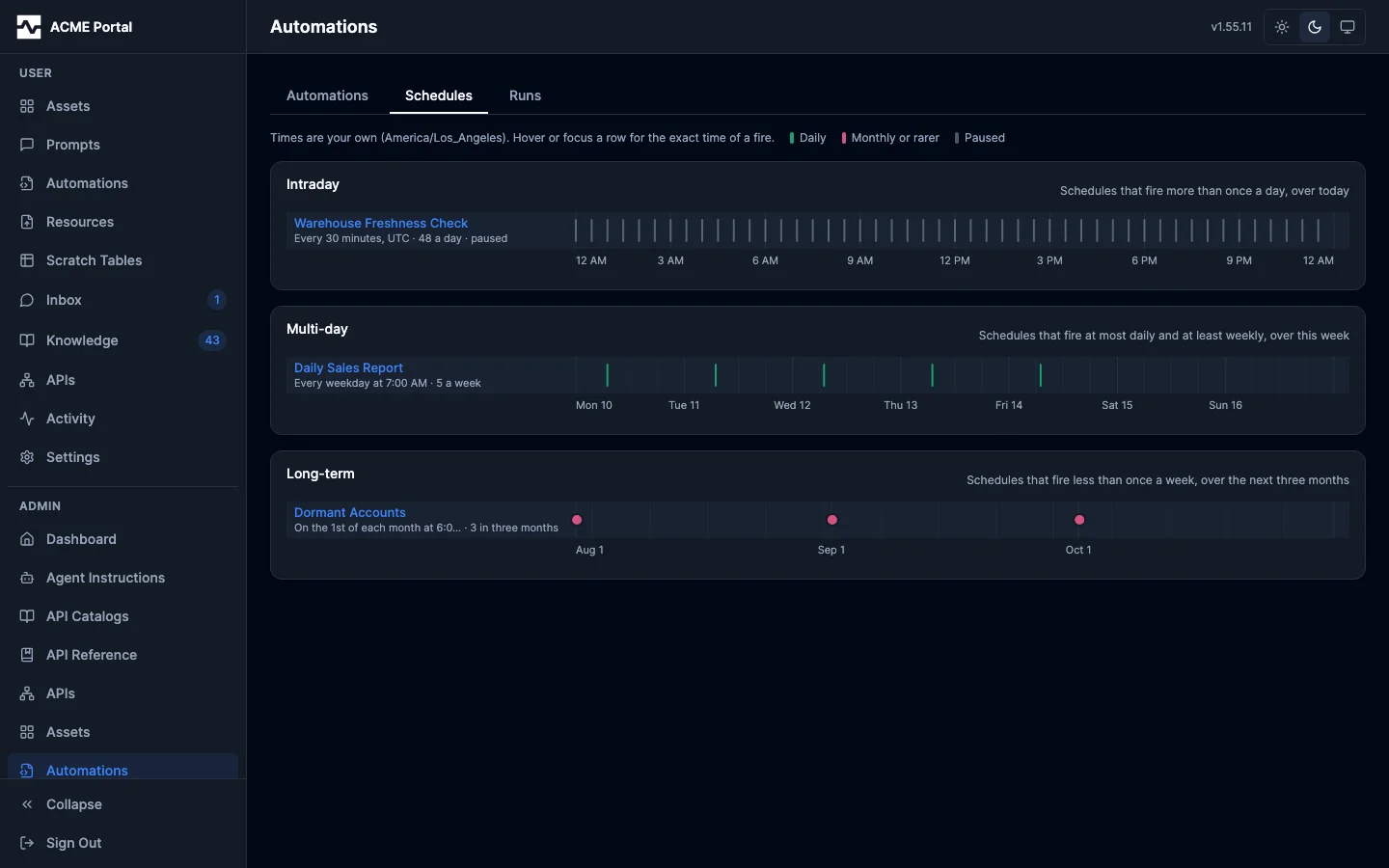
The Schedules tab draws when every schedule on the platform fires, each row opening the script under this section. It is the owners' tab told an administrator is reading, so it covers every script rather than one person's. Seeing every schedule at once describes the three axes and what a row's color and marks say.
Runs
The other question an operator has is what has been running. The Runs tab answers it across every script.
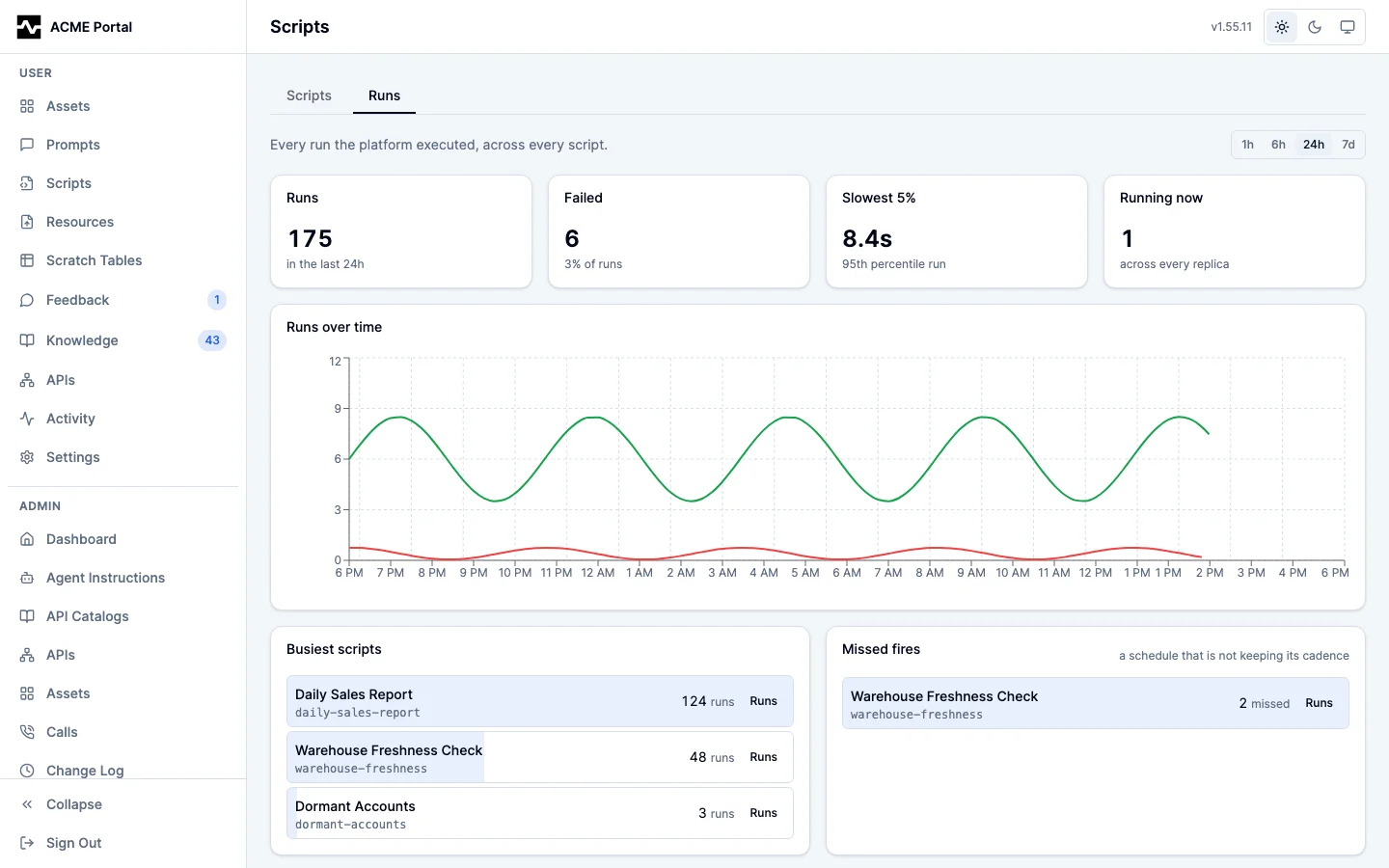
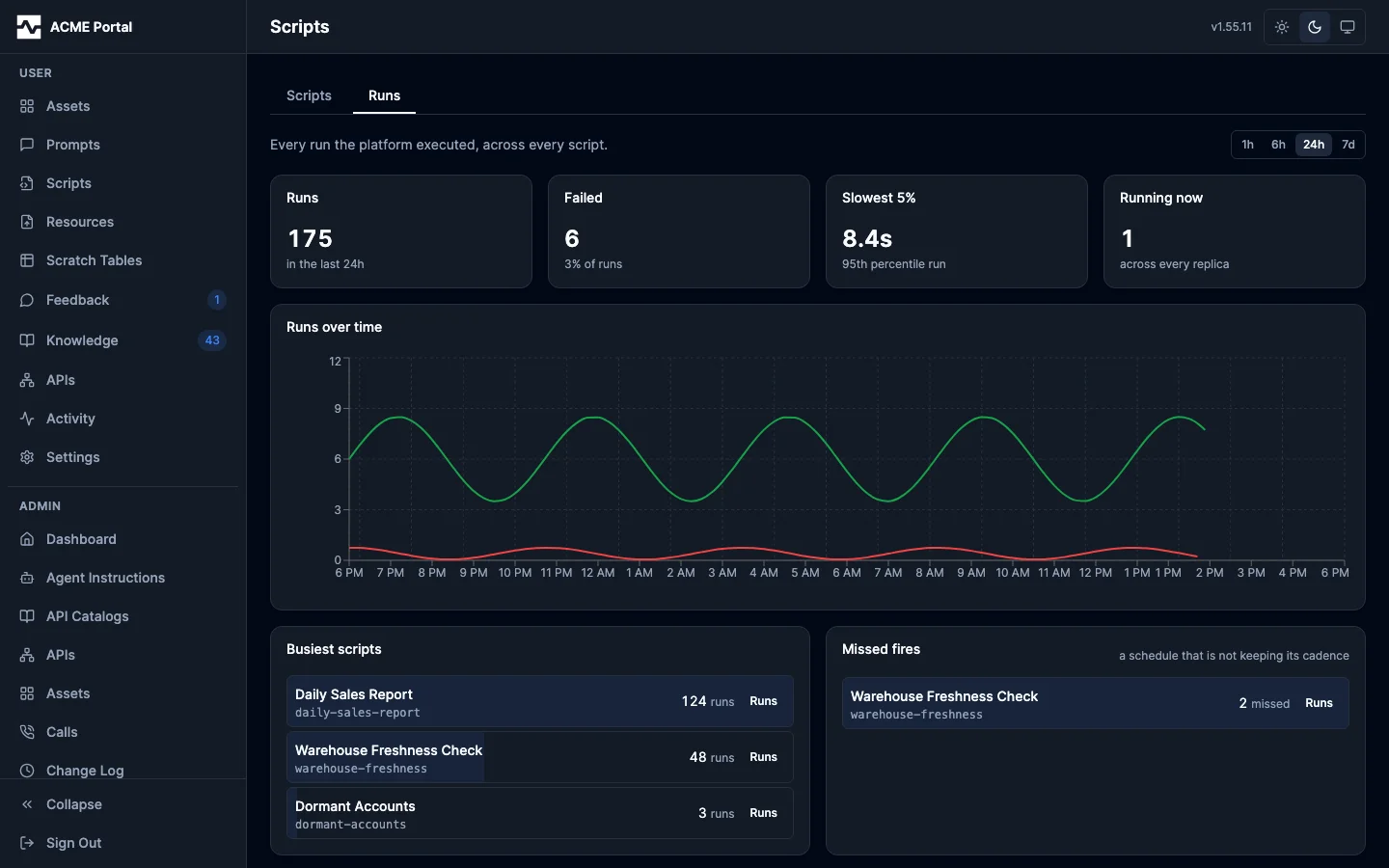
The panels read the metrics the run worker and the scheduler emit
(script_runs_total, script_run_duration_seconds, script_runs_running, and
script_missed_fires_total — see Observability): how many
runs finished in the window and how many failed, the slowest five percent, how
many are executing right now across every replica, the succeeded-against-
everything-else split over time, the busiest scripts, and the automations that
are missing fires. A missed fire is the one thing the run table cannot show,
because it is precisely a run that does not exist.
Busiest scripts and Missed fires name a script and link to it: the name opens the script, and Runs narrows the table below to that script's runs, answered by the server so the row cap counts that script's history rather than the platform's. A row the listing cannot resolve — a script that has since been deleted, whose series outlives it — is still drawn, without links.
The table beneath them is the exact recent history from the platform's own records: which script, what triggered the run, how it ended and why when it failed (in full, wrapped rather than clipped), and how long it took. A row opens that run: its parameters, what it cost, what it wrote and the log it printed, on the script's own page, and the script's name opens the script itself. It shows the 50 most recent runs — the store's own ceiling — and says so when it fills, because older runs are kept for as long as the retention window allows and the charts above cover that whole window whatever the table holds. The two sources are deliberate — the metrics survive run retention and aggregate across replicas, and the rows carry the reason a particular run failed. A deployment with no metrics backend configured says so and still shows the history.