The Portal
The portal is the platform's built-in web interface, and the only surface where
a person rather than an agent reads what the platform holds. It is served at
/portal/ and is one application with two halves: User pages, which are
your own work, and Admin pages, which are the deployment.
The user half is the day-to-day interface for analysts, engineers, and other data consumers: the assets an agent produced for them, curated collections, managed resources, shared work, captured knowledge, prompt templates, managed scripts, and their own activity.
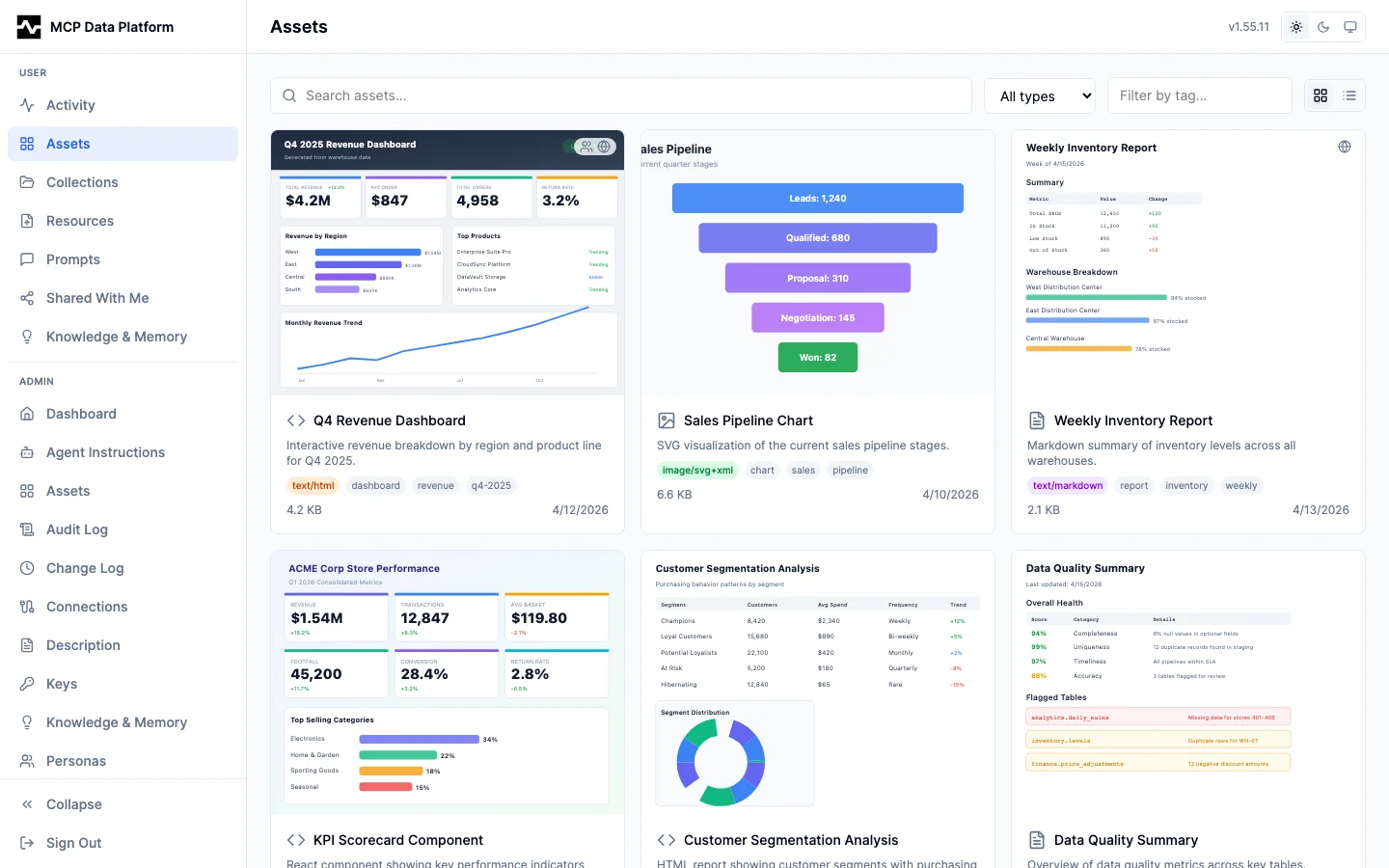
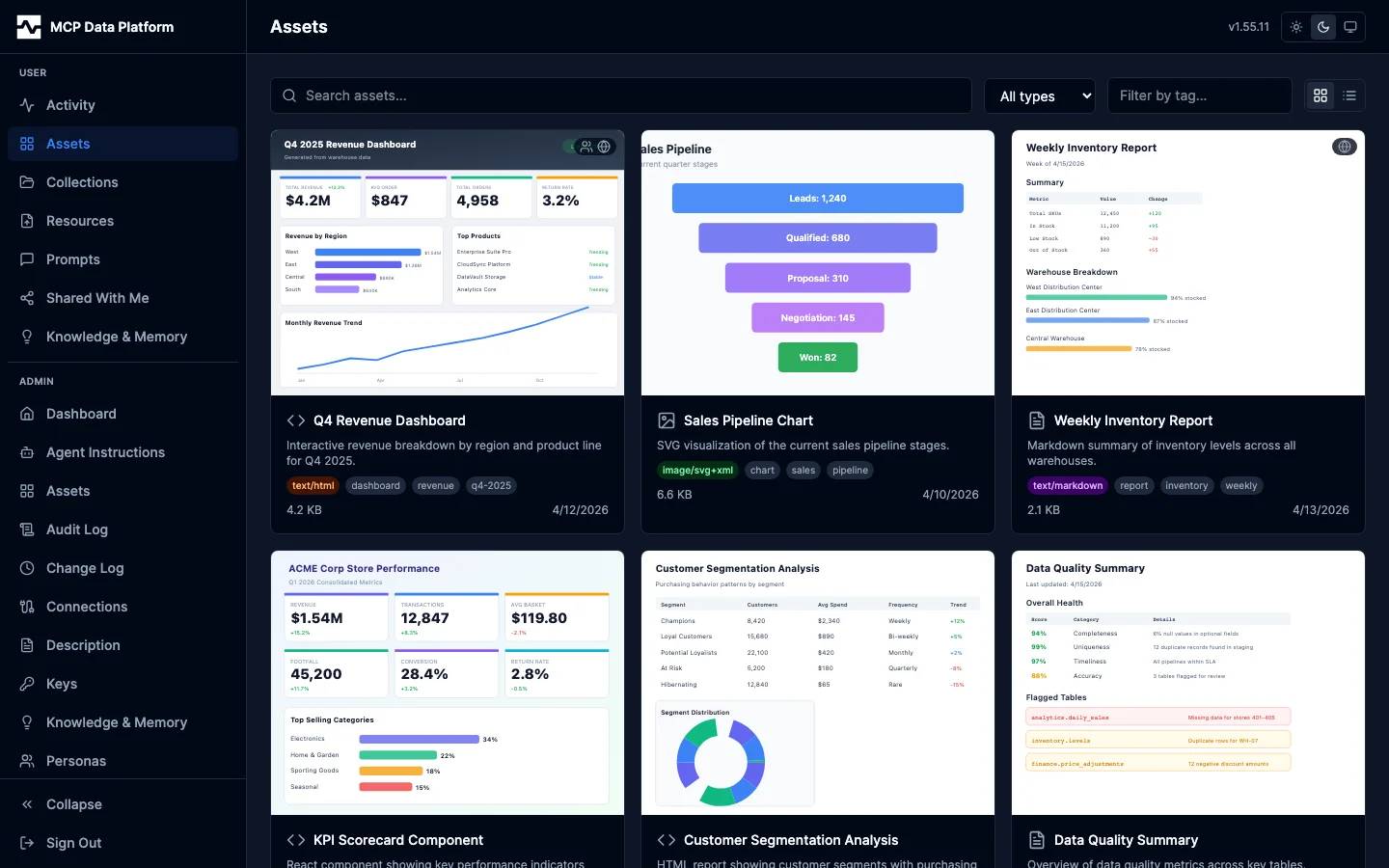
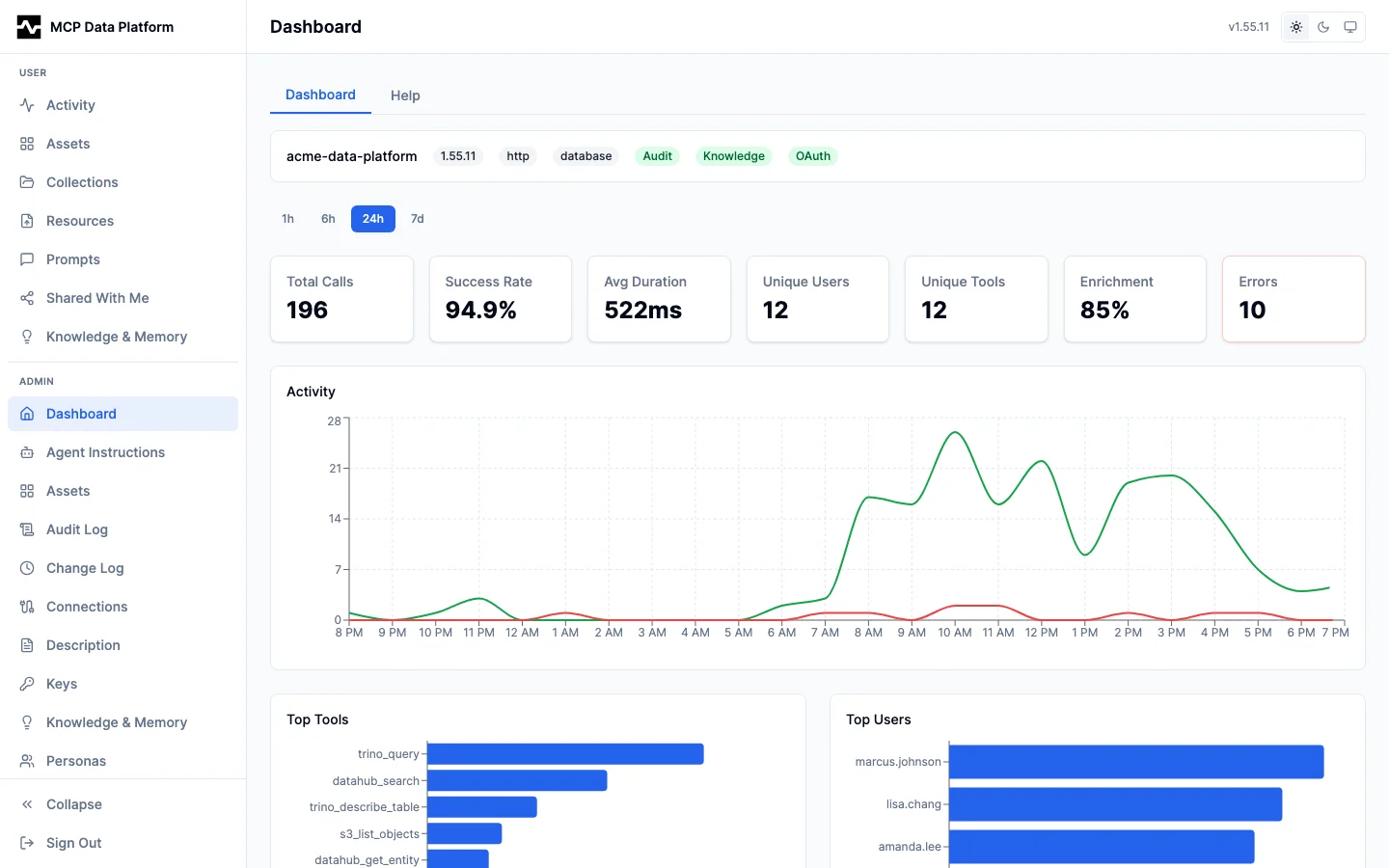
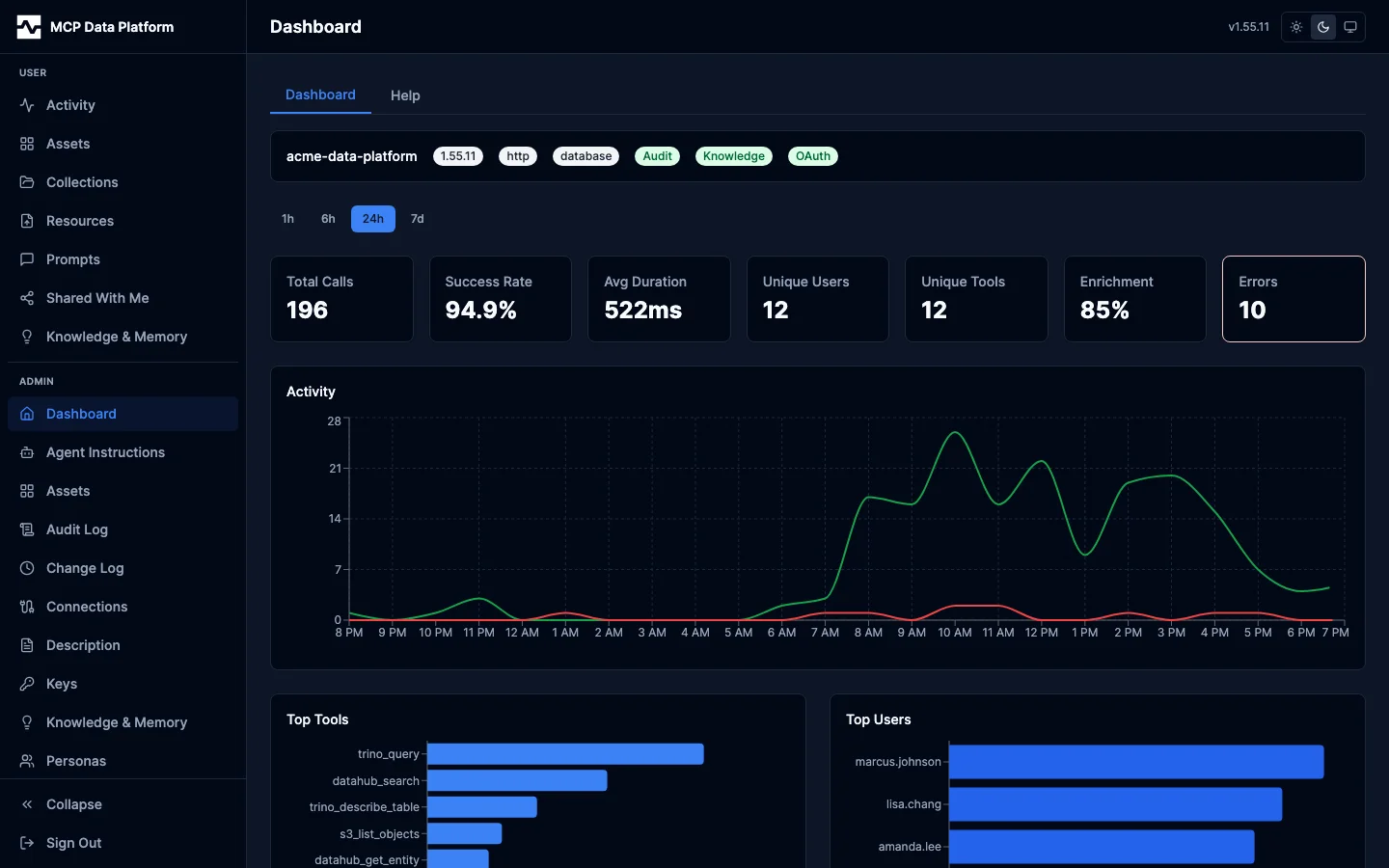
The admin half is the deployment: its connections, personas, keys, tools and catalogs, and the activity of everyone using it.
The tour
Every screen the portal serves is covered here, in the order the sidebar lists them. The sidebar opens with Assets and Resources, set apart from the rest; Collections and Shared With Me are reached from Assets. Every other section follows in alphabetical order.
Your work
| Page | What it covers |
|---|---|
| Assets | The asset viewer, provenance, references, version history, and sharing |
| Collections | Grouping assets, and sharing a group as one |
| Shared With Me | Work other people shared with you |
| Resources | Libraries, folders, uploads, revisions, and registering a CSV as a table |
| Activity | Your sessions, the calls they made, and what each one was for |
| APIs | The operations a caller may invoke, and the gateway call each one produces |
| Automations | Work that runs on a schedule or on request, built as scripts: a script's schedule, source, versions, runs, and state |
| Inbox | Everything addressed to you: threads on your work, and the notifications the platform has sent you |
| Knowledge and Memory | Promoted pages, the catalog, the graph, insights, and captured memory |
| Prompts | The prompt library, collections, authoring, versions, and diffs |
| Scratch Tables | What is registered, whether it is current, and what a failed follow looks like |
| Settings | Notification delivery, category toggles, and what has been sent to you |
Administration
| Page | What it covers |
|---|---|
| Dashboard | The summary, indexing health, and the MCP, API Gateway, Health, Events and Notifications tabs |
| Tools | Every registered tool, its schema, a live runner, activity, enrichment, and visibility |
| Sessions and Calls | Who was working, what they ran, and what came of it |
| Knowledge Review | Reviewing and promoting captured knowledge |
| Content | Assets, collections, resources, prompts and scripts across every owner |
| Connections and Catalogs | The deployment's downstream systems and its OpenAPI catalogs |
| Personas | Roles, priority, tool and connection patterns, and the access test |
| Keys and Users | The keys programmatic callers present, and the people the platform knows |
| Settings and Change Log | Deployment settings, agent instructions, the description, and the record of changes |
Every page the portal serves is above. Surfaces it shares with the rest of the platform are documented alongside them: Content Types and Viewers, Asset References, Provenance and Registered Tables.
What each section is for
Every reader-facing section opens with a description of itself: one line beside the section's own icon, and a fuller paragraph behind a disclosure. The distinction between an asset and a resource is the whole content model, and it is not readable from a tab strip and a filter bar.
A section you have never opened shows the full description. Close it and the one-line description remains; the choice is remembered per section, so a section you have closed opens closed the next time and every other section still introduces itself. Knowledge draws its line rather than writing it: the Memory to Insight to Knowledge pipeline is its summary.
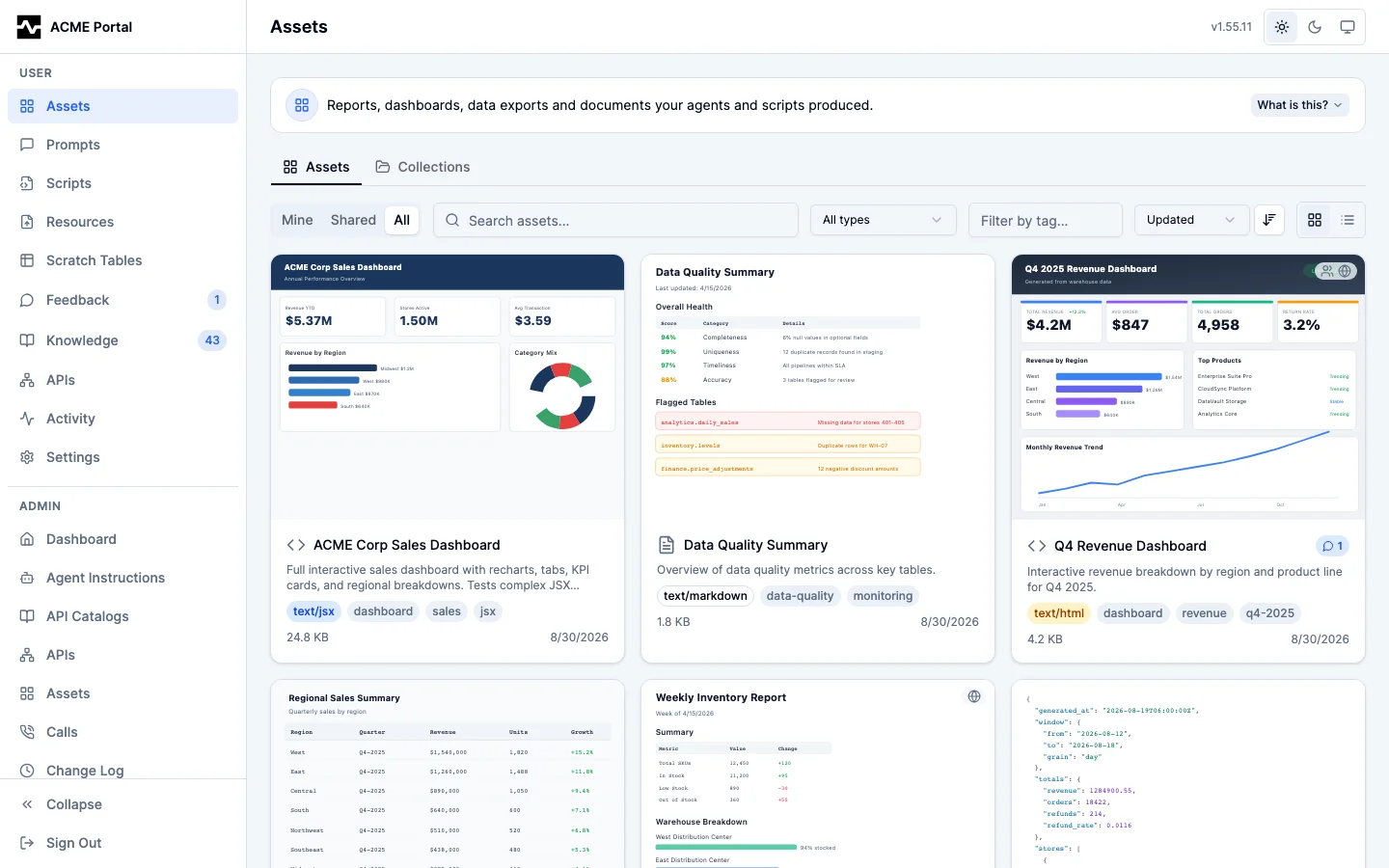
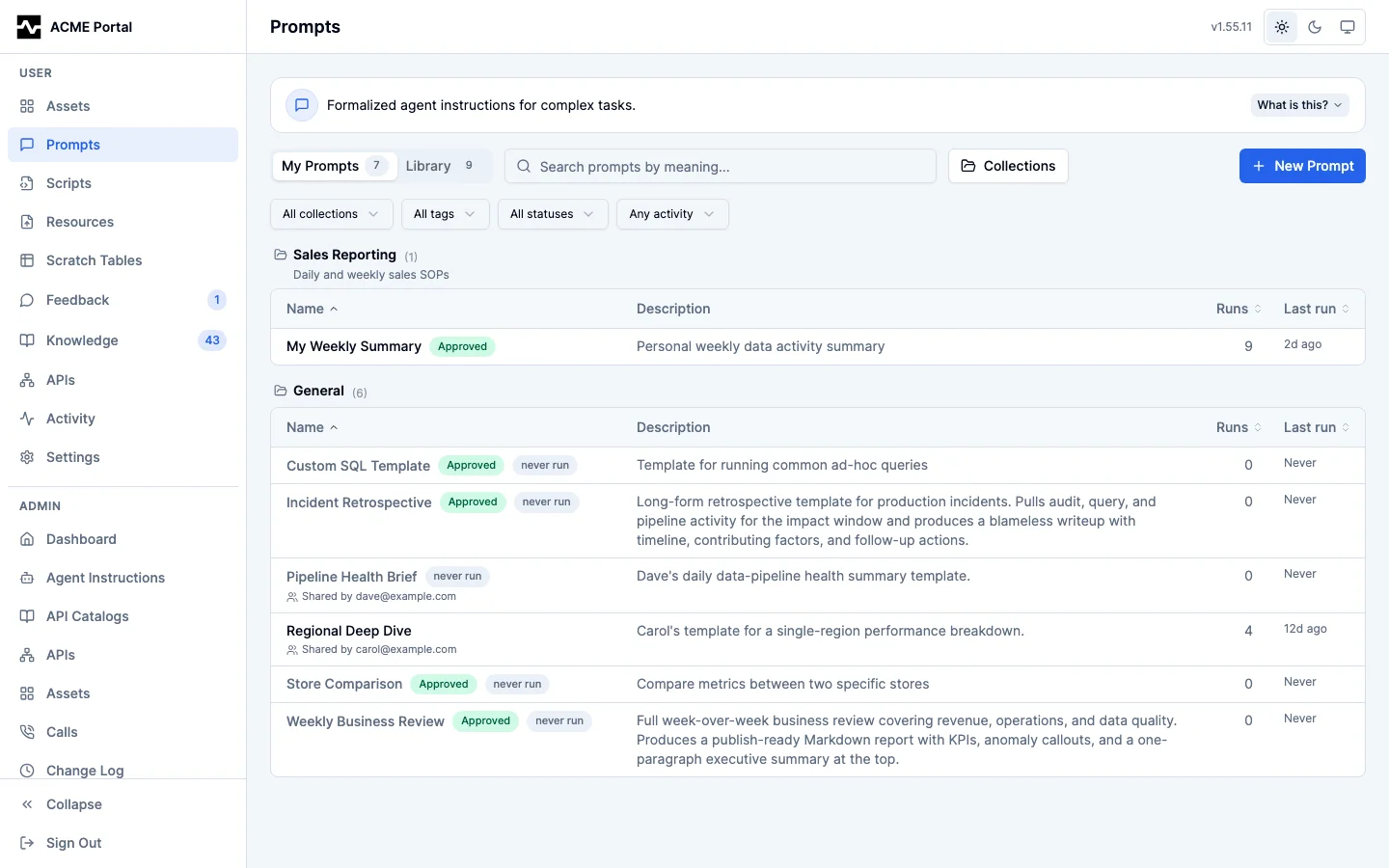
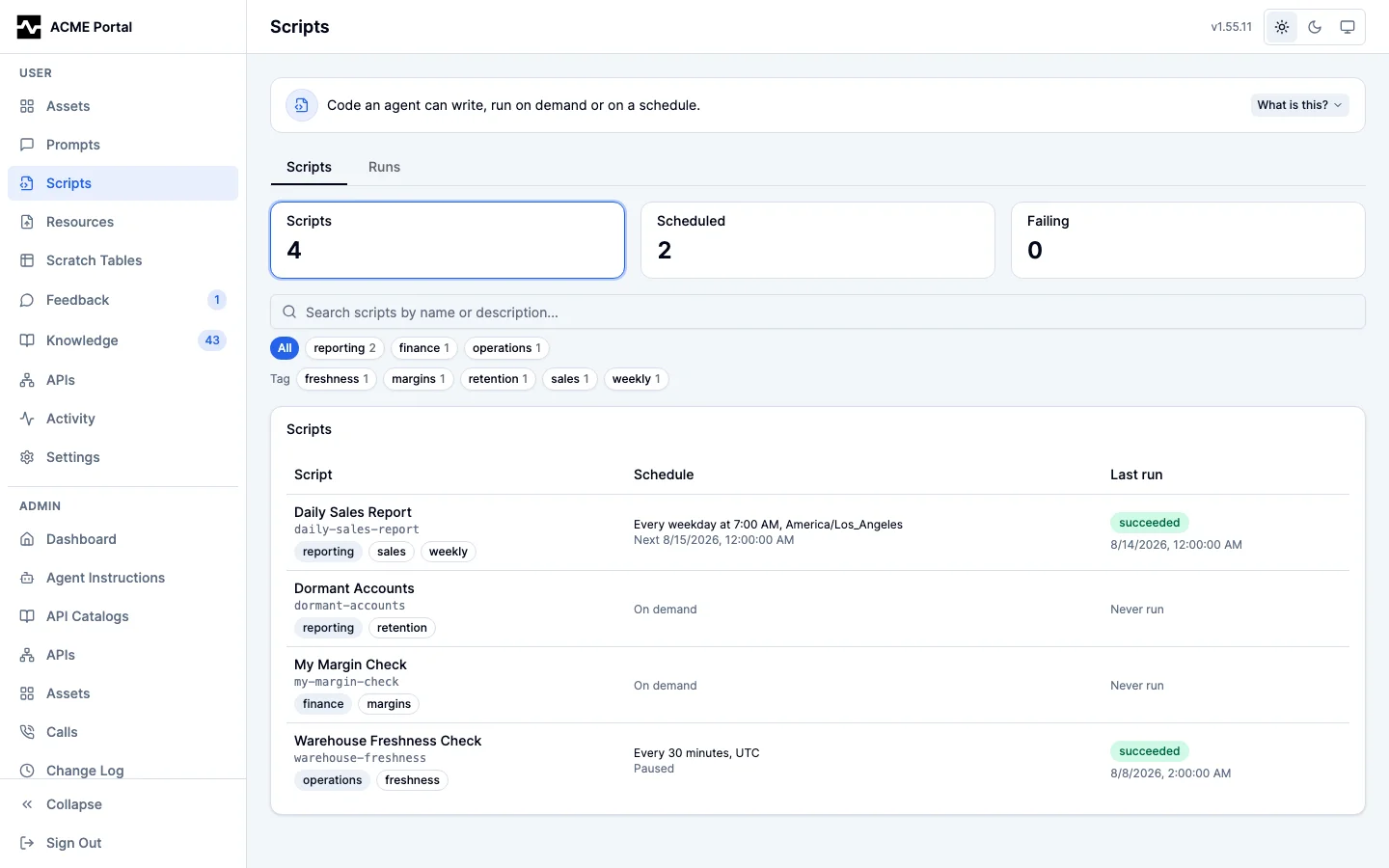
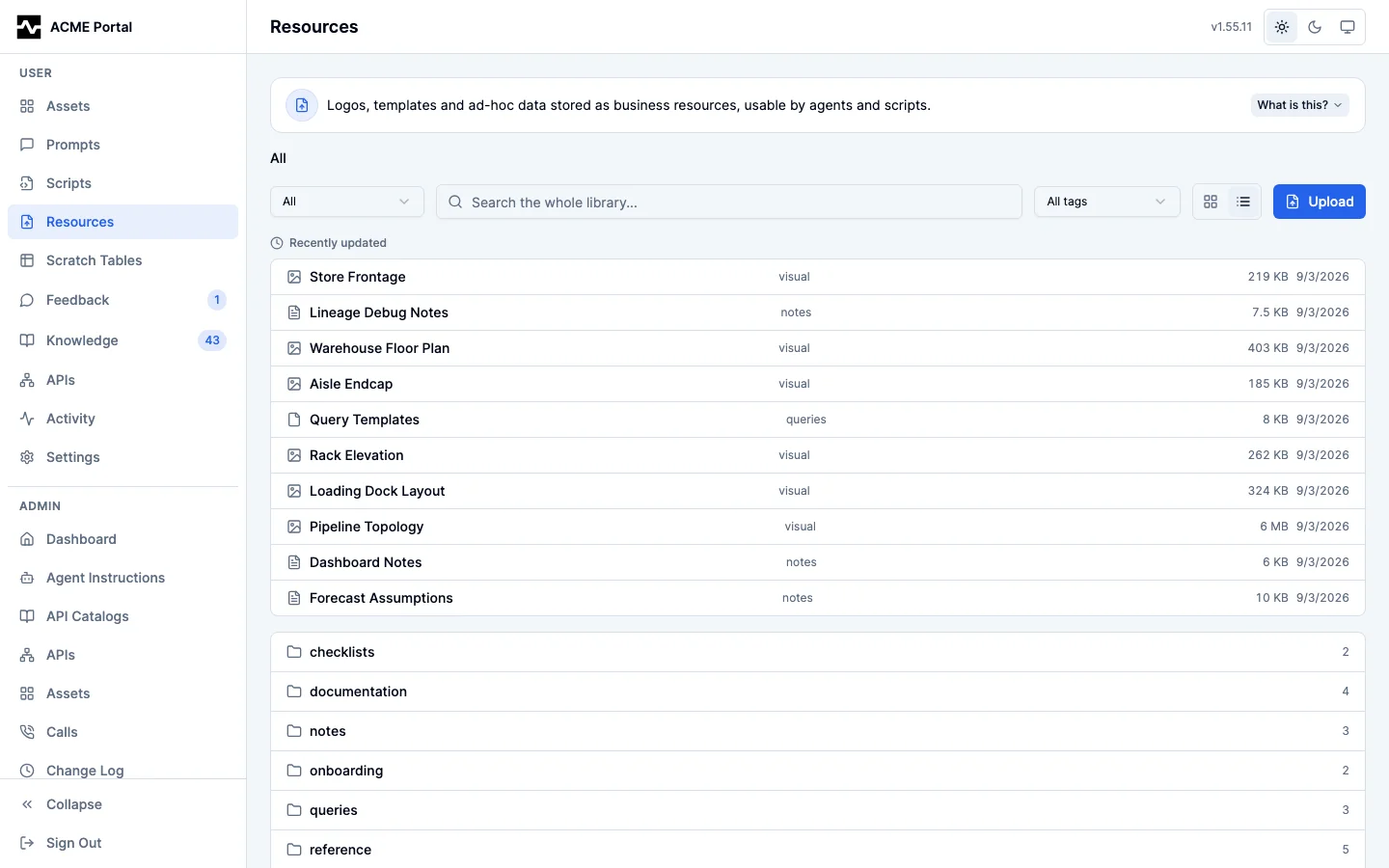
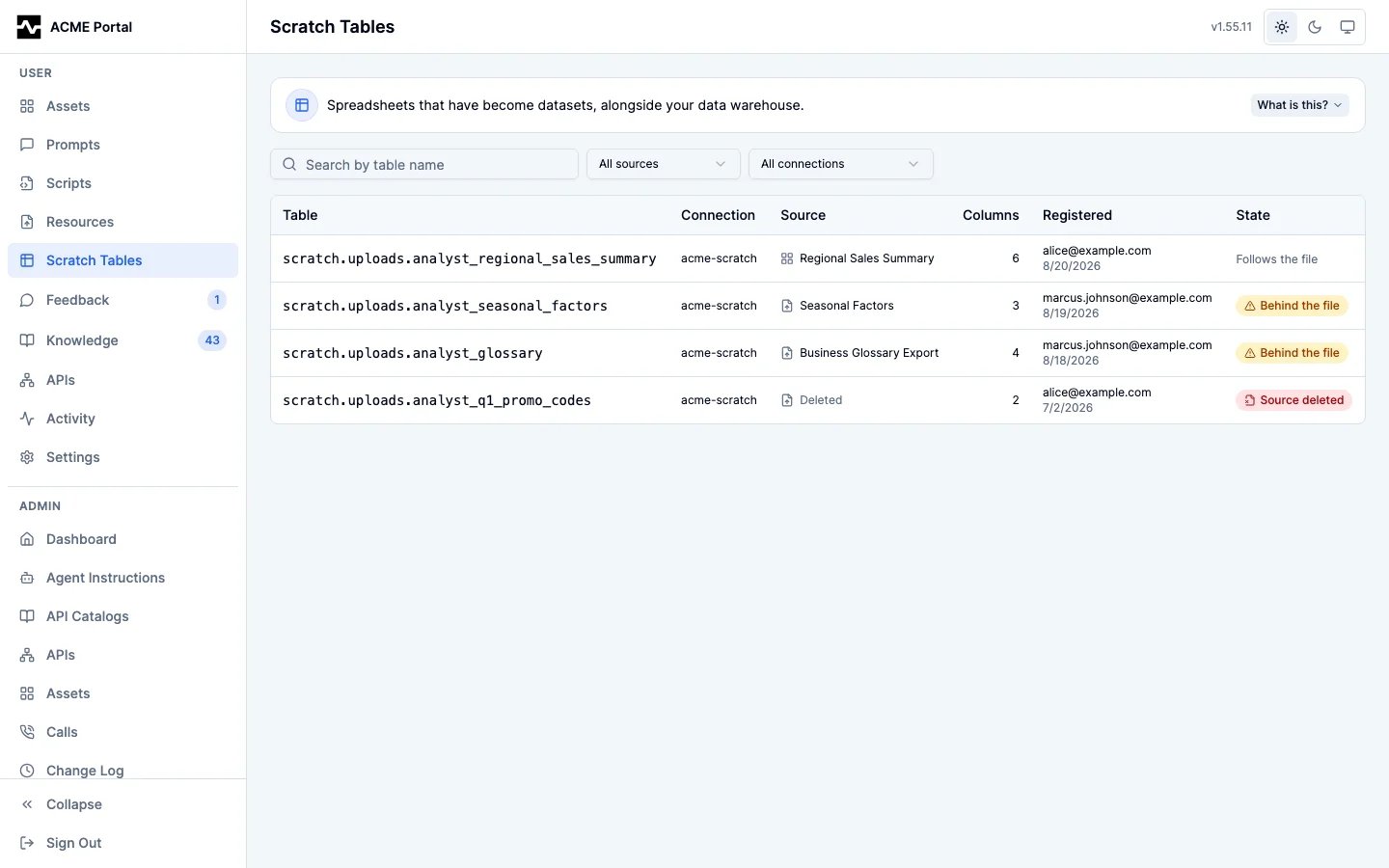
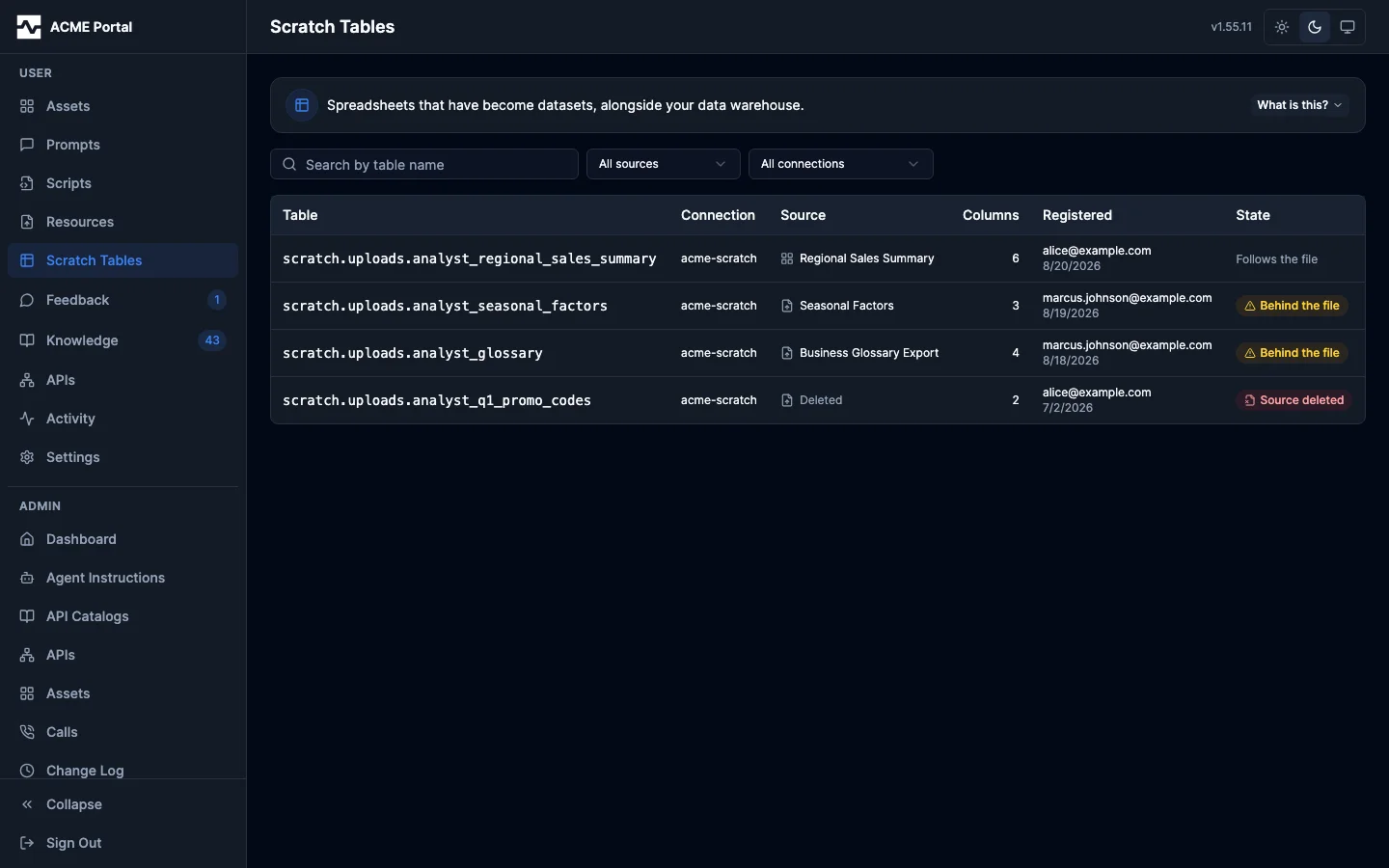
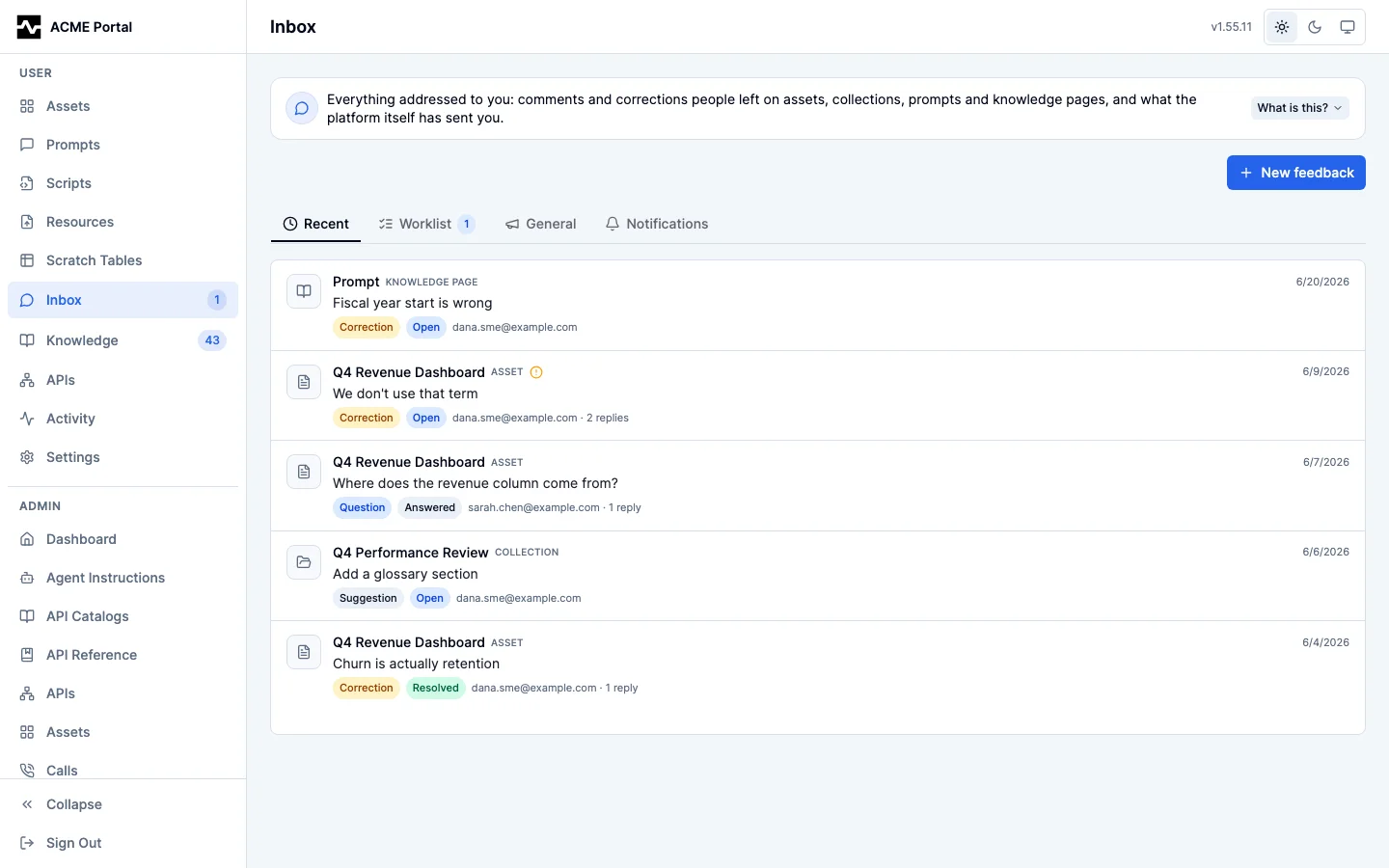
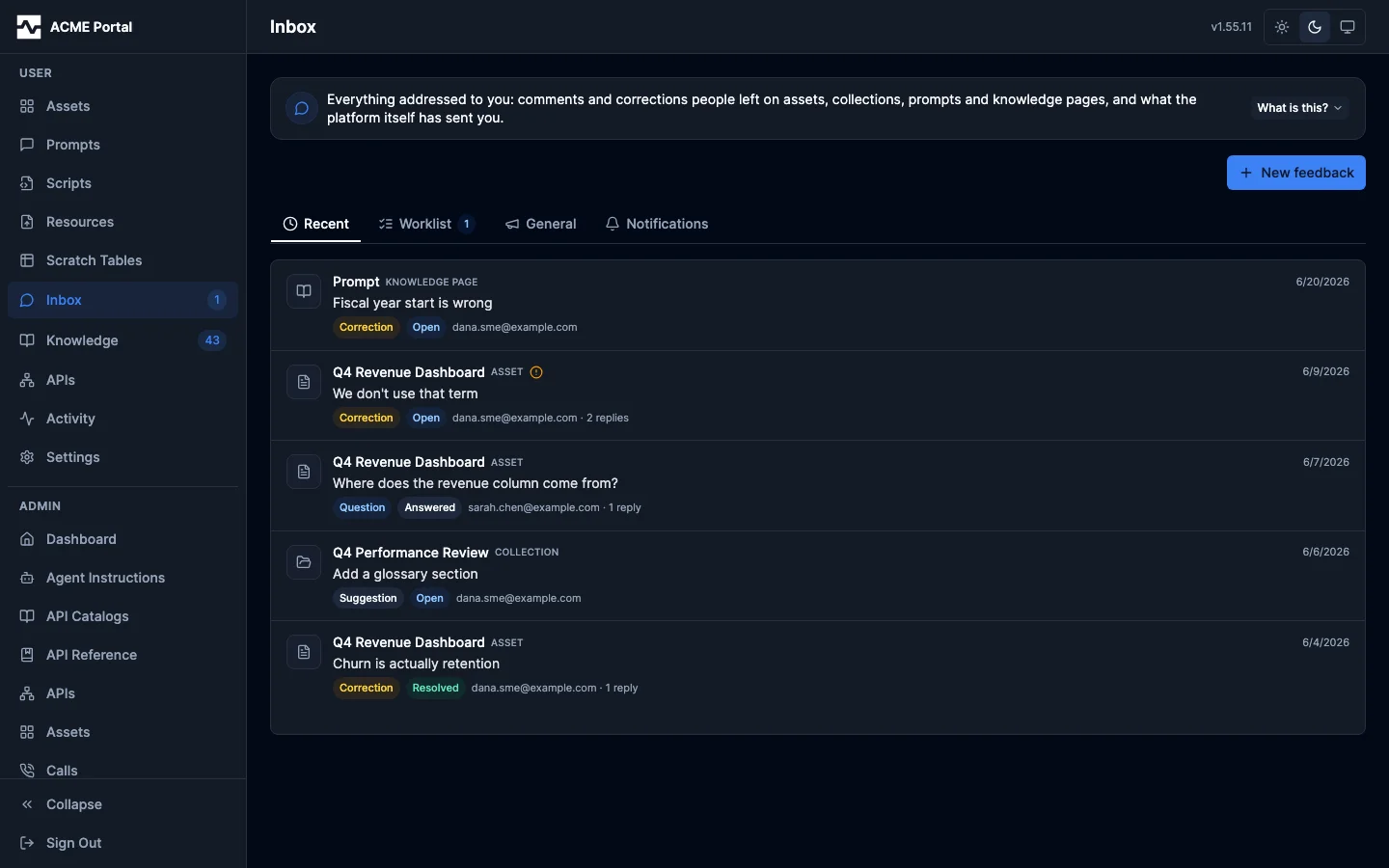
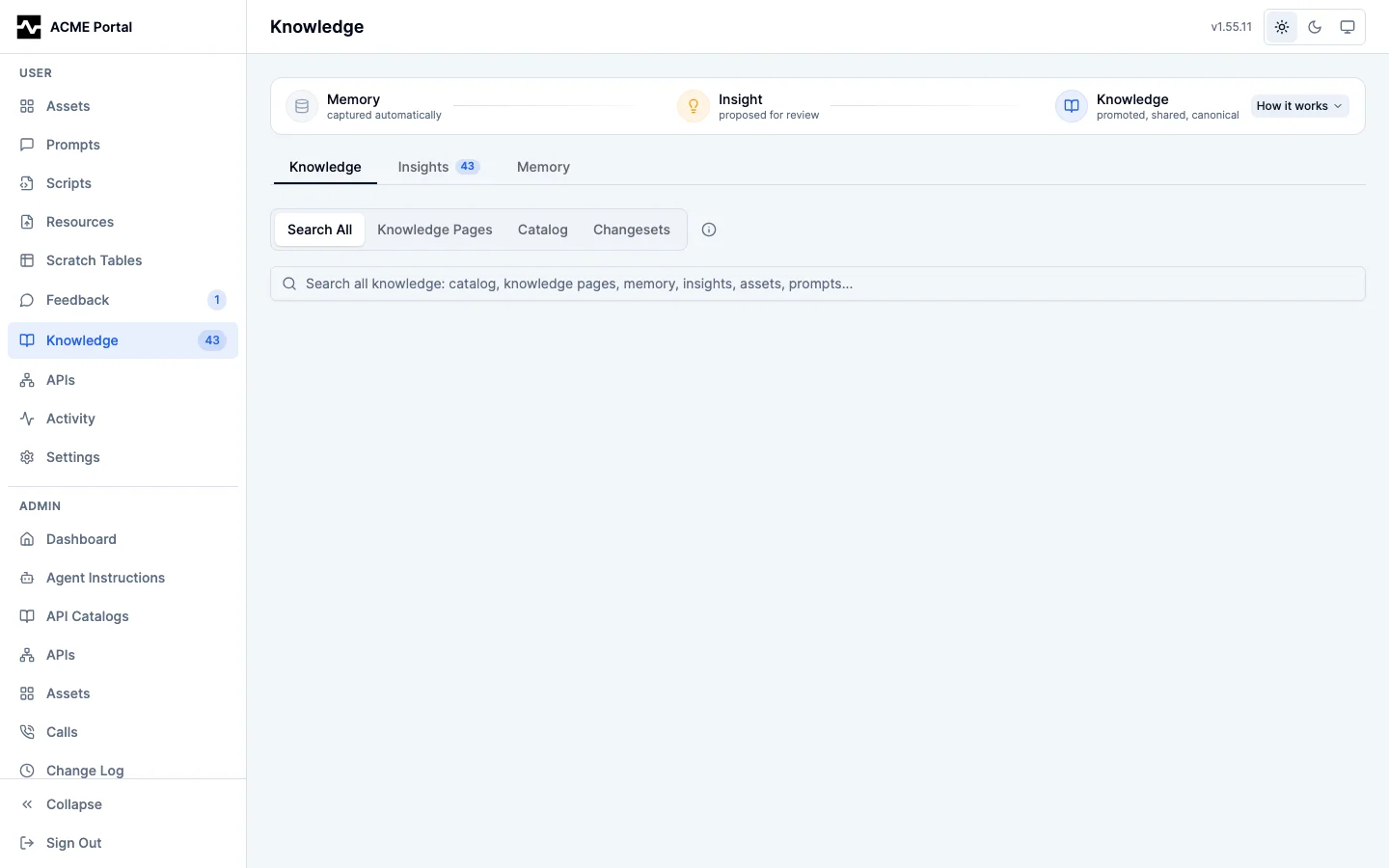
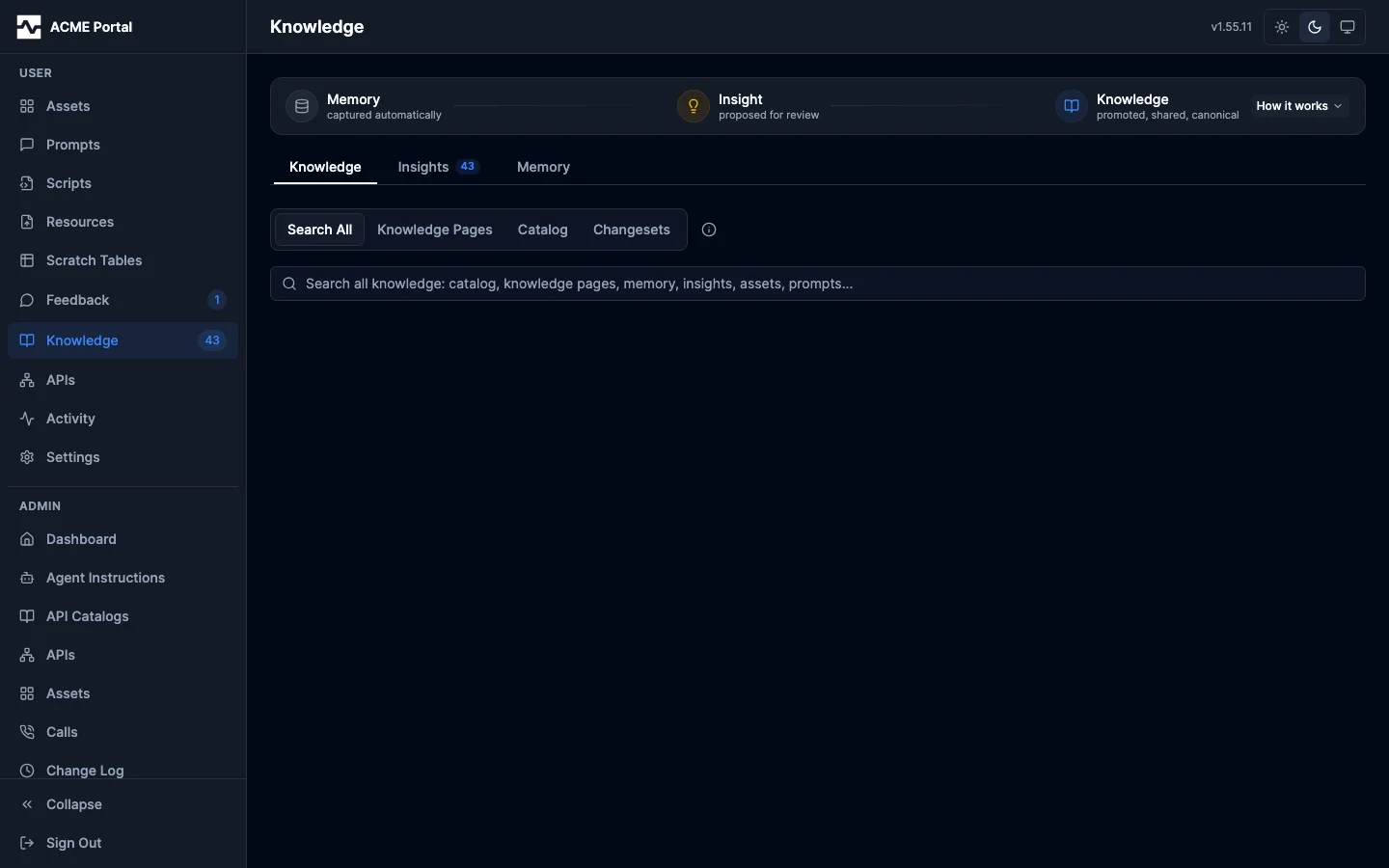
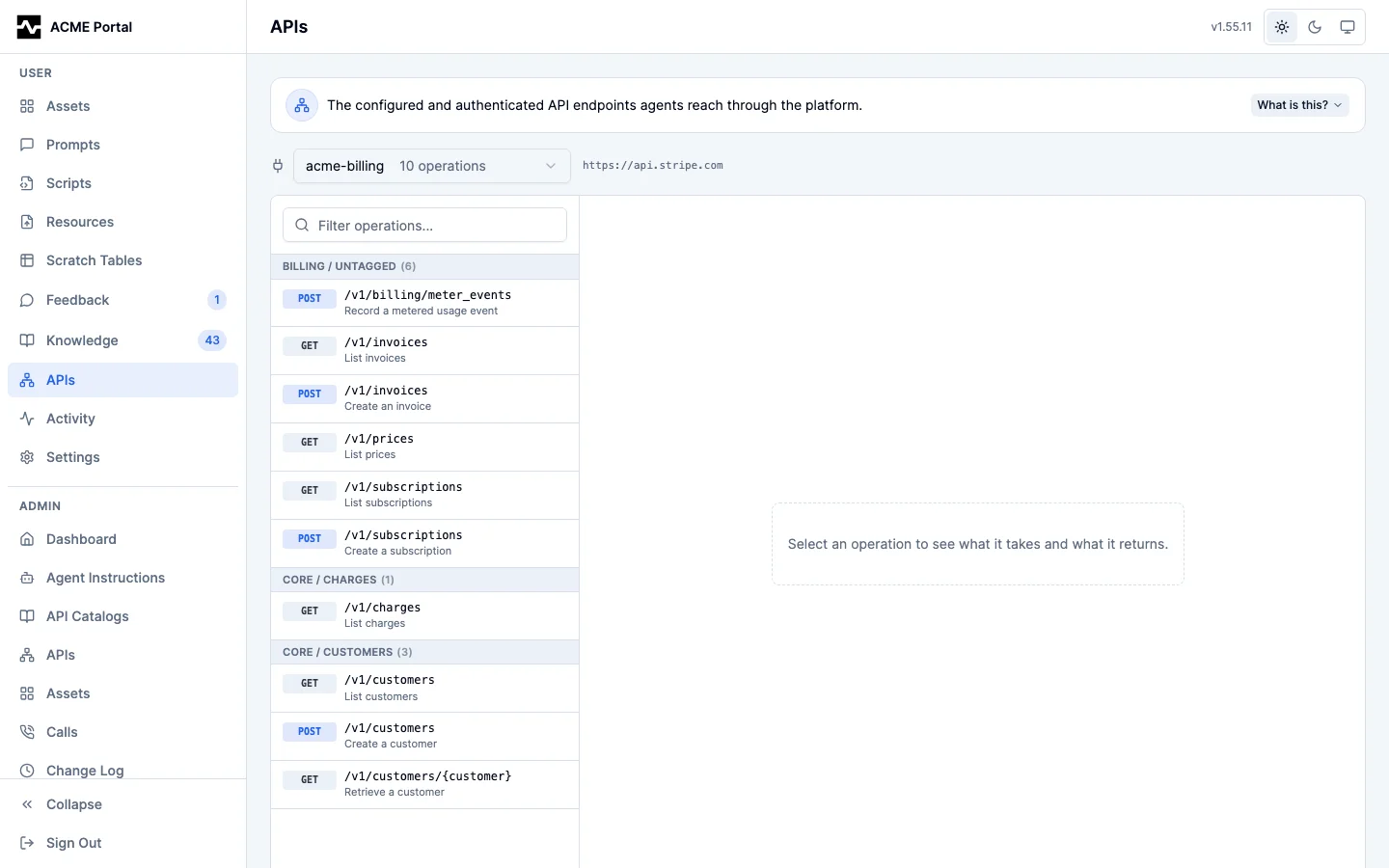
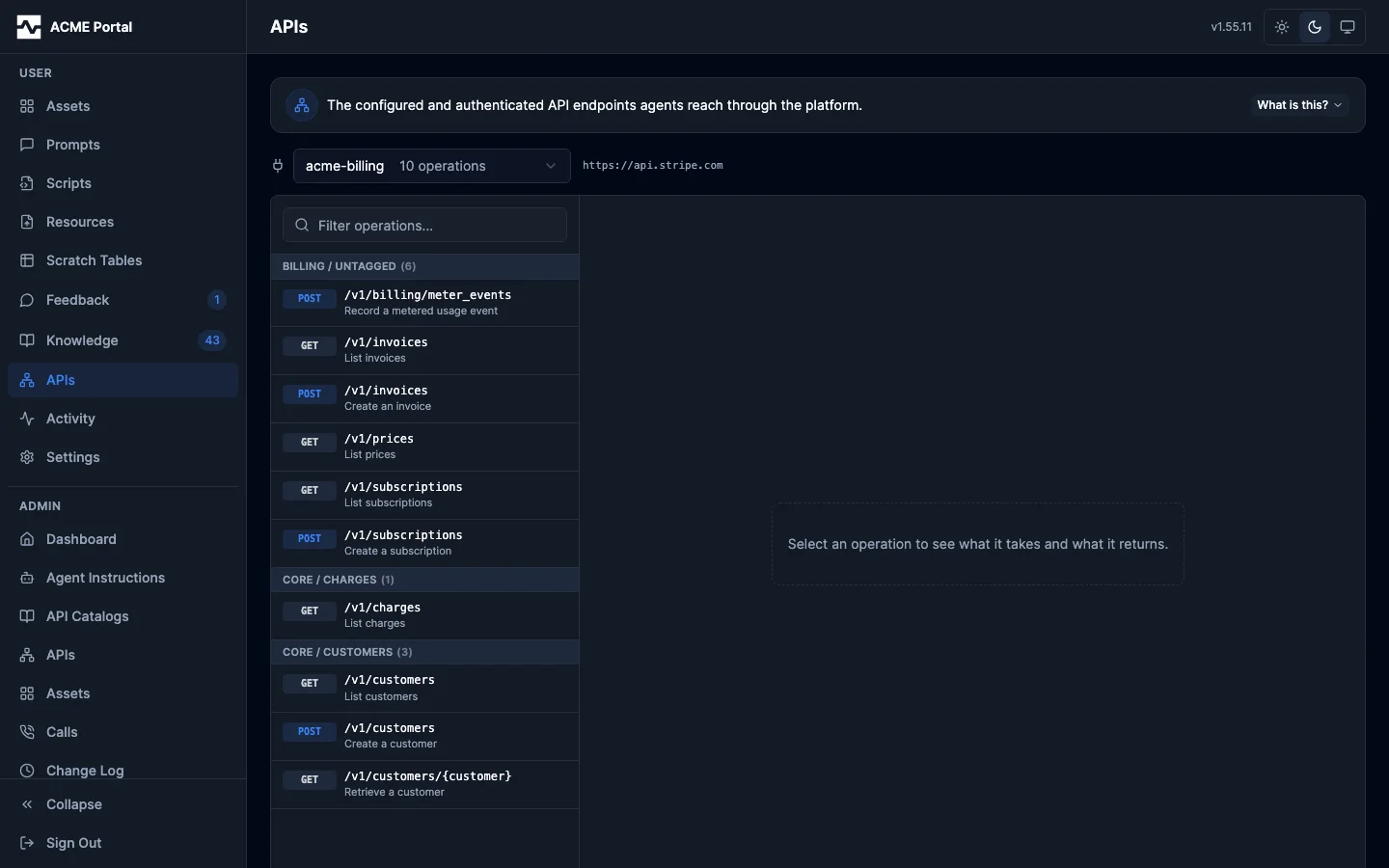
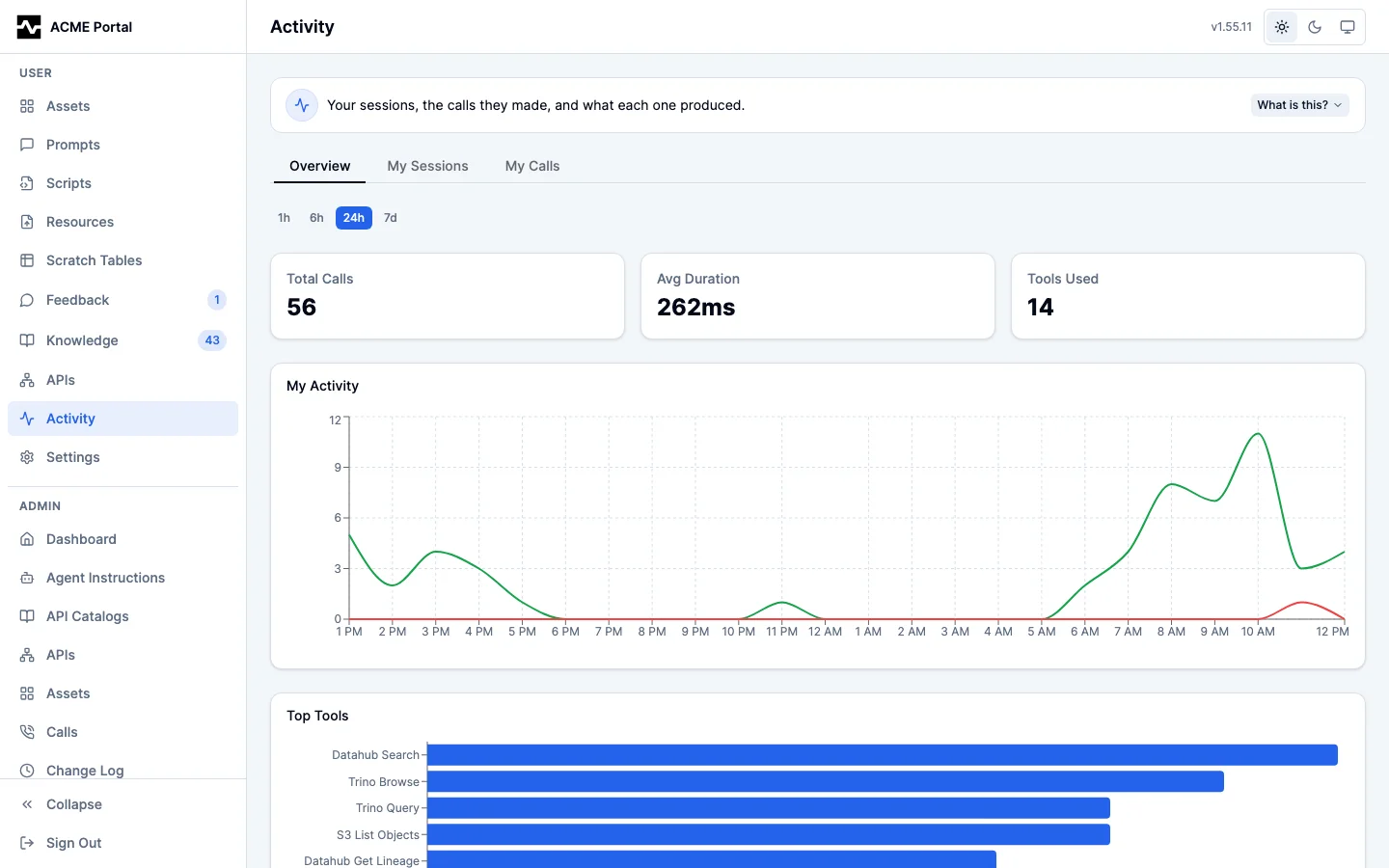
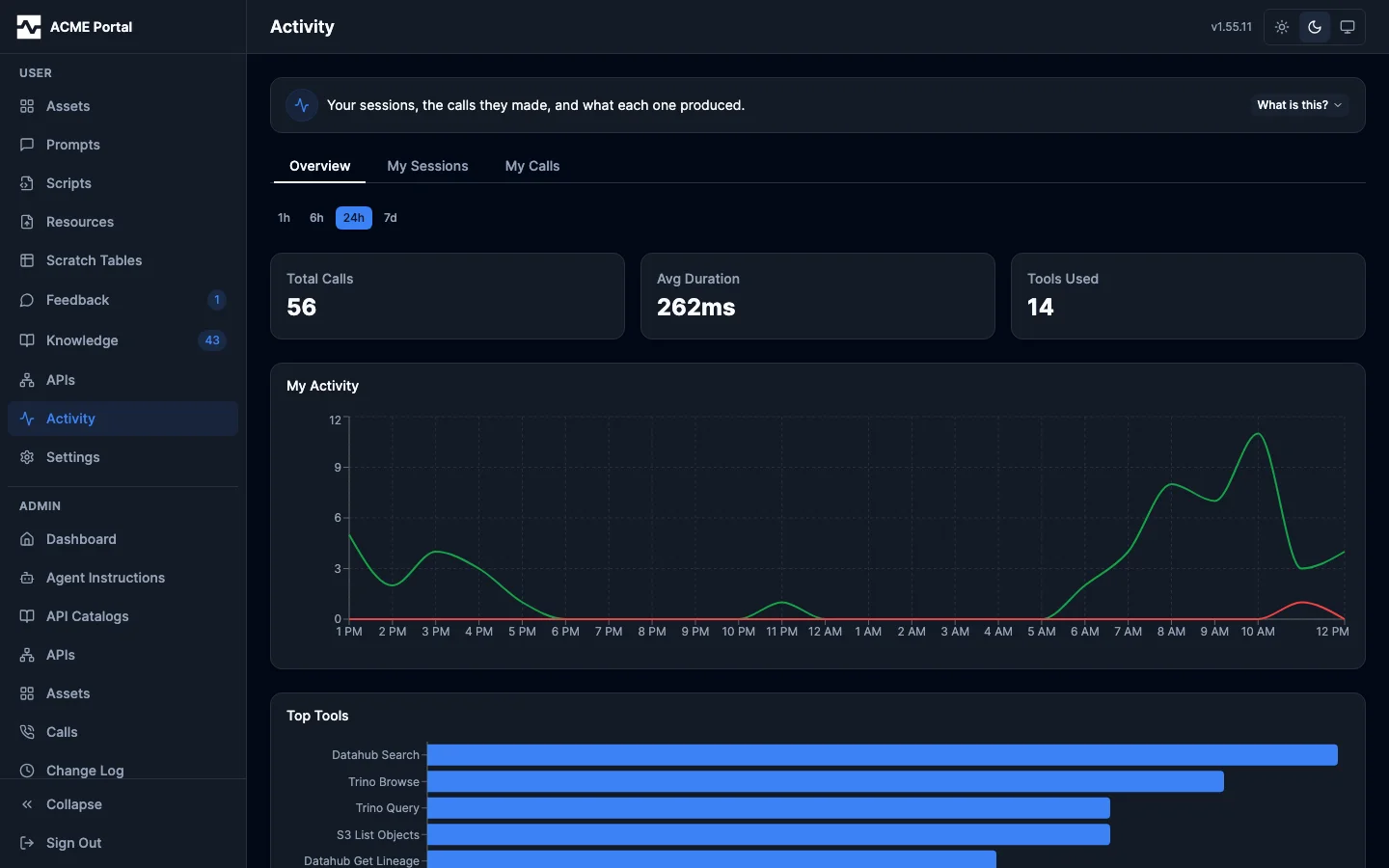
The expanded form of each is on that section's own page, above. Settings has no intro: it is controls, not a place things live.
What a section tells a person and what
platform_info tells an agent
are separate strings with separate registers. They agree because both are drawn
from the content model, not because one renders the other: the agent's
statement is instructions.ResourcePositioning, which the resources empty
state and the upload dialog still render verbatim.
Addresses
Every page is addressable, so a link to one can be bookmarked or handed to a colleague. An address that names a page which has moved, or that carries a stray trailing slash, lands on the page it meant. An address with no page behind it says so and offers the way back rather than rendering an empty section, which would be indistinguishable from being told you have none of whatever you asked for.
Enabling and branding
Enable it with portal.enabled: true:
portal:
  enabled: true
  brand_name: "ACME"
  brand_url: "https://acme.example.com"
  logo: https://example.com/logo.svg
  logo_light: https://example.com/logo-for-light-bg.svg
  logo_dark: https://example.com/logo-for-dark-bg.svg

admin:
  enabled: true
  persona: admin
The portal is served at /portal/. Authentication is required — use the same credentials as the Admin API.
Branding
Name the deployment once with portal.brand_name and the portal follows it everywhere: the sidebar and browser tab read <brand_name> Portal ("ACME" gives "ACME Portal"), and the same brand names the public viewer header, the branded denial pages, and the built-in MCP Apps. A brand that already ends in "Portal" is used as-is rather than doubled. portal.title overrides the composed title outright, for a deployment whose portal is called something other than its brand.
portal.brand_name and portal.brand_url fall back to brand_name / brand_url in the mcpapps.apps.platform-info.config block, so a deployment that branded its MCP App keeps that brand without repeating it — and it keeps its current title, because only a brand named in the portal block composes the title. The portal block wins when both are set, and is the one to use: it needs no MCP Apps configuration at all, and its brand is written into the built-in apps that name none of their own. An mcpapps block the operator has disabled contributes nothing.
With portal.brand_url set, the sidebar brand mark — logo and name together — becomes a link to the brand's own site, opening in a new tab so a reader mid-task does not lose the portal to it. Unset, the mark is inert markup rather than a link to nowhere.
Customize the logo via portal.logo, portal.logo_light, and portal.logo_dark. The portal picks the theme-appropriate logo automatically:
- Light theme:
logo_light→logo→ built-in default - Dark theme:
logo_dark→logo→ built-in default
The resolved logo is also used as the browser favicon. A built-in activity icon is used when no logo is configured. Any image format works, including PNG; a square SVG scales best across the sizes the portal renders it at.
portal.logo also supplies the platform brand mark on the public viewer header, the guest share pages and the branded denial page. Those are served from the platform's own origin: each page links the logo with an <img> element at the URL you configured, and the browser caches it across page loads. The guest and denial pages send a narrow Content-Security-Policy, so a configured logo adds exactly what it needs to their img-src: its own scheme and host when you host it elsewhere, 'self' when the URL is a path this server already serves. Configure no logo and those policies load no image at all.
The one surface that cannot link a logo is a built-in MCP App: it runs in a sandboxed iframe on a host that blocks external loads, so the platform fetches the logo once at startup and writes it into the app's config inline — an SVG as logo_svg, any other image format as a data: URI under logo_url. That fetch is the only one, and a logo it cannot resolve (unreachable, larger than 1 MB, or not an image) logs one warning naming the URL and the reason; the app then falls back to the URL and, failing that, its built-in mark.
Version link
The portal header shows the running server version. Point portal.version_url at release notes, a changelog, or an internal wiki page and the version becomes a link there:
Unset, the version stays plain text — no reader is offered a link the operator never pointed anywhere.
Email logo
Notification emails need a separate asset. Mail clients strip inline SVG, so portal.logo cannot be reused; set portal.logo_email to a raster PNG URL:
The PNG is fetched once at startup and attached to each message as an inline part, so it renders even in the clients that block remote images by default. Recipients never request the URL themselves, which means it only has to be reachable from the server, not from the public internet.
The logo is additive: the brand wordmark still renders beneath it, and doubles as the image's alt text. Leave logo_email unset and emails render the wordmark alone. A URL that is unreachable or does not serve image/png logs a warning at startup and falls back to the wordmark; it never blocks notification delivery.
Public Viewer Branding
Shared asset links (the public viewer at /portal/view/{token}) display a two-zone header. The right zone shows the platform brand (portal.brand_name and portal.logo, linked to portal.brand_url). The left zone is an optional implementor brand for the organization deploying the platform:
portal:
  implementor:
    name: "ACME Corp"                    # Display name (left zone of public viewer header)
    logo: "https://acme.com/logo.png"    # URL to a logo image (fetched once at startup, max 1 MB)
    url: "https://acme.com"              # Clickable link wrapping name + logo
All three fields are optional. When omitted, the left zone is hidden and only the platform brand appears. The logo may be any image format; the viewer links it with an <img> element rather than embedding it, so nothing is fetched server-side and a logo that fails to load leaves a configured implementor name rendering on its own.
Public Viewer Features
The public viewer includes:
- Light/dark mode — Defaults to the system
prefers-color-schemesetting. A toggle button in the header allows switching; the choice is persisted tolocalStorage. Once you pick light or dark, everything in the portal follows your pick rather than the operating system: an HTML or JSX asset that has its ownprefers-color-schemestyles opens in your chosen scheme in the viewer and on a share page, and its preview matches. System returns to following the operating system. - Expiration notice — When the share has an expiration, a notice bar shows the relative time remaining (e.g., "This page expires in 6 hours"). Only a public link is created with one, so the notice is what an older share created under the previous rule may still show as well. Hidden when the share has no expiry, or when its creator set
hide_expiration. - Notice text — Configurable per-share via
notice_text. Defaults to "Proprietary & Confidential. Only share with authorized viewers." Set to""to hide the notice entirely.
These fields are set per-share when creating a share via POST /api/v1/portal/assets/{id}/shares:
{"access_mode": "public", "expires_in": "24h", "hide_expiration": true, "notice_text": "Internal use only."}
| Field | Type | Default | Description |
|---|---|---|---|
expires_in |
string | - | Positive duration string (e.g., "24h", "72h"). Required for access_mode: public and rejected for every other share: a public link is a bearer credential and must expire, while a share that resolves against who the viewer is ends on revocation. |
shared_with_user_id |
string | - | Target user ID for private shares |
shared_with_email |
string | - | Target email for private shares |
hide_expiration |
bool | false |
Hide the expiration countdown in the public viewer |
notice_text |
string|null | "Proprietary & Confidential. Only share with authorized viewers." |
Custom notice text for the public viewer. Omit or null for the default. Set to "" to hide the notice entirely. Max 500 characters. |
access_mode |
string | restricted with a recipient, authenticated without |
Who the token opens for: restricted (named recipient and the creator), authenticated (any signed-in user), or public (anyone with the link). public is never implied; restricted without a recipient is rejected with 400. |
Anonymous access is opt-in. Every route under /portal/view/ (the page, the
raw content, both thumbnail routes, and the three collection-item routes)
resolves the share's access mode before serving anything, and refuses with 403
when the caller is not admitted.
A refused browser navigation renders a branded landing page instead of bare
text: sign-in with a return path for account holders, and, on shares naming an
email address, a request button for a single-use, 15-minute view link emailed
only to that stored address. A claimed link opens a view-only guest session
scoped to that one share (a signed cookie derived from the browser-session
signing key); guests never reach the portal or its API, and revoking the share
ends their access immediately. Link issuance is rate-limited per IP and capped
per share, and requires the notification substrate (SMTP), a database, browser
sessions, and portal.public_base_url. Subresource fetches and API-style
callers keep plain-status refusals.