Assets
The Assets page displays interactive dashboards, reports, and visualizations generated by AI agents during sessions. Assets are saved via the save_asset tool and support multiple content types. A file you wrote yourself and want the agent to use as-is is a resource, not an asset; the empty state says so.
The page is your own library. It holds what you saved and what your managed scripts produced: an output a run wrote is yours, on the same terms as one you saved yourself, so you open, rename, retag, share, register a table over and delete it here without an administrator. See Who the output belongs to.
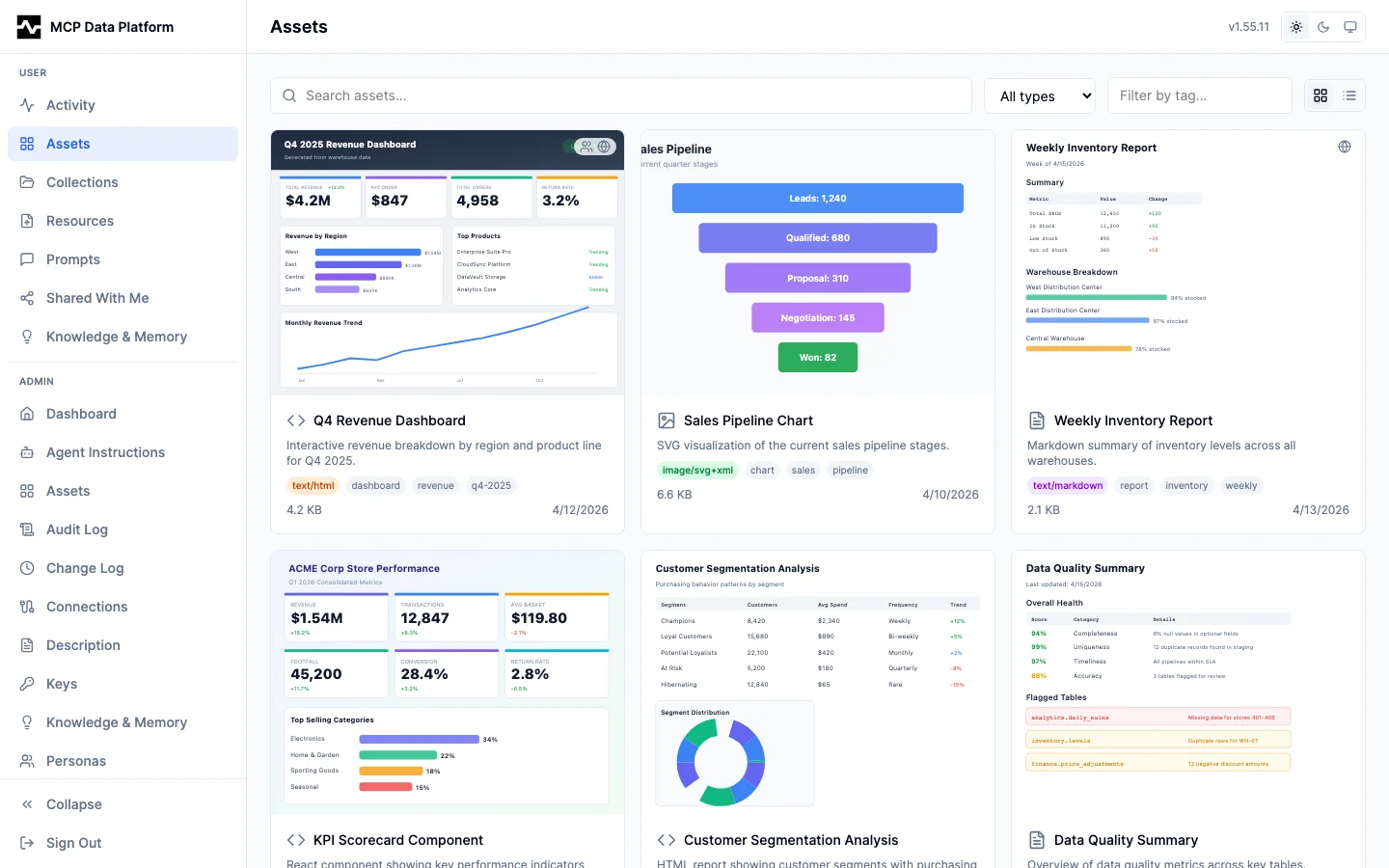
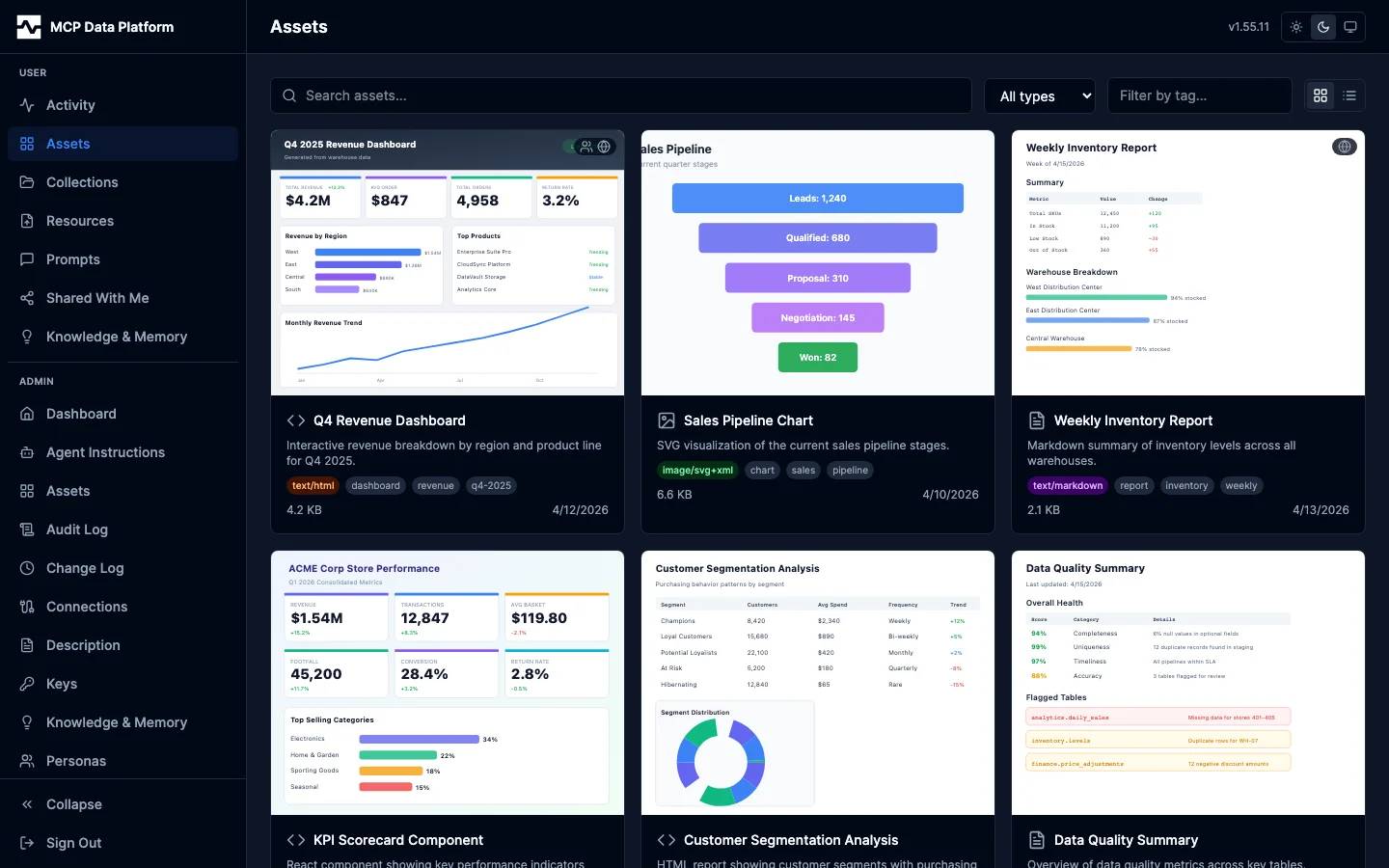
Features:
- Search — Full-text search by name or description
- Filters — Content type dropdown (HTML, JSX, SVG, Markdown, CSV) and tag filter
- Sort — Column dropdown (updated, created, name, size) and a direction toggle. The list opens on most recently updated, so an asset revised today sits above one created yesterday and never touched since; the date shown on each card and row is the one the list is ordered by, so the visible dates always run in the order the rows do. Sorting is server-side over the whole library, not just the page already loaded. The date moves when someone changes the asset — new content, a rename, a description or tag edit. Drawing a preview is not a change to the asset, so a library whose previews are redrawn keeps its order and its dates. A relevance search is ranked rather than sorted, and the control reads as inert while one is running.
- View toggle — Switch between grid (card thumbnails) and table view; preference persisted to localStorage
- Grid cards — 4:3 thumbnail previews with content type icon, tags, collection badges, file size, and sharing indicators
- Theme-aware thumbnails — Previews are drawn in both light and dark variants, and the grid shows the one matching your active theme. Markdown, CSV, TSV, JSON, NDJSON, plain text and the code families (YAML, XML, SQL, Python, JavaScript, CSS) are drawn on the platform's own background in each scheme. HTML and JSX are drawn with the renderer set to each color scheme, so a document with its own
prefers-color-scheme: darkstyles has a dark preview that matches how it opens in the viewer; a document without them looks the same in both. SVG, PDFs and raster images are drawn as stored, and a single preview is used in both modes. An SVG or image preview keeps its transparency and is shown on a checkerboard, as in the viewer, so white and black artwork are both visible (#1991). The same preview follows the asset everywhere you meet it while signed in: the collection viewer, an administrator's view of a collection someone else owns, and the picker you add assets from. Public shares always use the light variant. Previews are stored at 800×600, twice the size a card shows them at, so they stay sharp on high-density displays. - How a preview is made — The platform draws every preview itself, in a headless Chrome that runs beside it (see Thumbnail renderer). The browser paints the asset through the same renderers the viewer uses, so the preview is what the viewer shows: the same fonts, colours, transforms and shadows. Nothing runs in your tab, and nobody has to open the asset for it to get a preview; one a managed script rewrites on a schedule gets a current preview within seconds of the write. Anything the viewer renders as a document gets a preview — HTML, JSX, SVG, markdown, CSV, TSV, JSON, NDJSON, plain text, and the code families the viewer lays out (YAML, XML, SQL, Python, JavaScript, CSS) — and a raster image is scaled to cover the tile, for the formats a browser can decode (PNG, JPEG, GIF, WebP, AVIF, BMP, ICO). A PDF shows its first page, rasterized on the tile itself and scaled to cover it, so a folder of them is told apart by what the documents say rather than by their filenames. Since #1783 the viewer draws a PDF with the same library, so the tile and the page a reader opens are rendered by one engine. Audio, video and Office documents (an Excel workbook, a Word document, a presentation) keep their content-type icon, as does any asset over 1 MB (the deployment's
thumbnails.max_source_bytes; the asset then reportsthumbnail_skipped, and its Thumbnail panel says it is too large) — or, over 32 MB (thumbnails.large_source_bytes), for the families whose preview is drawn from part of the file: a PDF, because only its first page is decoded and one scanned page already passes the smaller bound, and a CSV or TSV, whose preview is its header row and first rows and is drawn from the head of the file alone. That list is the same one managed resources are drawn under. - A preview after the asset changes — Rewriting an asset does not take its preview away. The card keeps showing the last one drawn, which is an image of an earlier version of the document, until the new one lands a few seconds later; the asset records which version its preview came from. An asset that has never had a preview shows the placeholder icon for its content type.
- A preview of an artifact that references a file — An asset whose content names a managed resource or another asset is drawn with those references resolved, exactly as it renders in the viewer, so the tile shows the artifact rather than the branch it draws when a file is missing. A document in which a referenced file did not load is not stored as a preview; the panel below says so instead.
- Asking for a preview again — The Thumbnail panel in an asset's metadata sidebar shows the stored image and offers Recapture, which discards it; the platform draws the asset again and the panel shows the new one when it lands. While a preview is being drawn the control is unavailable, since the draw it would ask for is already under way. It is the owner's action, and an administrator has it on every asset.
- A preview that could not be drawn — The panel says so, with the reason the renderer gave: a linked file that could not be loaded, a document that did not finish drawing in time, an image that could not be decoded, a PDF that is password-protected or whose bytes are not a PDF. It says which part failed. The light preview is drawn first and kept when the dark one fails, so an asset can show its light preview beside a note that the dark-mode picture could not be drawn; an asset whose new version could not be drawn keeps showing the previous version's preview, and the panel says the picture is of an earlier version. The platform does not try the same version again, so a document that cannot be drawn does not hold up the ones behind it; writing a new version tries again on its own, and Try again asks for another attempt at the version you have.
- Table rows — Columns for name, type, tags, collections, size, sharing, and the ordering date. Name, size, and the date header sort the list; clicking the active column reverses it.
Asset Viewer
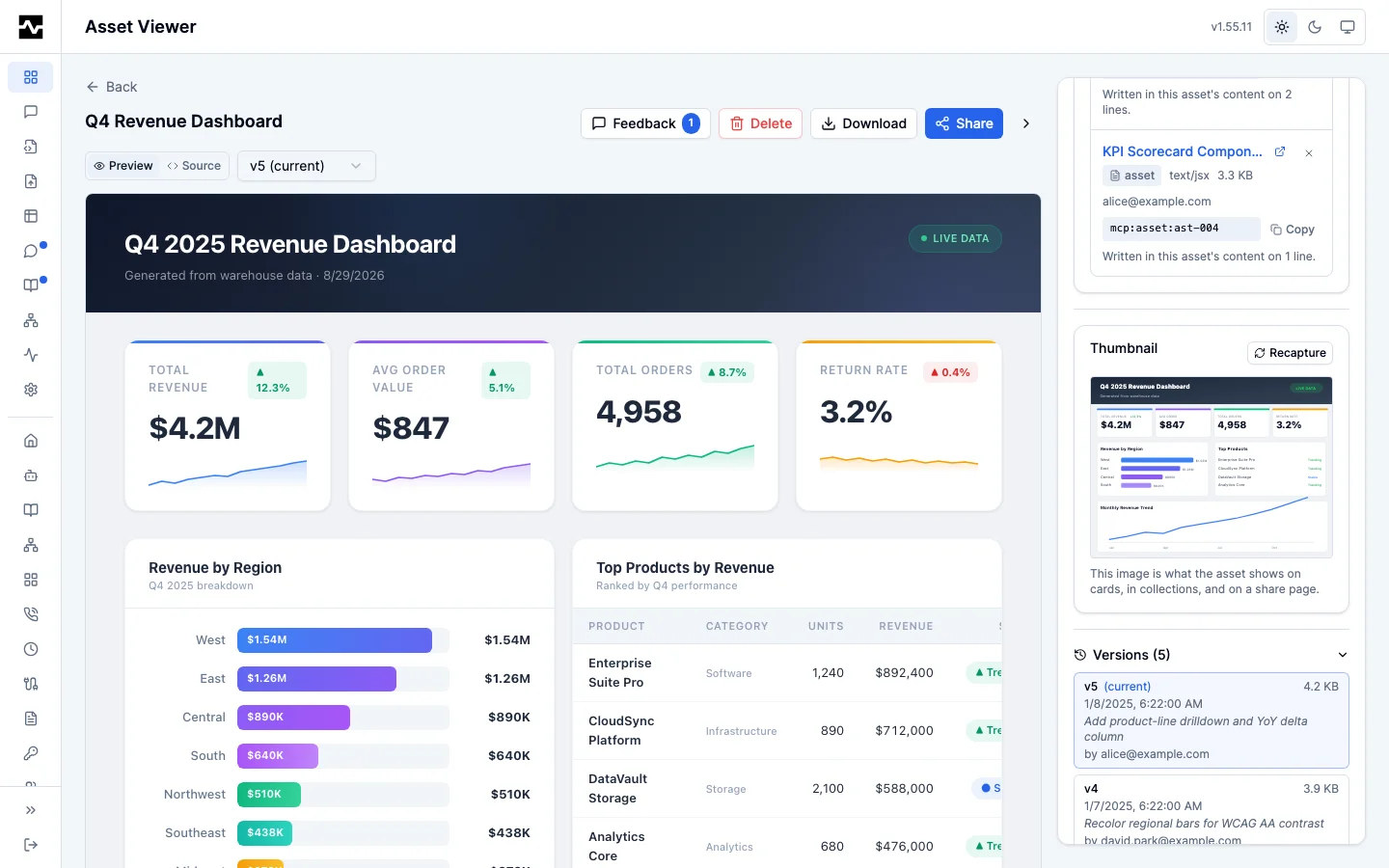
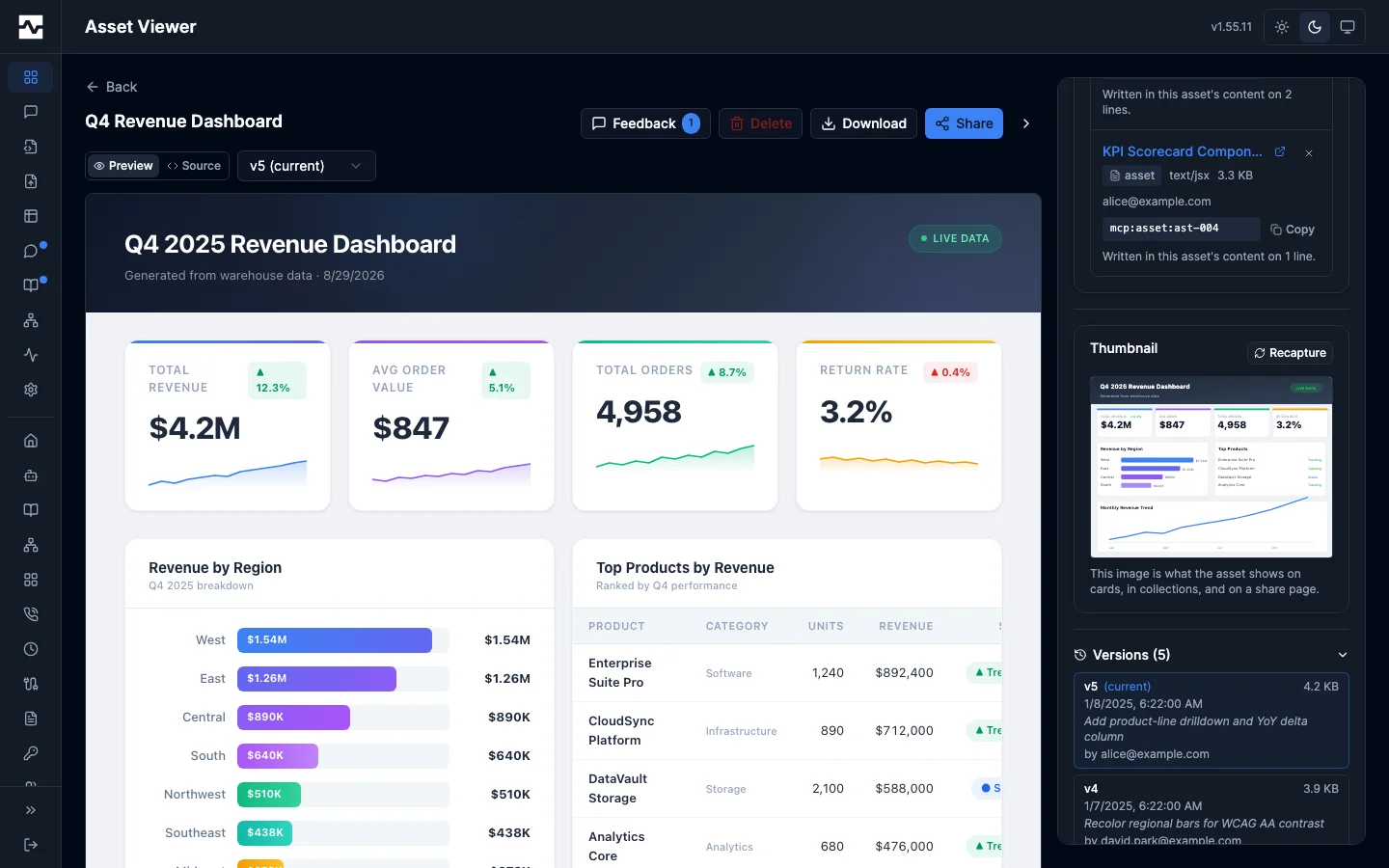
Click any asset to open the full-screen viewer. The viewer renders content natively based on type: HTML and JSX as interactive components, SVG as vector graphics on a checkerboard, Markdown with full formatting, CSV and TSV as sortable tables, JSON as a searchable collapsible tree, images with zoom and pan, audio and video with working seek, and PDFs in the platform's own PDF.js viewer (page navigation, zoom, find and text selection). Anything with no viewer shows a metadata card and a download action rather than raw bytes. See Content Types and Viewers for the full family list and for how a mislabeled content type is detected and corrected at write time.
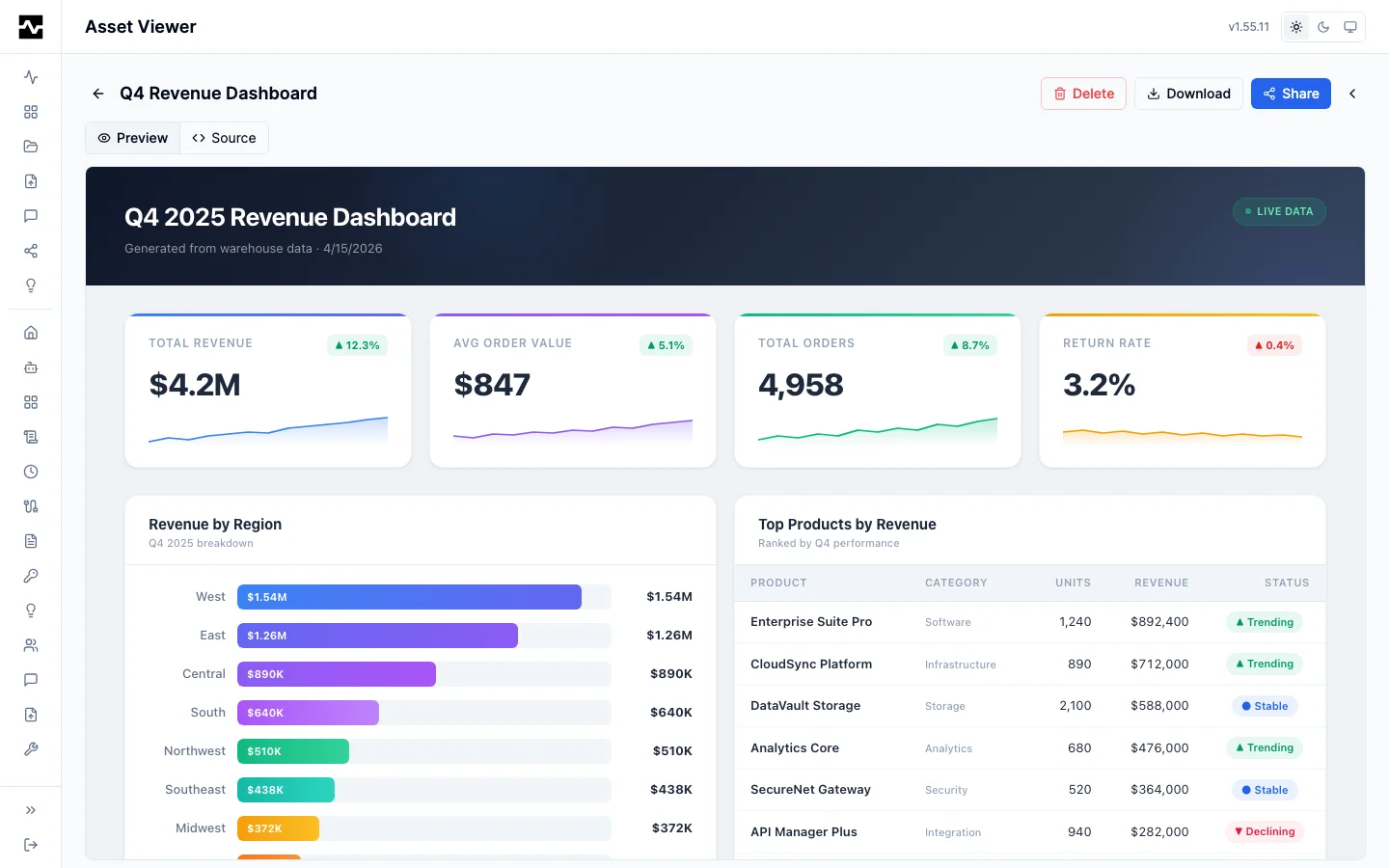
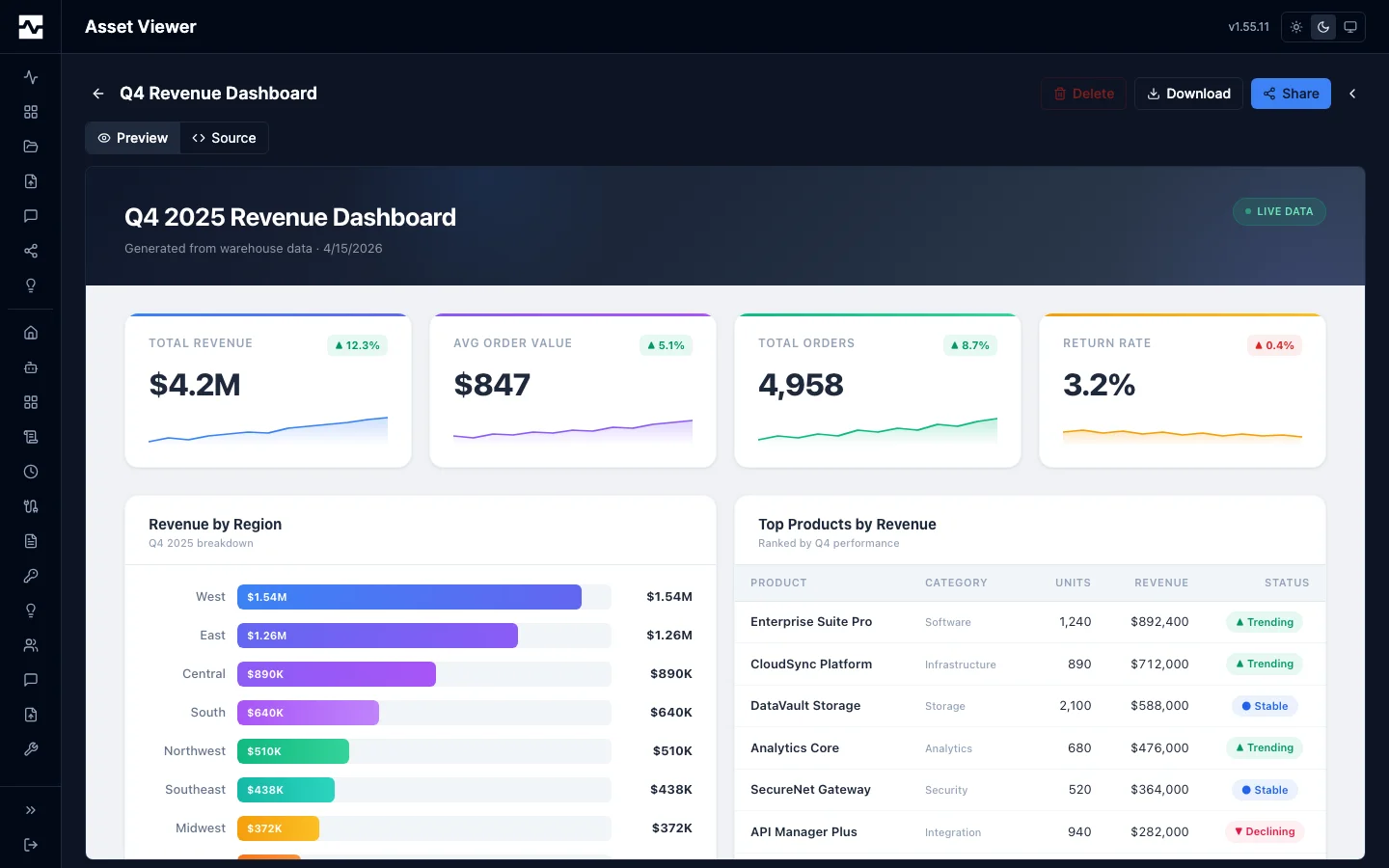
The viewer provides:
- Preview / Source toggle — Switch between rendered output and raw source code
- Wrap and Format in Source — Source has a Wrap toggle, and it is already on when the document's longest line is wider than the editor, so an HTML asset an agent saved on a single line opens readable. Wrapping changes only the display. HTML, JSON, JSX and JavaScript, YAML and Markdown also get Format, which reindents the buffer: one element per line with nested indentation, and an HTML document's
<style>and<script>bodies formatted as CSS and JavaScript. Format is an ordinary edit. The document is marked changed, undo takes it back, and nothing is stored until you click Save, which writes a new version the usual way. Opening Source, switching views and reading an old version never change the stored content. Format leaves the buffer as it was, and says why, when the source does not parse, or when the reindented HTML would display different text (an element the page's own stylesheet sets towhite-space: prekeeps every space and line break on screen). The same editor, with the same two controls, is used for managed resources and scripts; a script is Starlark and has Wrap only. - Actions — Delete, Download, and Share buttons
- Owner display — Shows the asset owner's email address
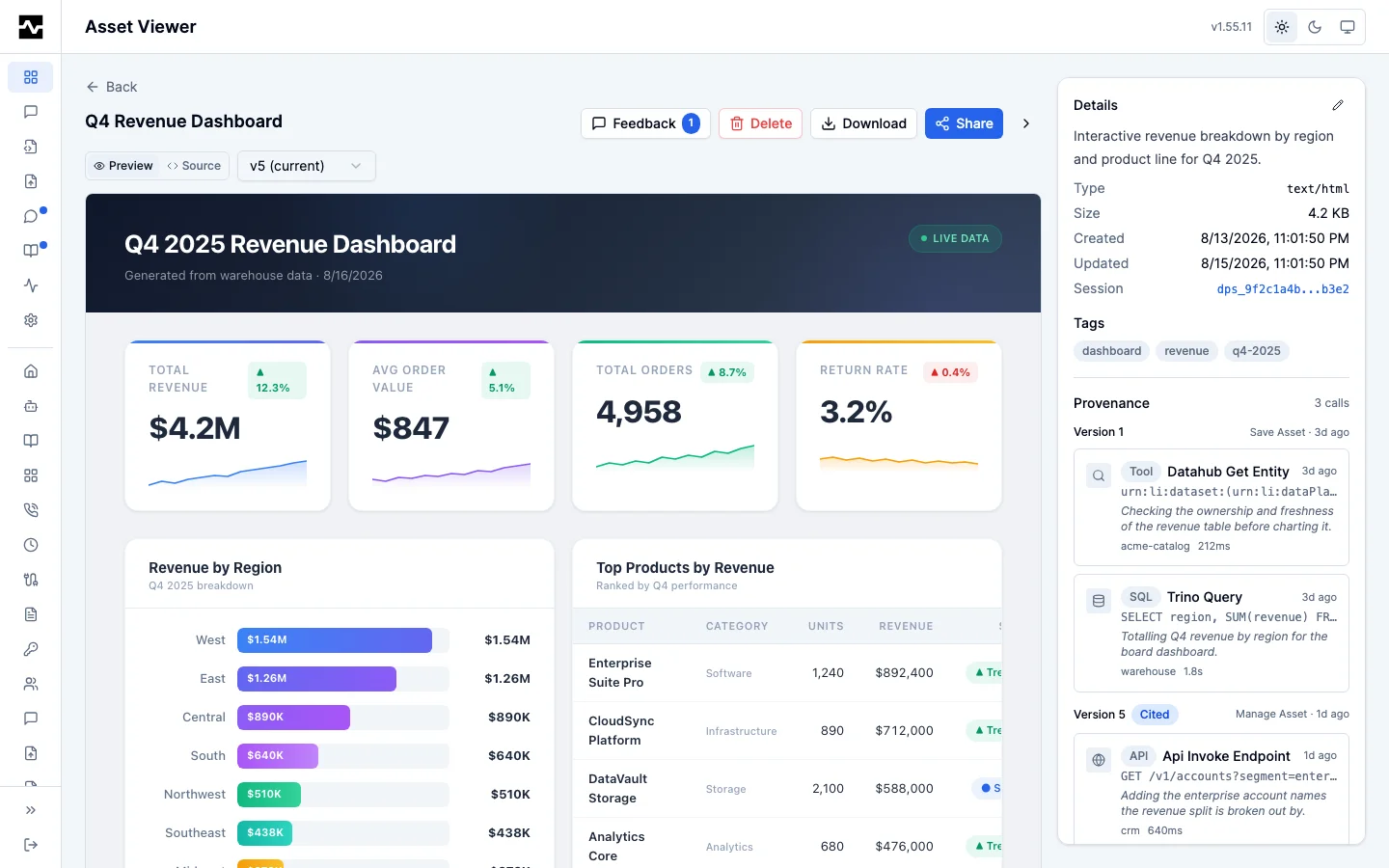
- Metadata sidebar — Type, size, created and updated timestamps, tags, version history, and the calls this asset was built from
Presenting a slide deck
A presentation is an HTML asset built on the slide runtime the platform serves (reveal.js, pinned in the portal build and answered at /portal/vendor/reveal/ by the same origin as the page, so a deck renders on a network that admits only this deployment and inside the share viewer's existing script policy). The viewer cannot tell a deck from a dashboard, so every HTML asset carries a Present control on the row that holds the Preview/Source toggle and the version picker: it fullscreens the frame and moves the keyboard into it, so arrow keys and space advance the slides from the first keystroke and Esc returns to the page. A document that loads the served runtime also carries Overview, which asks the runtime for its grid of every slide through the message API the runtime listens on, and an HTML asset carries Export PDF, which downloads the document as a PDF the platform prints in its renderer, the headless browser that draws thumbnails (#1983): in the document's own colors and backgrounds, as it looks on screen, and for a deck one page per slide, each slide at its last build step, so a slide that builds in three steps is one page rather than three. The PDF is read through the same content route the viewer reads, so whoever can open the asset can export it, from the asset page and the share page alike; nothing is printed in the browser and no print dialog opens. A deployment whose renderer is not answering says so instead of returning a file. The frame fills the page under that row, ending at the page's own padding, so a deck fits the viewport without scrolling. The share viewer carries the same three controls in its header and fills the space under its notices the same way, and the asset's thumbnail is its title slide, drawn by the platform's renderer in the deck's own typeface and at the runtime's own scale (#1787). A click on the frame gives it the keyboard without fullscreen (#1767, #1769).
An agent asked for a presentation, a deck or slides is pointed at the built-in knowledge page mcp:knowledge_page:platform-presentations, which carries the served paths, the document skeleton, what the three controls do, and what the frame does not allow: the runtime's speaker view opens a second window, which the sandboxed frame refuses.
Maps
A map is an HTML asset too: the platform serves a map runtime under /portal/vendor/maplibre/, and, when an administrator has turned maps on, a street basemap of the regions they chose under /portal/maps/ (see Street Maps). A map renders on the asset page, on an authenticated or public share link, and in its thumbnail from those two paths alone, so nothing a reader opens reaches a third party. A value by state or by county needs no basemap: the US boundaries are served with the runtime. An agent asked for a map is pointed at mcp:knowledge_page:platform-maps, which lists the regions this deployment serves, or says it has none.
On a narrow screen the viewer is one column: the actions wrap onto as many rows as they need, and the metadata sidebar opens below the content rather than beside it. The page never scrolls sideways, so a share link followed on a phone reaches Download and Save to My Assets without panning. The same applies to the managed-resource, prompt and script viewers, which are built on the same header and layout.
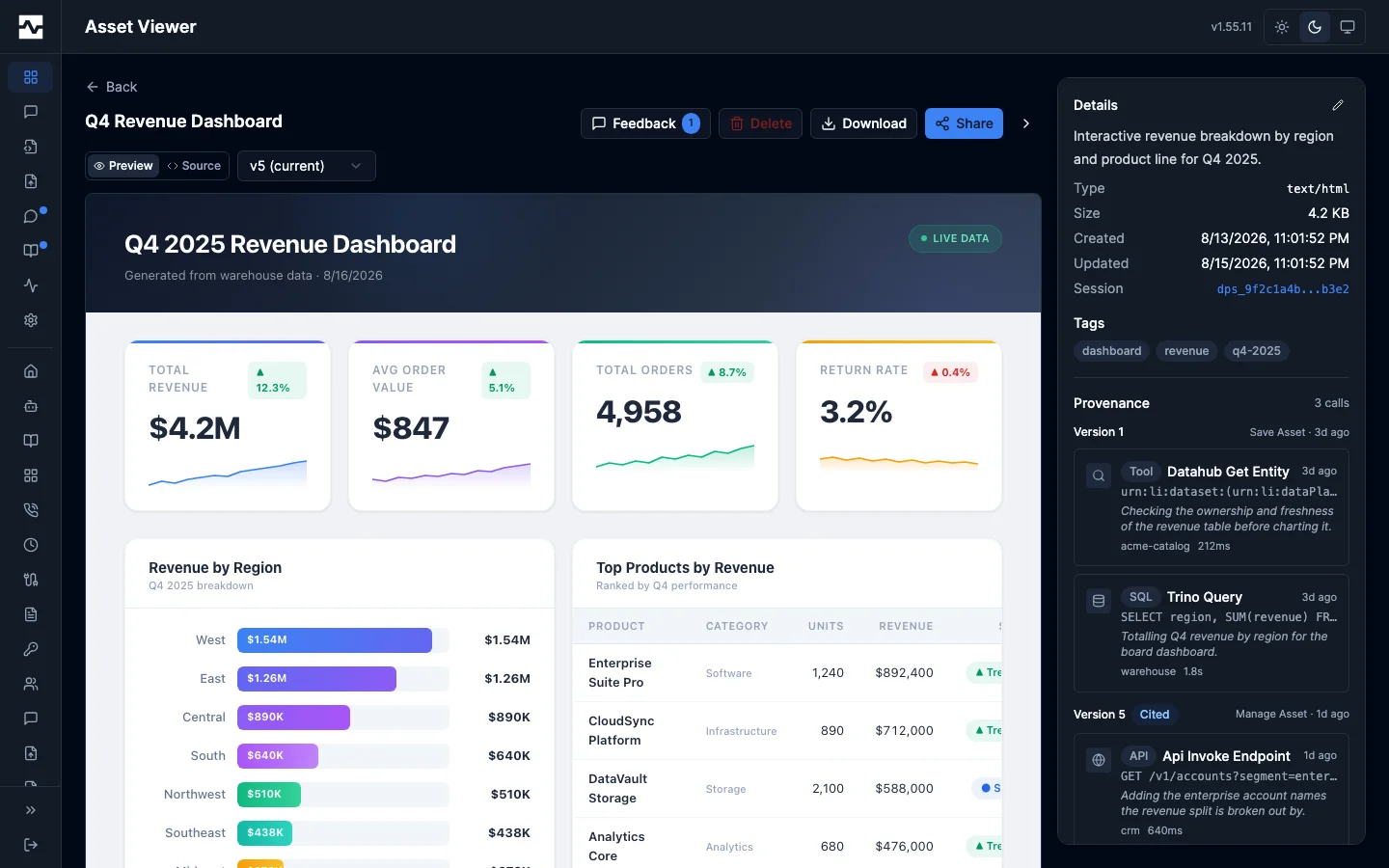
The Provenance panel groups those calls by capture — one per time the asset was written, so a revised asset shows what fed each of its versions. Each call names its kind (a SQL statement, an API request, or another data call), the connection it ran against, the purpose the agent stated for it, how long it took, and whether it failed; a failed call is shown, not hidden, because it is part of how the answer was reached. Opening a call shows the full statement or request with a copy action and the mcp:call: reference that names it in the audit log. A capture marked Cited is one where the agent named its sources itself rather than the platform taking the session's recent calls. See Provenance.
The newest capture is shown expanded and every earlier one sits behind a disclosure naming how many there are, each opening on its own. An asset a scheduled script refreshes accumulates a capture per run, and the panel leads with the write that produced what is on screen rather than making you scroll past a year of them.
Opening the page reads the newest twenty captures. The disclosure counts every capture the asset holds, and a control inside it loads the next twenty at a time, so a year of hourly refreshes is available without the page downloading all of it to show you the last one. The header says how many are loaded out of how many exist while any are unread, and goes back to the call count once they all are. Listings — the Assets gallery, manage_asset action=list and action=search — carry a summary of an asset's provenance rather than the captures themselves. See Provenance.
Written by
Provenance answers what the content was built from. Written by, beside it, answers who did the building: every managed script, agent session and person that has created or modified this asset, most recent writer first.
Each row names the writer, marks whether it created the asset or has only modified it since, and says how many times it has written and when it last did. A script and a session open on their own page, so a report an hourly script refreshes and its owner edits shows both and either can be followed. Retiring the script is then a decision made with the list of what goes stale in front of you.
A script is recorded by its id rather than its name, so renaming one keeps its history; deleting one leaves the rows it wrote in place, and the row says the script no longer exists rather than linking to a page that is gone.
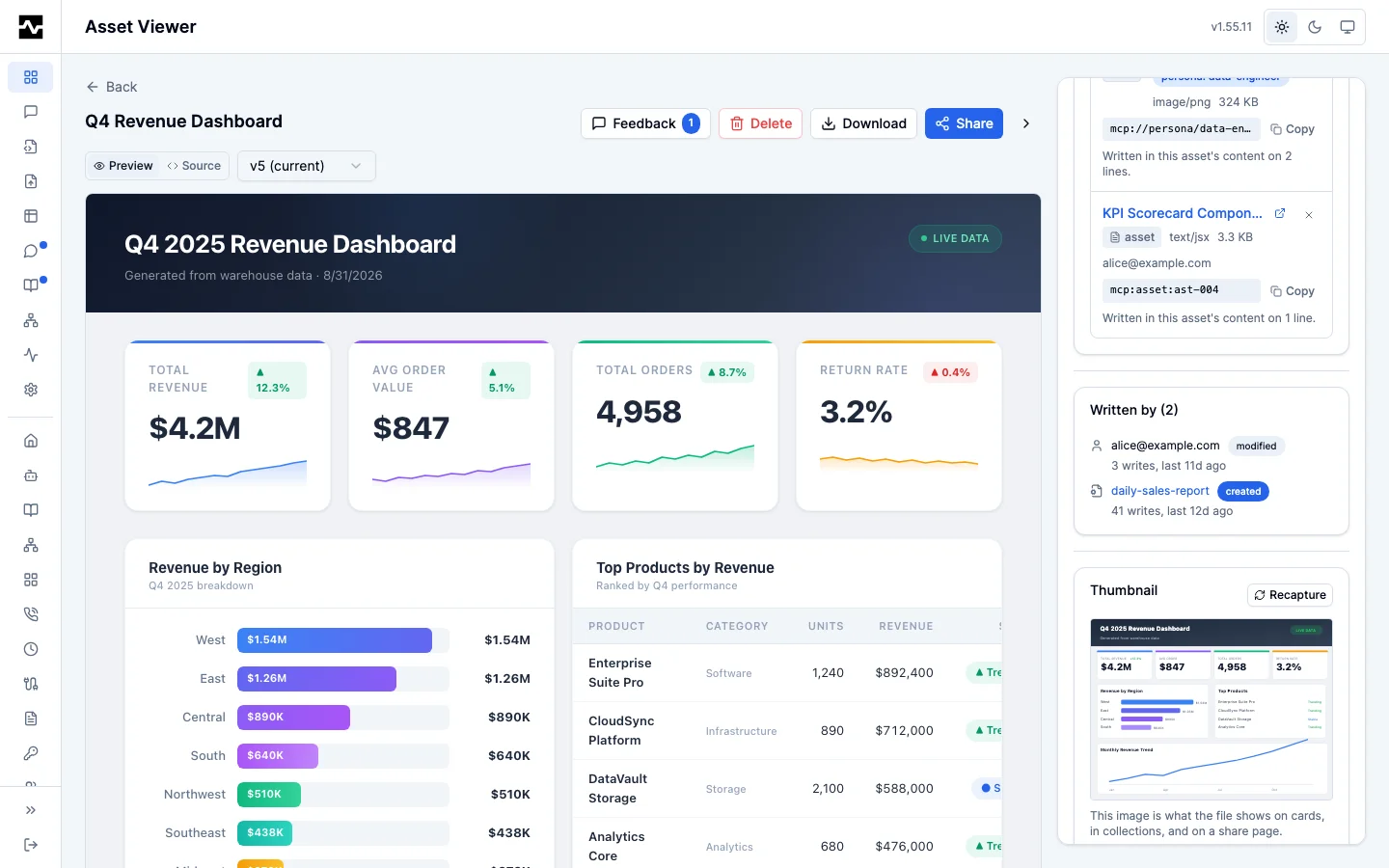
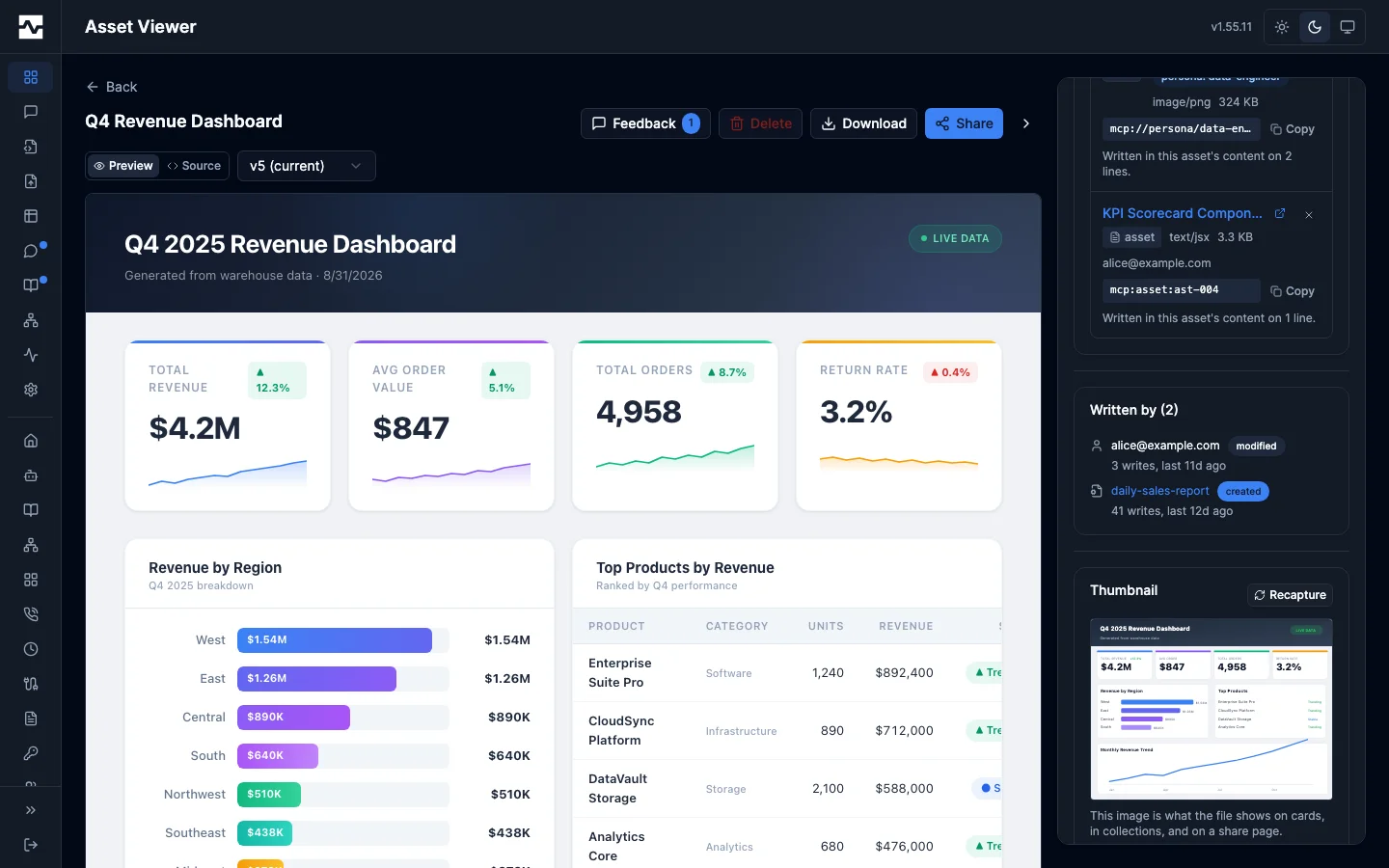
An asset written before this shipped shows no panel, except where the platform could derive its writer without guessing: an asset a managed script created as one of its declared outputs names that script.
References
An asset's content can name a managed resource by its mcp:// URI rather than carrying the file's bytes — a logo, a photograph, a design element — or another asset by its mcp:asset:<id> reference, which resolves to that asset's current content every time the page is read. The References panel in the metadata sidebar lists what this asset depends on: each one's name and type, a scope for a file and an owner for an asset, a thumbnail where it is an image, a link to it where you can open it on your own, and the reference with a copy control.
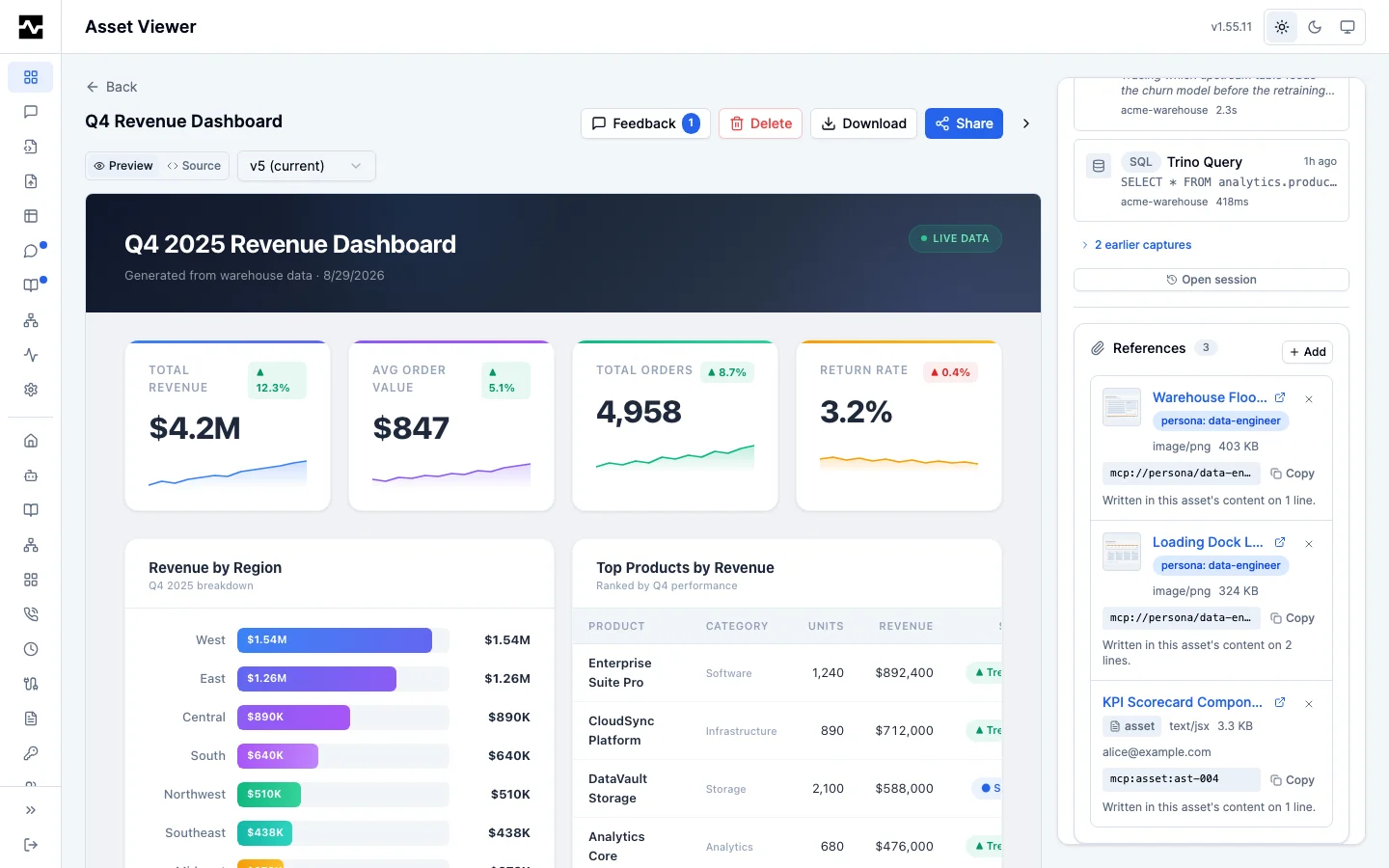
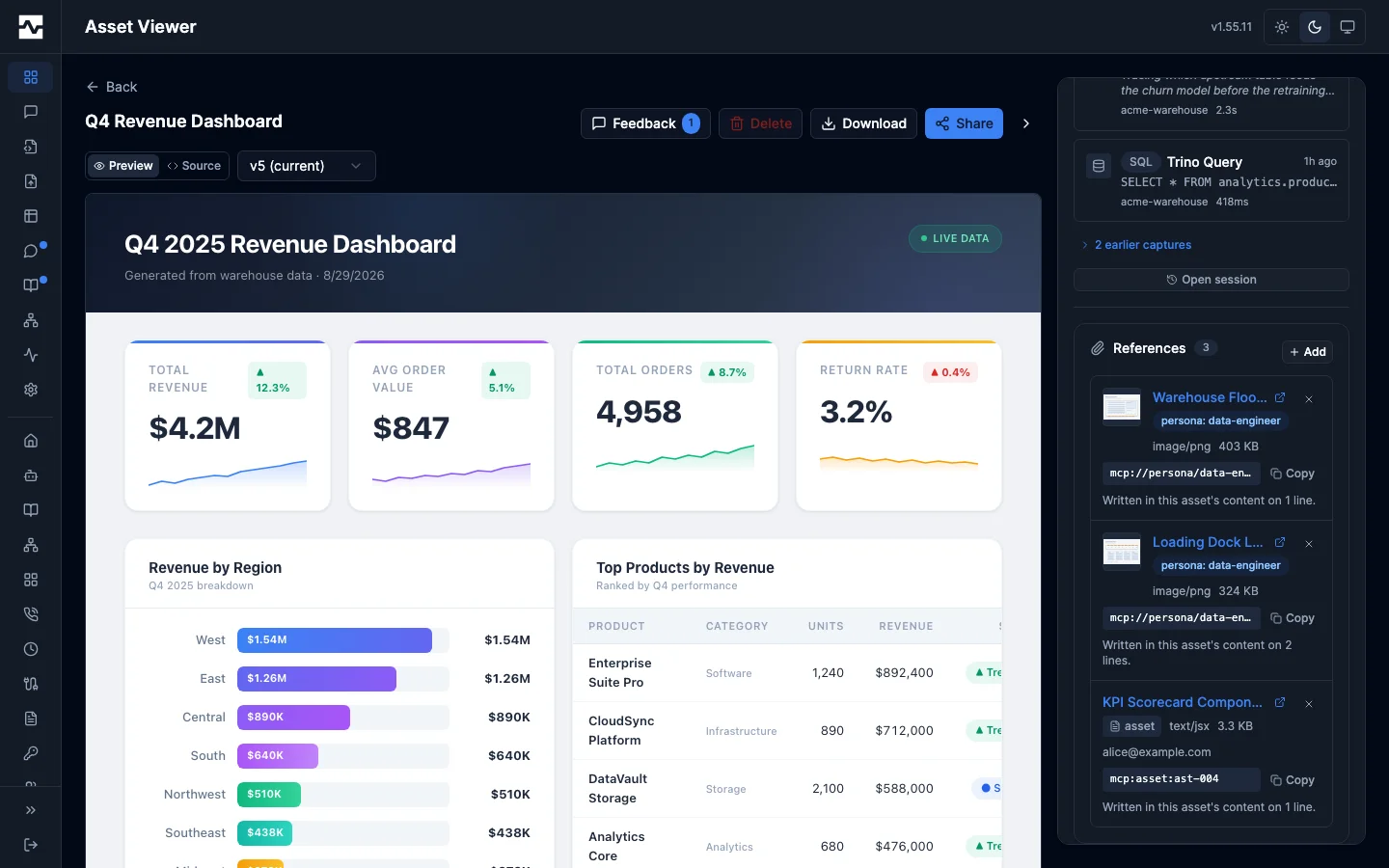
The owner, an editor on a shared asset, and an administrator can add a reference through a picker with a tab for each kind — the resources they can read, and the assets they can open — and remove one. A reference carries the asset's audience — anyone who can open the asset can load the target through it, including anyone holding a public link — so the picker names what this asset is currently shared with before anything is added.
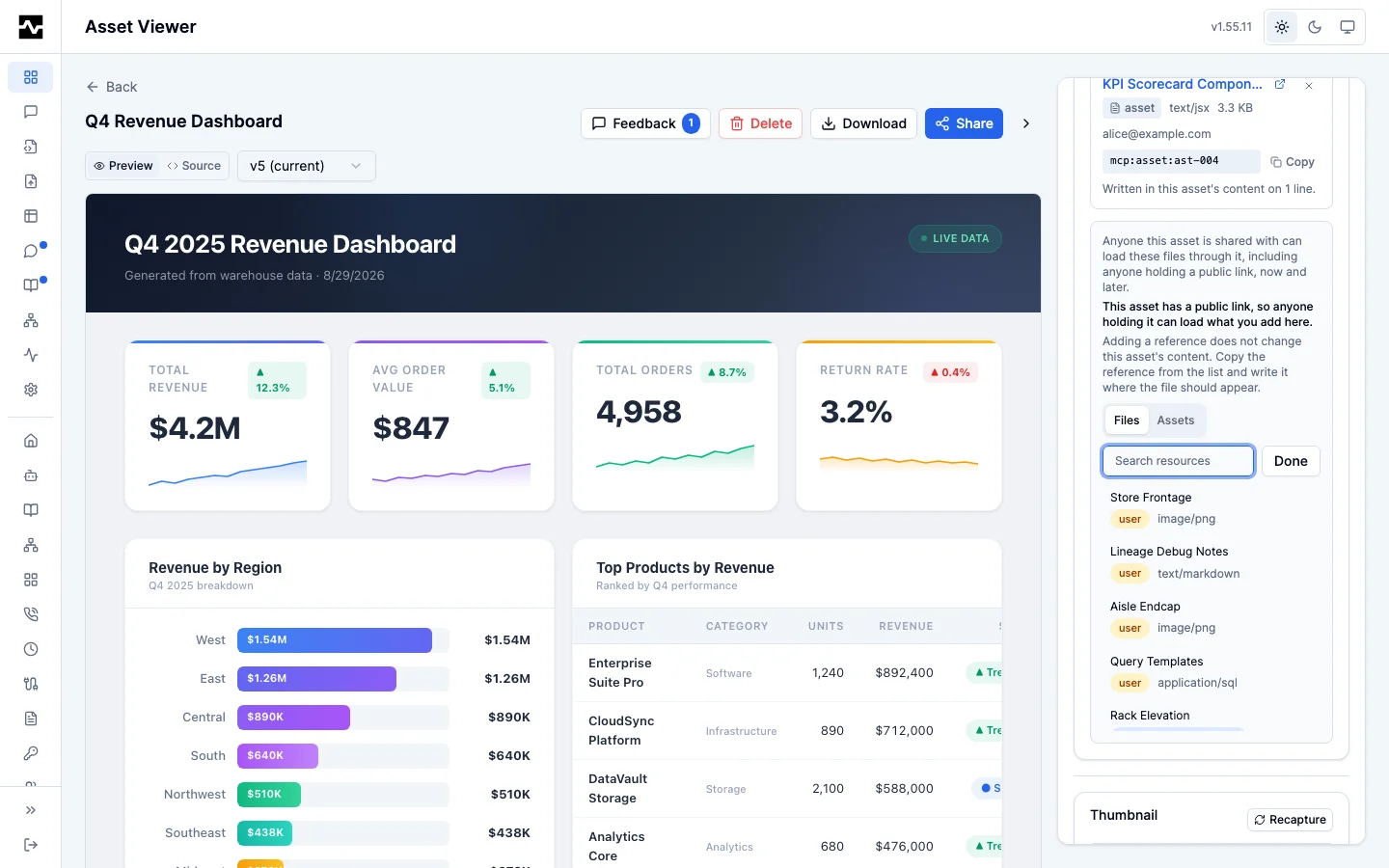
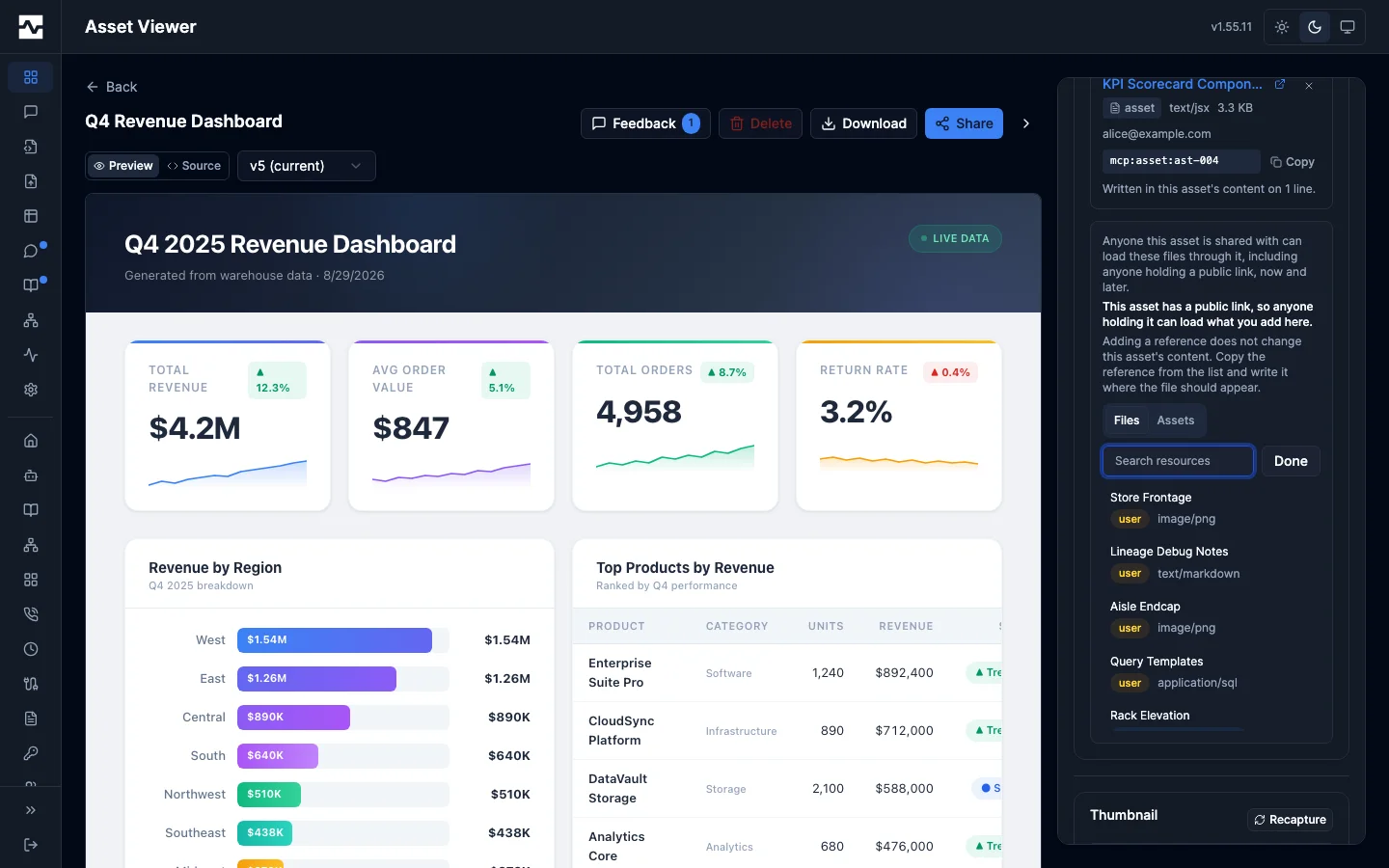
The Assets tab is what makes a refreshing dashboard possible: reference the data asset a scheduled job rewrites, write the reference into your markup where the data belongs, and the report reads the current numbers on every open without being saved again.
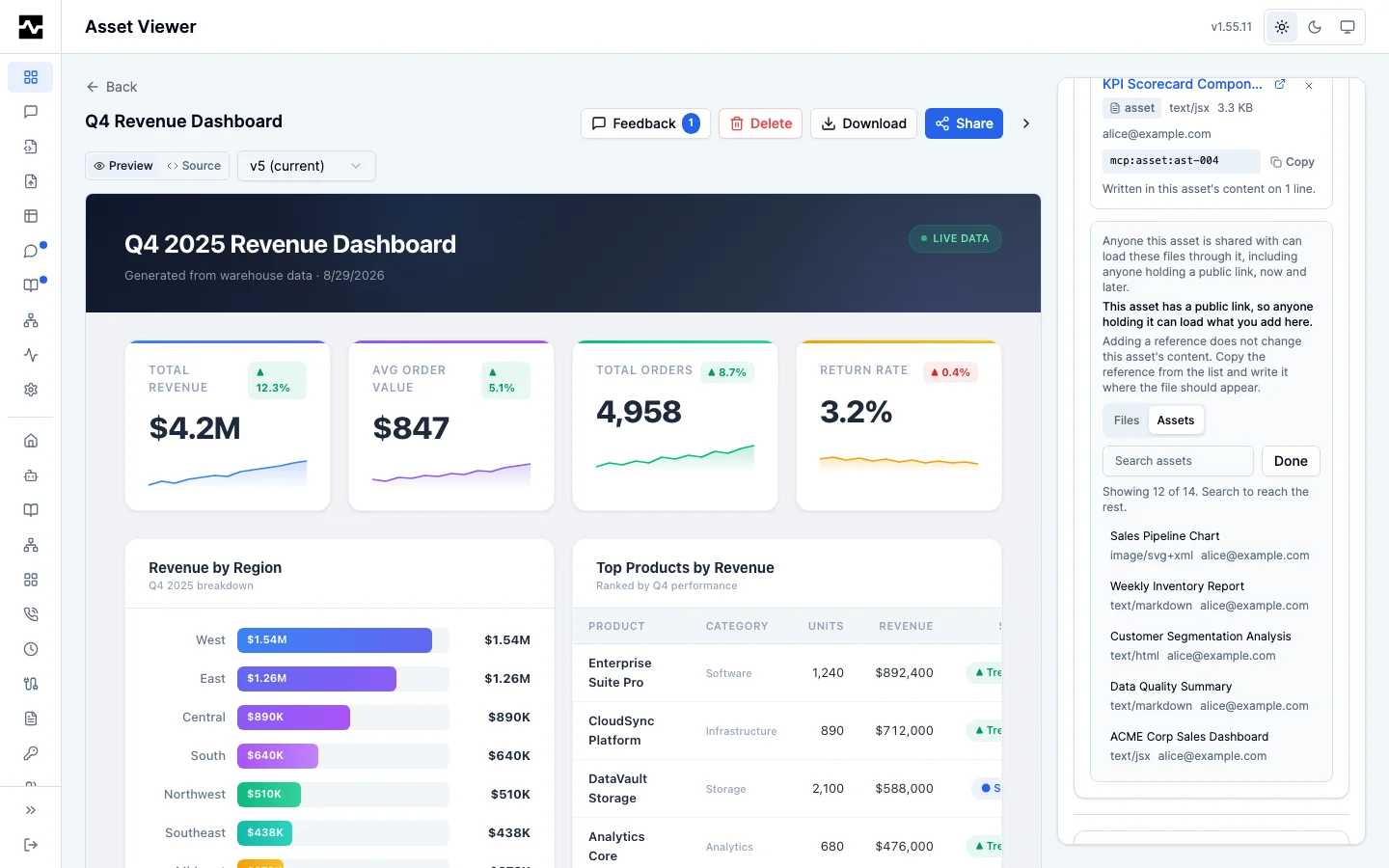
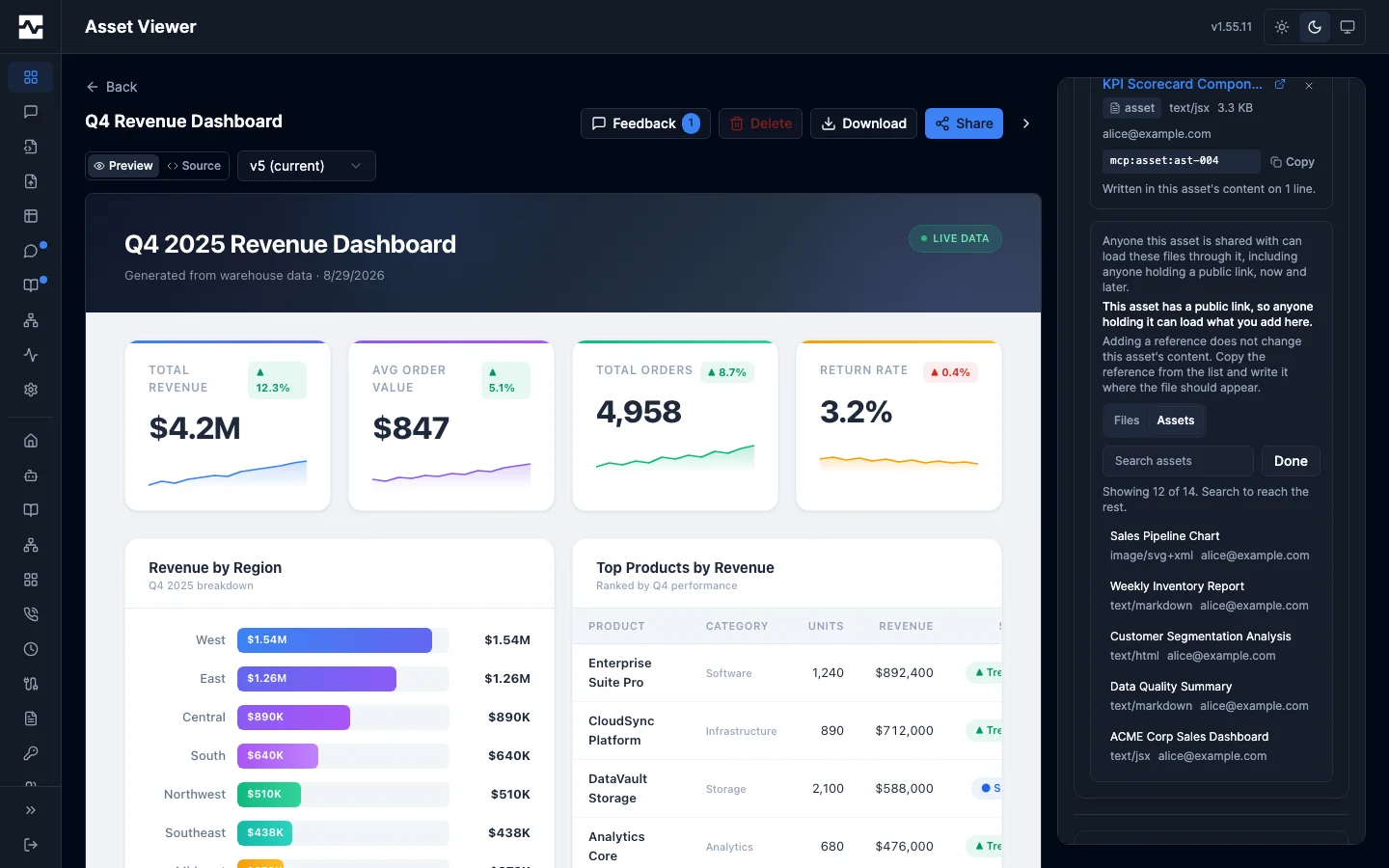
Used by below it answers the reverse question about this asset: which reports read its content. An asset carrying a public link is flagged, because that is the reference that widens this asset's audience furthest, and referencing assets you cannot open are counted rather than named. Deleting an asset something references leaves those reports rendering without it.
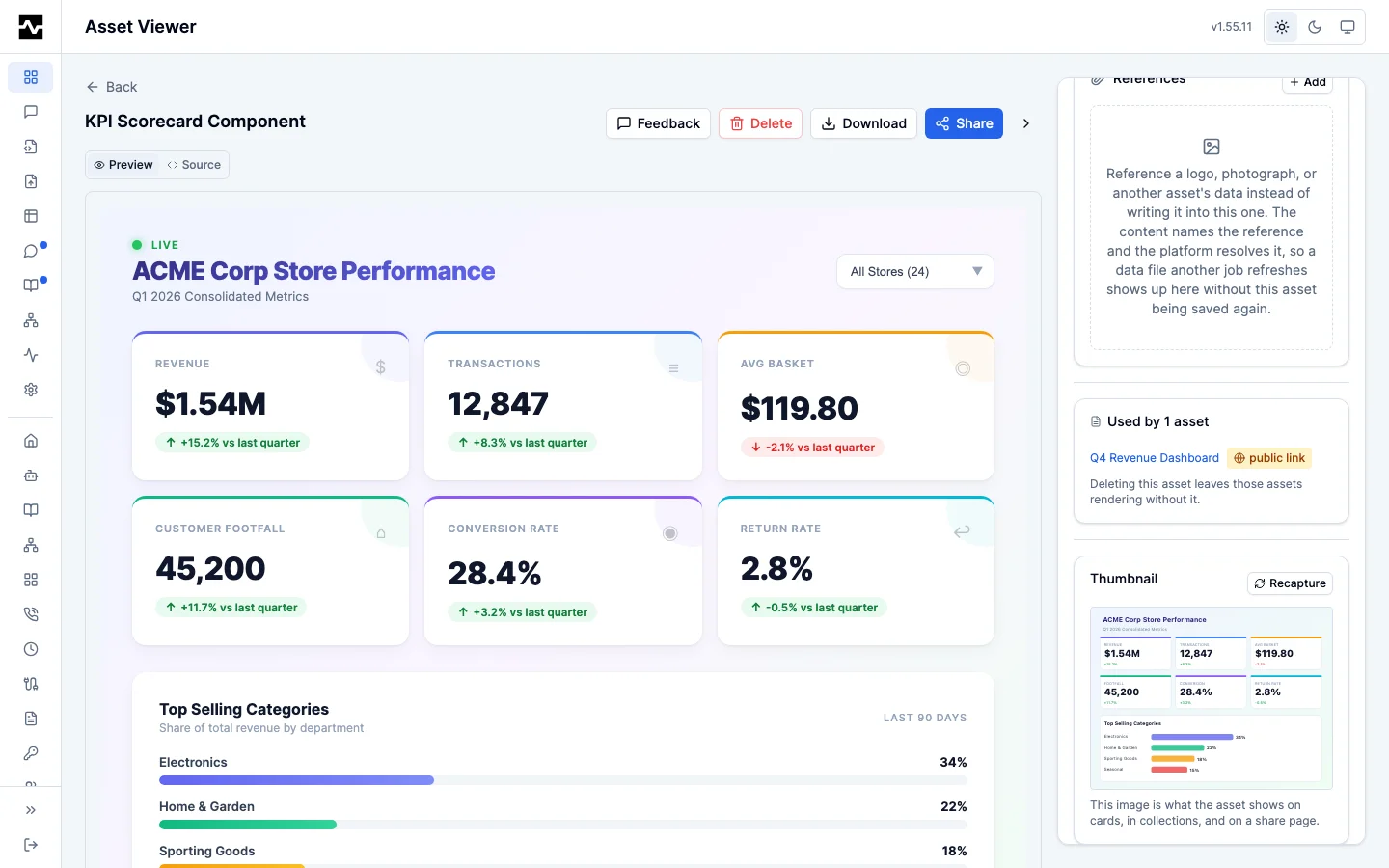
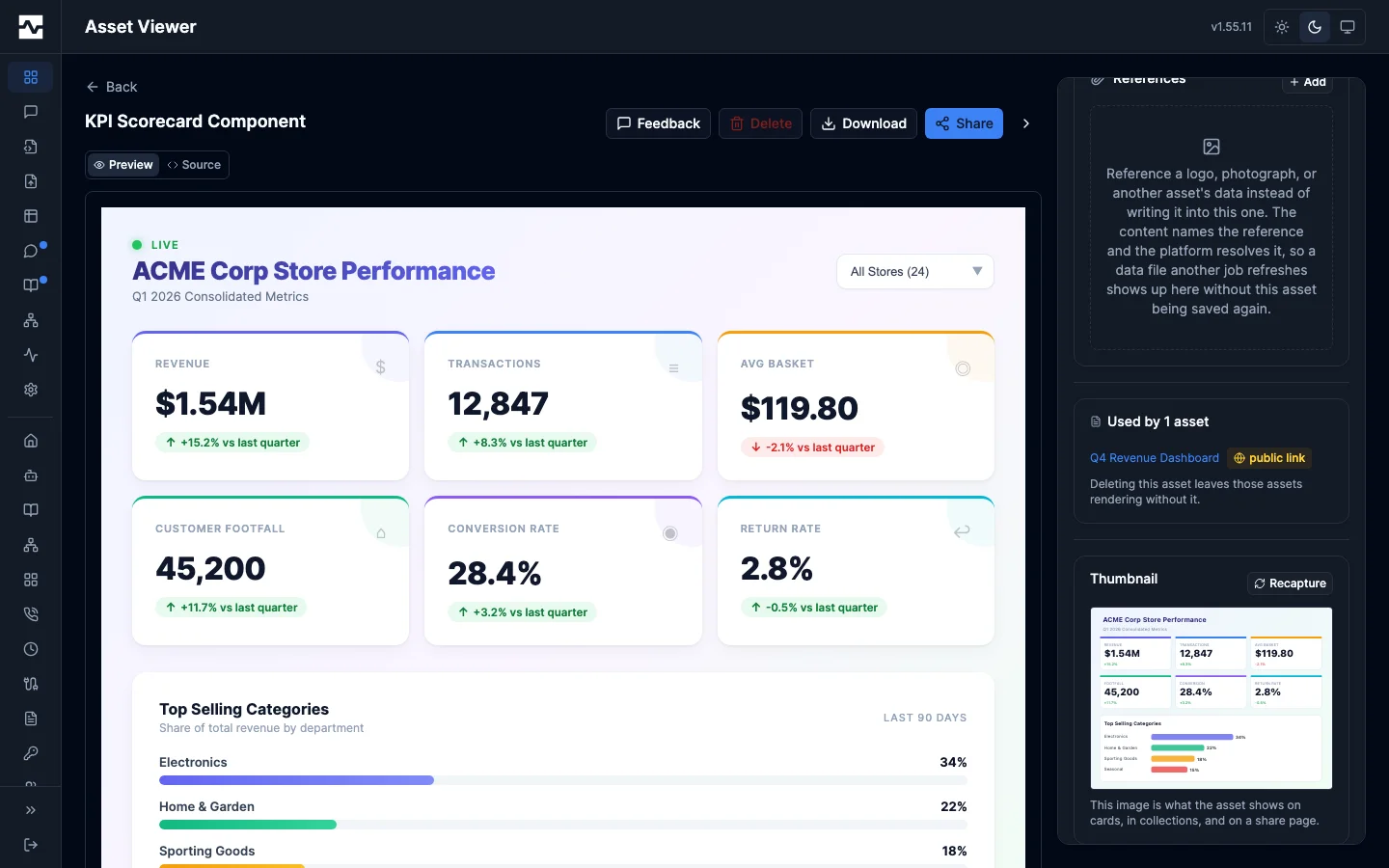
Adding a reference does not change the asset's content. The markup has to name the URI for the picture to render, which is why every row carries it with a copy control; the panel also reports which lines of the stored content already write each URI, and removing a reference the content still names warns with those lines first.
Reading an older version
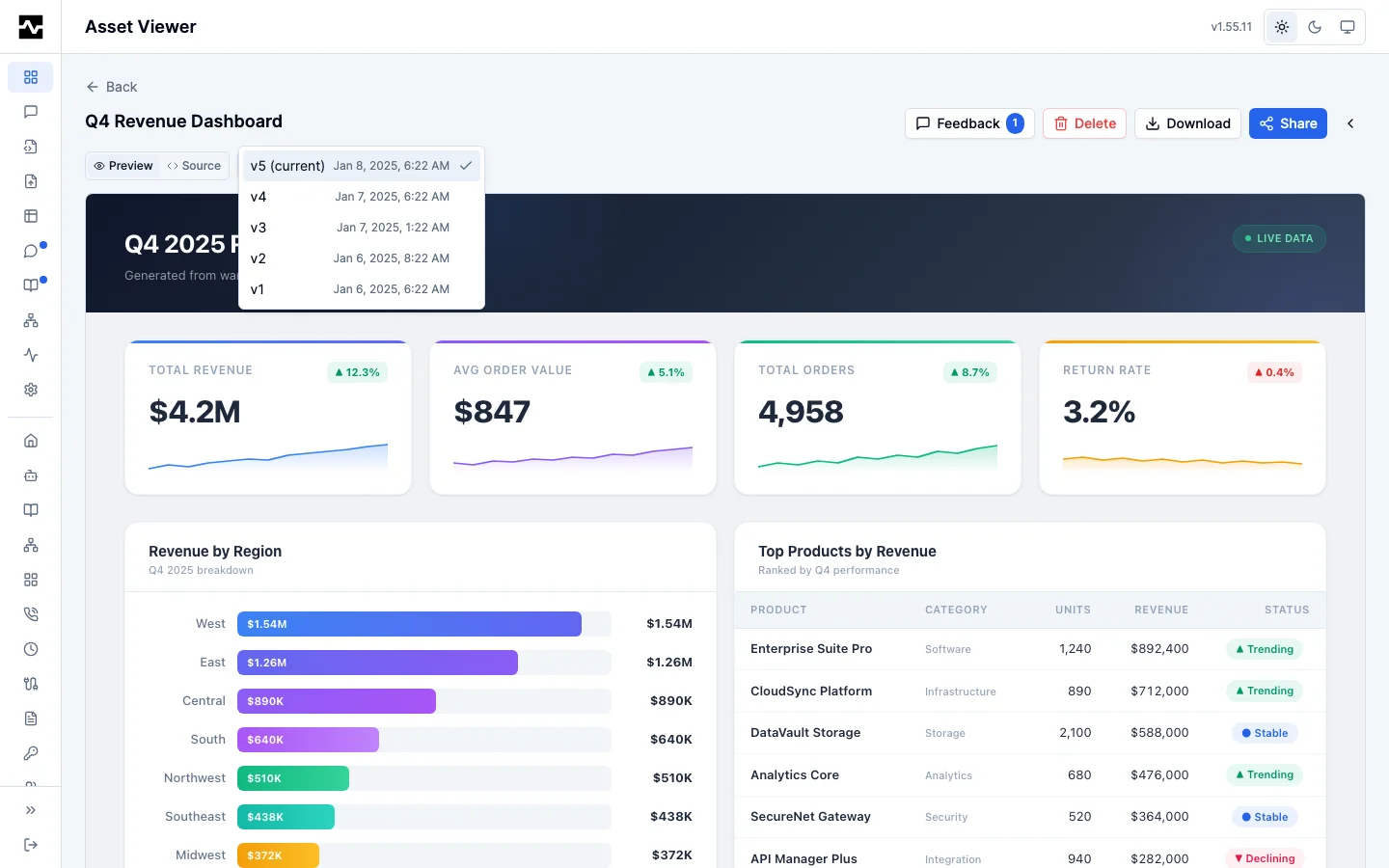
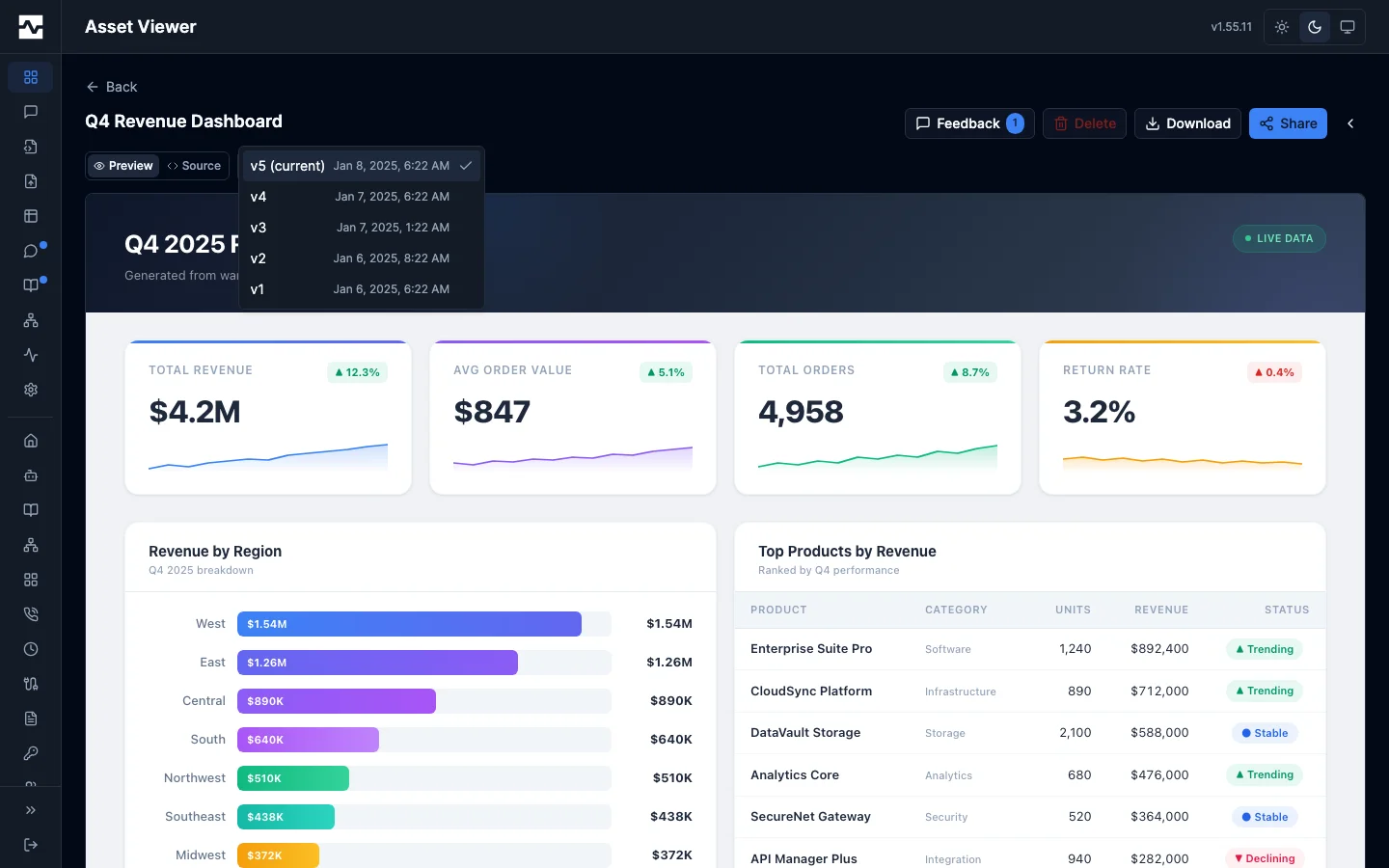
The version picker beside the Preview / Source toggle lists every version the asset keeps, each with the time it was written. A number alone does not identify a version of an asset written on a schedule, where two entries can be an hour apart. Selecting an older version shows its content read-only and offers a revert to it.
Knowledge pages that cite the asset
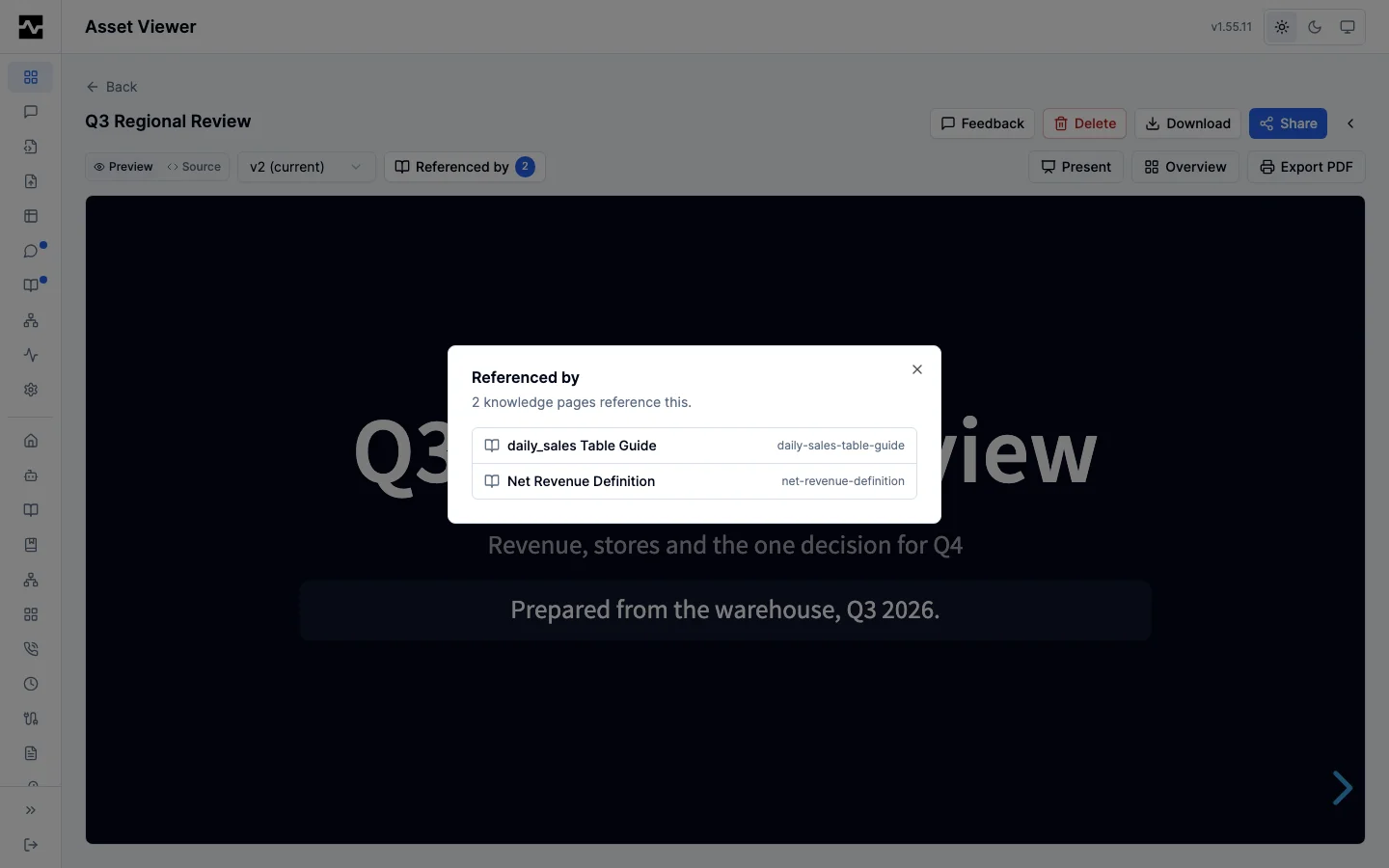
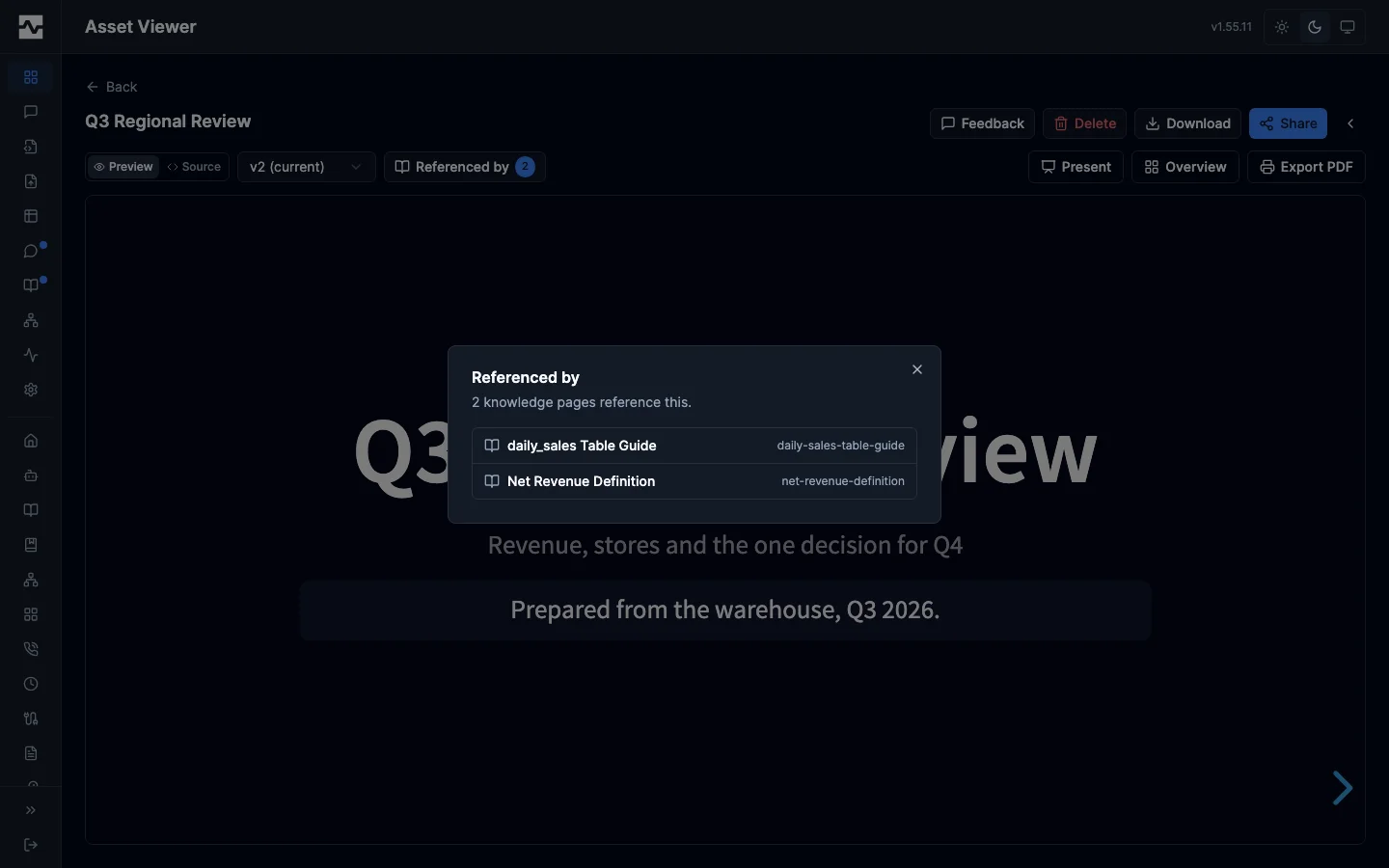
When a knowledge page references the asset, a Referenced by button to the right of the version picker carries the number of pages that do. It opens a list of those pages, and choosing one opens it. An asset no page references shows no button.
Version retention
Every write to an asset records a version, and until a cap applies that history grows without end. A dashboard a scheduled script refreshes hourly writes twenty-four versions a day, each with its own stored content, for as long as the schedule runs.
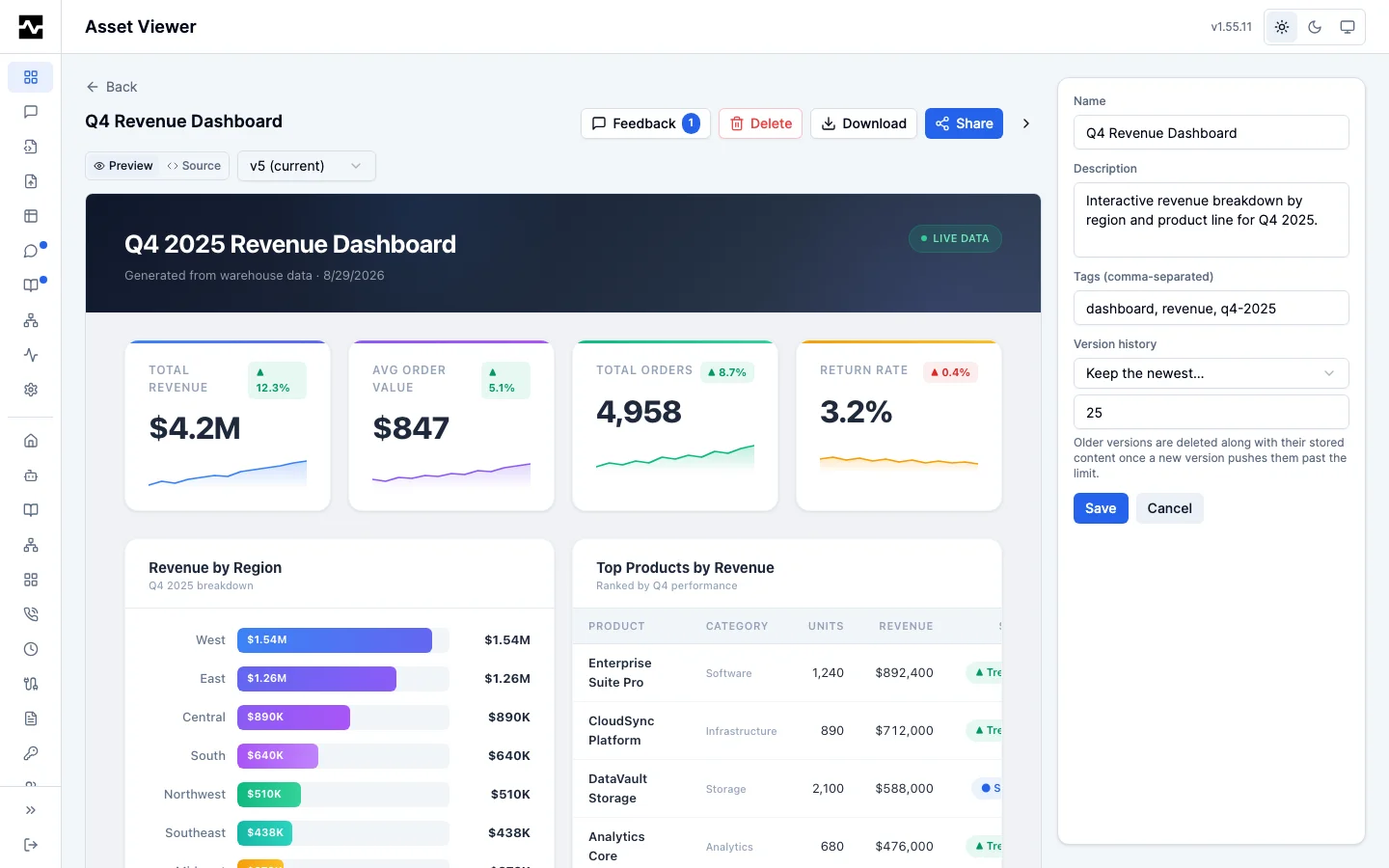
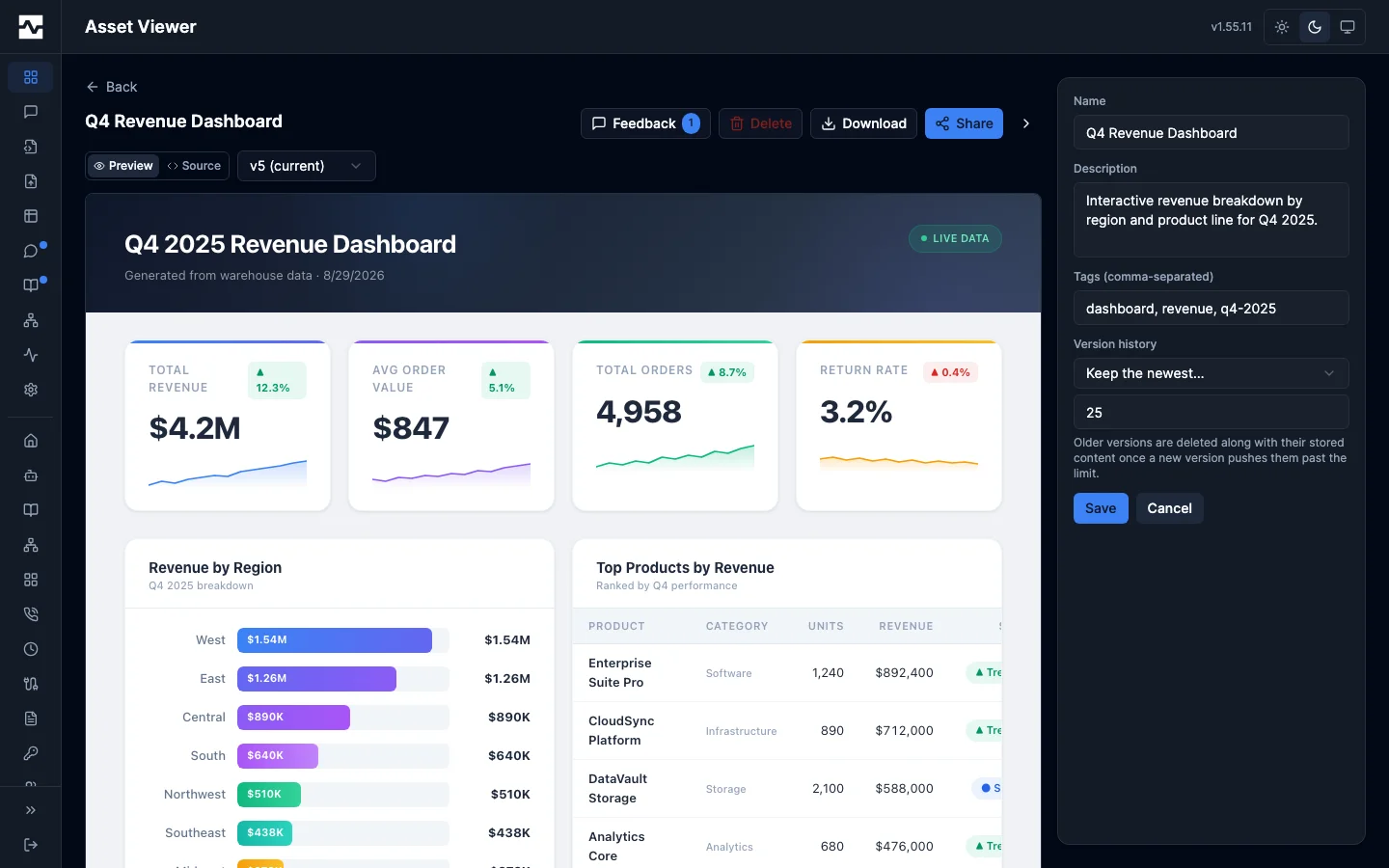
An asset keeps its most recent 100 versions by default. The deployment sets that default with portal.max_versions, and the asset's owner (or an administrator) can override it from the metadata sidebar's edit mode, under Version history:
- Deployment default — the asset has no opinion and follows whatever the deployment is set to. This is where every asset starts.
- Keep the newest N — the asset keeps N versions, however many the deployment keeps.
- Keep every version — nothing is ever pruned from this asset.
A version pushed past the cap is deleted along with its stored content and its thumbnails, so the cap bounds storage and not only the list. The version the asset currently points at is never pruned, whatever the cap, so the content stays readable and the newest entry stays revertible-to.
Retention applies when a version is written, not on a schedule. An asset that already carries more history than the cap is left alone until it is next written, and is trimmed to the cap then. Changing the setting never deletes anything by itself.
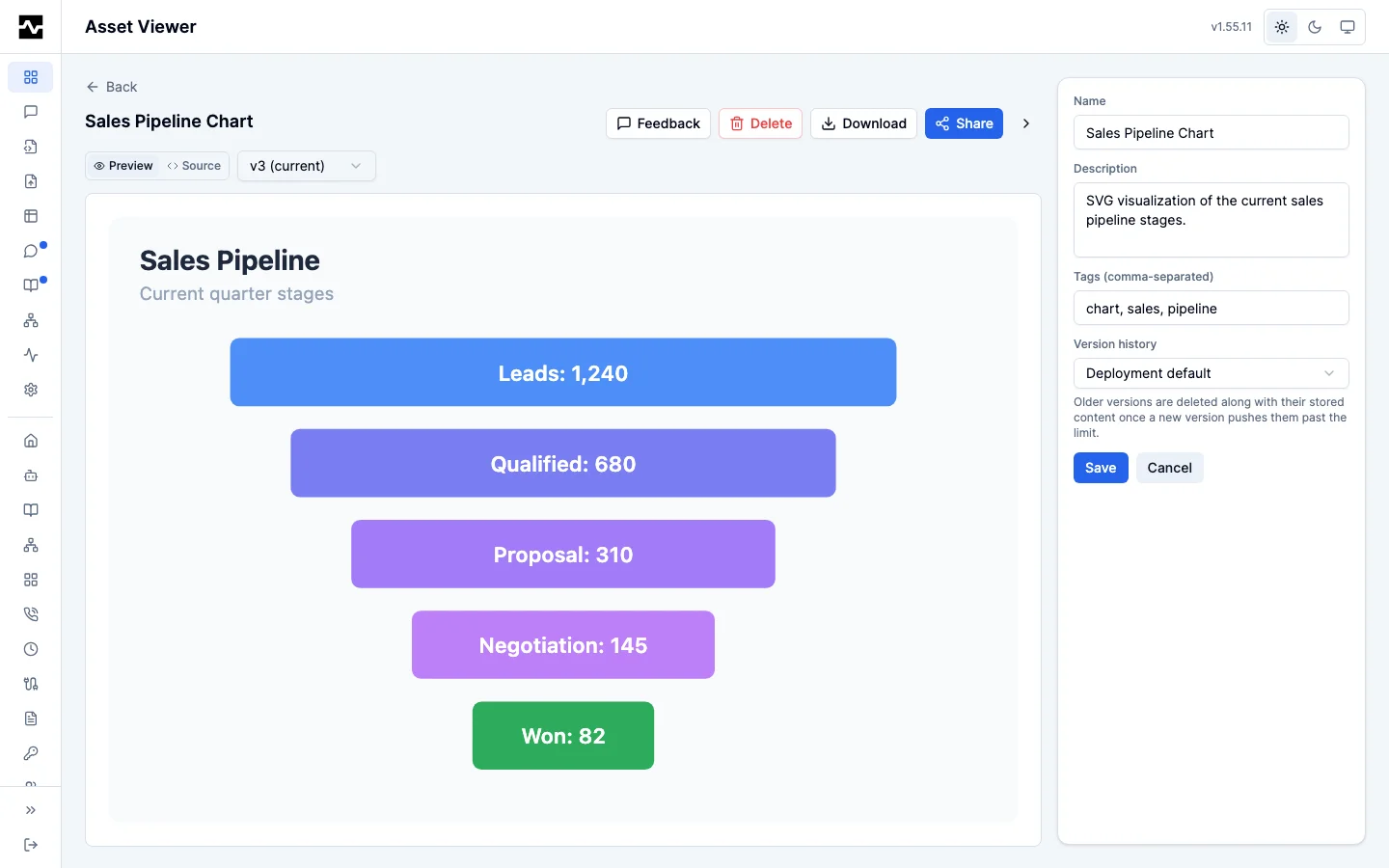
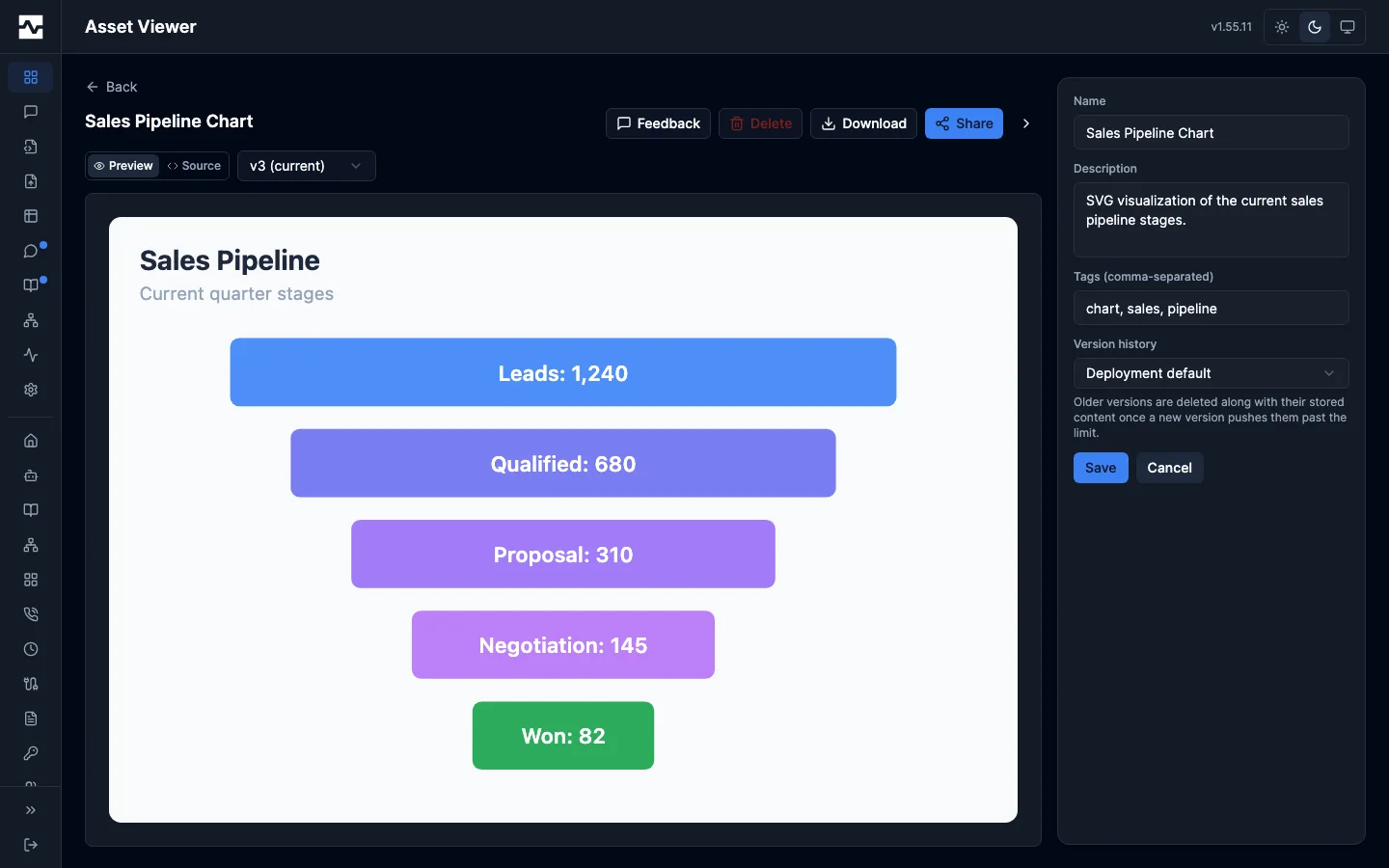
The Version history control is the one field on this form an editor share does not carry; here it is left where every asset starts.
Retention is the owner's to set. An editor share carries every other field on that form — name, description, tags, the content itself — but not this one: lowering the cap deletes the owner's history and its stored content at the next write, and nothing brings it back. The control is not shown to an editor, and the API refuses the field from one.
Agents set the same thing through manage_asset action update with max_versions (owner or administrator, as with every other update through that tool), and administrators through the admin asset route; all three write the same value.
The sidebar's Session row and the Open session action beneath the captured calls both open the session that made this asset: the panel shows only the calls captured at the moment the asset was saved, while the session holds every call that session made, before and after. Both appear only on your own assets — a session opens for the person who ran it, so on an asset shared with you there is nothing to link to. Administrators get the same walk on the admin asset viewer, into the admin sessions surface.
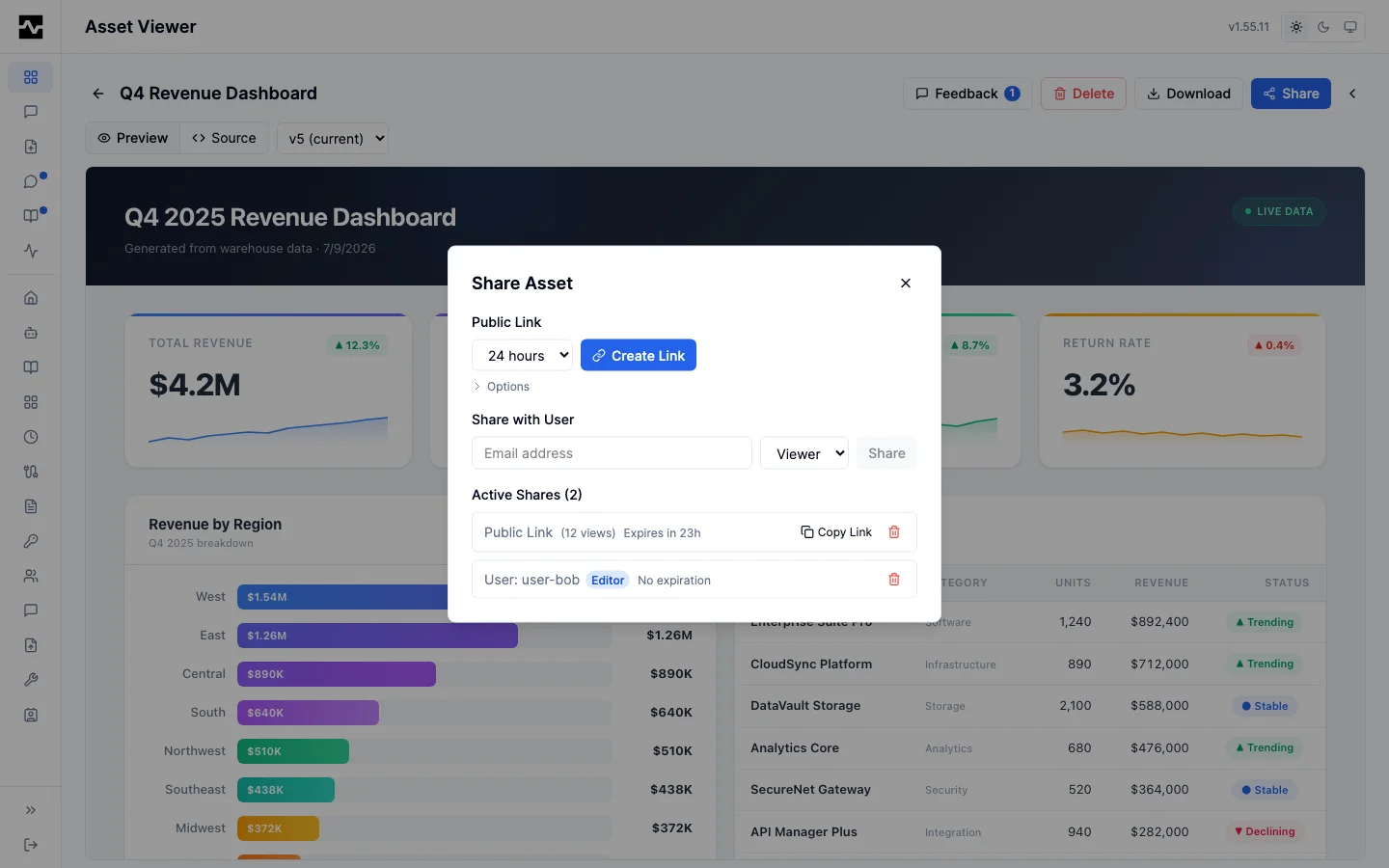
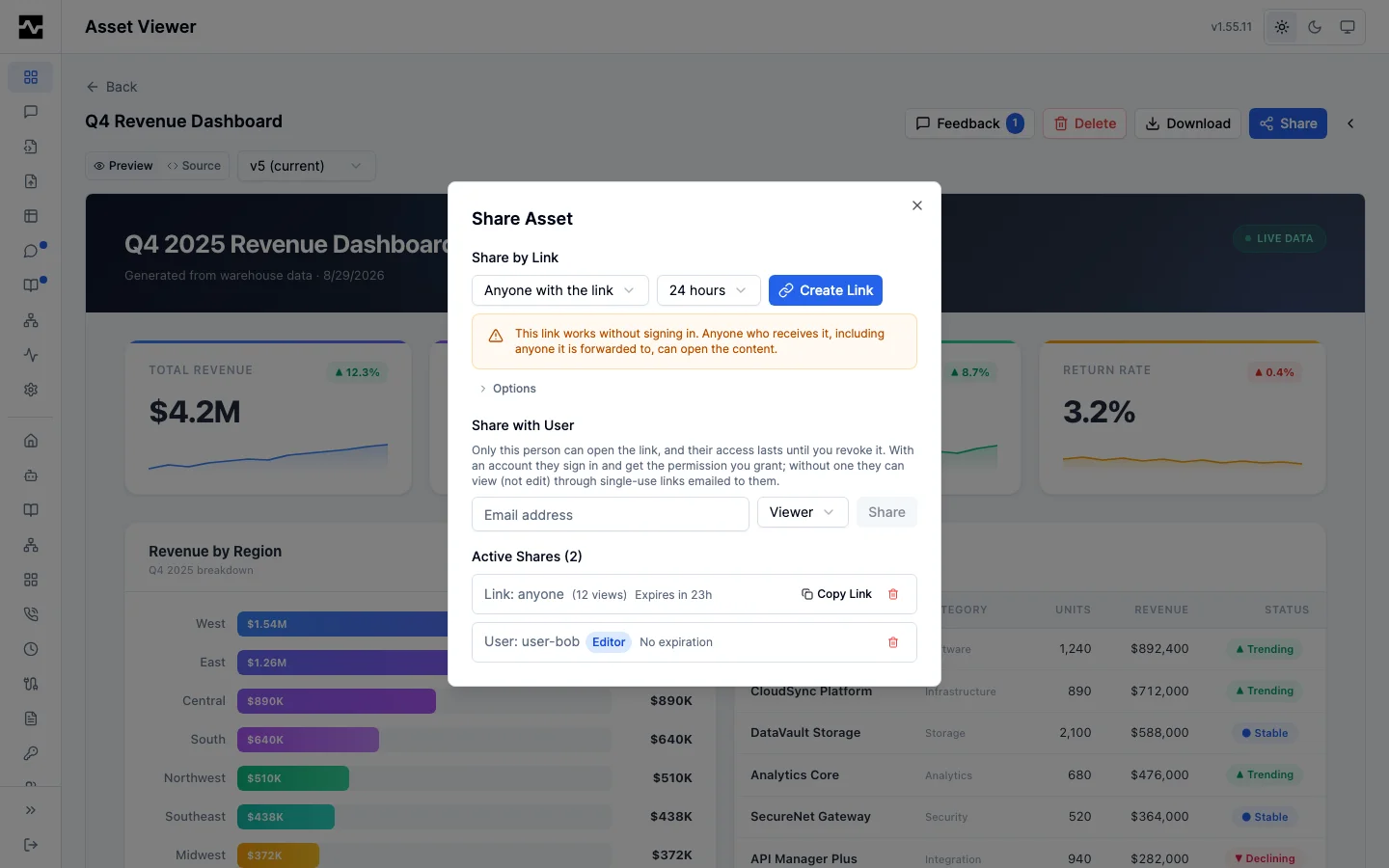
The Share action opens a dialog to mint a link or a user-scoped share, with a copy-once token and a per-link access count. A public link takes an expiration, and must have one; every other share is now minted without one and grants access until the owner revokes it. Shares created before that rule keep the expiry they were given, whatever their mode, so an older link may still show a countdown. Every share carries an access mode that decides who the link opens for:
| Mode | Who can open the link |
|---|---|
restricted |
Only the named recipient (and the person who created the share) |
authenticated |
Any signed-in platform user |
public |
Anyone with the link, without signing in |
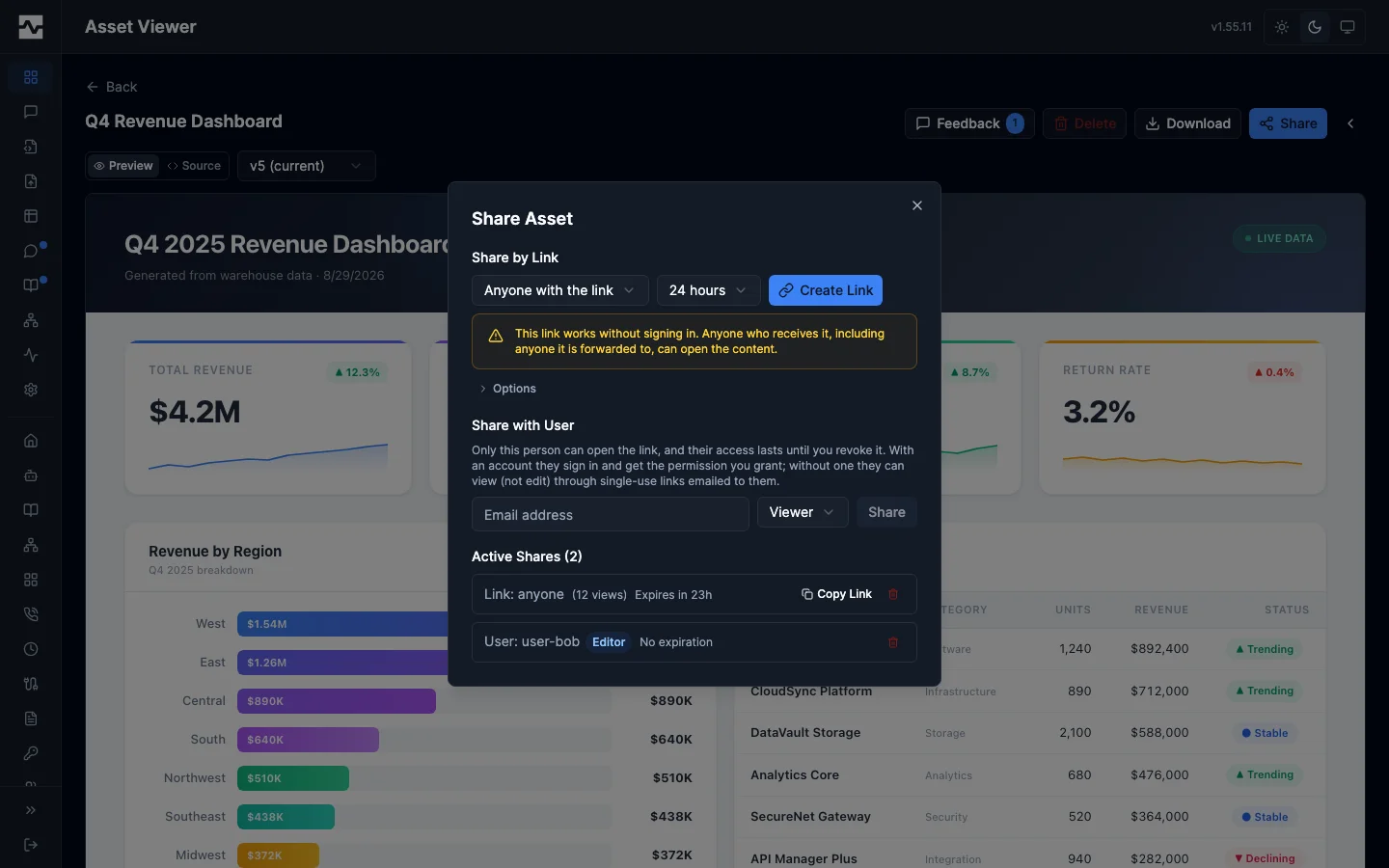
Sharing with a person makes the share restricted: the link resolves only for that recipient, signed in, so forwarding the email or the URL grants nothing. The Share by Link section mints a link for any signed-in user by default, with no lifetime control, because such a link resolves against who the viewer is and ends on revocation. Choosing Anyone with the link makes it public, shows a warning that the link opens without sign-in, and reveals the lifetime control: possession of a public URL is the whole of its access check, so it expires on a clock as well. A signed-in user who is not the recipient of a restricted share sees a branded page naming the account they are signed in as, with a sign-out-and-switch action, rather than a generic not-found.
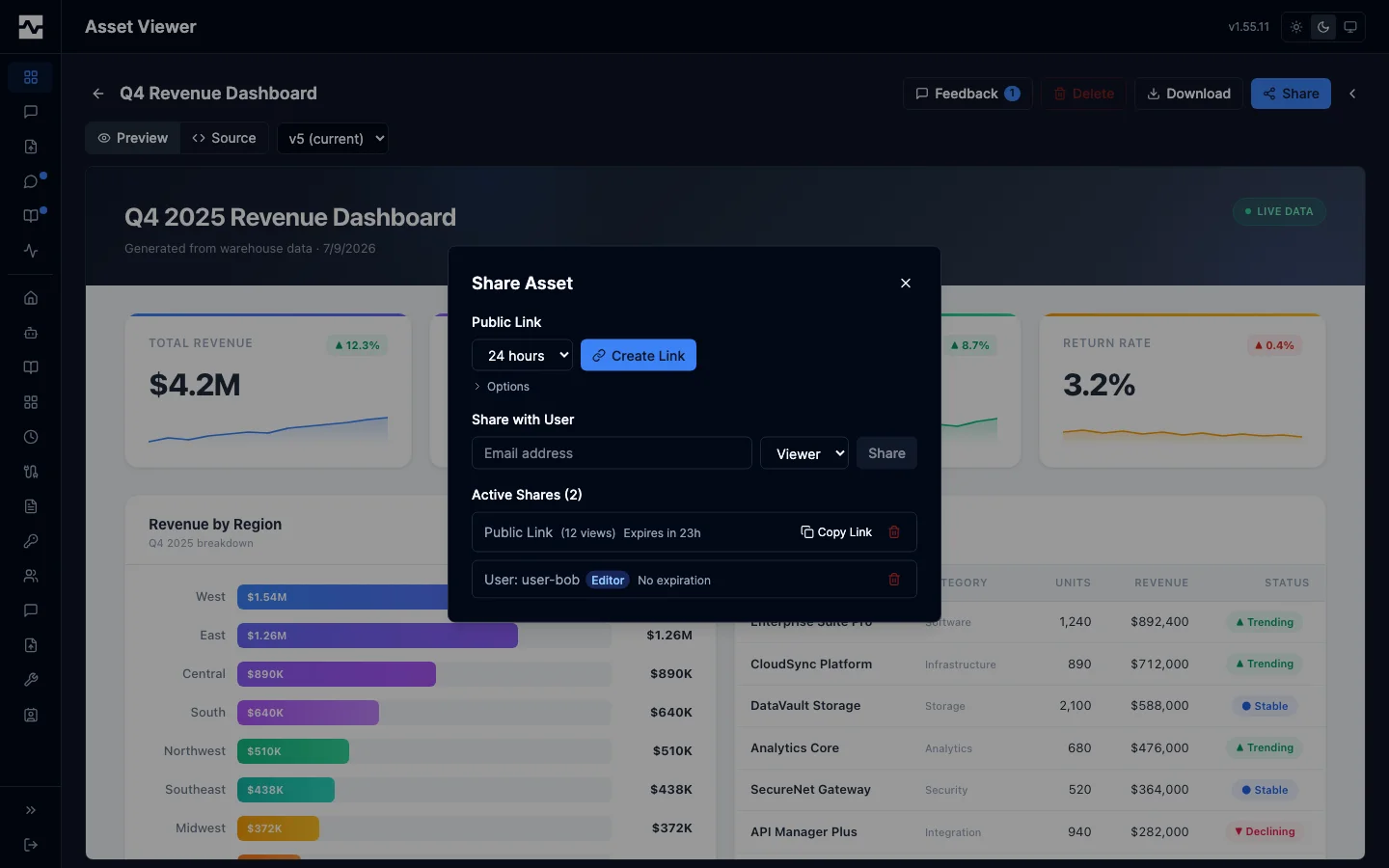
The same dialog with the link switched to Anyone with the link:
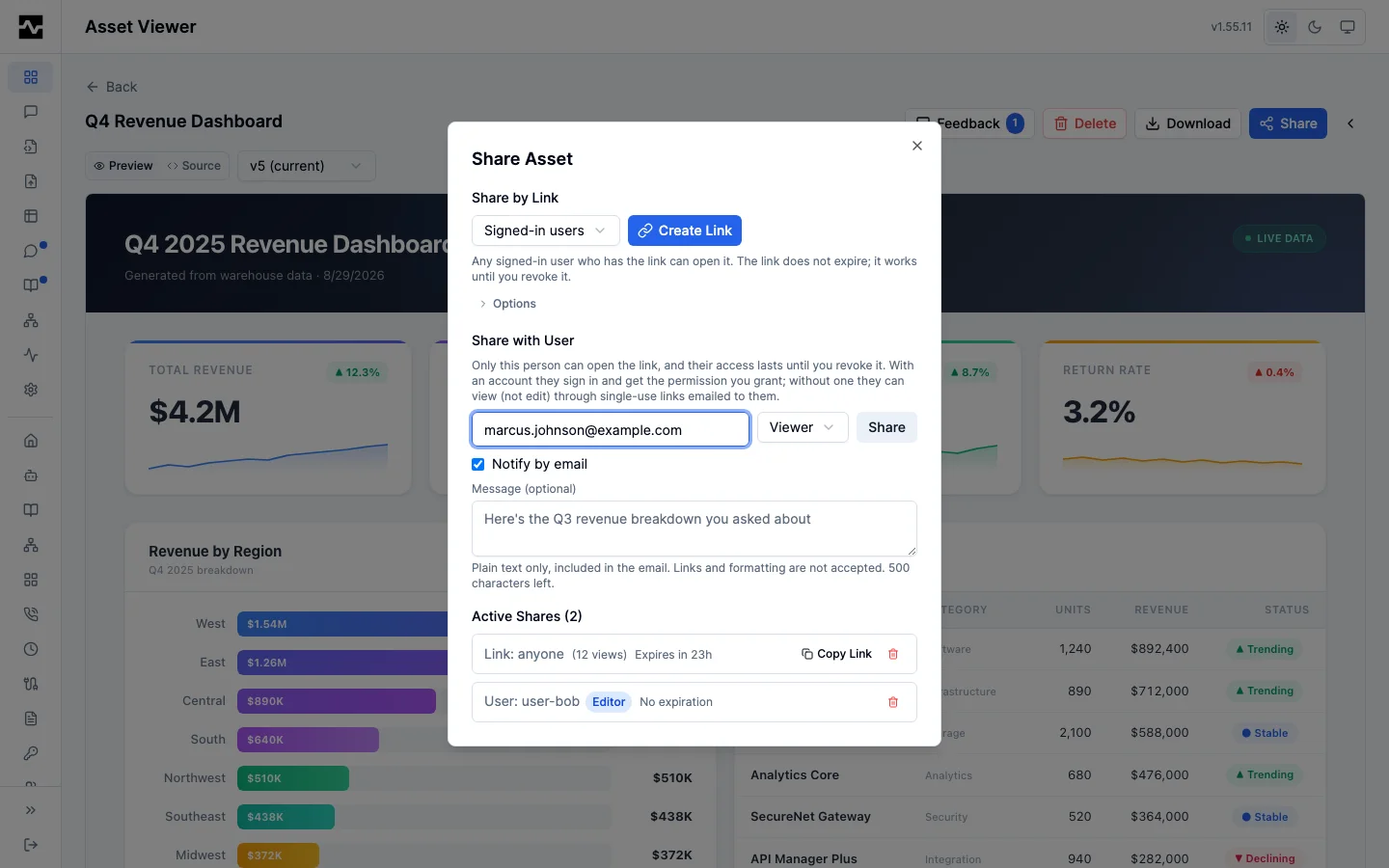
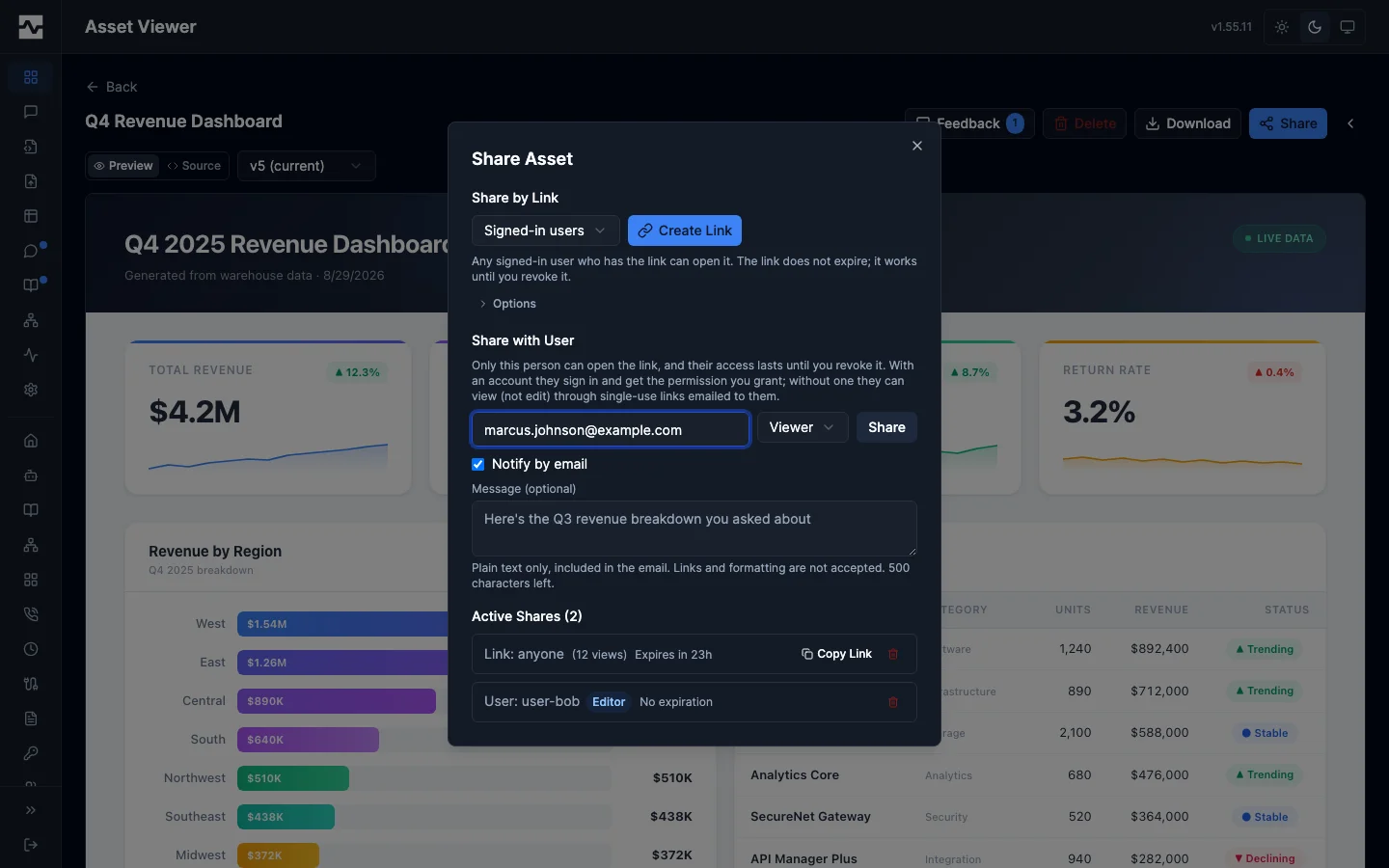
Naming a recipient reveals two more controls. Notify by email is checked by default and can be cleared to share quietly — the share is created either way, only the email is suppressed. With notification on, an optional Message box attaches a short plain-text note to that email, quoted and attributed to the sharer; it travels only in the notification and is stored nowhere. The note takes text, not markup or links: a link inside a trusted platform email is a phishing vector, so one is refused rather than delivered. Addresses pasted in the Example User <[email protected]> form mail clients copy are reduced to the bare address as the field loses focus, so what is stored and mailed is what the sharer sees. See Email Notifications for what the recipient receives and how they control it.
A signed-in platform user who opens a share link lands on the item in their own portal rather than on the page built for people who have no account. That is where the version history, the feedback threads, the collections the asset belongs to, and editing where the share permits it all are, and the item is in their asset list from then on. The Shared page action in the viewer's toolbar opens the shared page as its recipient sees it, which is what someone who sent a link needs in order to check what arrived. An anonymous visitor, and a guest holding a one-time link, get the shared page unchanged.
A recipient who opens a non-public share while signed out lands on a branded page with a Sign in action that returns them to the shared item after authenticating. When the share names an email address, the same page also offers Email me a one-time view link for recipients who have no platform account: a single-use link is emailed to the address the share names (never to an address the visitor types), expires in 15 minutes, and opens a view-only guest session scoped to that one share for the current browsing visit. Guests see the shared item (and, for collection shares, its items) with a "Viewing as guest" indicator; they can download but not edit, even when the share grants Editor, and they never gain portal access. A forwarded or replayed link is dead after its first use, and revoking the share cuts off existing guest sessions immediately. The recipient can request a fresh link for each viewing session, which keeps an email share strictly safer than a public URL. When the address the share names has opted out of notification emails, the same landing page shows a notice with a Resume notification emails action, so an opted-out recipient has a way back in without asking the sharer; opting back in takes one deliberate click and restores immediate delivery.
All content types are rendered inline:
Interactive dashboards with KPI cards, charts, and tables rendered as live HTML.
React components rendered with live state and interactivity (tabbed views, filters).
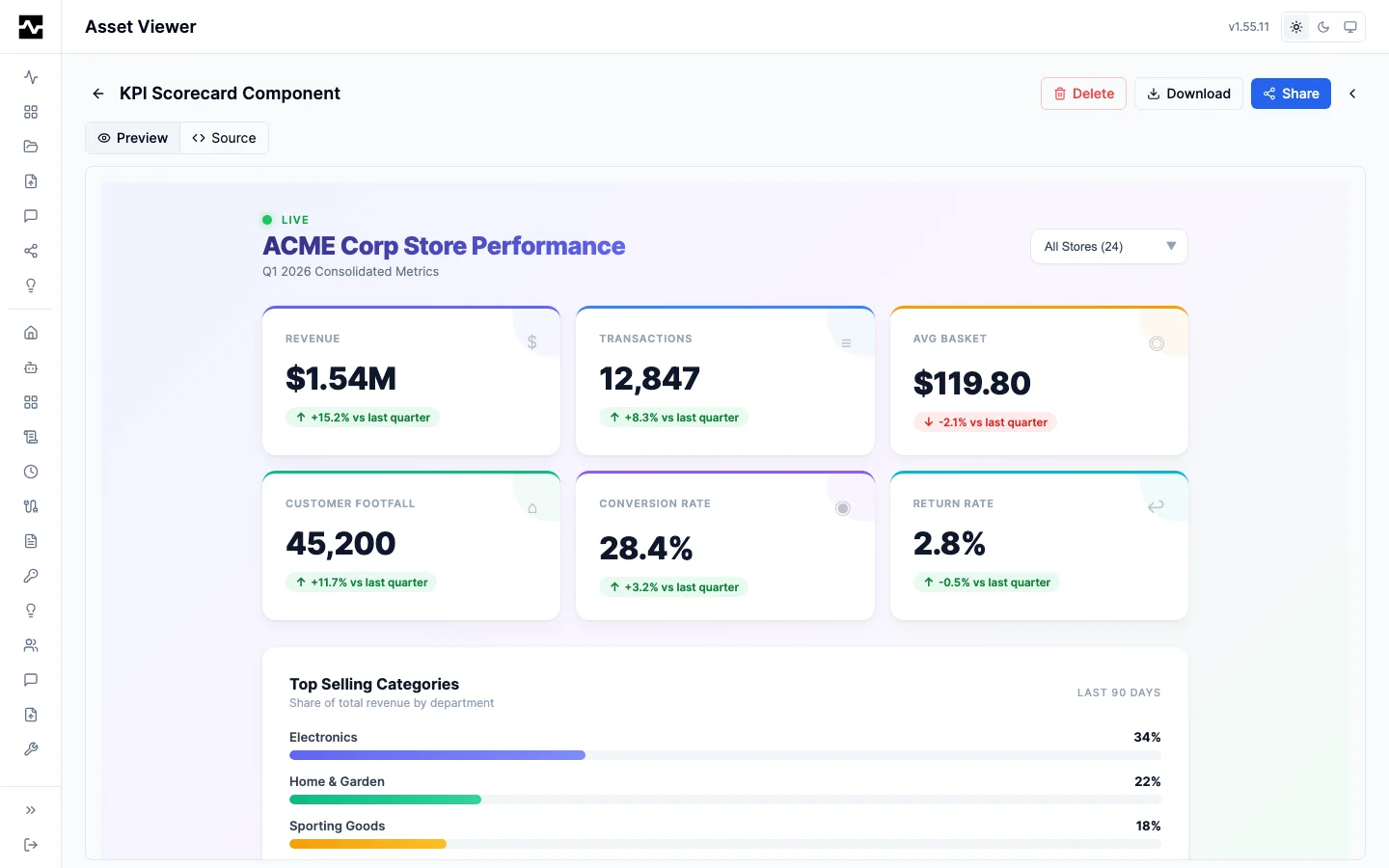
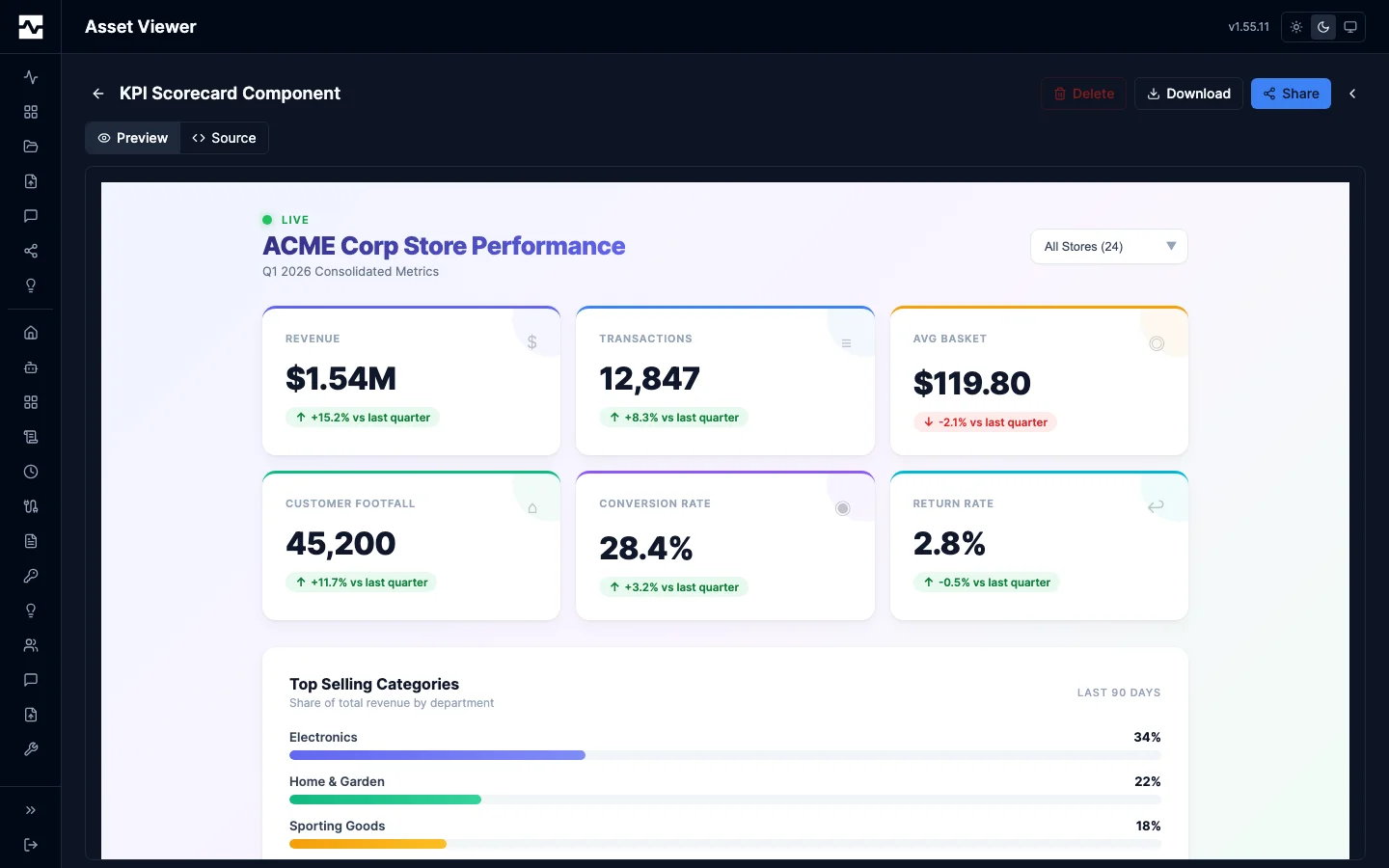
Vector graphics — charts, diagrams, and data visualizations rendered at full resolution.
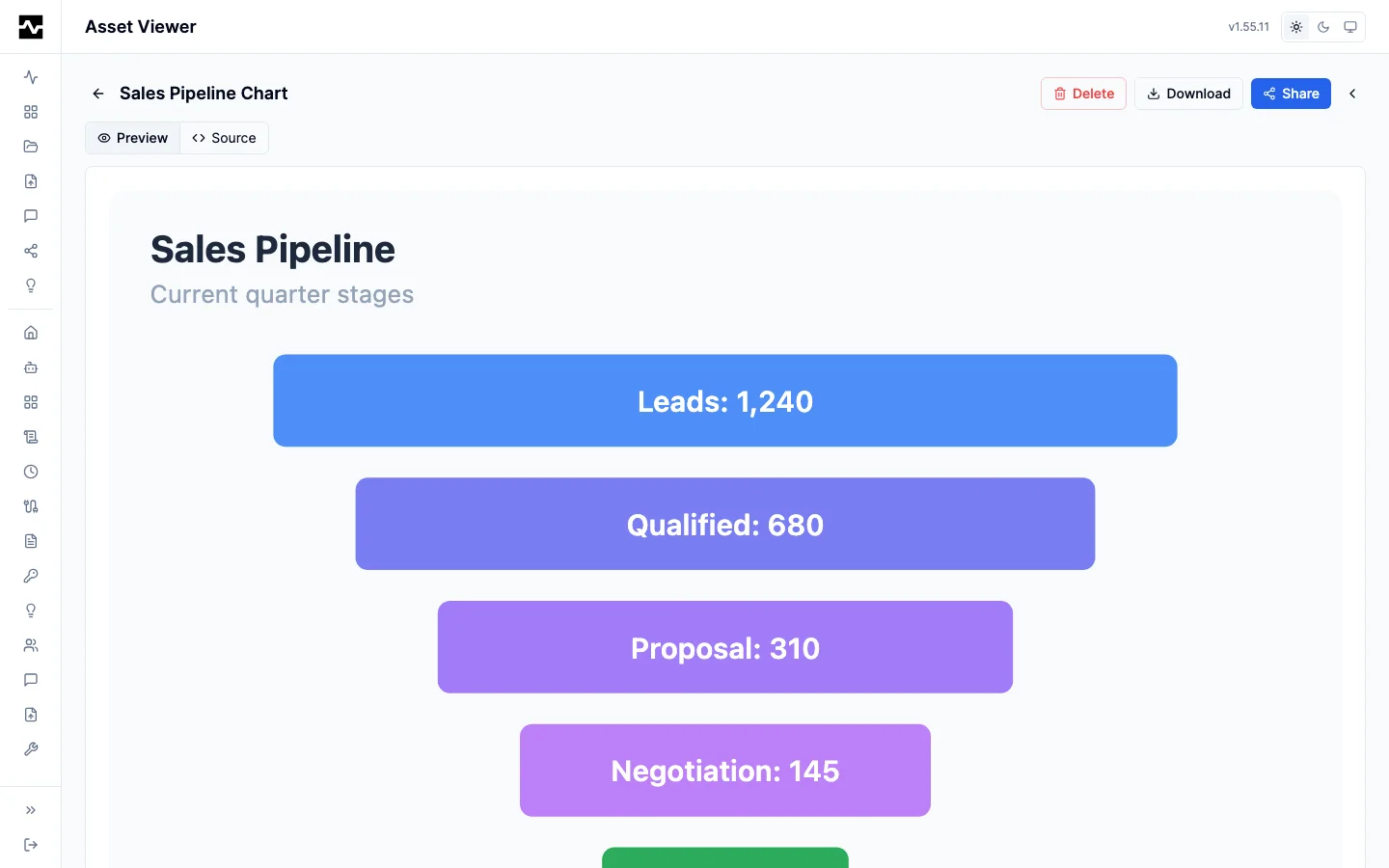
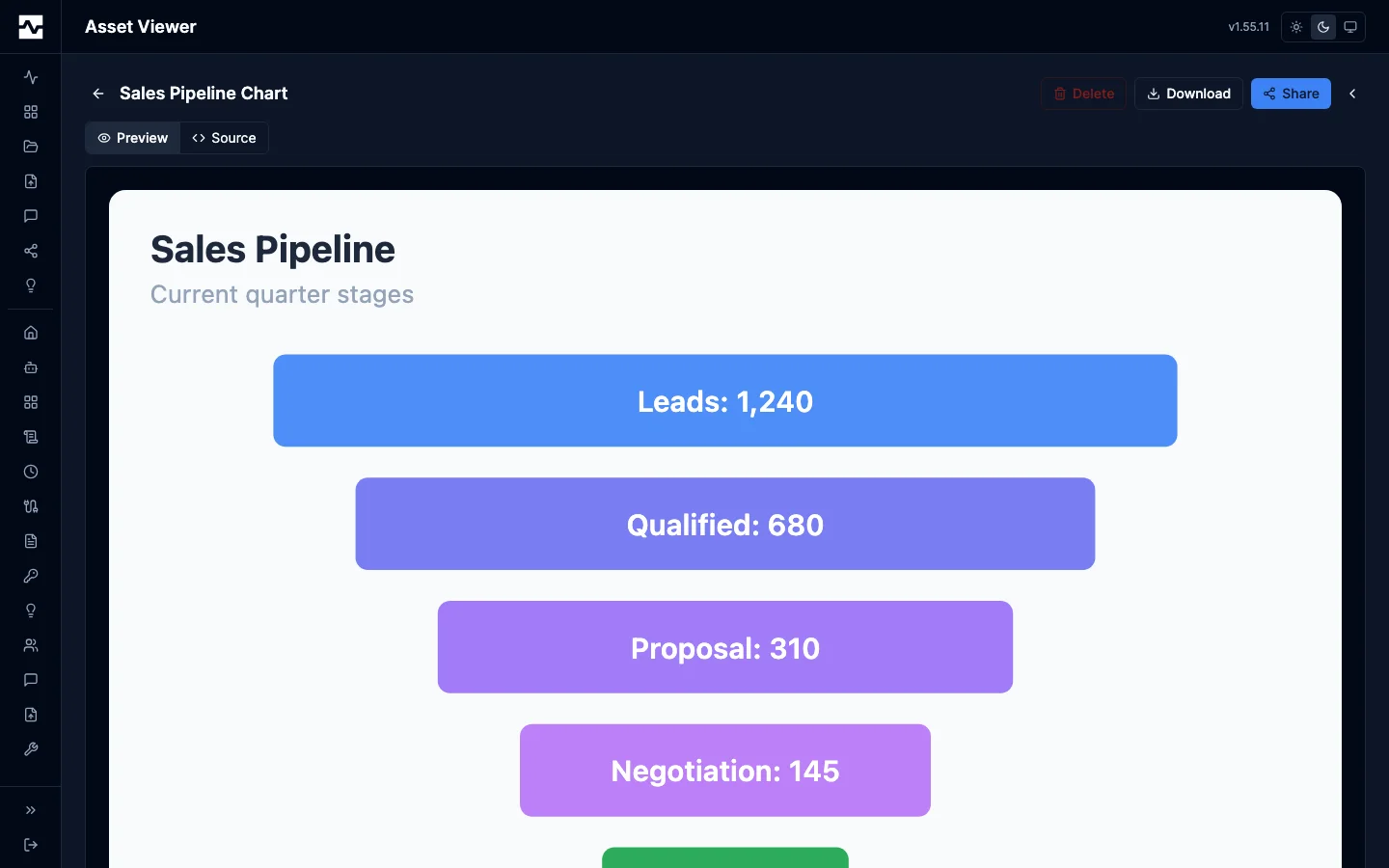
Formatted text with headings, tables, lists, code blocks, and mermaid diagrams.
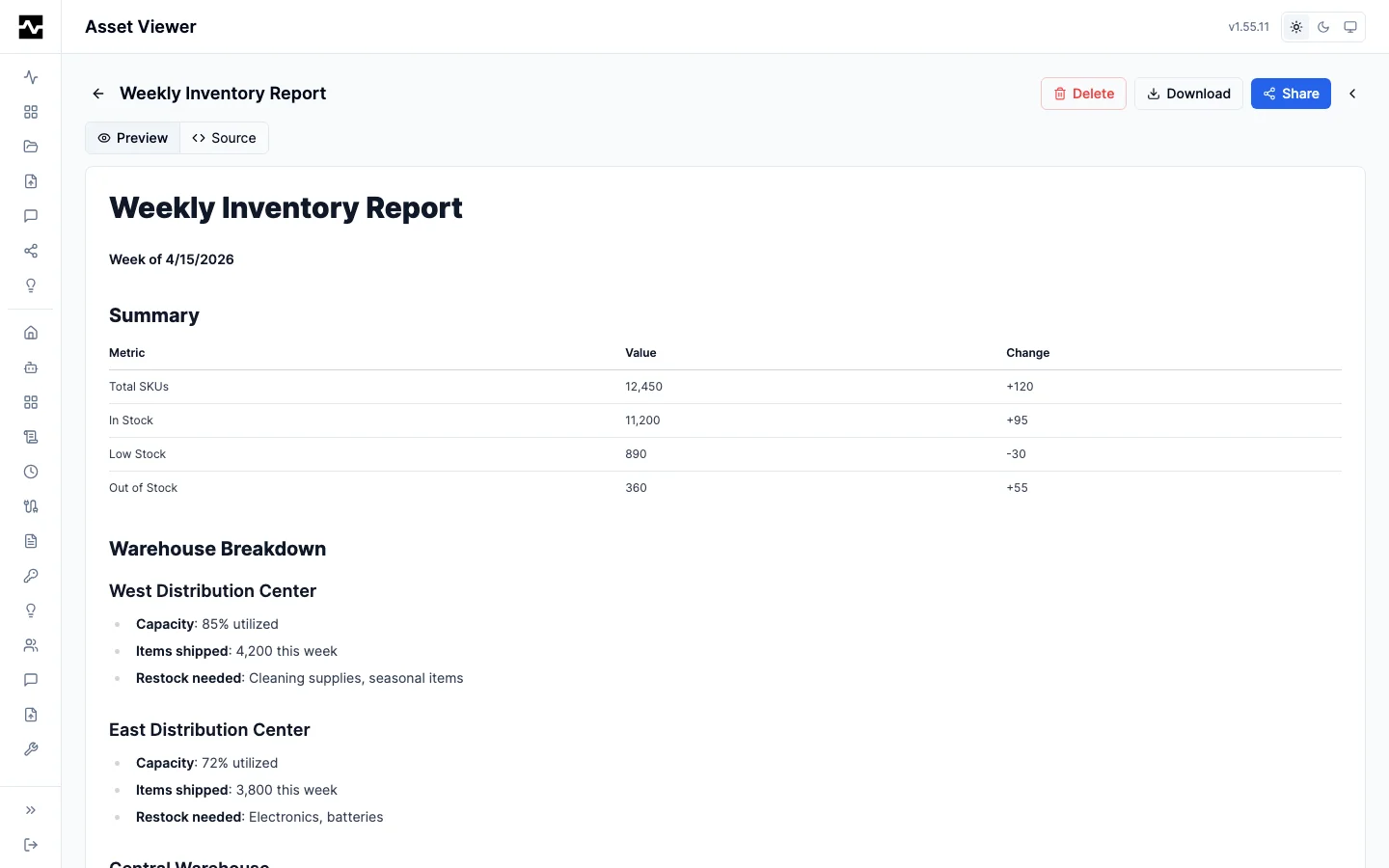
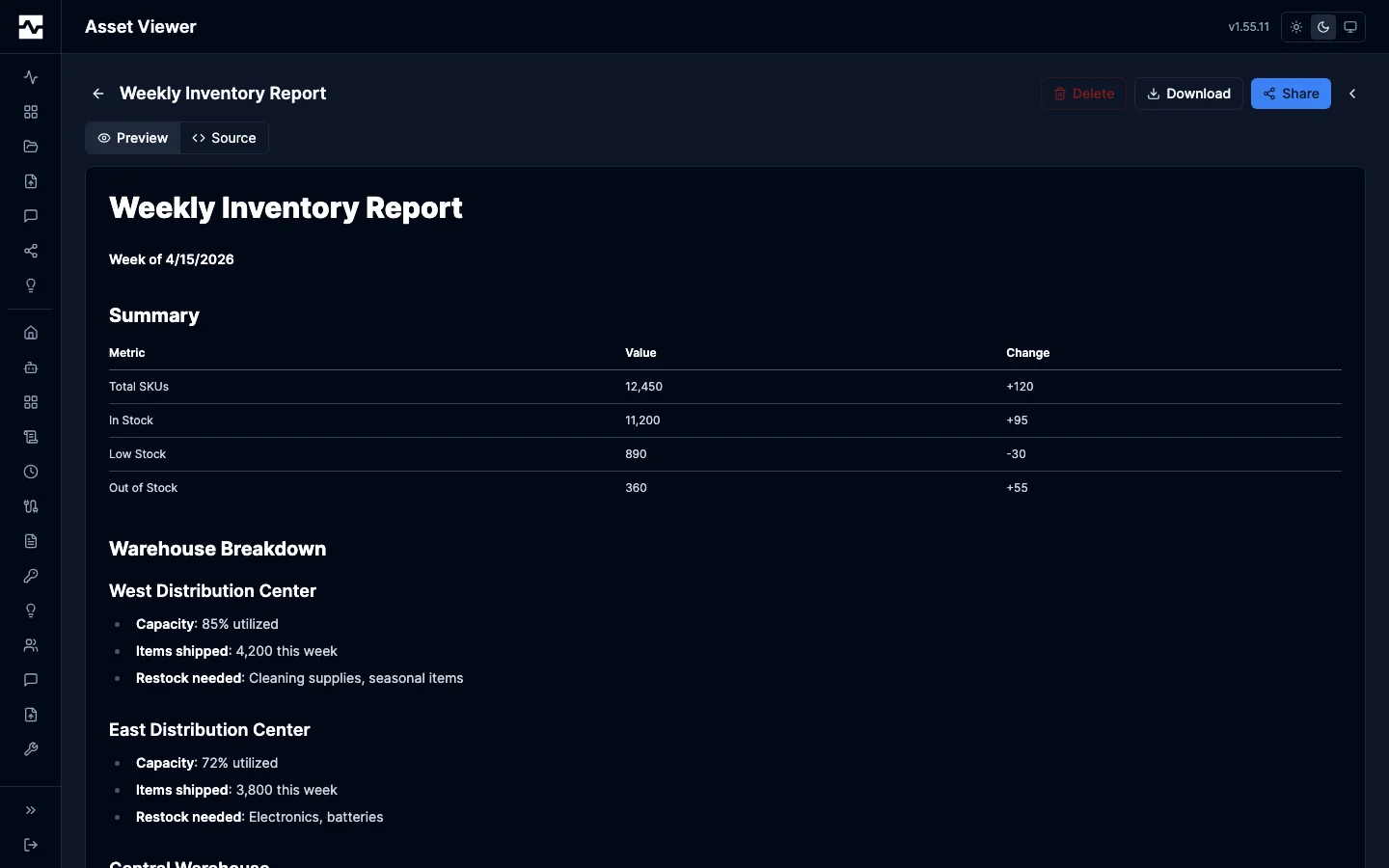
Tabular data rendered as a sortable, searchable table.
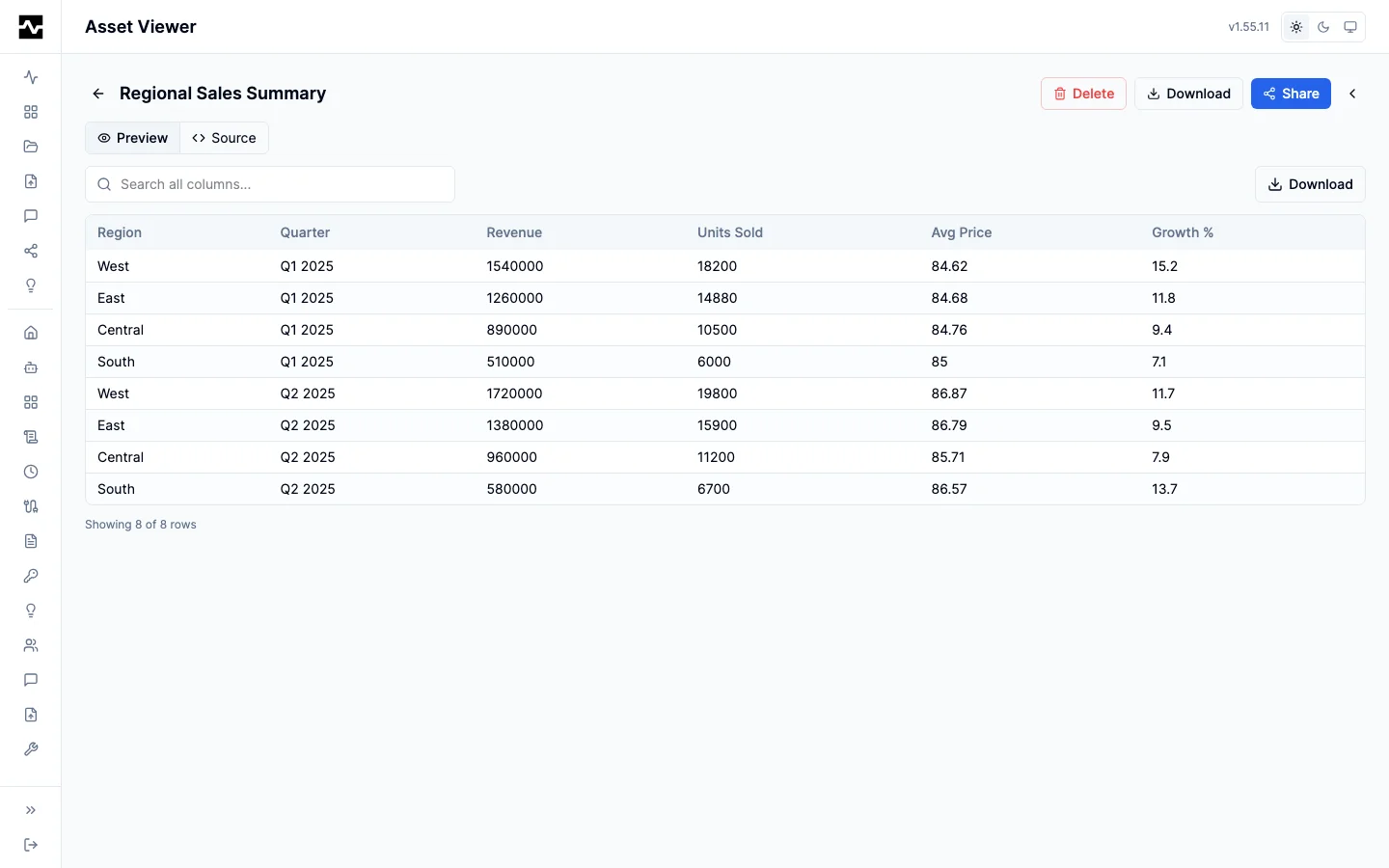
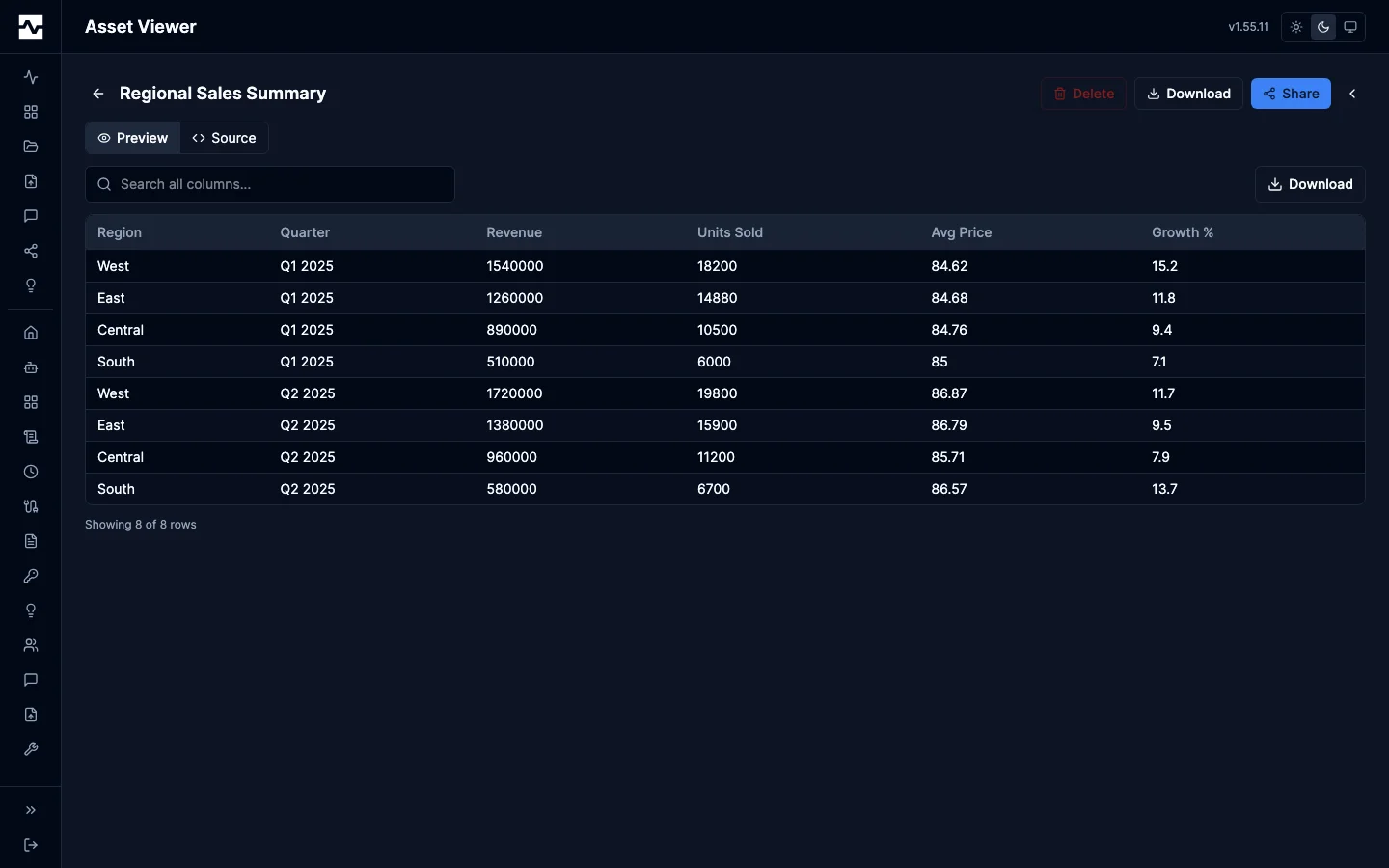
Querying a CSV asset as a table
A CSV asset can be registered as a table and joined to warehouse tables from then on. The viewer's Query as a table panel offers the connections you can register onto, and lists what is already registered with the columns each table has.
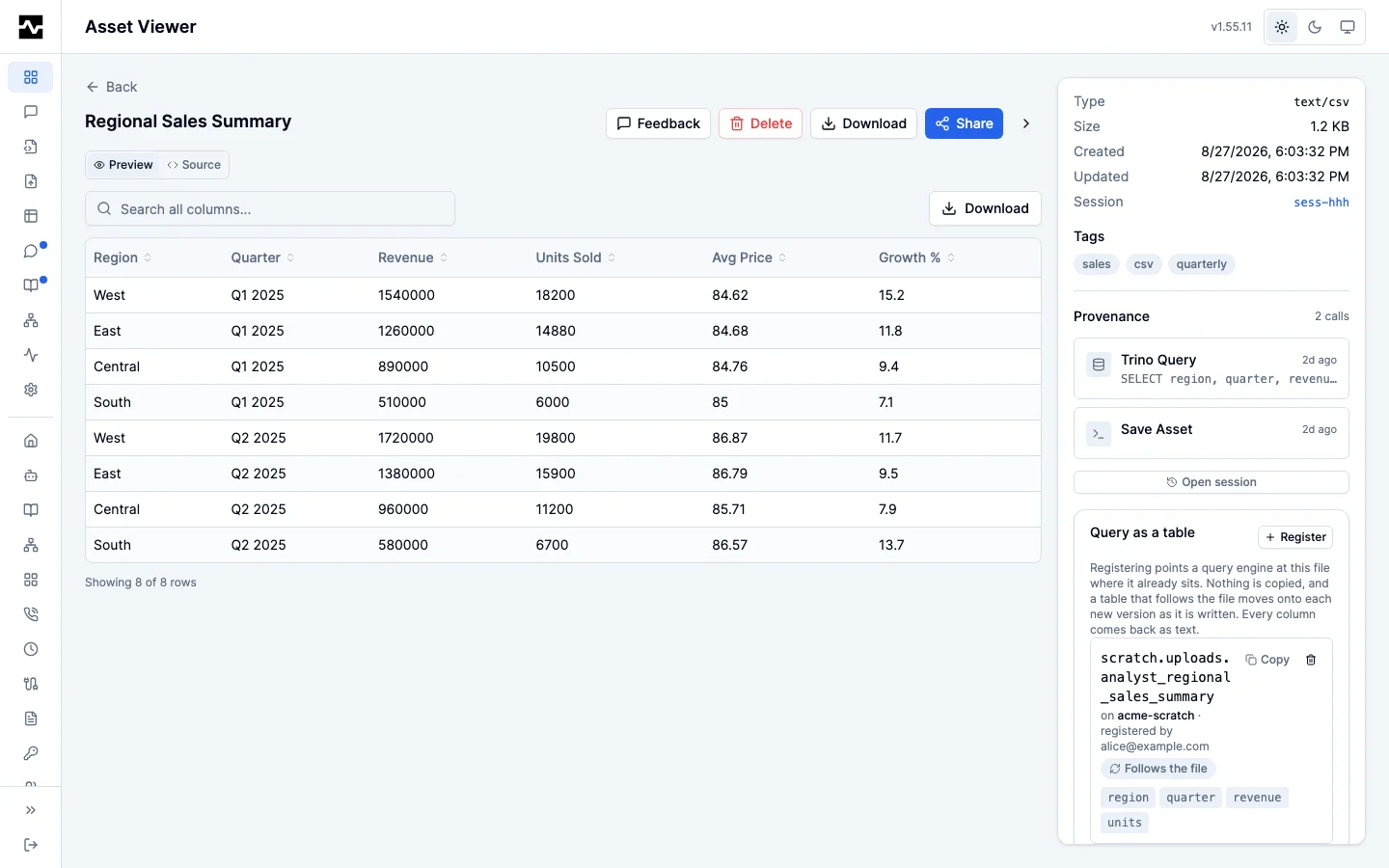
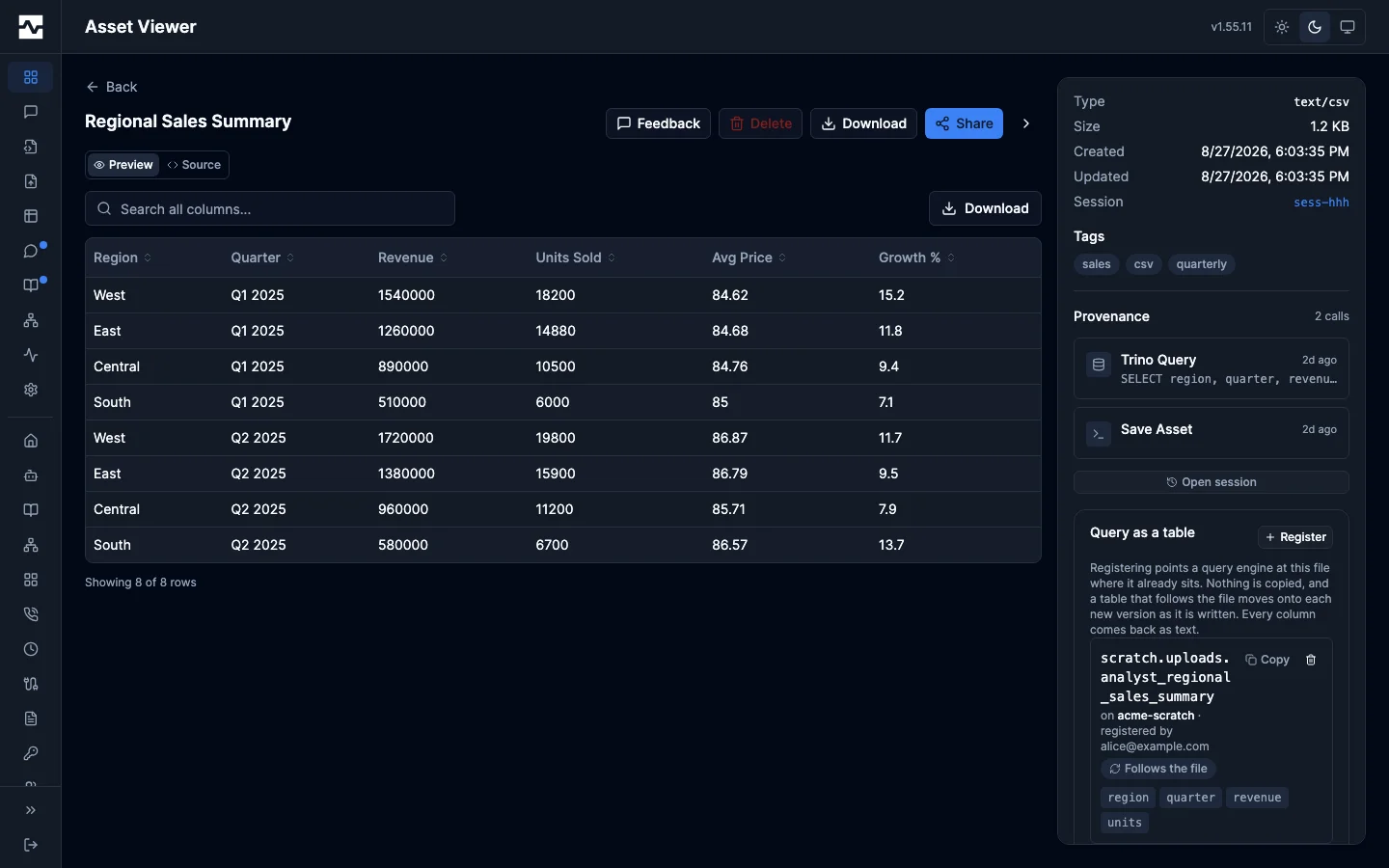
A table is labelled with the rules it was registered under: Follows the file or Pinned to its version, and Corrects the file for one that saves a corrected version of a CSV a query engine cannot read and moves onto it.
Nothing is copied. The table reads the file where it already sits, so re-running the export that produced the asset changes what the table returns. Every column comes back as text, so a join to a typed warehouse column needs a CAST — the panel shows the table's name to copy into a query, and the platform's search results carry a sample statement.
The Register control stays available after the first registration, because one file is not limited to one table. Registering under a different name, or onto a different connection, adds a second table over the same file and leaves the first alone. Registering the same name on the same connection replaces that registration, which is how a table is moved forward after the asset changes: editing an asset writes a new version, the table keeps serving the version it was registered against, and the panel says so and asks you to register again. Overwriting the file at the same key is different — the table returns the new contents on the next query with nothing to do.
The trash control beside a table unregisters it. That drops the table and leaves the asset completely alone: the file is not deleted, not moved, and not changed. Deleting the asset itself is what drops every table over it.
The panel is absent unless the asset is a CSV or a JSON-lines file and an administrator has given a Trino connection a scratch catalog and schema. Registering is the owner's call: it puts the file's contents in a schema everyone with that connection can read. An agent can do it for you without the portal step, with manage_table. See Registered Tables.