Collections
Collections let you organize related assets into curated, shareable groups with rich descriptions and ordered sections.
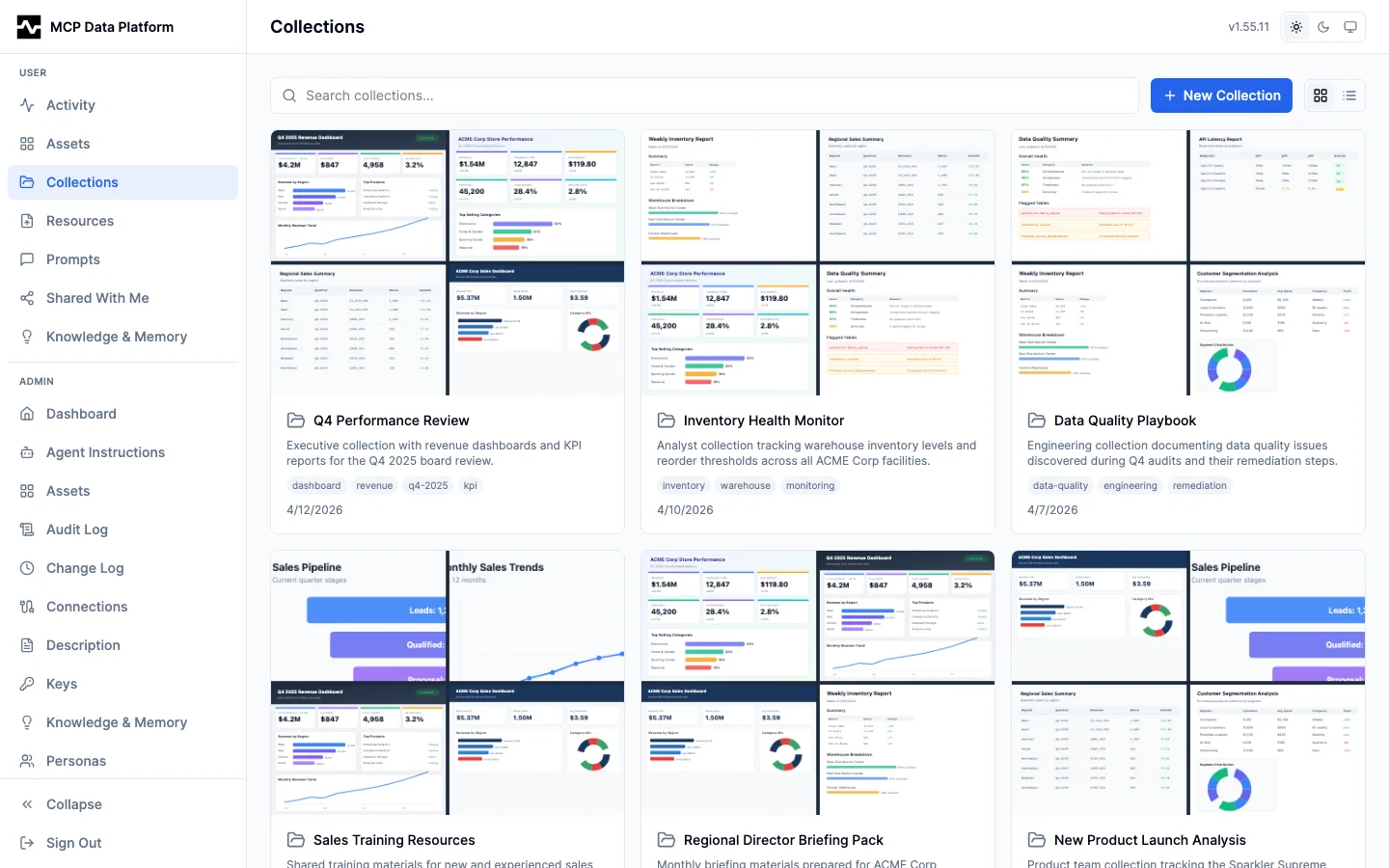
The collections list shows:
- Search — Filter collections by name or description
- New Collection button — Creates a collection and opens the editor
- Sort — The same control as Assets, minus size, which a collection does not have. Collections also open on most recently updated.
- View toggle — Grid or table view
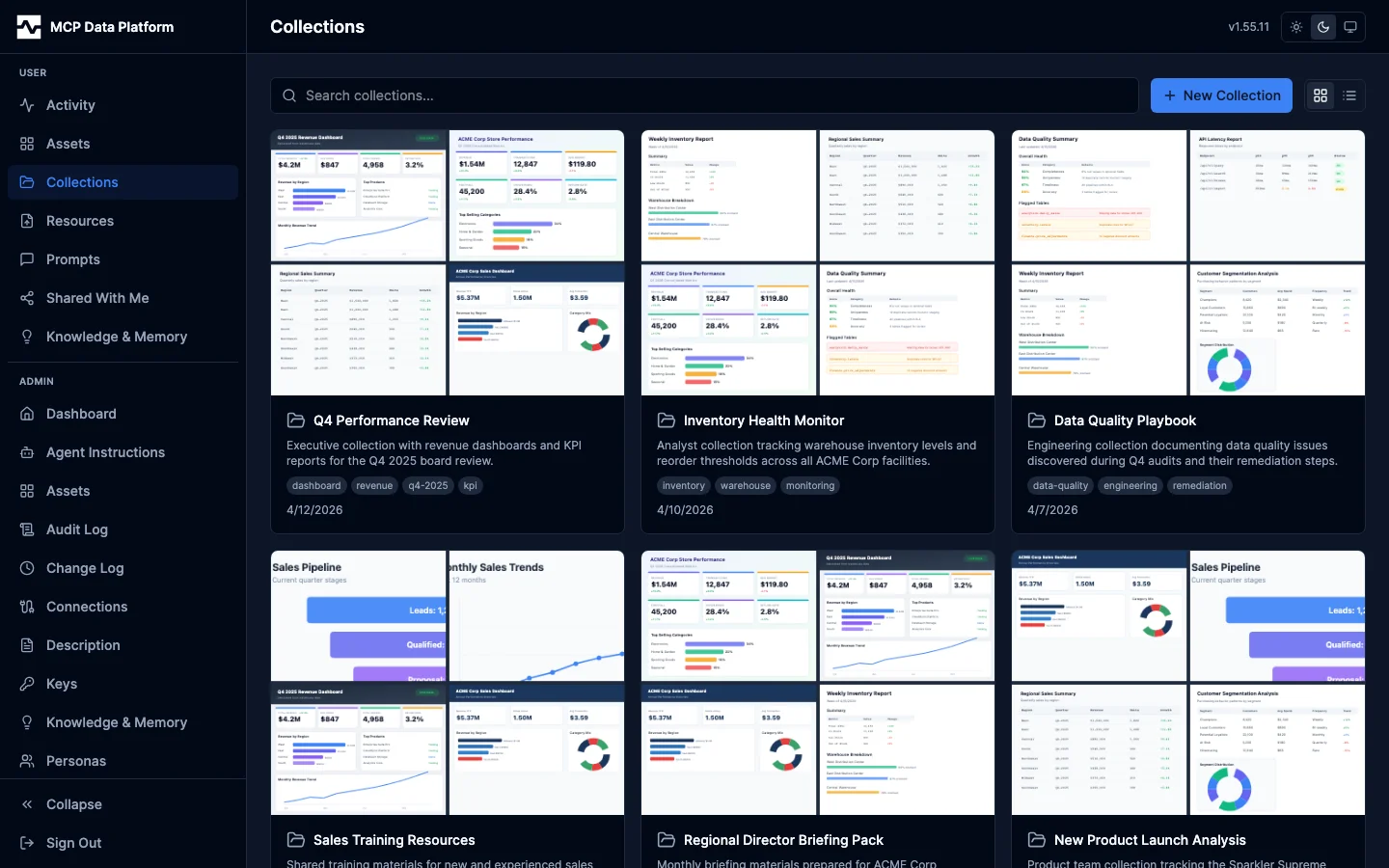
- Grid cards — Thumbnail mosaic of contained assets, collection name, description, tags, sharing indicators, and the ordering date. The platform composes the mosaic from the first four assets that have a preview, in both a light and a dark version (the dark one from each asset's dark preview), and composes it again when those change
Viewing a Collection
Click a collection to open the viewer, which renders the full collection with sections, markdown descriptions, and asset cards.
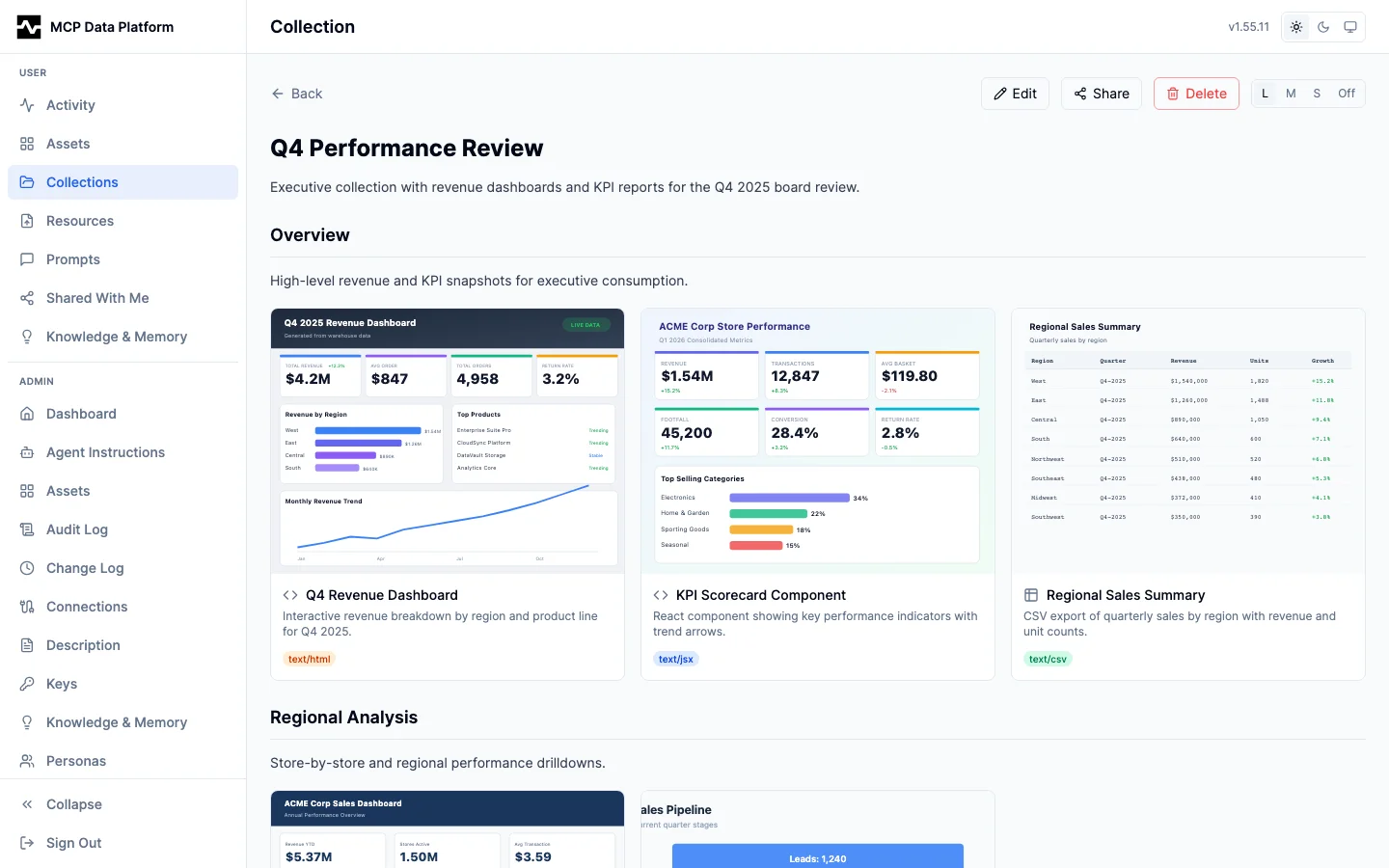
The editor arranges a collection into drag-and-drop sections of assets, with a markdown description and thumbnail-size settings.
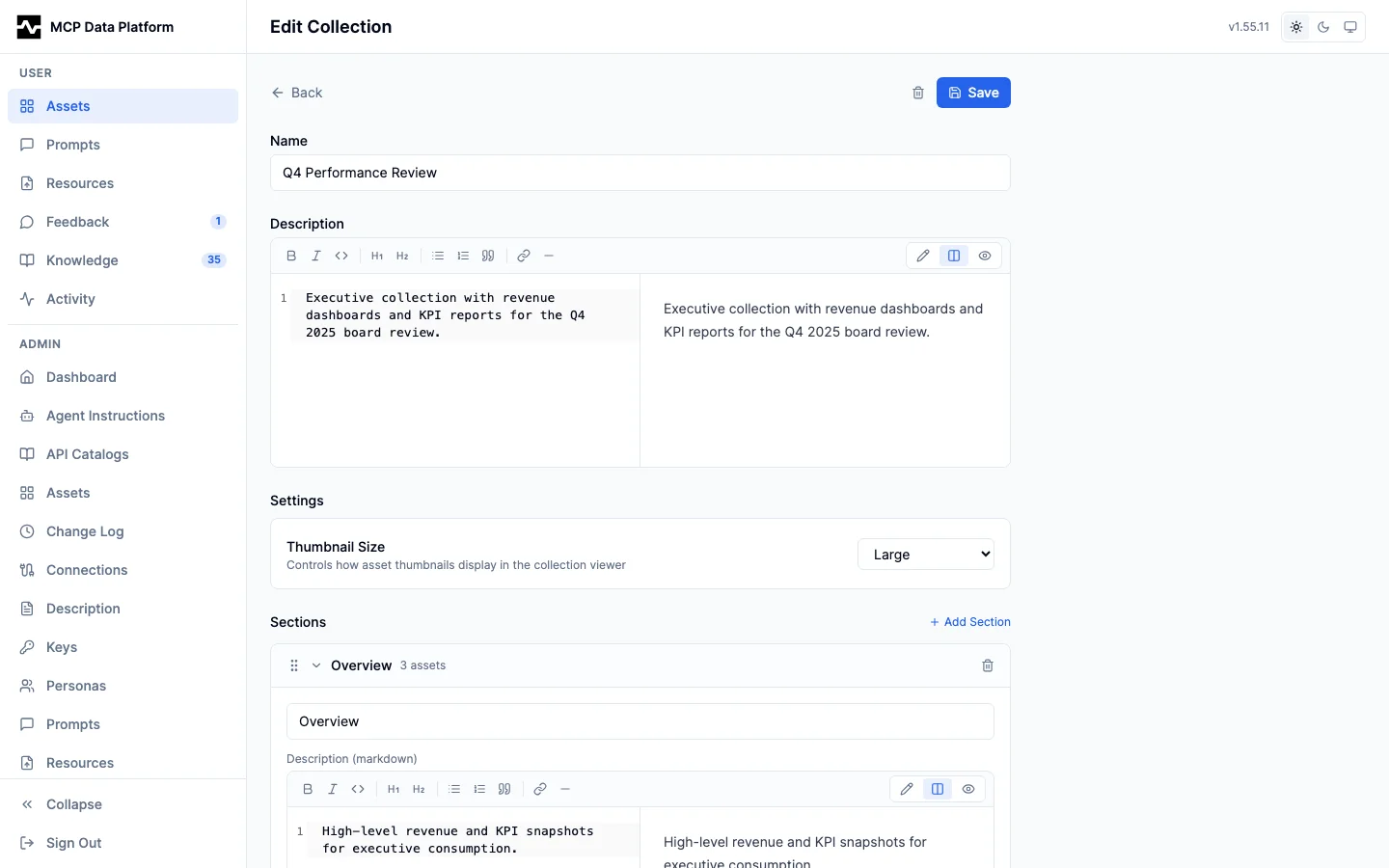
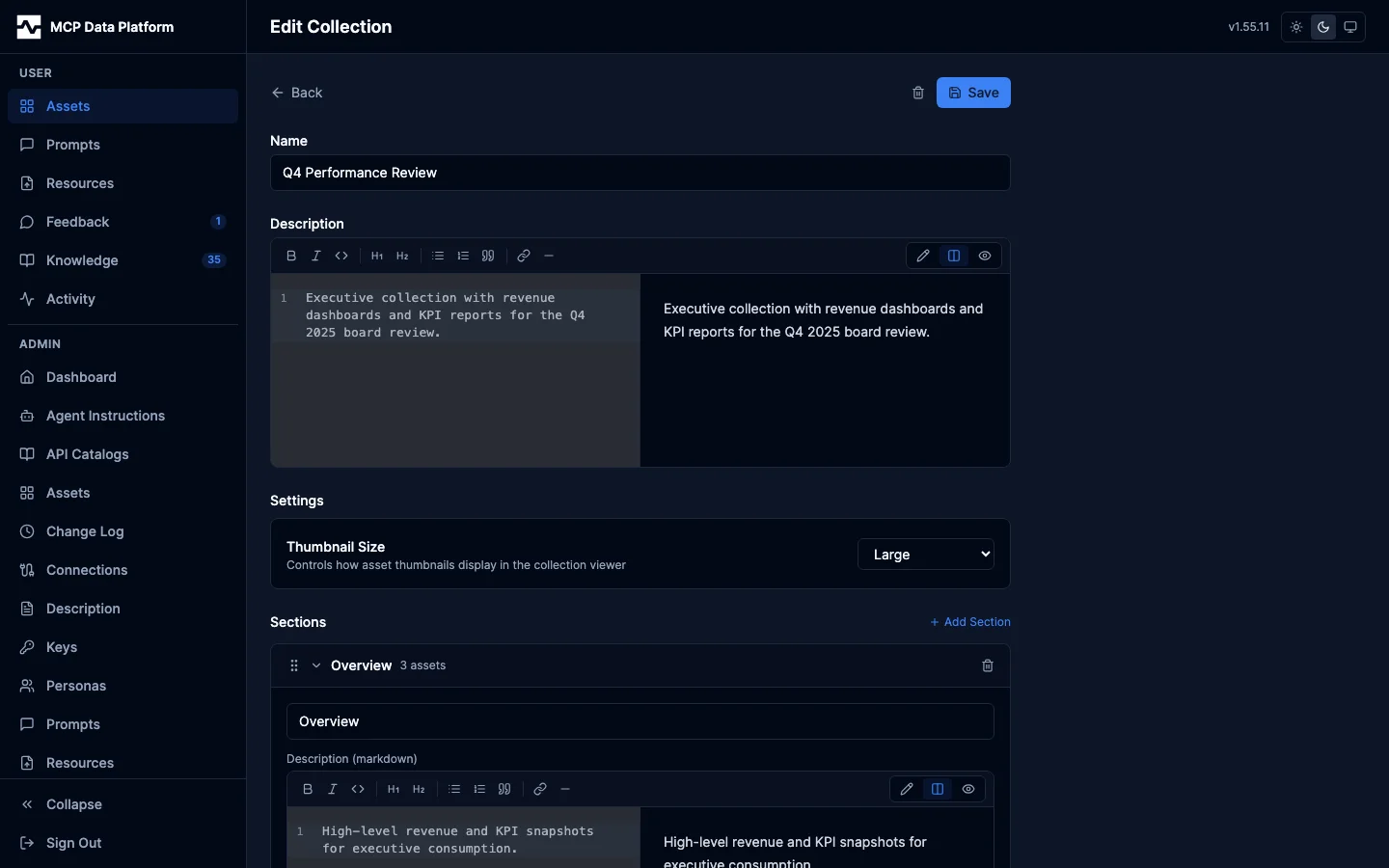
- Section navigation — Each section has a title, markdown description, and ordered asset list
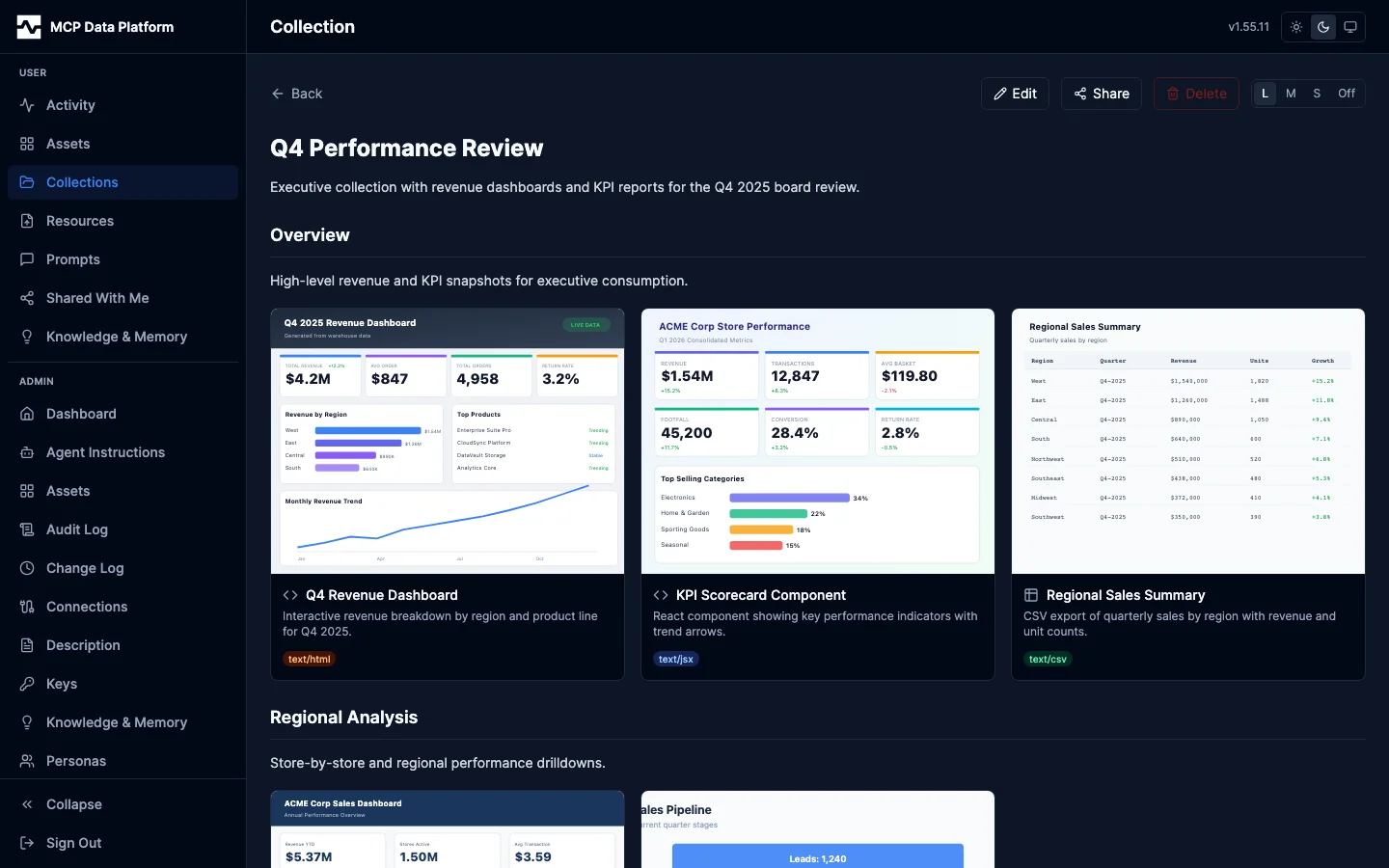
- Asset cards — Thumbnail previews with name, description, content type badge, and file size. The preview follows your theme, the same way it does in the assets grid.
- Thumbnail size — Configurable per collection (Large, Medium, Small, None) via Settings
- Actions — Back, Edit, Share, and Delete, offered according to what you may actually do with this collection (see Sharing Collections). A collection you did not create carries a badge naming your access, the same way a shared asset does.
- Referenced by — When a knowledge page references the collection, a button to the left of Feedback carries the number of pages that do and opens a list of them.
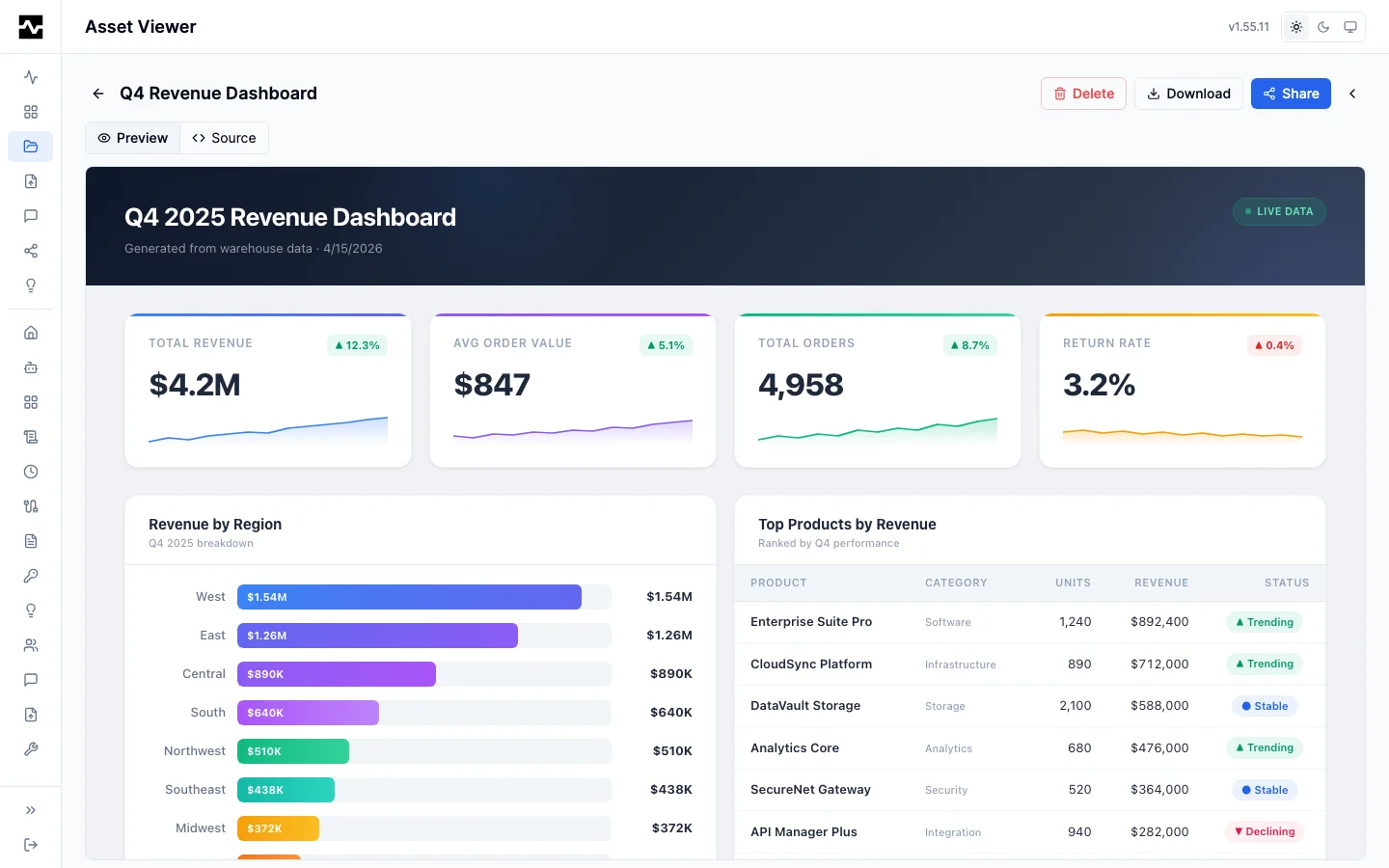
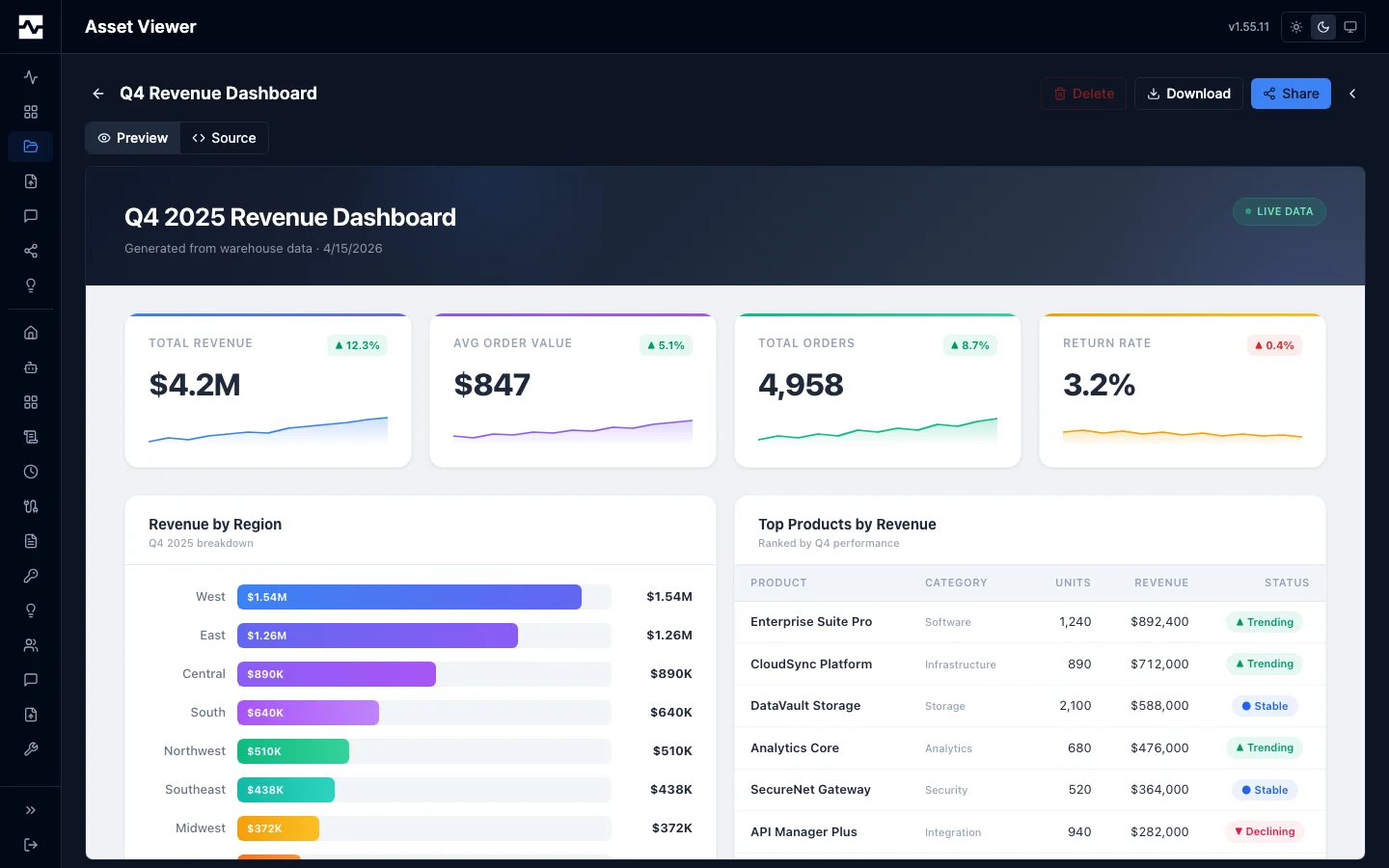
Click any asset card to open it in the asset viewer:
Sharing Collections
Collections use the same sharing system as individual assets:
- Links: time-limited token URL, opening for signed-in users or, by explicit choice, for anyone
- User shares: share with specific email addresses, restricted to that recipient, with Viewer or Editor permission. The email field suggests known teammates as you type (name + email, with an "Invited" badge for people an admin pre-added who have not signed in yet); you can still type any email that is not in the directory
- Share management: view active shares with their access mode, copy links, revoke access
An Editor share on a collection grants the collection itself, not only the assets in it: the recipient can rename it, rewrite its description, add and reorder sections, and change the thumbnail size. What an Editor never gets is owner authority — deleting the collection, sharing it onward, and reading its list of shares stay with the owner, so a person you trusted to edit cannot hand your collection to someone else or destroy it. A Viewer share reads and nothing more; the viewer is offered no edit control at all rather than one that fails on save.
Platform administrators hold owner authority over every asset, collection, and personal prompt, including sharing one they do not own. That is not an extra power: an admin can already read, edit, and delete any asset from the admin portal, so sharing is the weaker right of the two. Every share still records who created it, so an admin-created share is attributed to the admin rather than to the owner.