Prompts
Prompts are reusable templates that guide AI agent behavior: the organization's SOP manual for agent-run procedures. The library presents two buckets: My Prompts (every prompt you own, whatever its scope — shared-scope prompts carry a scope badge — plus prompts shared with you, each attributed to its sharer) and Library (the approved team prompts visible to you). Scope and persona mechanics appear only inside the promote and admin flows.
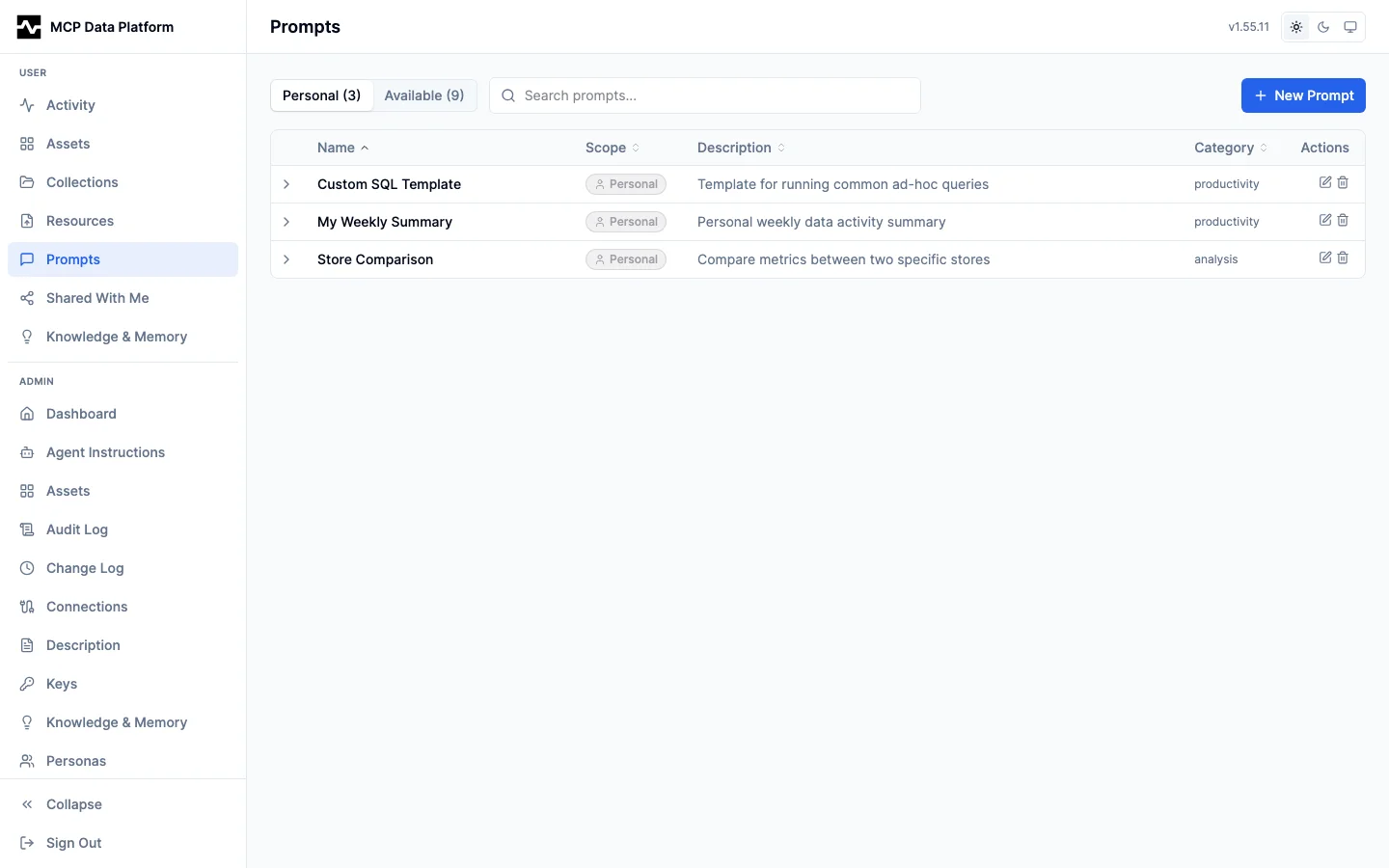
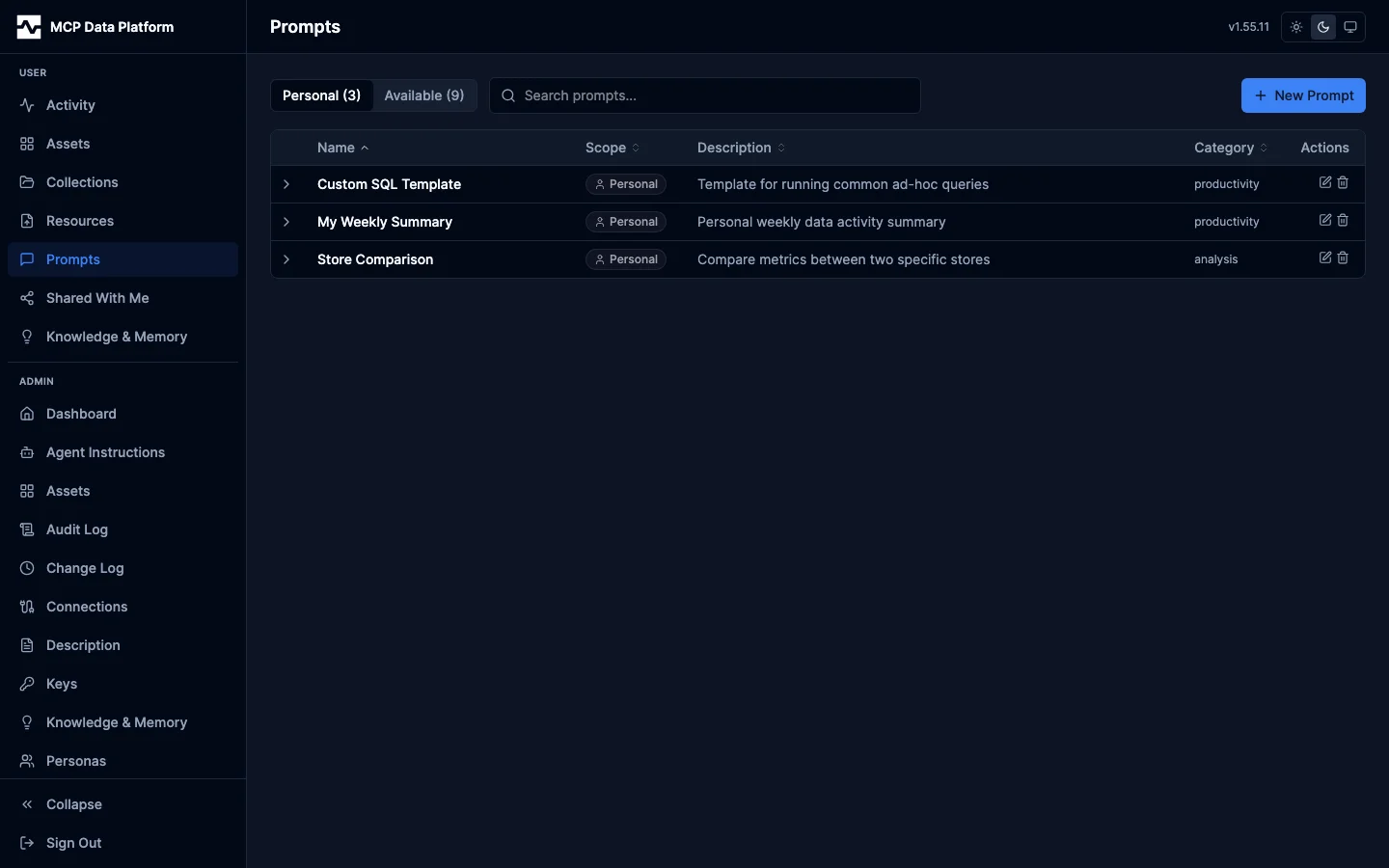
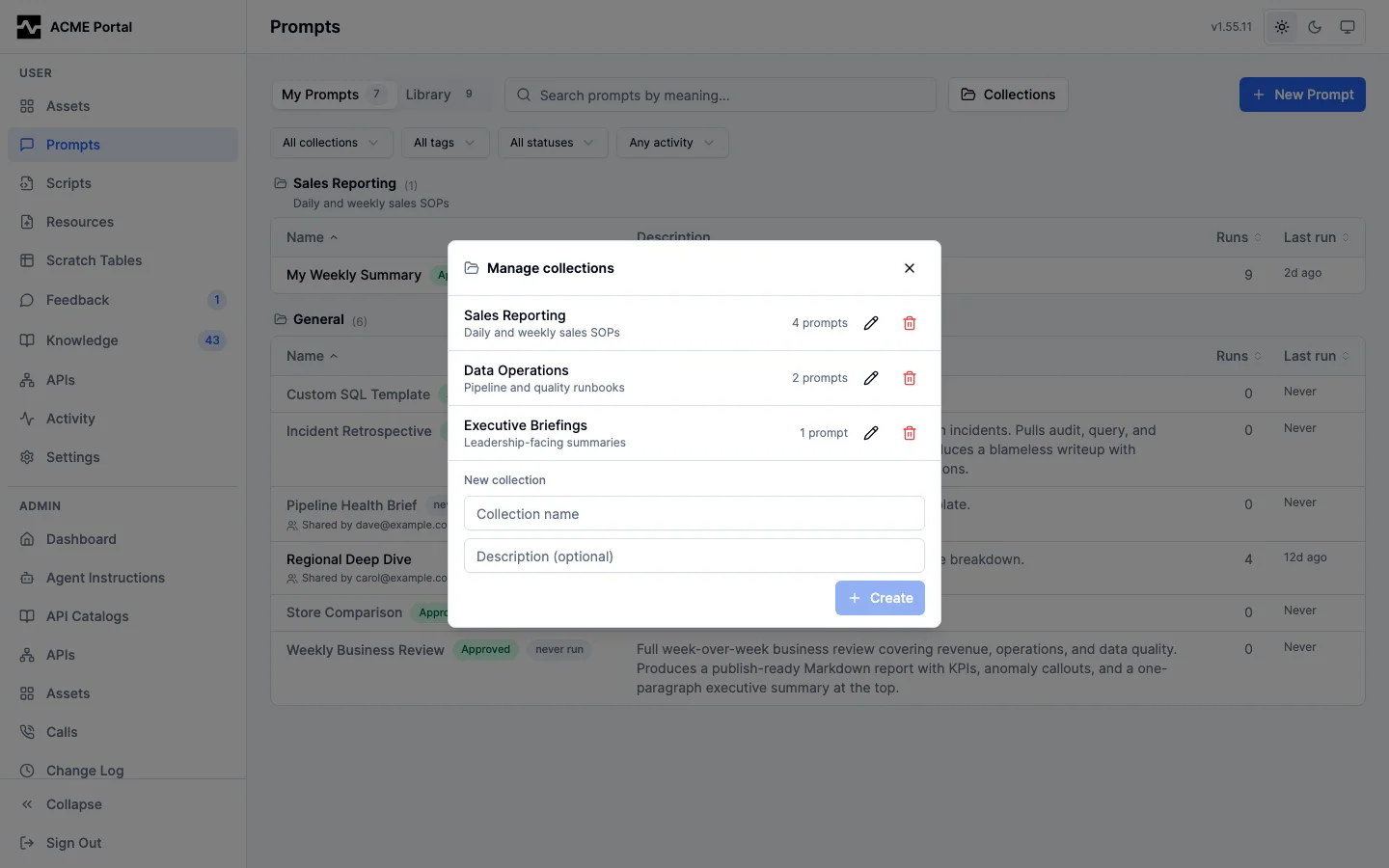
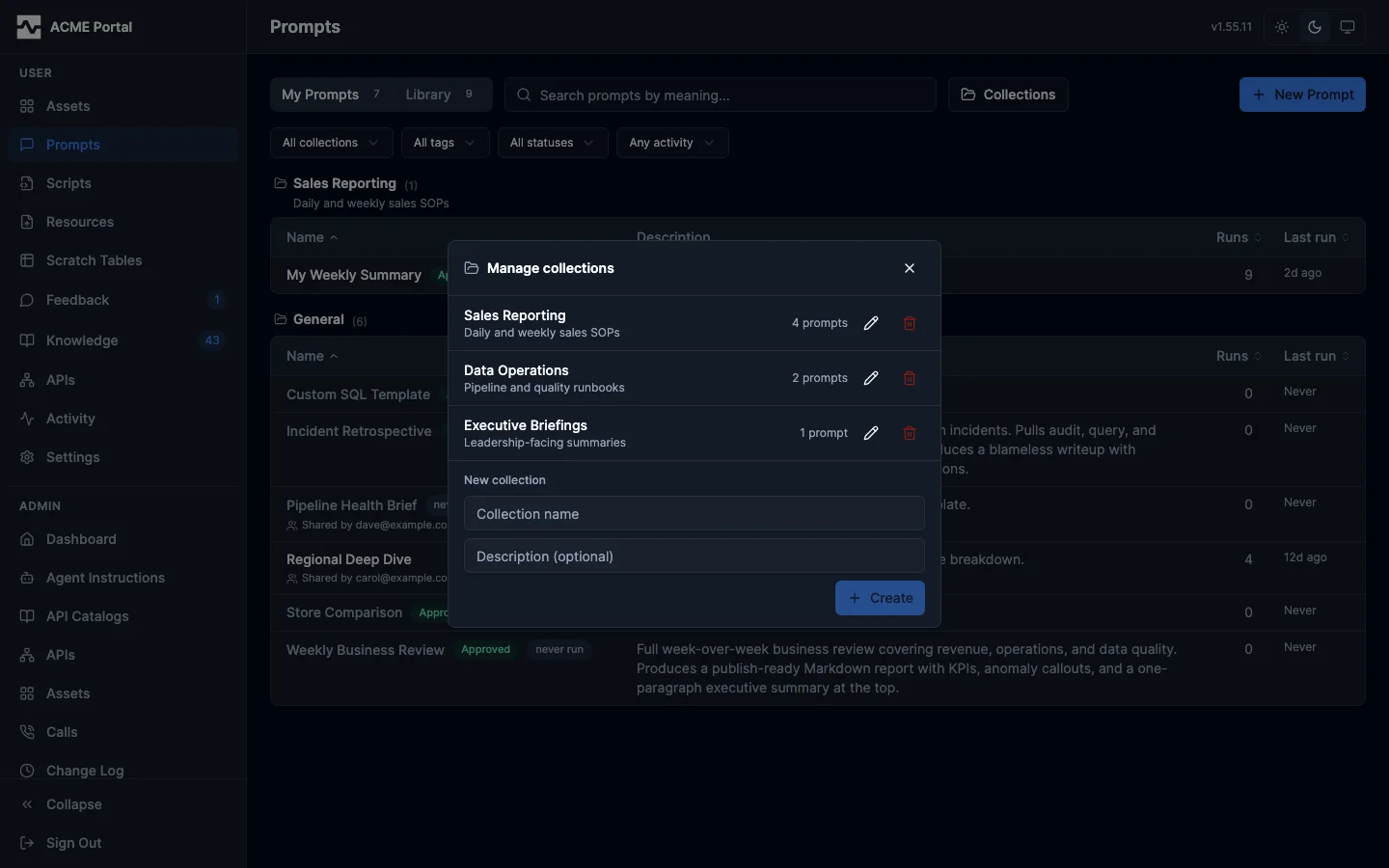
Both buckets group prompts into collections: named groups organized by team, domain, or workflow. Each group heads its table with the collection name, its prompt count, and the collection description beneath. Uncollected prompts list under a default General group. Search results are the exception: they hold their relevance order in one flat list.
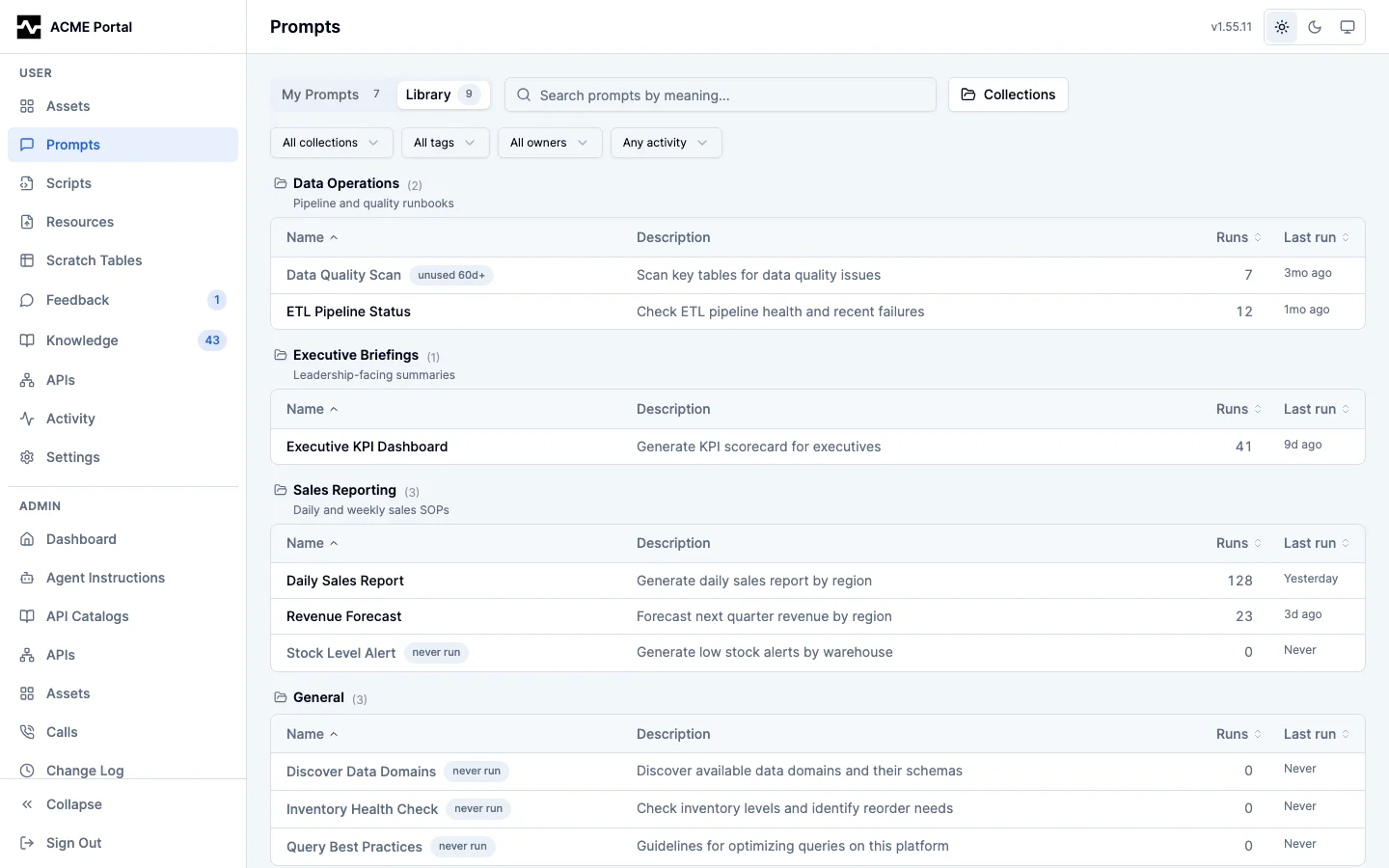
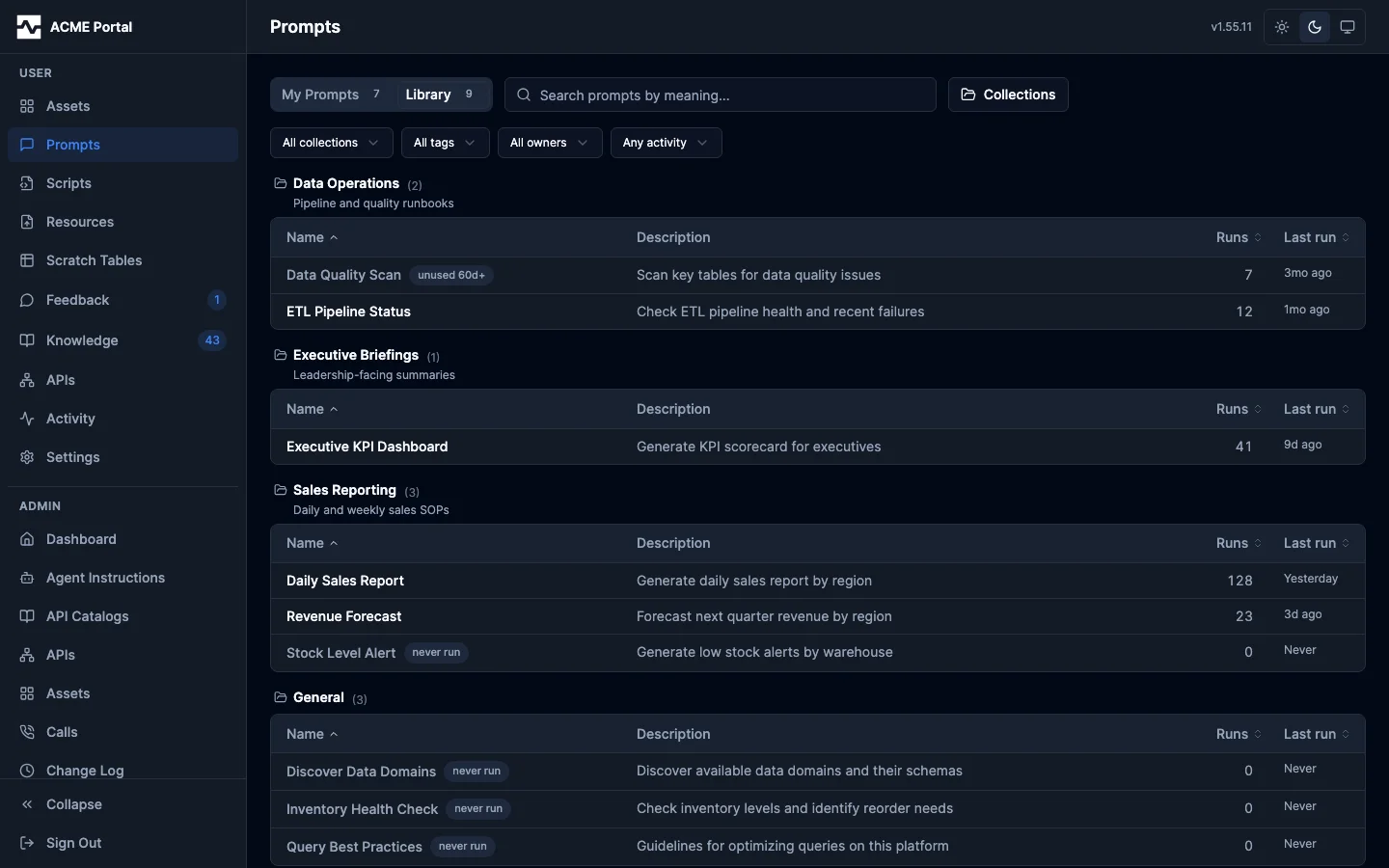
The Collections button opens the manager for creating, renaming, and deleting collections.
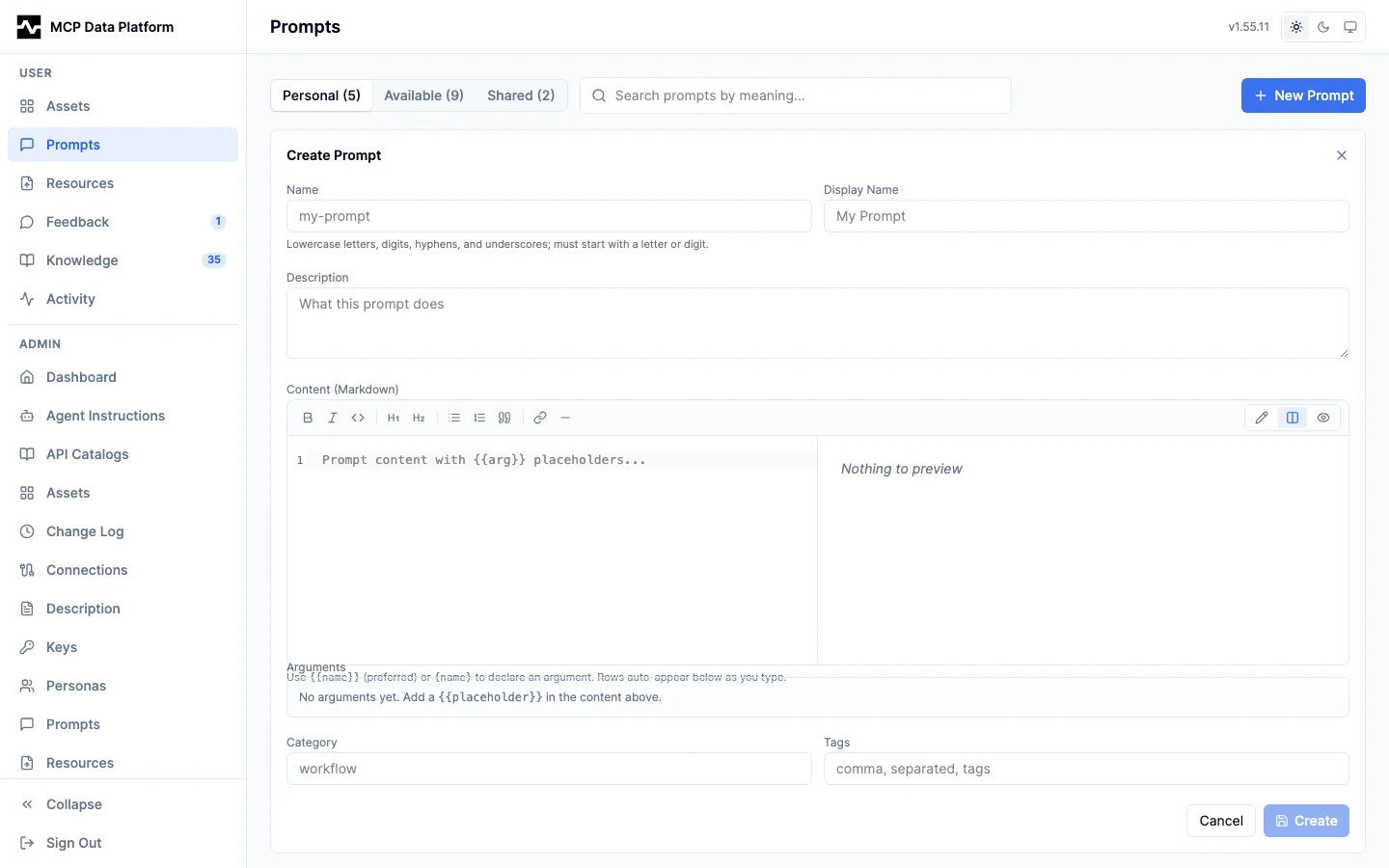
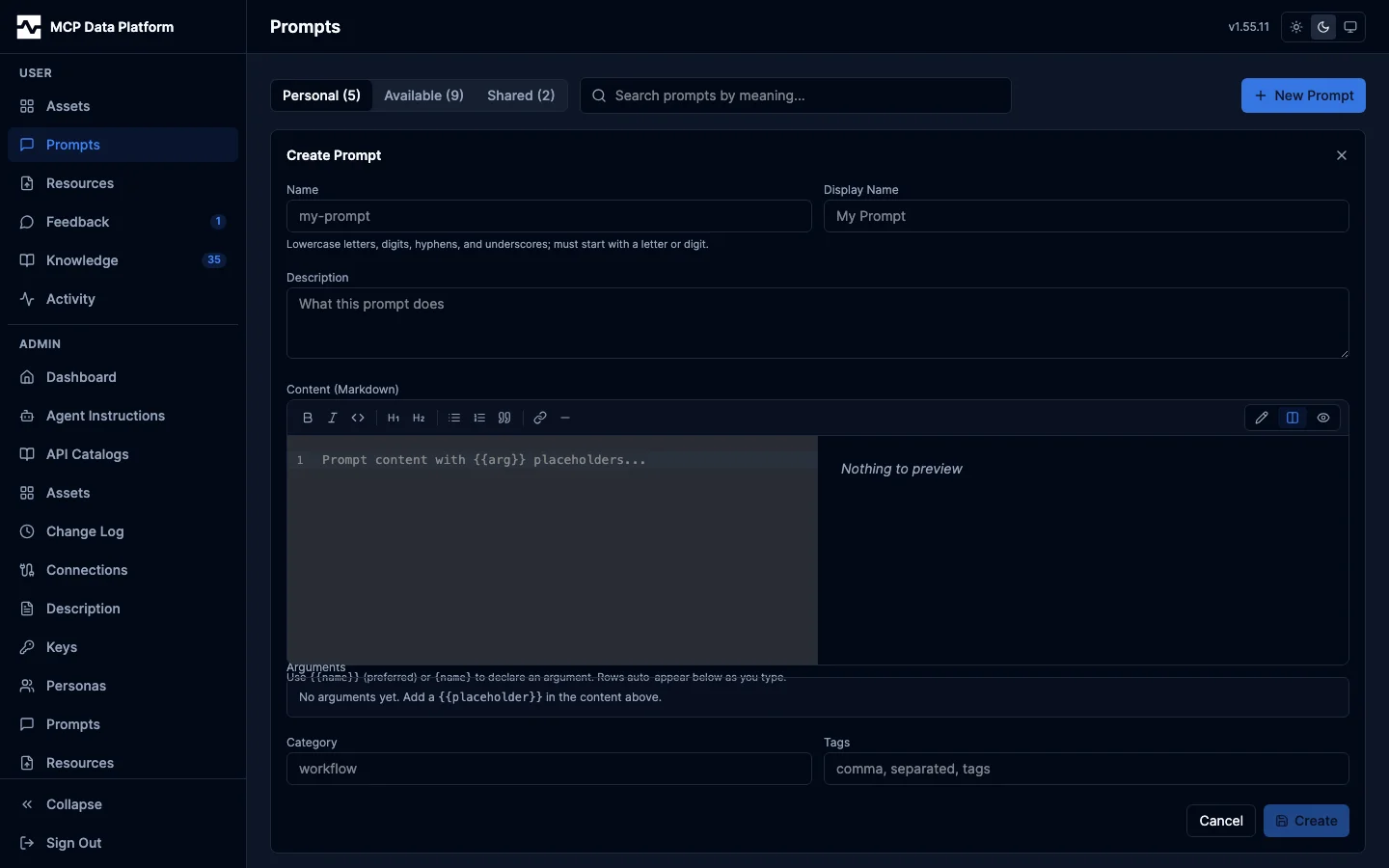
Creating a prompt uses an inline markdown editor that auto-extracts {argument} placeholders into a typed arguments table.
Opening a prompt shows its rendered content, arguments, actions (copy, save-as-asset, share, request promotion, edit, delete), point-of-use invocation help, and the version history described below.
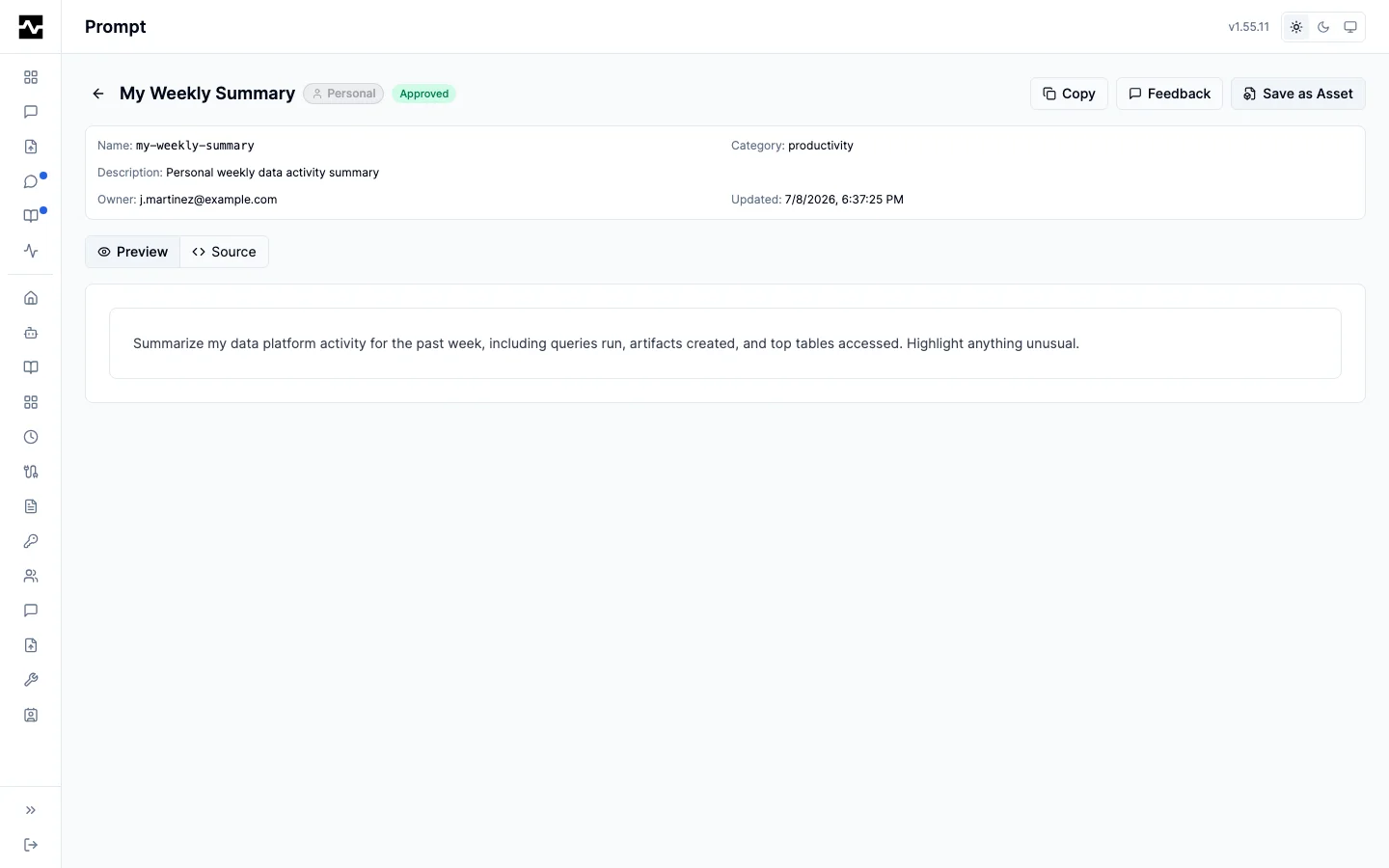
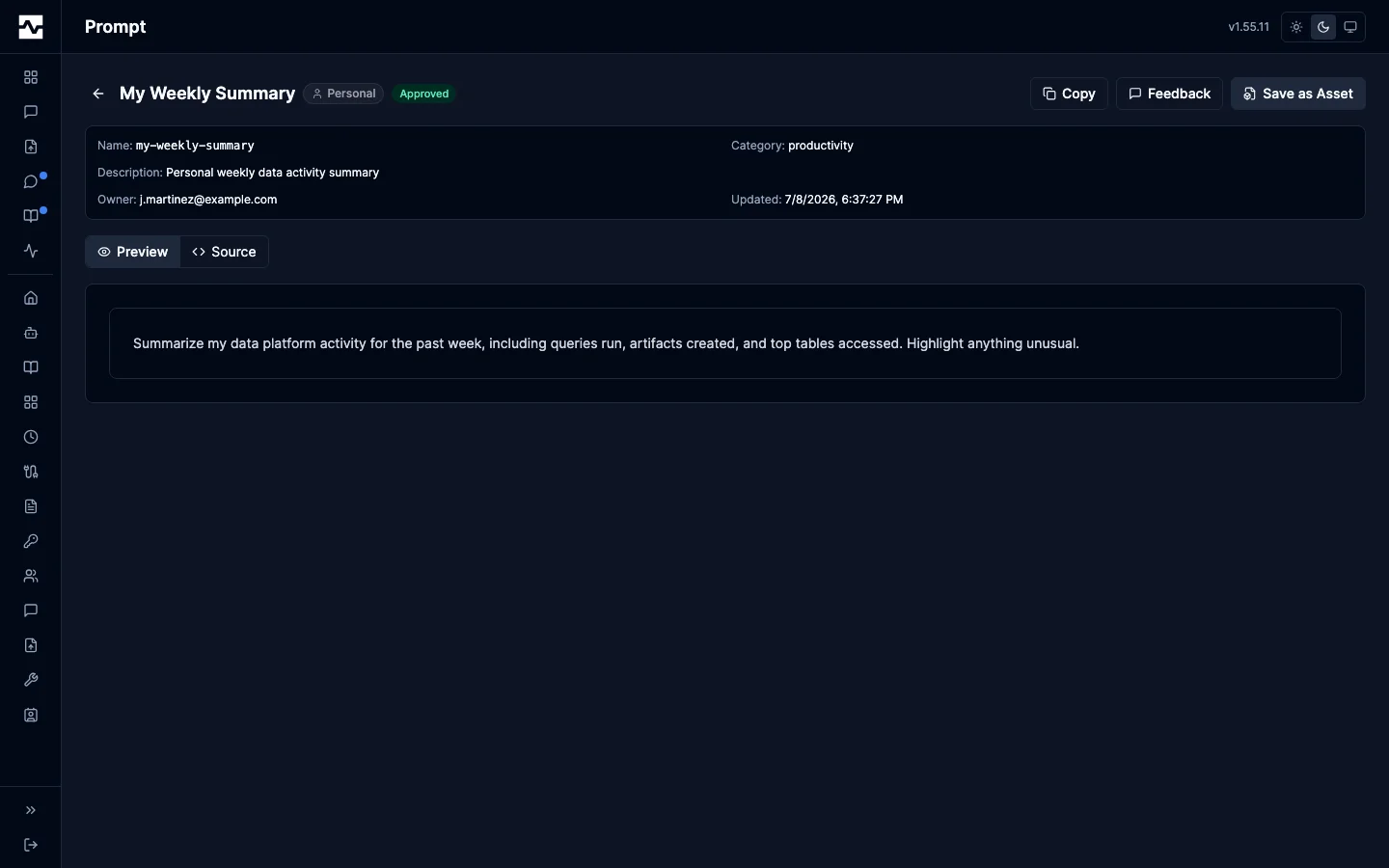
Features:
- Search: Type a phrase to rank prompts by relevance to what you mean, not just literal substrings. Results span your prompts and the Library, ranked best-first: your own prompts match at any status, shared prompts once approved; prompts shared with you are matched by name and description.
- Collections: Group prompts by team, domain, or workflow. Any user can create collections (the Collections button opens the manager); renaming and deleting are limited to the collection's creator or an admin. A prompt belongs to at most one collection: owners assign their own prompts, admins assign shared prompts, from the picker on the prompt page. Deleting a collection releases its prompts to the General group.
- Facets: Narrow the list by collection, tag, status (My Prompts), owner (Library), and usage (recently used / never or long unused).
- Usage columns and sorting: Every row shows its run count and last-run age, aggregated from prompt-serve audit events. Sort by name, runs, or last run; usage sorts default to most-active-first. Dead prompts are flagged with a badge naming the exact condition — never run, or unused 60d+ — and a prompt created within the last week carries no flag while it is still too new to judge.
- Status badges: Lifecycle state on your own prompts: draft (gray), approved (emerald), deprecated (amber), superseded (rose)
- Tags: Free-form, comma-separated labels for organizing prompts, set on create and edit
- New Prompt — Create prompts with name, display name, description, content (supports
{arg}placeholders), category, and tags - Request Promotion — On your own personal prompt, ask an admin to promote it to a persona (you choose which) or to global scope. The prompt stays personal and shows a "Promotion requested" badge until an admin approves or rejects it in the admin review queue.
- Share — Share your prompt directly with another user by email. The recipient gets a real, runnable prompt (with its arguments intact), not a markdown snapshot. "Save as Asset" remains a separate action for exporting the content as a markdown asset.
Version history and diffs
The prompt page renders the full version history with per-version approval provenance: each version's author, timestamp, status (applied, draft, superseded, rejected), and, bound to that specific version, who approved it and when. A pending draft on an approved shared prompt is flagged with a banner: readers keep being served the approved version until an admin approves the draft. Any version can be diffed against the current content as a line diff.
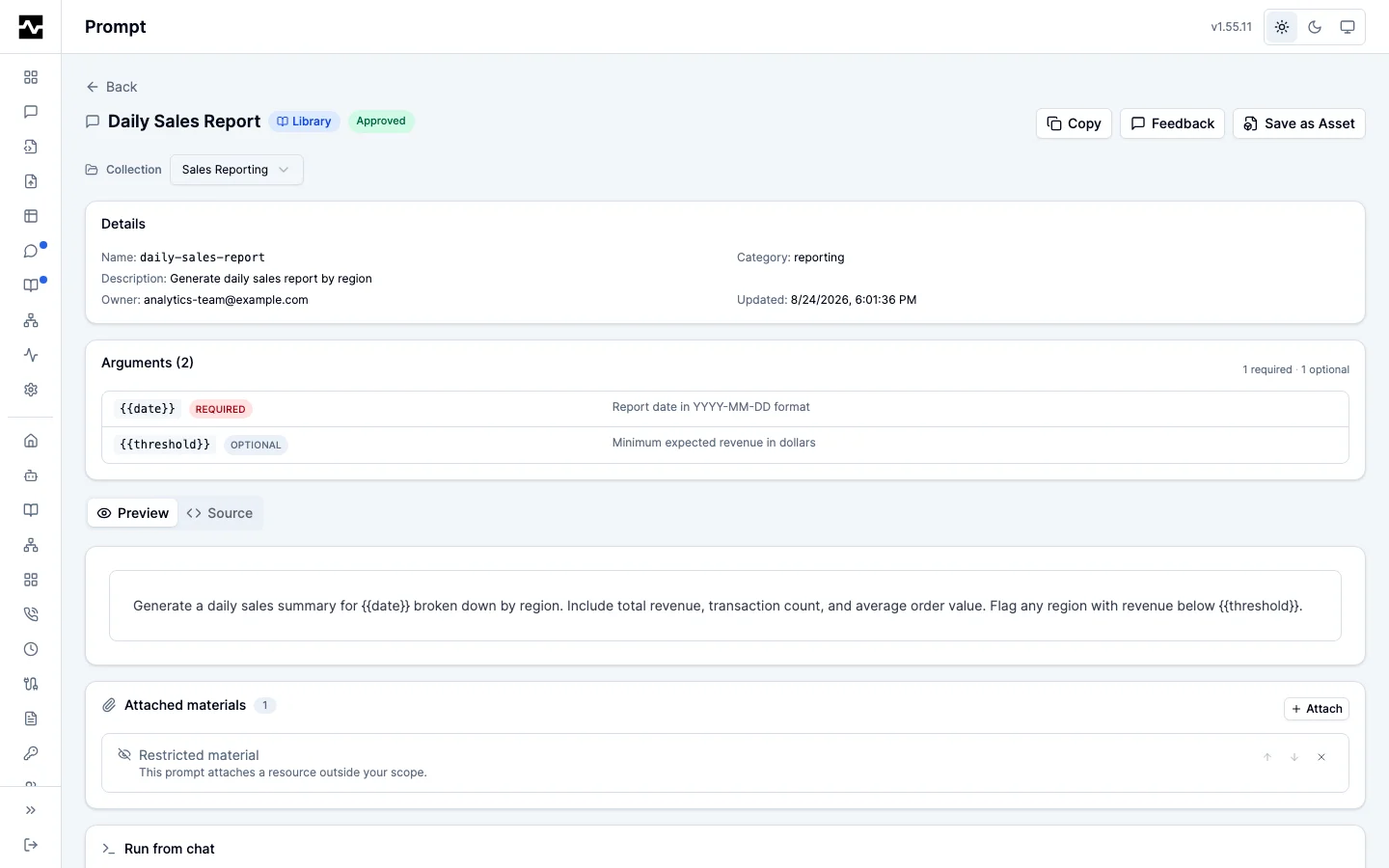
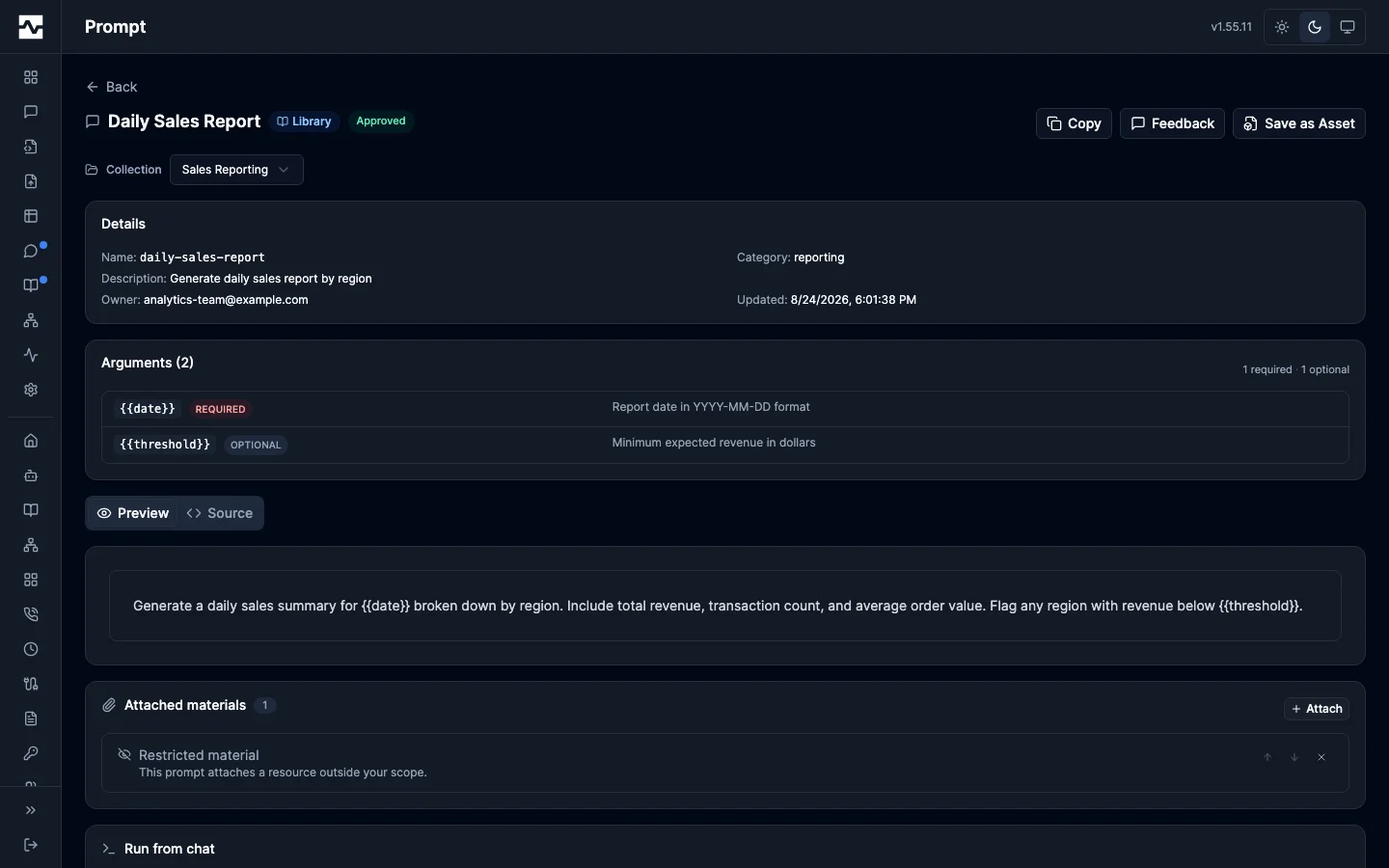
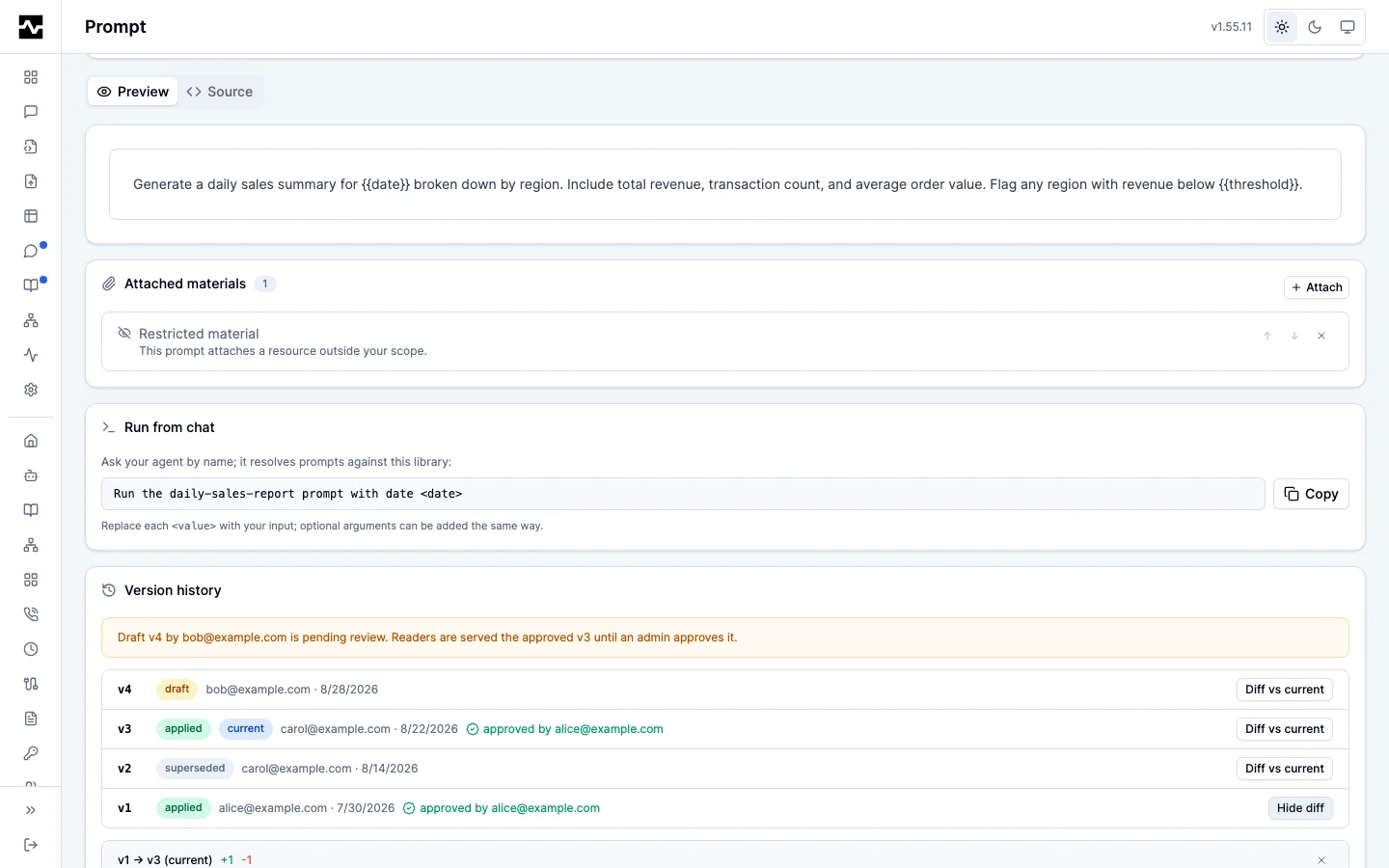
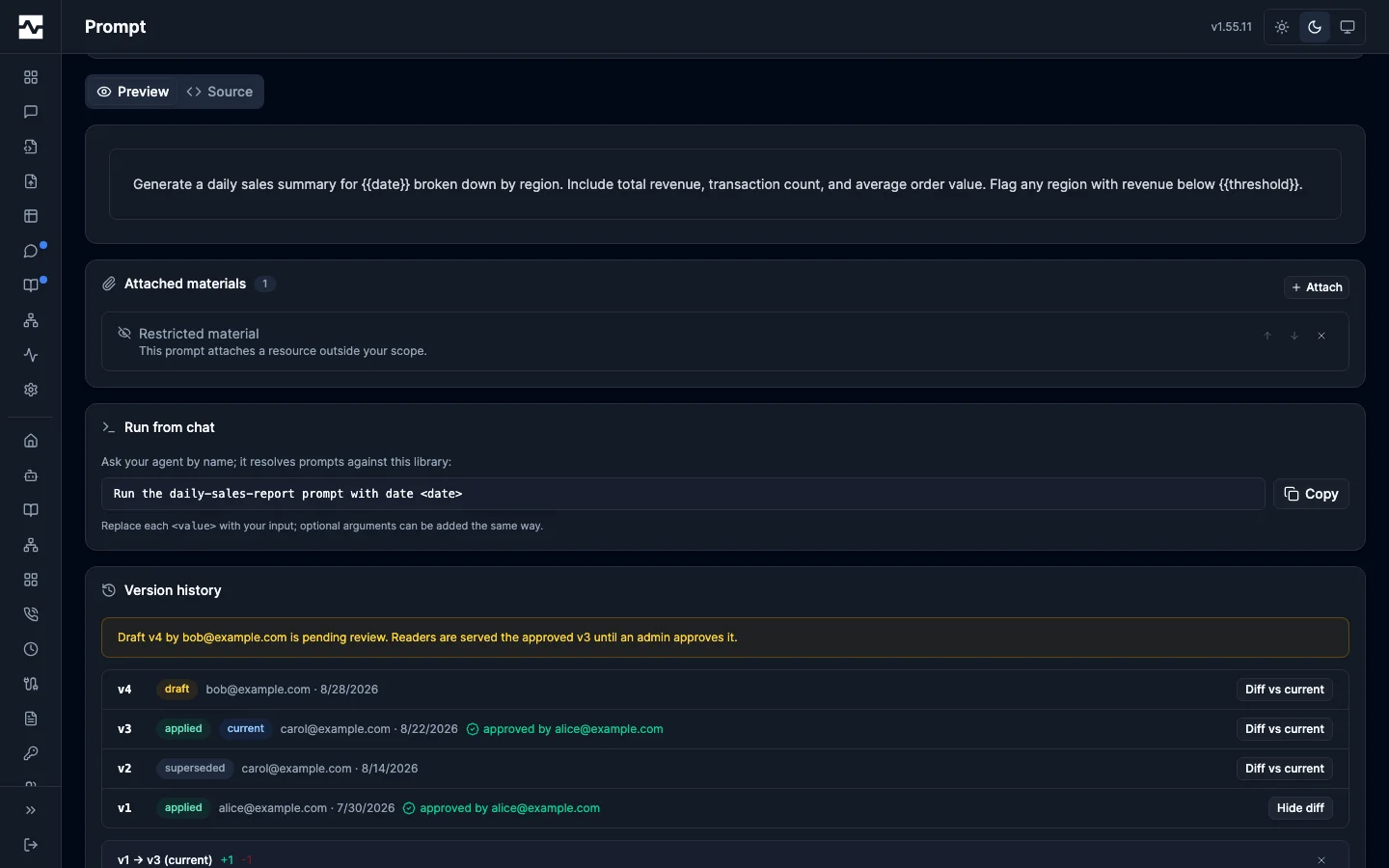
Version history is visible to anyone who can view the prompt: your own prompts, and enabled Library prompts. Library readers see the served history: applied snapshots in full, and a pending draft as an author/date stub whose content stays private until an admin approves it; rejected and superseded drafts (never served) appear only to admins. A prompt shared with you person-to-person shows only its served content.
Run from chat
The prompt page includes a copyable natural-language invocation ("Run the <name> prompt with ..."), built from the prompt's stable name and required arguments. Paste it into any connected chat client; the agent resolves the name against the prompt library with manage_prompt use.
Sharing a prompt
Open your prompt and choose Share, then enter a recipient's email. The recipient sees it in the Prompts page's My Prompts bucket, attributed to you, and their agent can run it over MCP as shared-<name> (auto-deduplicated if names collide). Sharing is owner-initiated and does not require admin approval; revoke a share any time from the Share dialog. Markdown export ("Save as Asset") is a distinct action for documentation or external sharing.
Requesting promotion
A personal prompt is yours alone. To make it available to your team or the whole organization, open it and choose Request Promotion, then pick a target: one or more personas, or global. An admin reviews the request and, on approval, the prompt moves to the requested scope and becomes a real shared prompt. Scope promotion is admin-only; requesting it is the self-service path.
Personal naming and scope prefixes
Personal prompt names are unique per owner, so two users can each have a prompt named report without colliding. When prompts are served to an AI agent over MCP, names are prefixed by scope so they never clash across users or personas:
- Personal prompts appear as
personal-<name>(for example,personal-report) - Persona prompts appear as
<persona>-<name>(one entry per persona you belong to, for exampleanalyst-report) - Global prompts appear as
global-<name> - Prompts shared with you appear as
shared-<name>
These prefixes are computed at serve time; the stored name stays bare. To make a personal prompt visible at the persona or global scope, rename it if a prompt with that name already exists at the target scope.
You never need to type these names. Ask your agent to run a prompt by whatever handle you know: its name, its display name ("run the Daily Sales Report"), or a description of it. The agent resolves it against the prompt library with the manage_prompt use command.