Resources
Resources are human-uploaded inputs an agent uses as-is: report templates, brand files, data dictionaries, sample payloads, and reference documents. Assets are AI-generated outputs. Knowledge pages are curated facts to search and synthesize. Memory is per-user recall. If it existed before the conversation and the agent should use it verbatim, it is a resource.
That is the whole test for which surface a file belongs on, and Content Model covers the four layers in full, including the operator rule that makes an approved template mandatory. The page states the same split in its empty state and its upload dialog, so the choice is in front of you at the moment you make it. Agents reach a resource during a session through the MCP resources/read protocol method.
An uploaded resource is also discoverable through search, the front door agents are steered to. A background indexer embeds each resource's metadata and a bounded prefix of its readable contents -- a text file's, a PDF's, an Office document's -- so a data dictionary is found by a column name that appears only inside the file, and a deck by a phrase on one of its slides. How much of a file search reads is the file's Search setting (#2111): Contents (its details and a prefix of its contents), Details only (its name, description, folder, filename and tags, with no content read or kept) or Not indexed (not in search one by one; still listed in its folder, readable by its URI, and found through its folder, below). The upload dialogs, Edit details and Replace offer it, and the preview pane shows it. Default leaves it to the deployment's resources.index rules, which decide by folder, file type, size, library and where the write came from (Search indexing); with no rules a table of values (CSV, TSV, newline-delimited JSON) is indexed on its details alone and everything else on its contents. A pipeline writes such files in bulk, and their contents are the densest text an embedding model reads. Search results carry an mcp:resource:<id> reference that fetch reads in full: text inline, a PDF as its extracted text, an Office document as its XML parts, an image as the picture itself, and anything else as its bytes. Only a file over 1 MB comes back as metadata plus its URI. Search results also carry a resource link a client with native resource support can attach directly. Visibility is the same as everywhere else: global resources reach every caller, persona resources only their members, and personal resources only their owner. Indexing runs off the request path, but the upload enqueues its own indexing job rather than waiting for a periodic sweep, so a just-uploaded file is findable by its name and description immediately and by its contents seconds later, once the indexer has read it. A replacement upload and a metadata edit enqueue the same way. Content indexing needs the background index queue, which requires a database and a configured embedding provider; without one, resources are still searchable by their metadata. Files larger than 8 MB are indexed on metadata alone.
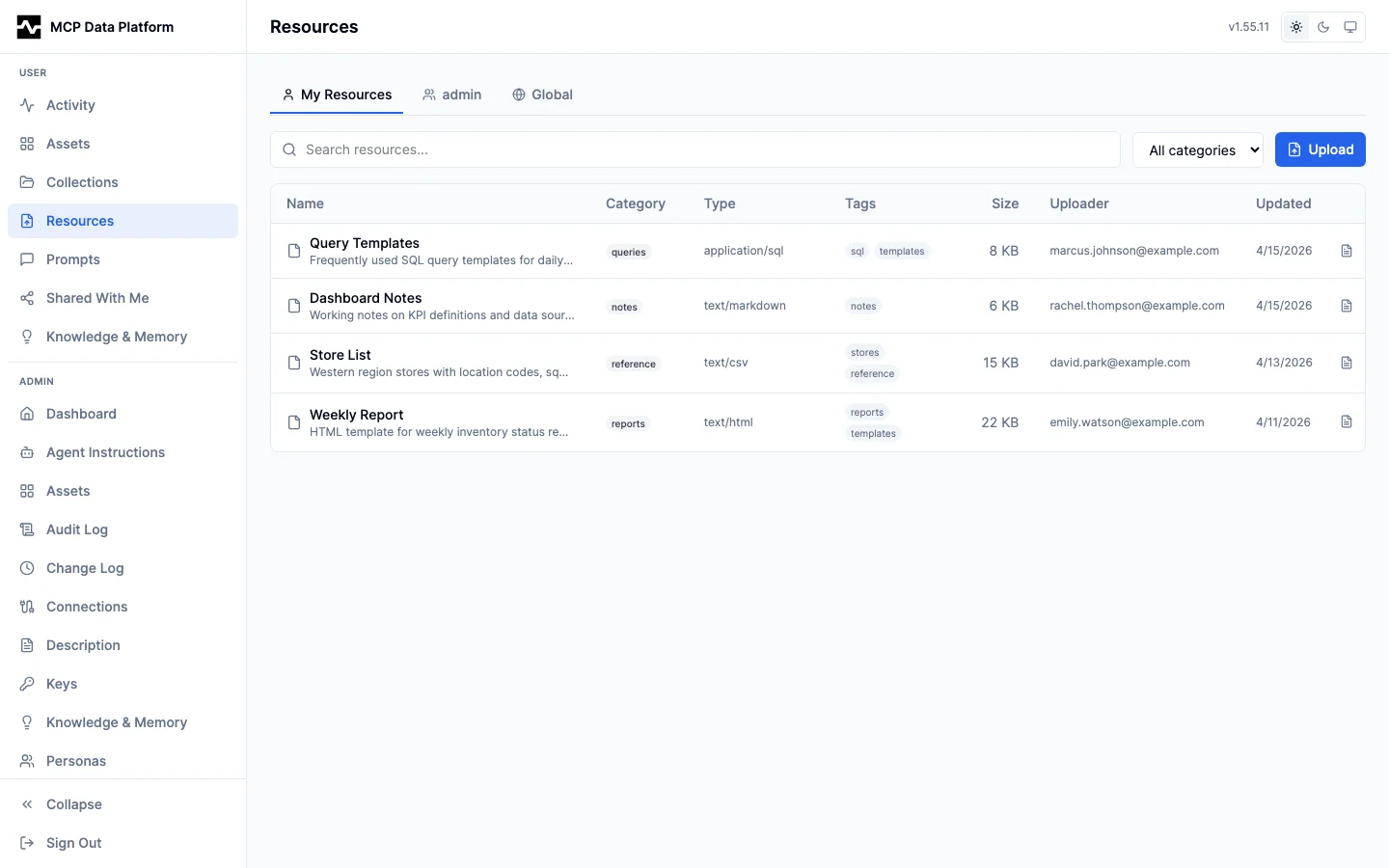
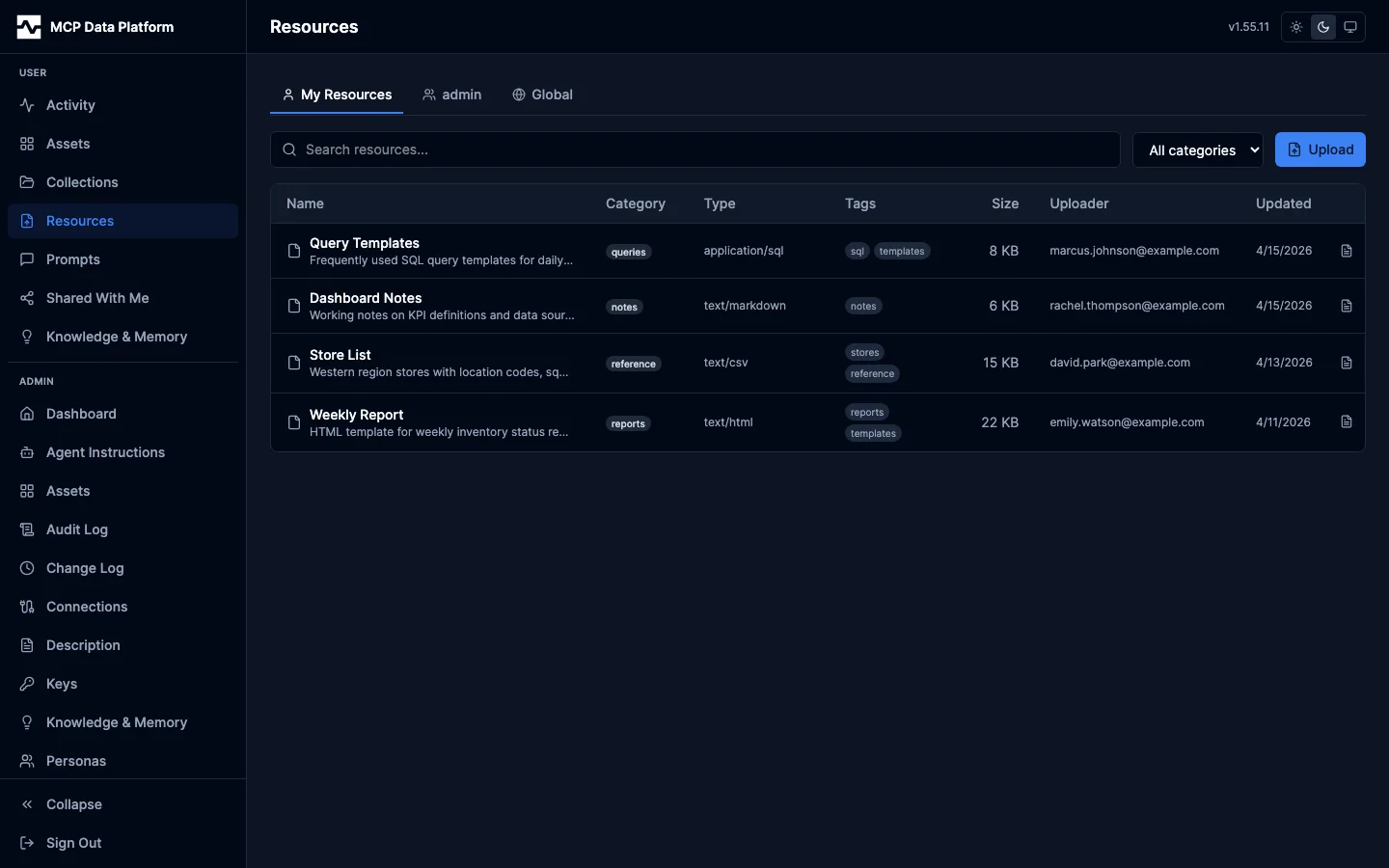
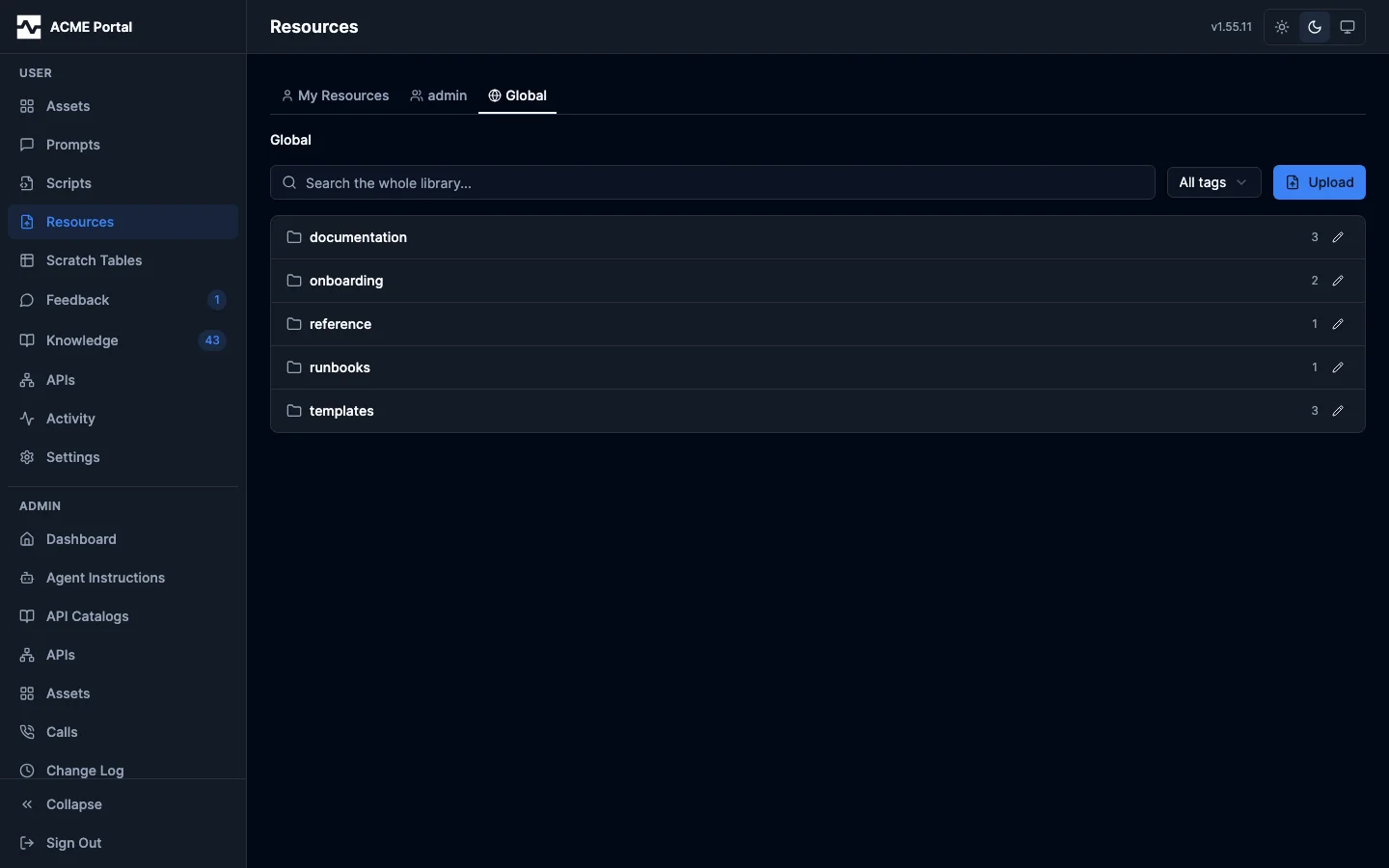
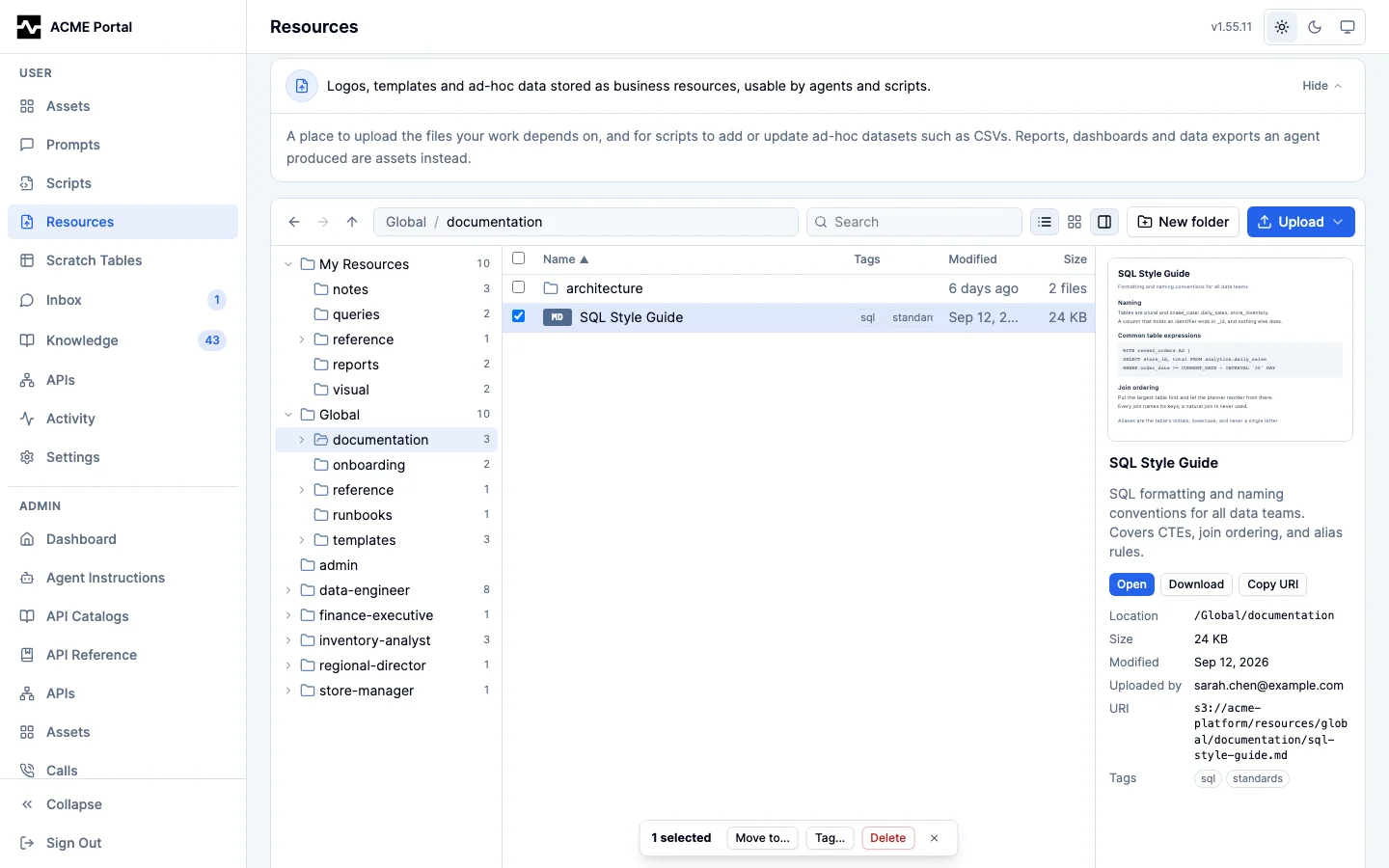
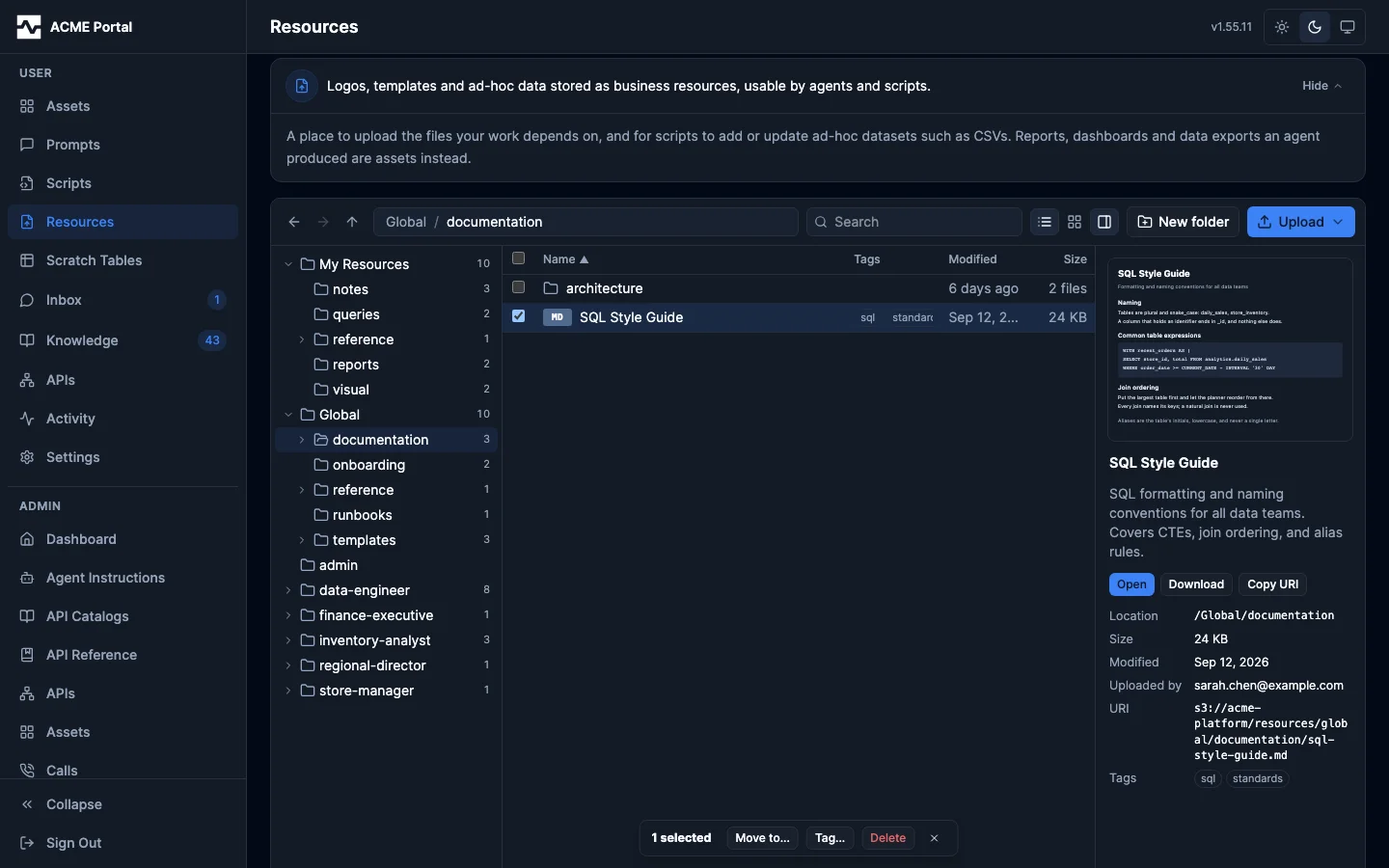
The page is a file manager (#1872): a folder tree on the left, one listing of the folder you are in, and a preview pane on the right. It behaves like the file managers people already know (Finder, Explorer, the list view of Google Drive or the S3 console), and the rest of this page describes what it does.
The tree's top-level folders are My Resources, Global, and one folder per persona you can read: the personas you belong to and the ones you administer, or, for a platform administrator, every persona the deployment defines. A platform administrator also has a People folder holding one folder per person whose resources exist, named by their address and read when it is opened, which is how an administrator browses somebody else's resources. Every folder beneath a top-level folder expands with a chevron and shows how many files it holds at every depth; the folder you are in is highlighted and its ancestors are open. The tree follows the WAI-ARIA tree pattern: Up and Down move between folders, Right opens one or steps into it, Left closes one or steps out, and Enter opens the folder. A location is written as a path from its top-level folder, /Global/data/weekly, in the path bar, the preview pane, the move dialog, the upload destination and each search hit. Internally each top-level folder is a scope (a person, a persona, or global); the page never calls it anything but a folder.
The page opens on My Resources. The All view the page used to open on had no place in a tree and was retired; a search across a top-level folder replaces it, and a link to the old All view opens My Resources.
The folder you are in is where an upload lands, and the dialog states that destination and who will be able to see the file before you choose one. Upload and New folder are offered wherever you may add to something: My Resources always, a persona's folder when you hold that persona's persona-admin:{name} role, and every top-level folder including Global when you are a platform administrator. That is the same rule the server applies to the request, read from who you are rather than from which page you are on, so a control is never offered where the upload would be refused and never withheld where it would be accepted. An empty folder you may not add to says who publishes there instead, so a read-only folder reads as read-only rather than as an empty page.
Belonging to a persona is not enough to add a new file to its folder; that takes its persona-admin:{name} role. The upload dialogs name the persona you belong to and cannot upload into, say which role would let you, and point to the way in that membership does allow: upload the file to My Resources, open it, and move it with Edit details > Top-level folder (#1866).
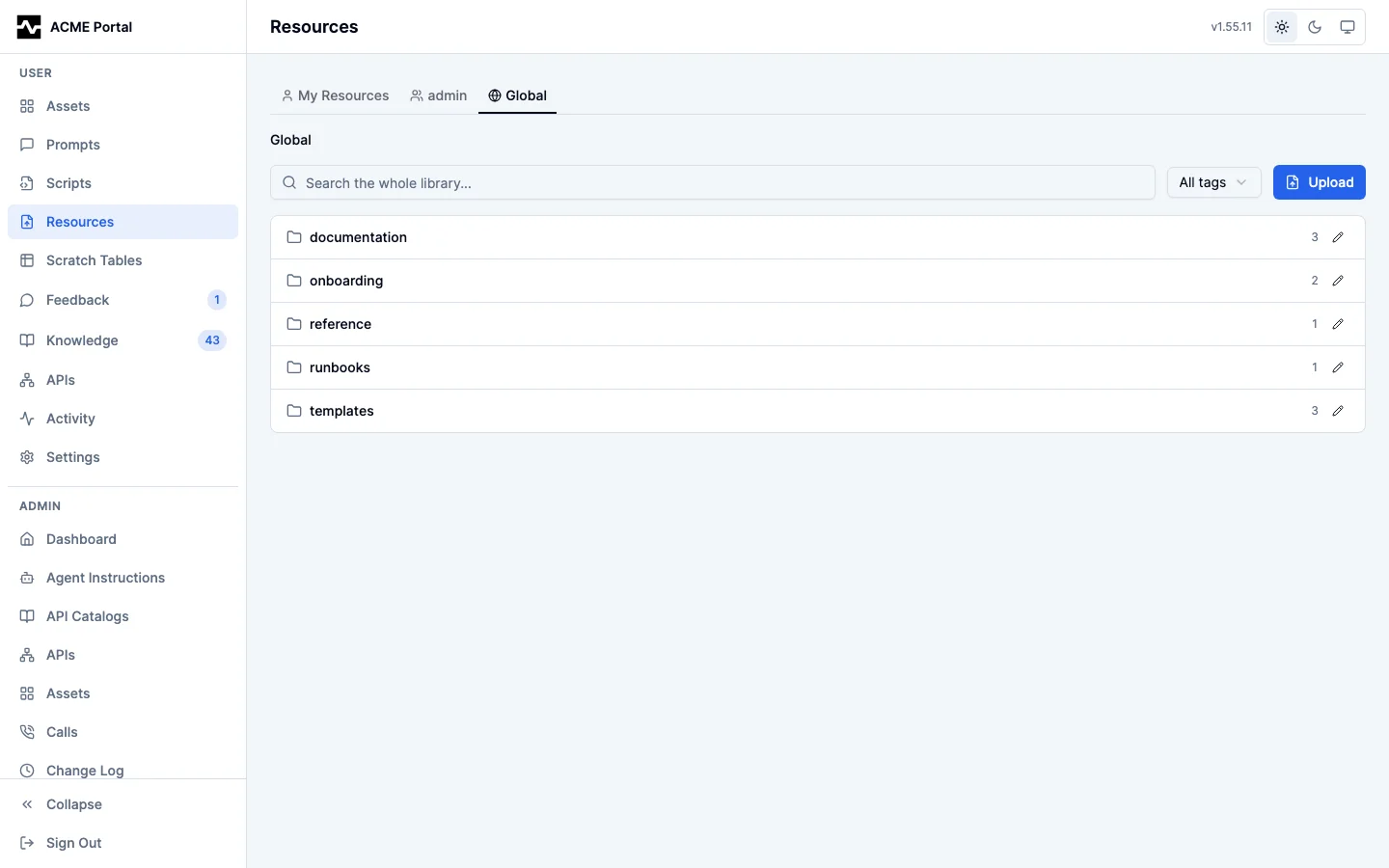
Uploading opens a modal for the file plus its folder, display name, description, and tags. The folder is a dropdown carrying the folders the top-level folder already has, and it defaults to the one you are standing in, so a file is never filed somewhere you did not expect and the folders that exist are on screen at the moment you file into one. Its last entry, New folder..., swaps the control for a text field and accepts any path you type; a link beside it leads back to the list. A folder that does not exist yet stays typeable, and filing a file into it creates it; New folder on the page creates one empty. Six folder names are suggested for the first level and each is spelled out as you pick it: data are records to read as fact rather than as an example (rosters, mappings, rate tables), visual are logos, photographs, diagrams, and design elements meant to be displayed, templates are layouts a deliverable must be produced in, playbooks are procedures to follow rather than summarize, samples are examples to pattern-match against, and references are documents to consult. data and samples are the pair most easily confused: the same CSV is a sample when the agent should copy its shape and data when the agent should read its rows. They are suggestions and not a closed set — any path you type is accepted. The file itself may be any format — documents, spreadsheets, images, media, archives, CAD exports — apart from executables, which are refused by both extension and MIME type (Accepted types).
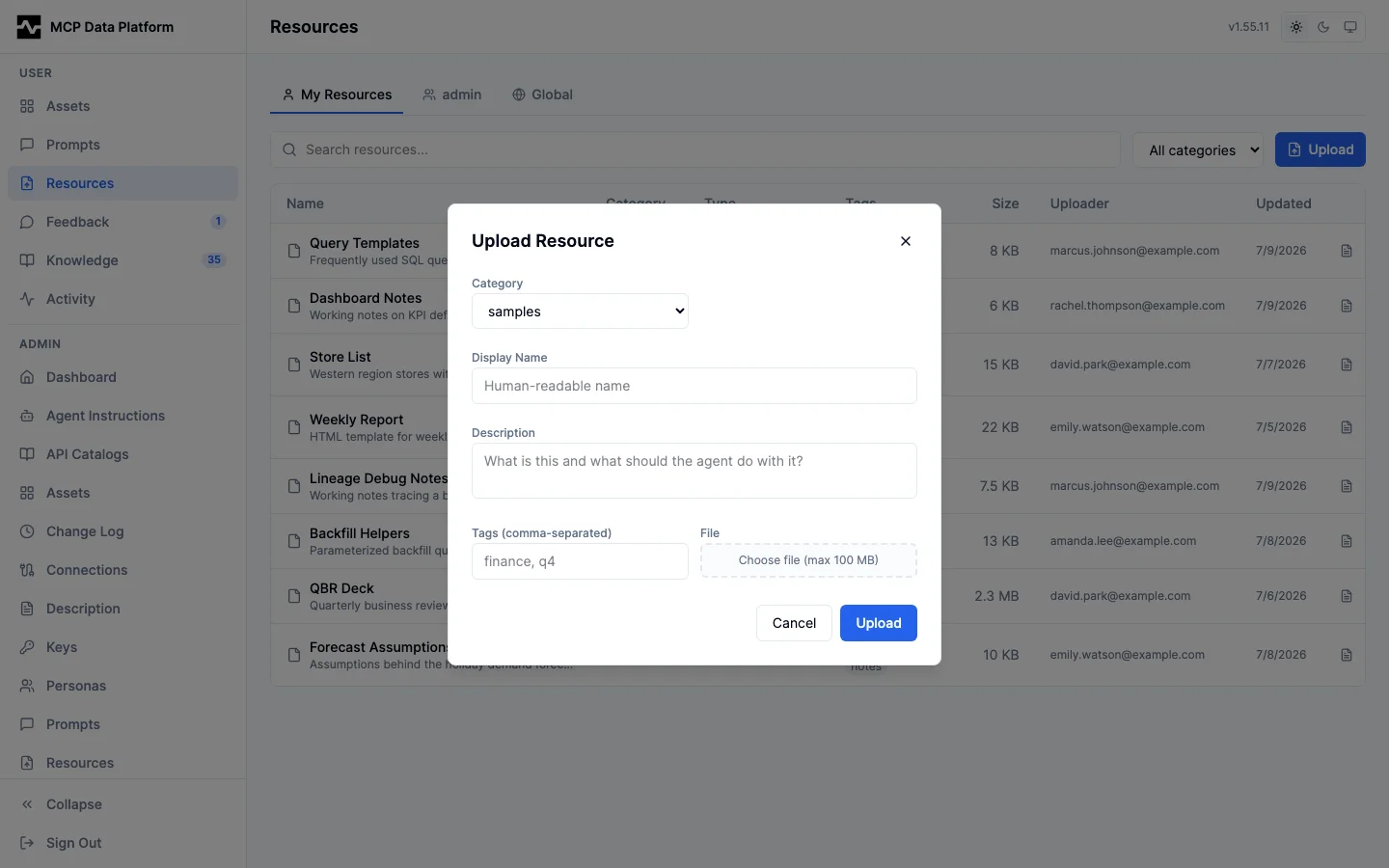
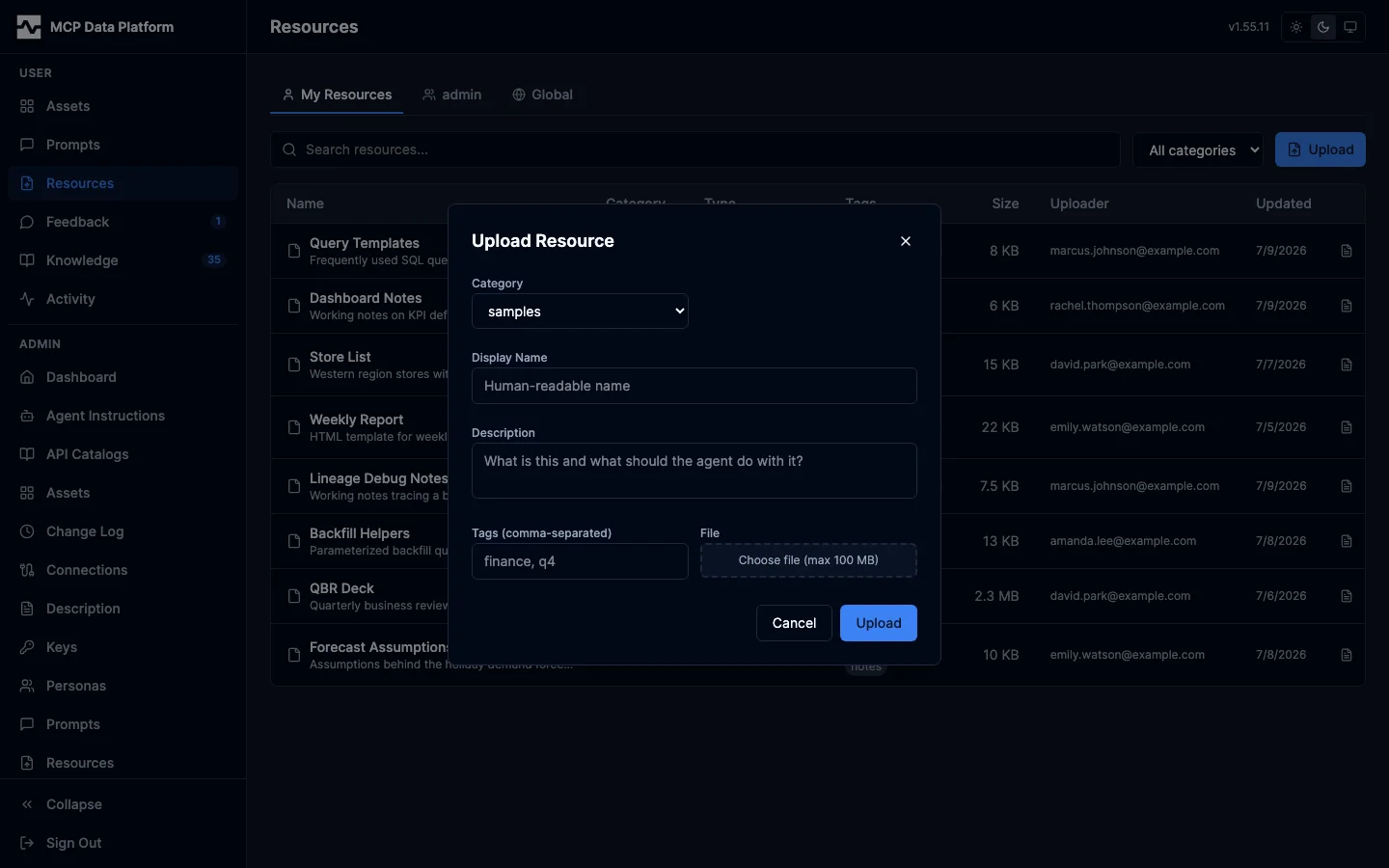
Uploading many files at once
Upload > Many files or a folder... loads a set of files in one action: several picked at once, a whole folder, files and folders dropped onto the dialog, or a .zip archive, which is unpacked in the browser. A picked folder's subfolders, and an archive's, become folders beneath the one you choose, so a brand kit that arrives as logos/color/ and logos/reversed/ is filed the same way. System files (.DS_Store, __MACOSX/, Thumbs.db and other dotfiles) are left out.
Files dropped from the desktop onto the listing, onto a folder row or onto a tree node open this dialog with the dropped files in it and that folder as the base folder. What is shared is set once for the whole batch: the top-level folder, the base folder, the tags, and a description with {name} standing for each file's display name. Each file's display name defaults to its file name without the extension and can be changed in the list before the upload starts. The list shows where each file will be filed and marks the ones a generated document can reference directly as an image (PNG, JPEG, GIF, WebP, AVIF and SVG); source art such as EPS and PDF is stored as uploaded and is not converted.
A batch holds at most 5,000 files, each within the deployment's upload ceiling (resources.managed.max_upload_bytes, 100 MB unless it is set), and an archive at most 1 GiB. A file over a limit, a blocked type, or two files that would land at the same folder and name are listed as not sent before anything is uploaded. Files are sent four at a time, each as its own upload, so a file that fails leaves the ones already stored in place; the list shows each file's progress and result, and Retry failed sends the failures again.
Sending a folder a second time does not file a second copy of it. A file whose folder and name already hold a resource is compared with it by content: the same bytes are reported Unchanged and nothing is written, and different bytes become that resource's next version, keeping its id, address, name, description and tags. A resource uploaded before content hashes were recorded has nothing to compare against, so its first re-upload is recorded as a new version.
The portal does this through the create route every upload uses, POST /api/v1/resources, with the form field if_exists=skip_unchanged ahead of the file part. The answer carries outcome: created (201), revised or unchanged (200). Without the field, or with if_exists=fail, an address that is taken is refused with 409 as before. Each version records the SHA-256 of its bytes as content_sha256 in the version history.
Folders
A resource is filed under a folder path inside its library: a slash-separated chain like data/media-manager/shows. Each folder name is lowercase letters, digits and hyphens starting with a letter or digit (so a dated folder like 2026-09-26 is legal), a path is at most 8 folders deep and 200 characters, and a refusal names the rule you broke rather than restating the whole grammar.
A folder exists once it is created or once a file is filed under it, and it stays when its last file moves out or is deleted: folders are stored, one row per folder (resource_folders), so New folder creates one empty and a folder you emptied is still there to file into. Every write that files a resource records its folder and each folder above it in the same transaction, and the folders in use when this shipped were recorded by the migration that added the table. A folder is removed by deleting it (below).
A folder holding files that are not indexed one by one is found by search as one entry: its path, how many files it holds and of which types, a few of their names, and its description. Describe... on a folder's menu writes that description, what the folder holds in a sentence (PUT /api/v1/resources/folders/description, or manage_resource action: update with path and description), and takes the authority to add files there. The entry is matched by meaning and by the words it holds, as a file is, so a folder is found by a word of its description. A new description reaches search when the folder's entry is next embedded, at most one index sweep later (5 minutes). A thousand archive files under one folder are one search entry and one embedding, and an agent that finds the folder lists its files.
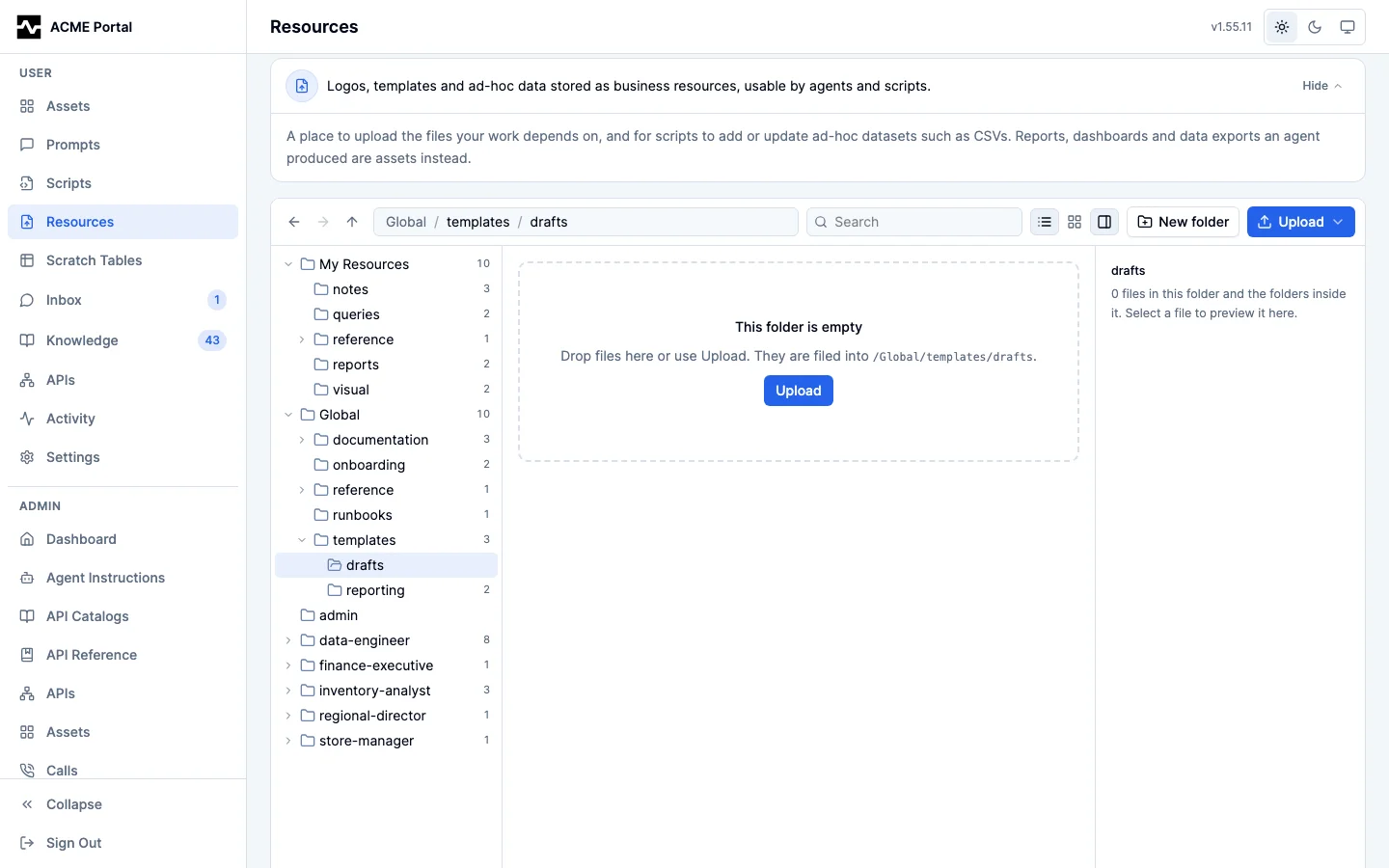
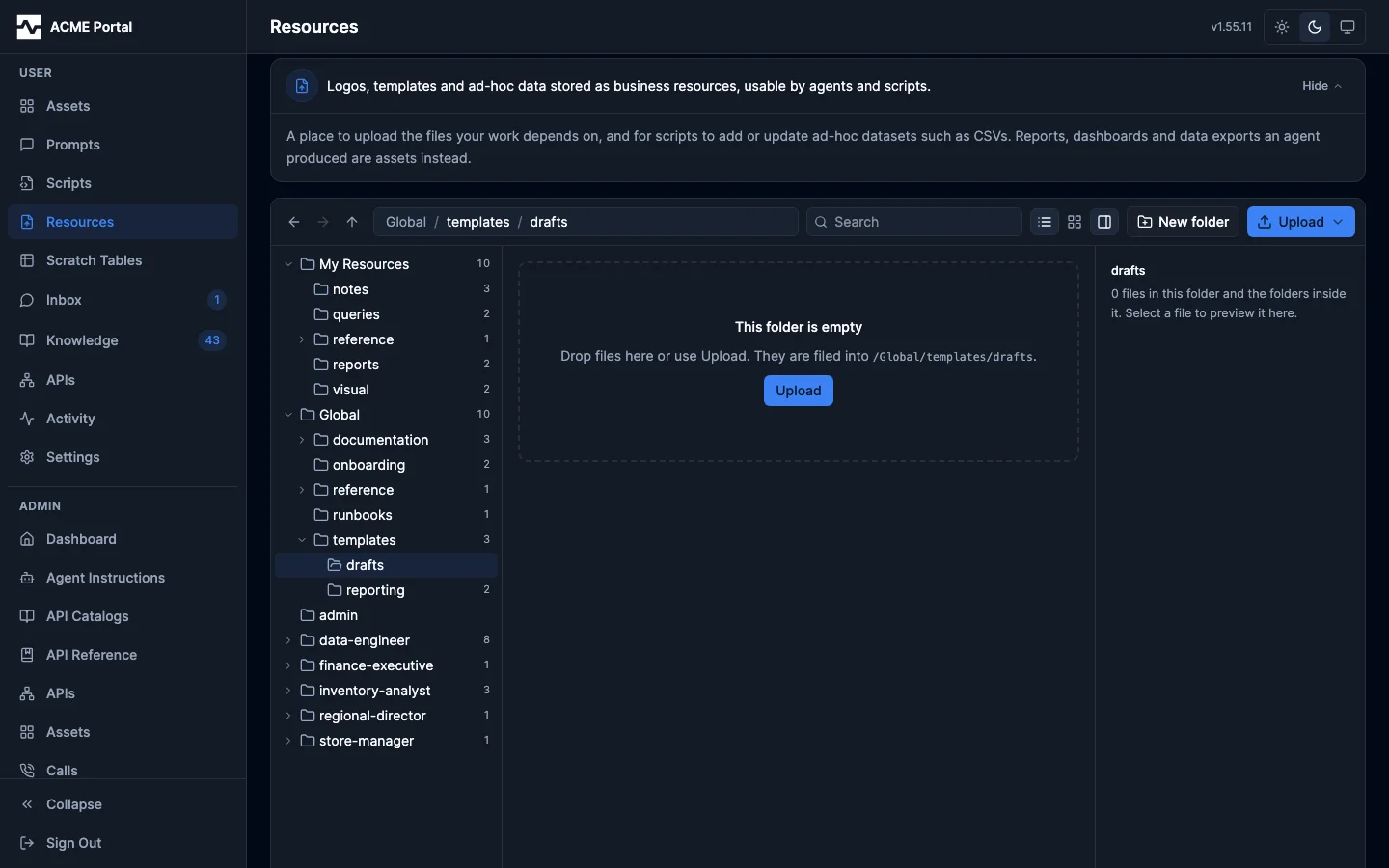
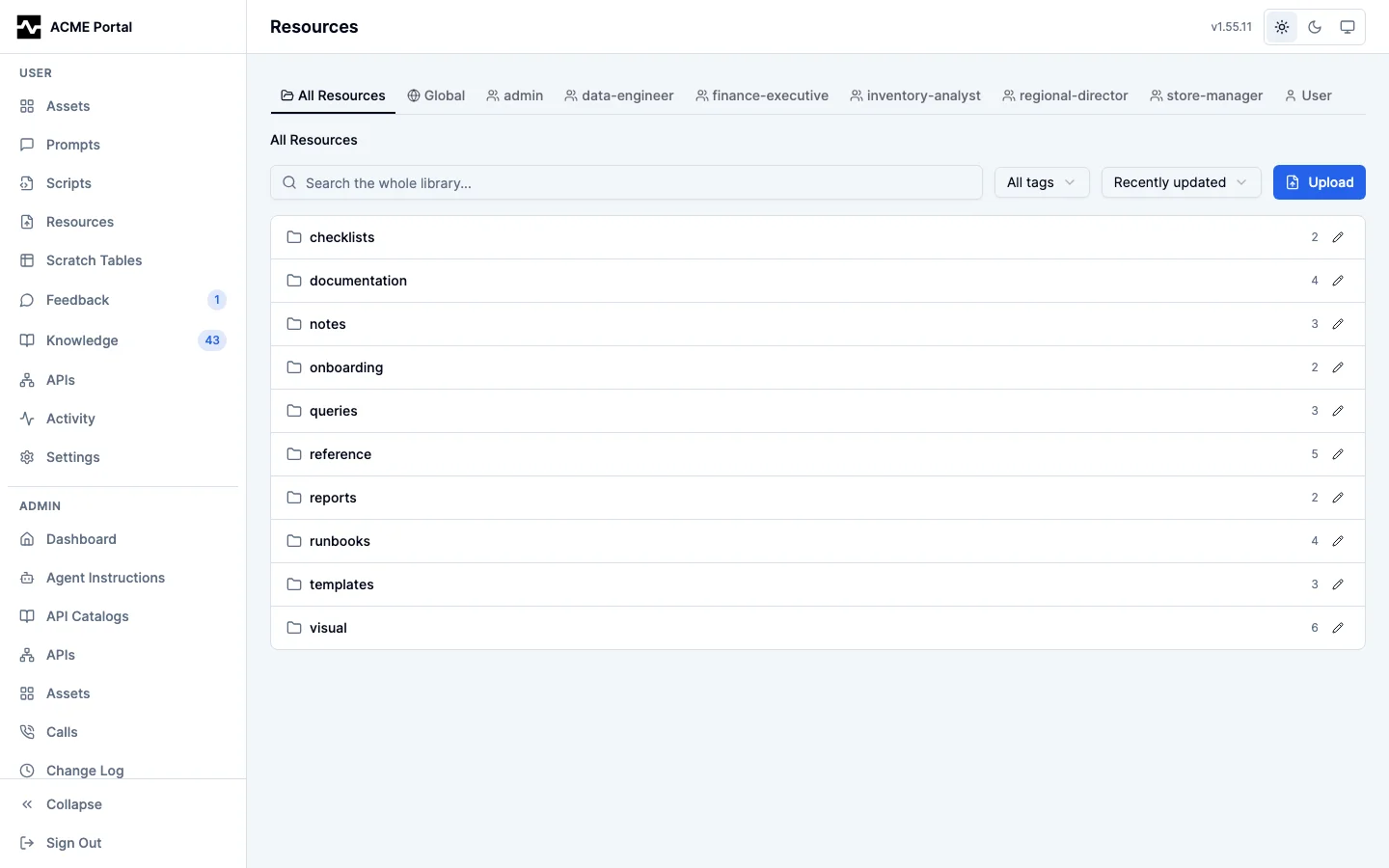
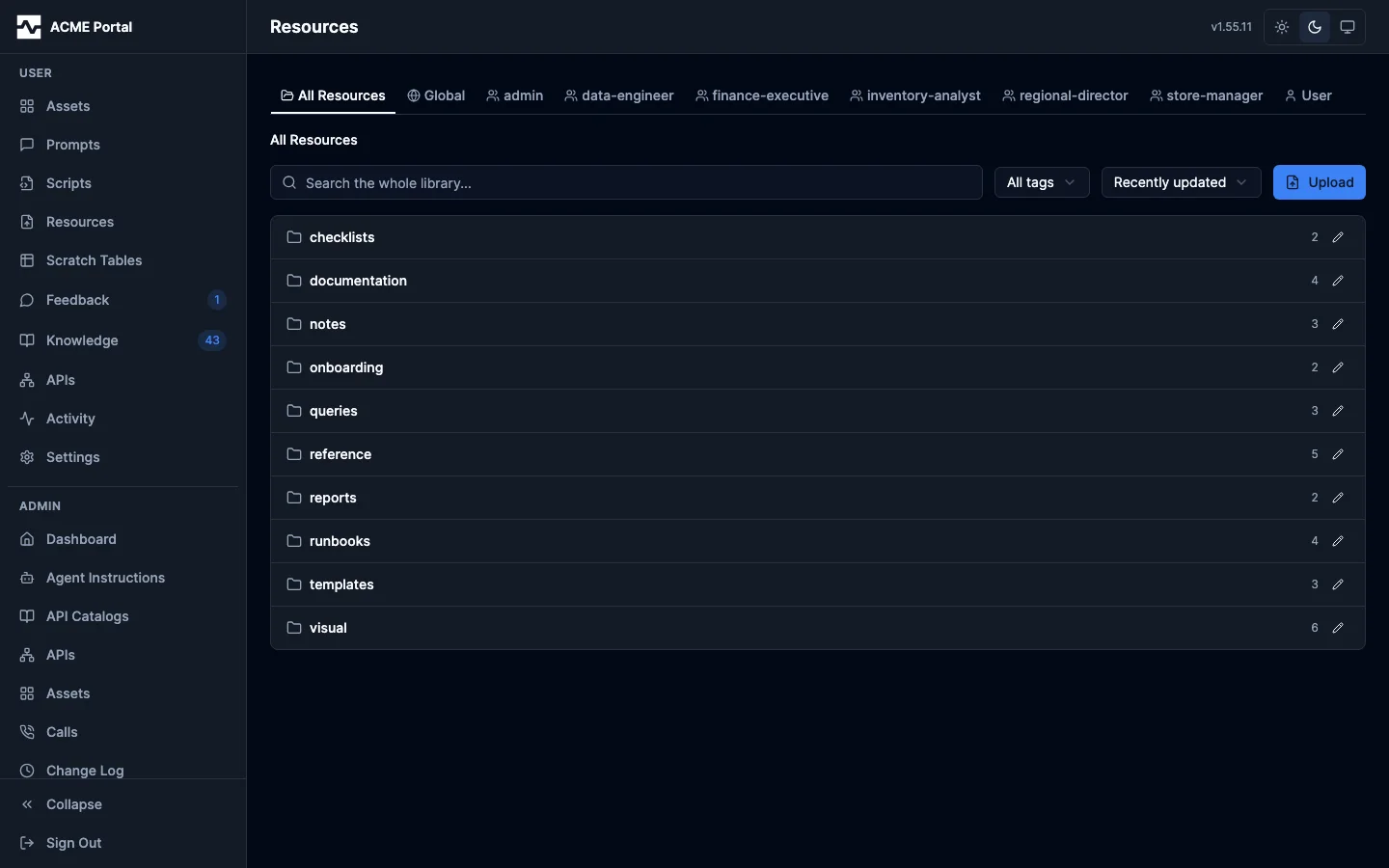
The listing shows the folder you are in as one table: its folders first, then its files, a folder row and a file row being the same row. Name, Modified and Size sort when their header is clicked (a second click reverses the order), and the sort is asked of the server (sort=name, name_desc, updated, updated_asc, size, size_desc), because a folder is paged and a sort in the browser would order only the files that had arrived. The administrator's page adds a Last read column. A tile view shows the same entries with each file's thumbnail, and the choice between rows and tiles is remembered.
A folder's counts are exact and come from the server in one request (GET /api/v1/resources/facets), with when anything beneath the folder last changed. The listing asks the server for one level (GET /api/v1/resources?path=<folder>&direct=true), so the status line at the foot of the listing (the folders and files at this level, and the selection's count and size) counts what the folder holds, and a longer folder loads as you scroll. A top-level folder's root lists no files, because every resource is filed under a folder. Each location is an address of its own, /resources/lib/global/data/media-manager (/resources/lib/person:<id>/... for a person under People), so a folder survives a reload, can be linked to, and the browser's Back steps out one level. The path bar has its own Back, Forward and Enclosing folder buttons, and each segment of the path opens that folder.
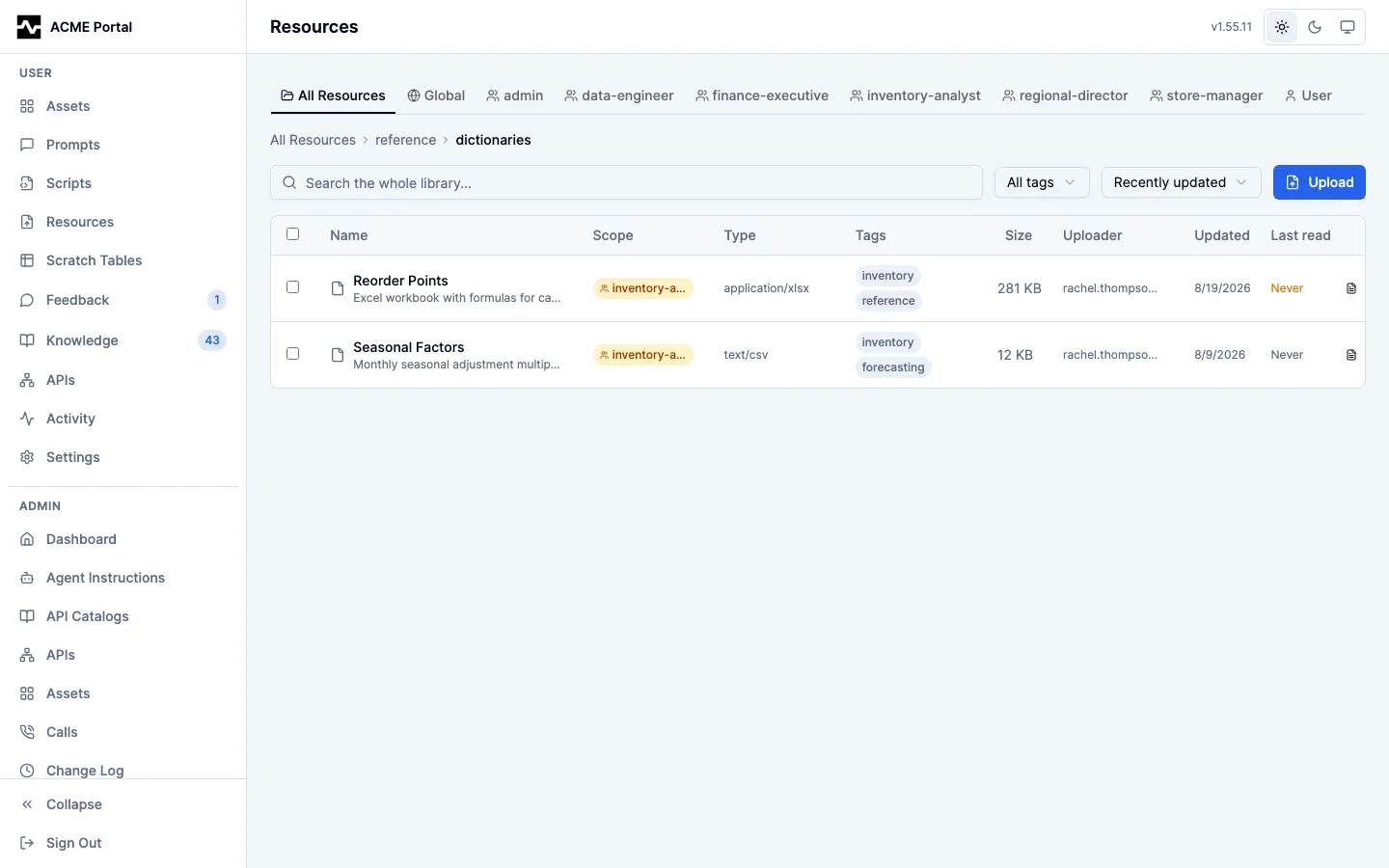
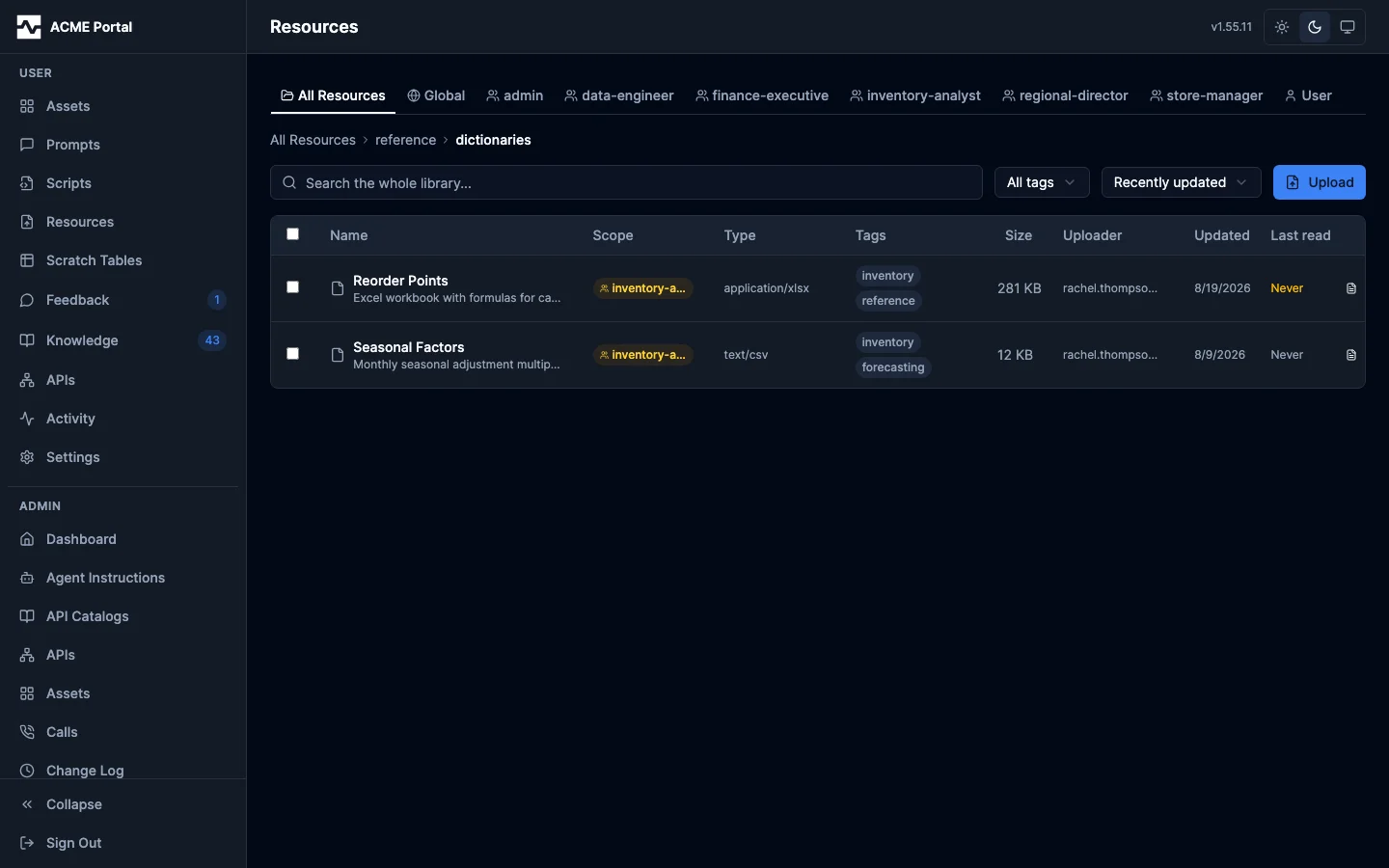
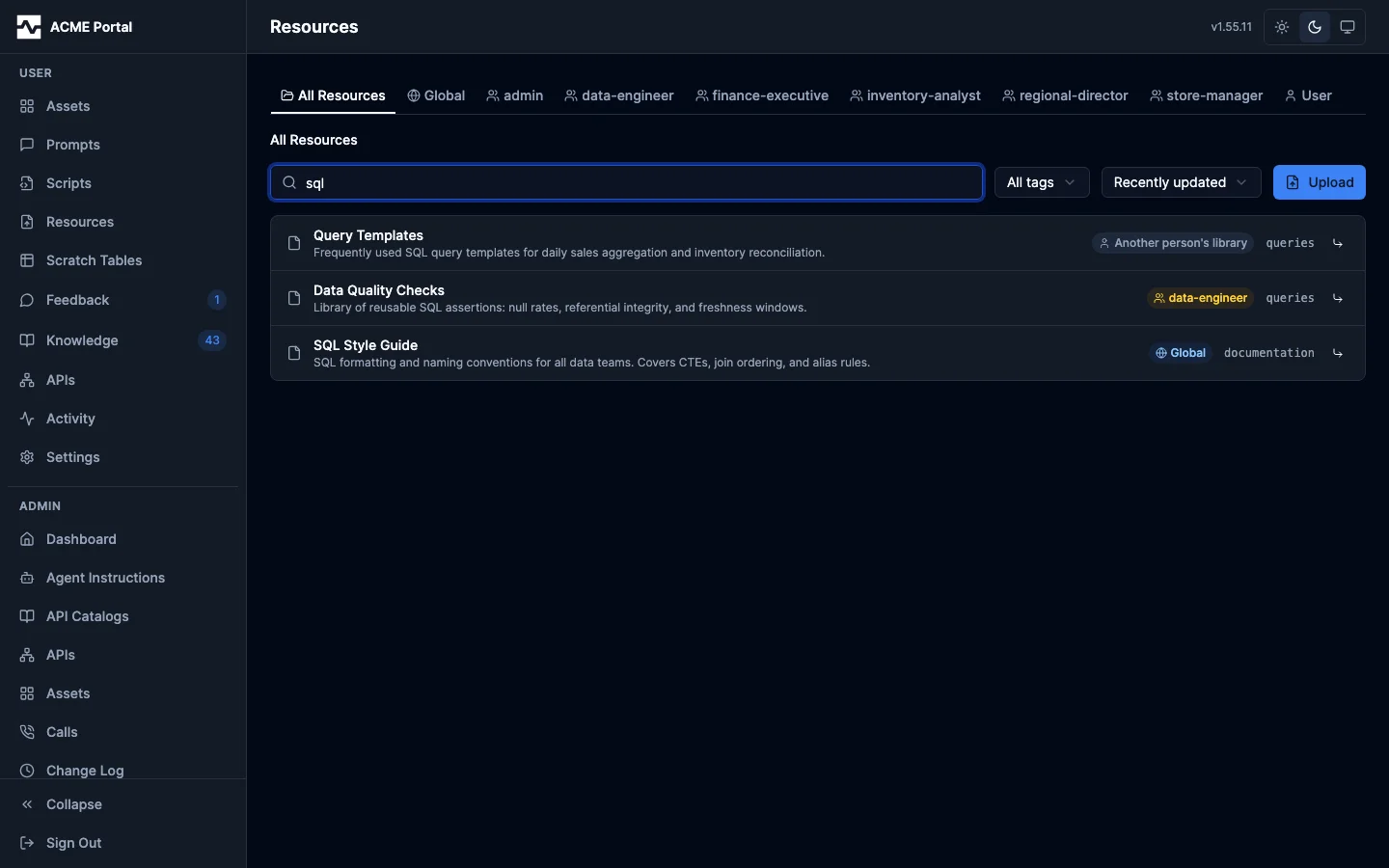
Search spans the whole top-level folder, not the folder you are standing in, and each hit shows its location with Show in folder, which opens the hit's folder in the tree with the hit selected. A search that only looked in the open folder would make the tree worse than a flat list.
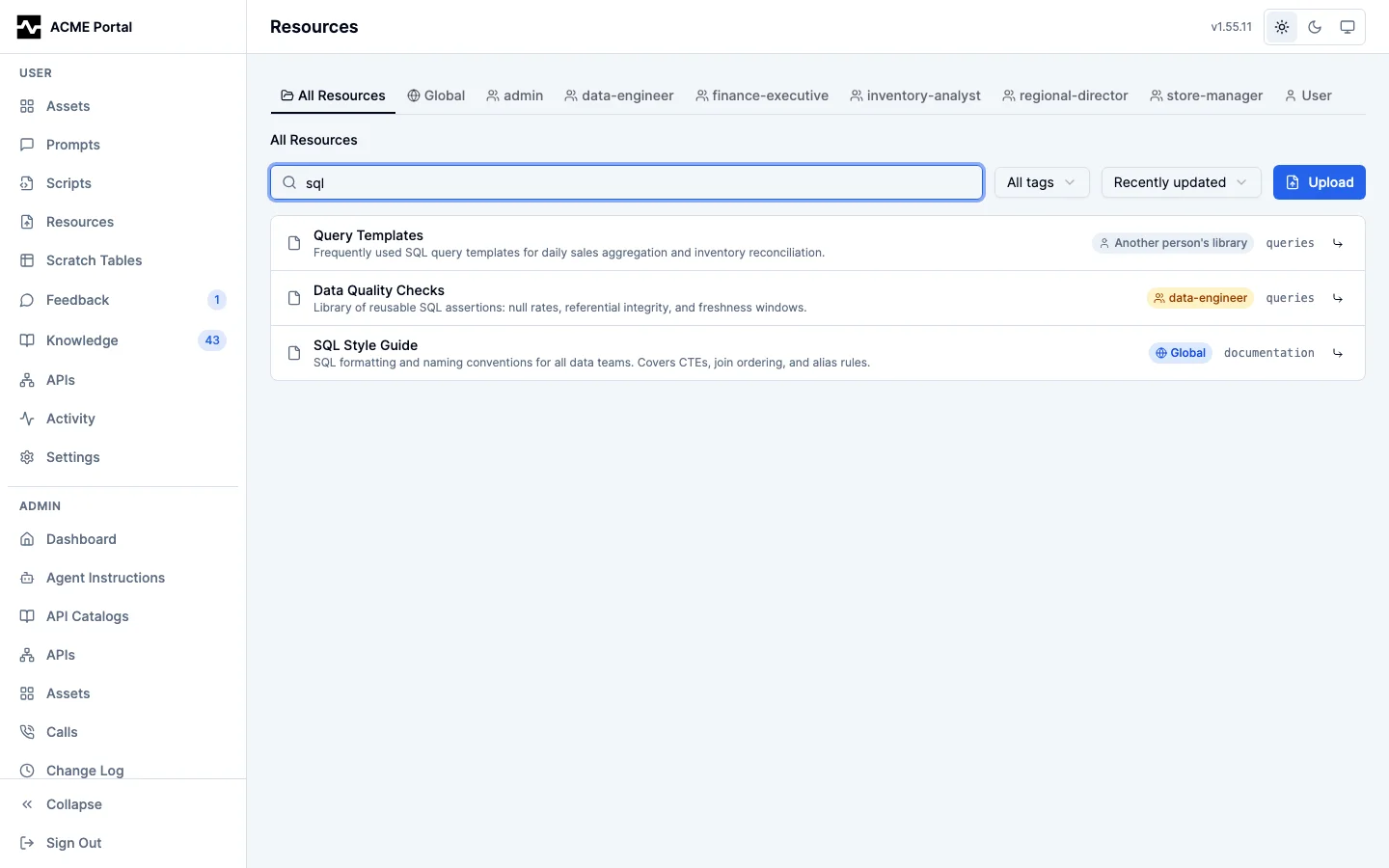
Clicking a file selects it and shows it in the preview pane: its thumbnail, description, location, size, when it changed, who uploaded it, its URI and its tags, with Open, Download and Copy URI. Clicking one of its tags lists every file in the top-level folder carrying it. Selecting several shows their count, their total size and the actions over them; with nothing selected the pane describes the folder you are in. The pane can be hidden, and is off below 1280 pixels of width. A file opens on a double-click or Enter. Every other list in the portal opens its row on a click; Resources is the stated exception, because a file manager selects a file on a click and previews it, and opening ten files one at a time to find the right one is ten round trips.
Thumbnails
A resource's tile is a PNG the platform draws, in the headless Chrome that runs beside it (see Thumbnail renderer), and stores beside the resource's own object. The browser paints the file through the same renderers the viewer uses, so the tile is what the viewer shows. Nobody has to open the library for a file to get one: a new or replaced file is drawn within seconds. Portal assets are drawn the same way.
Anything the viewer renders as a document gets a tile: markdown, CSV, TSV, JSON, NDJSON, plain text, HTML, JSX, SVG, and the code families the viewer lays out — YAML, XML, SQL, Python, JavaScript and CSS. A raster image is scaled to cover the tile rather than displayed at full size, for the formats a browser can decode: PNG, JPEG, GIF, WebP, AVIF, BMP and ICO. A TIFF, HEIC or PSD is never tried, because no browser decodes it. A type is matched whole, by its media type with any parameters removed, or by a +json or +xml structured suffix, and any other text/ type is drawn as plain text. An Excel workbook, a Word document, a presentation, an OpenDocument file and an archive keep their content-type icon: each is a zip container, and before #1882 the Office types were matched on the "xml" inside their names and drawn as the text of their zip bytes. Tiles drawn that way were removed when the platform upgraded. Files are drawn twice so the library looks right in both colour schemes, and the tile shows the one matching the colour scheme you are in: everything drawn onto the platform's own page is drawn on its light and dark background, and HTML and JSX are drawn with the renderer set to each colour scheme, so a document's own prefers-color-scheme styles decide how its dark tile looks. SVG, a PDF page and a raster image are drawn as stored and keep a single image, used in both. An SVG or an image keeps its transparency (#1991). Its transparent areas stay transparent in the tile, and the listing, the preview pane and every card show it on the same checkerboard the image viewer uses, so a white logo made for a dark background is visible in both colour schemes rather than a blank white rectangle. Tiles drawn before this were drawn again when the platform upgraded. Tiles are stored at 800×600, twice the size a card shows them at.
A PDF shows its first page. The tile page rasterizes page one with pdf.js and scales it to cover the tile. Since #1783 the viewer draws a PDF with that same library rather than handing it to the browser's plugin, so the tile and the page a reader opens are rendered by one engine. A PDF is held to a 32 MB bound rather than the 1 MB one most families have, because only its first page is decoded and a single letter page scanned at 300dpi already measures about 2 MB; past that it keeps its content-type icon. A document that is password-protected, or whose bytes are not a PDF, records the reason and keeps its icon.
A CSV or TSV shows its first rows, and is held to the same 32 MB bound a PDF has. A table's tile is its header row and the ten rows under it, so the platform hands the renderer the head of the file and nothing else -- cut at a record boundary, so a cell holding a line break is never torn. The tile is the one it has always been; what changed is that the file no longer has to be small to get it, which is why a 5 MB export now tiles beside the 7 KB one (#1802).
Anything larger than 1 MB keeps its content-type icon, apart from those three families, as do audio and video, which have no page to draw.
That list is the same one portal assets are drawn under, and it is the same table the viewer decides how to present a file with: if a browser can render it in the viewer, it can have a tile. It is written once per language — one Go definition and one browser definition, held to each other by a test — because it used to be written out four times and the four had stopped agreeing.
Before this the tile was the file: an image was fetched at full size and scaled down by the browser, anything past a size cutoff drew nothing at all, and a library of documents — PDFs above all — was a wall of identical icons. Reading a stored tile costs a few kilobytes instead of a few megabytes.
A tile records the moment of the file it was drawn from. When a resource's content is replaced the tile is older than the file, and the platform draws it again; the old tile keeps showing until the new one lands, because one revision behind is worth more than no image.
A tile that is wrong can be replaced. The Thumbnail panel in a resource's sidebar shows the stored image and offers Recapture: it discards both variants and the platform draws the file again. It is there for whoever may change the file — its uploader, and anyone who may add to the library it is in — and for a type something draws; there is no tile for anyone else to be wrong about.
A file the renderer could not draw says so on the panel, with the reason the renderer gave, and offers Try again. The panel says which part failed: the light tile is drawn first and kept when the dark one fails, so a file can show its light tile beside a note that the dark-mode picture could not be drawn. The platform does not try the same content again on its own, so one file that cannot be drawn does not hold up the rest; replacing the content tries again. While a tile is being drawn, Recapture is unavailable.
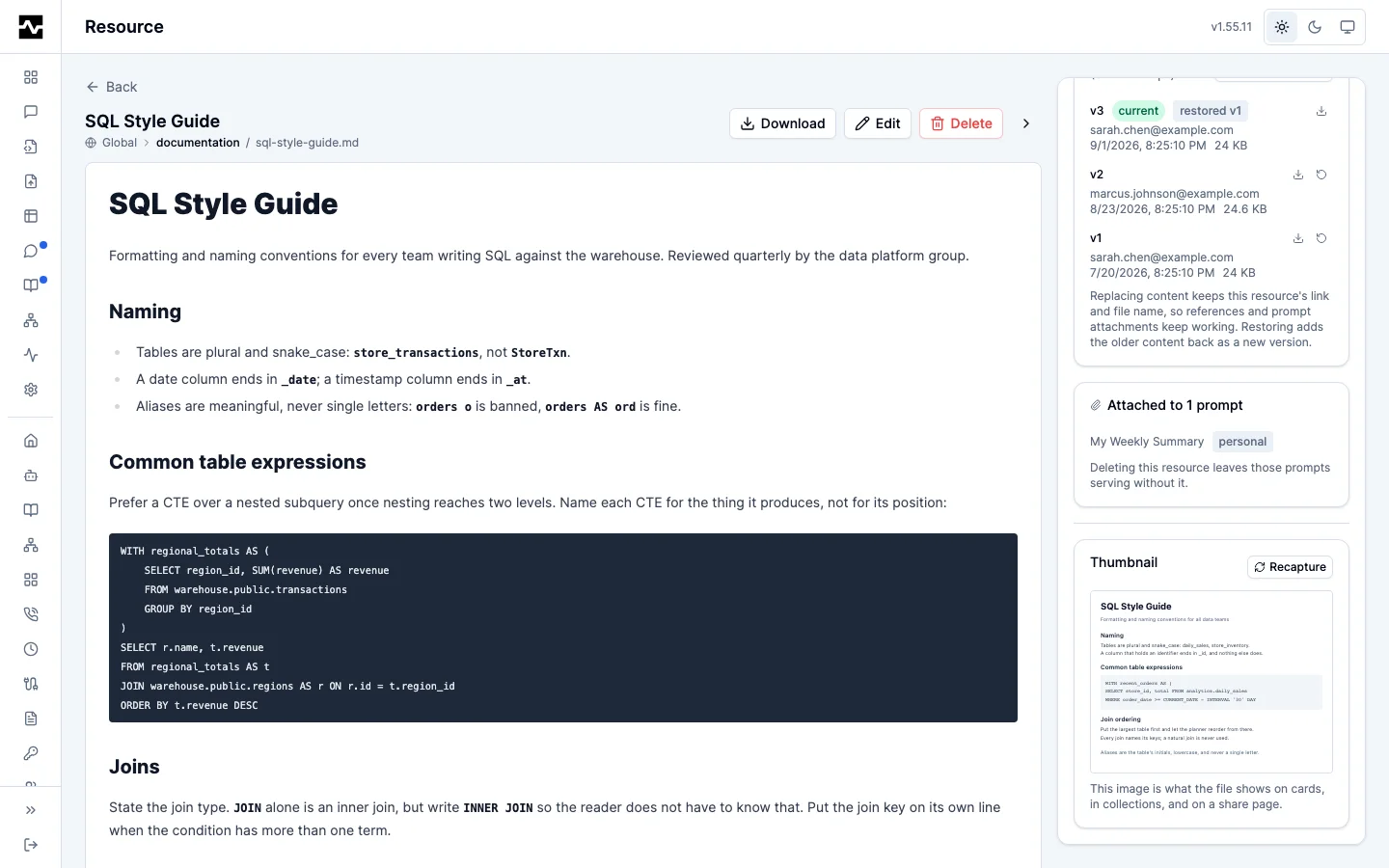
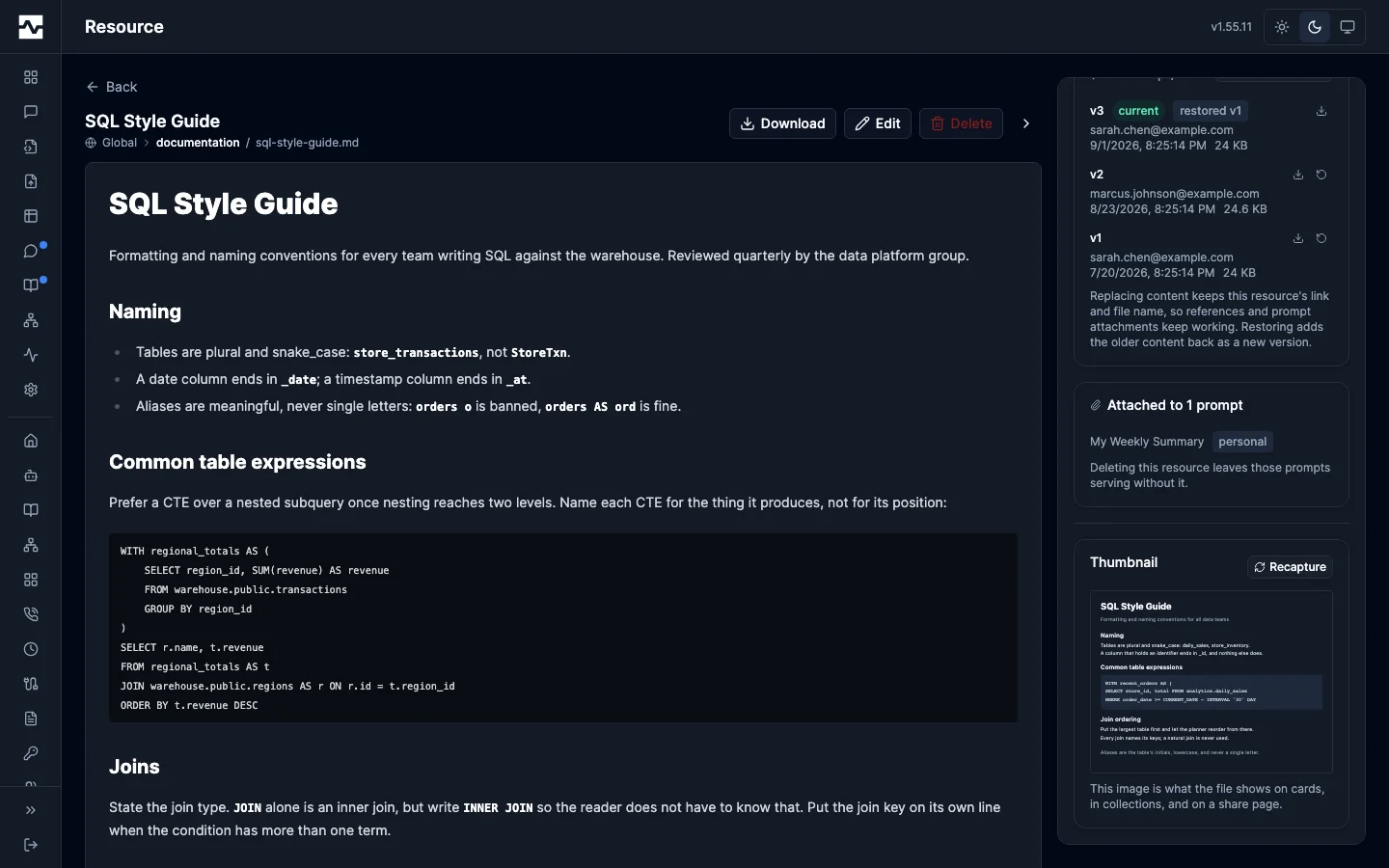
Drawing an image tile is a real read of the bytes, and it is audited as one — under its own portal_preview surface, the only one that does not stamp the resource's last-read time. Browsing a library of photographs therefore cannot clear the never-read flag on every image in it or reorder the Recently read sort (Resource reads).
Acting on several files, and on a folder
Selection works the way it does in a file manager: a click selects one row, Shift-click selects the range from the last row clicked, Cmd- or Ctrl-click adds or removes one, Cmd- or Ctrl-A selects everything in the folder, and Escape clears. The checkbox column does the same thing with the mouse alone. A bar above the listing offers Move to, Tag and Delete over the selection. Each file is its own request, so the ones that could move do, the ones that were refused stay where they were, and the report names what happened to each. Move to picks the destination from the top-level folder's tree and states it as a path. Tag adds to whatever each file already carries rather than replacing it, and a selected folder stands for every file inside it. Re-filing forty resources used to mean opening forty Edit dialogs.
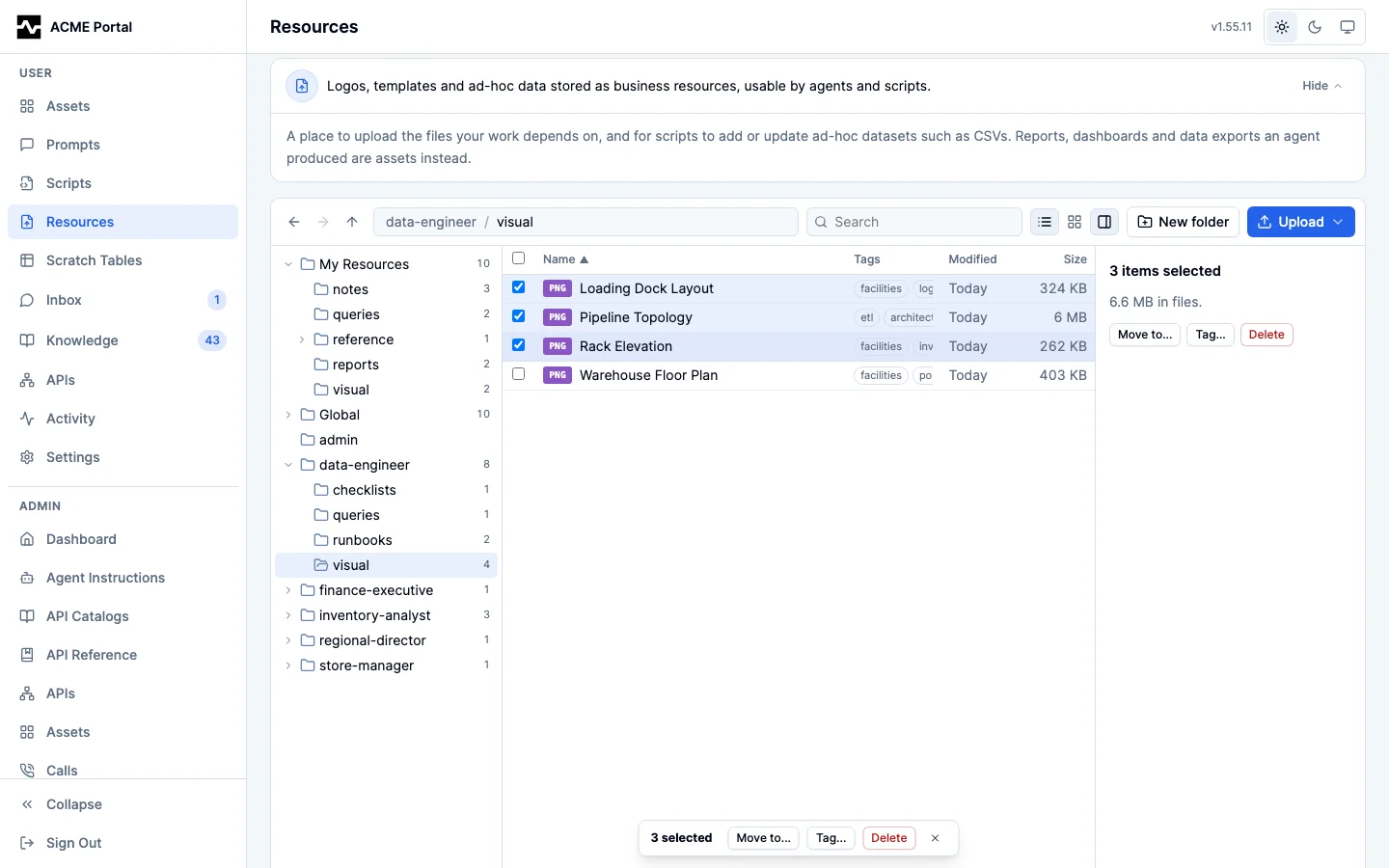
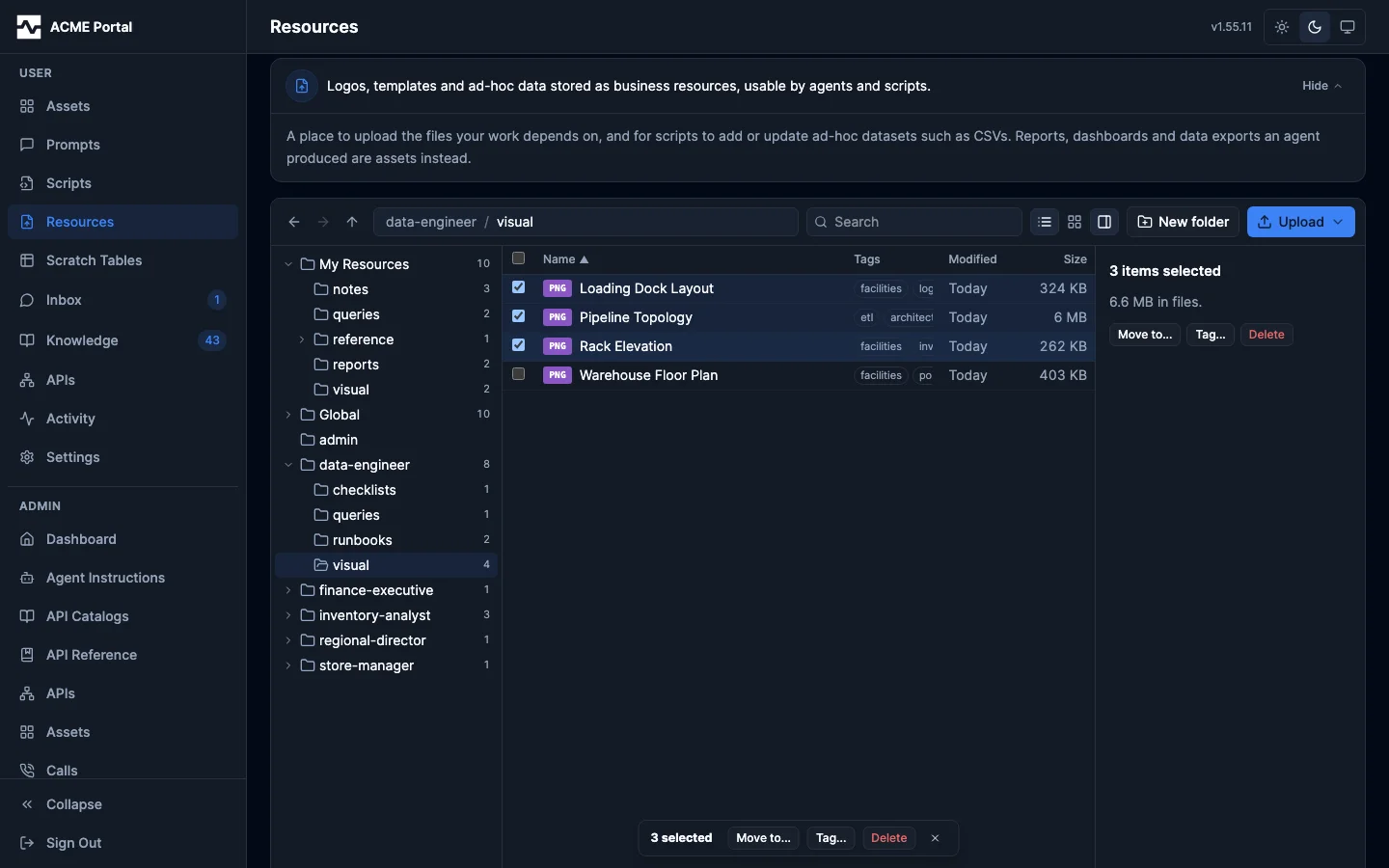
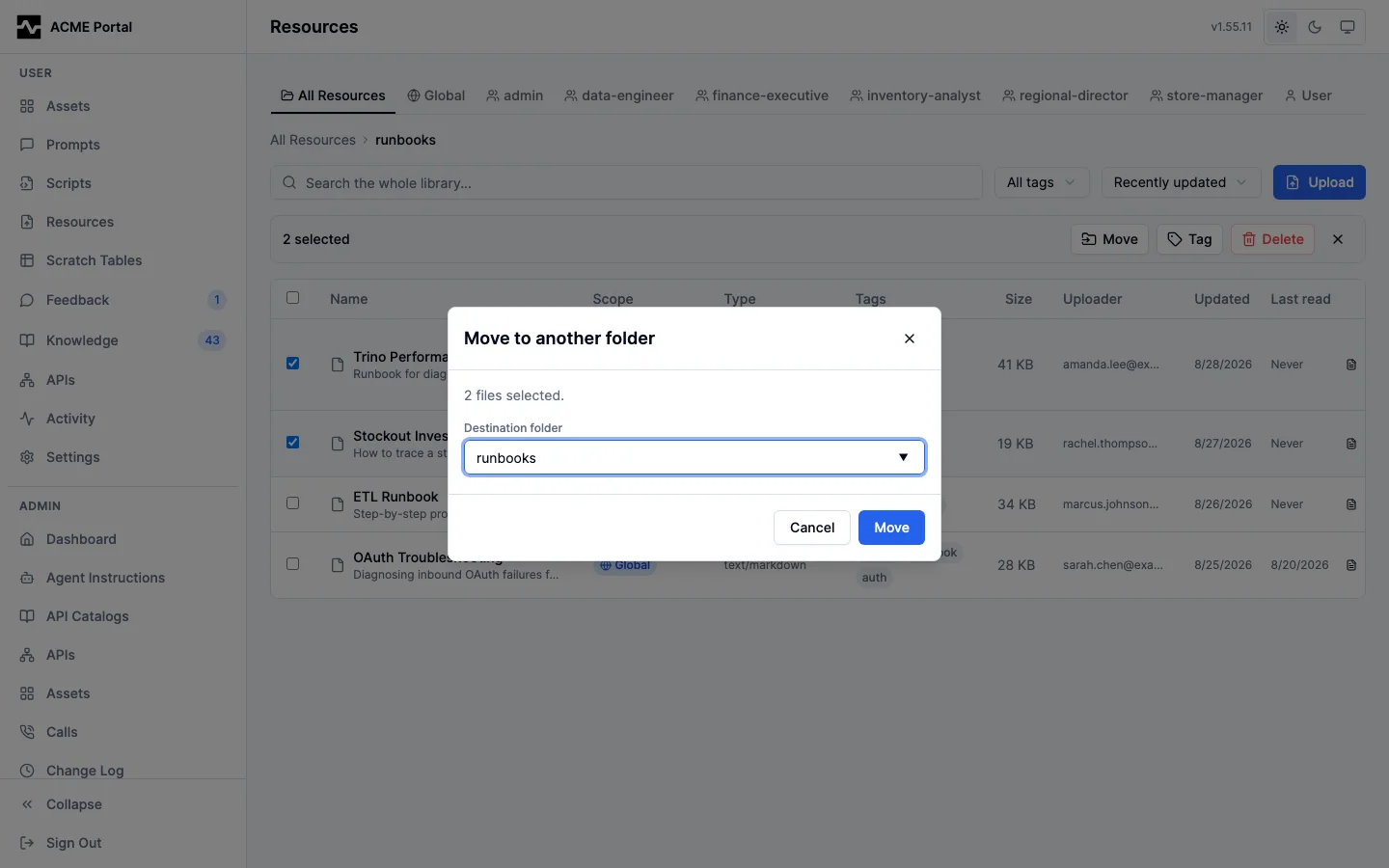
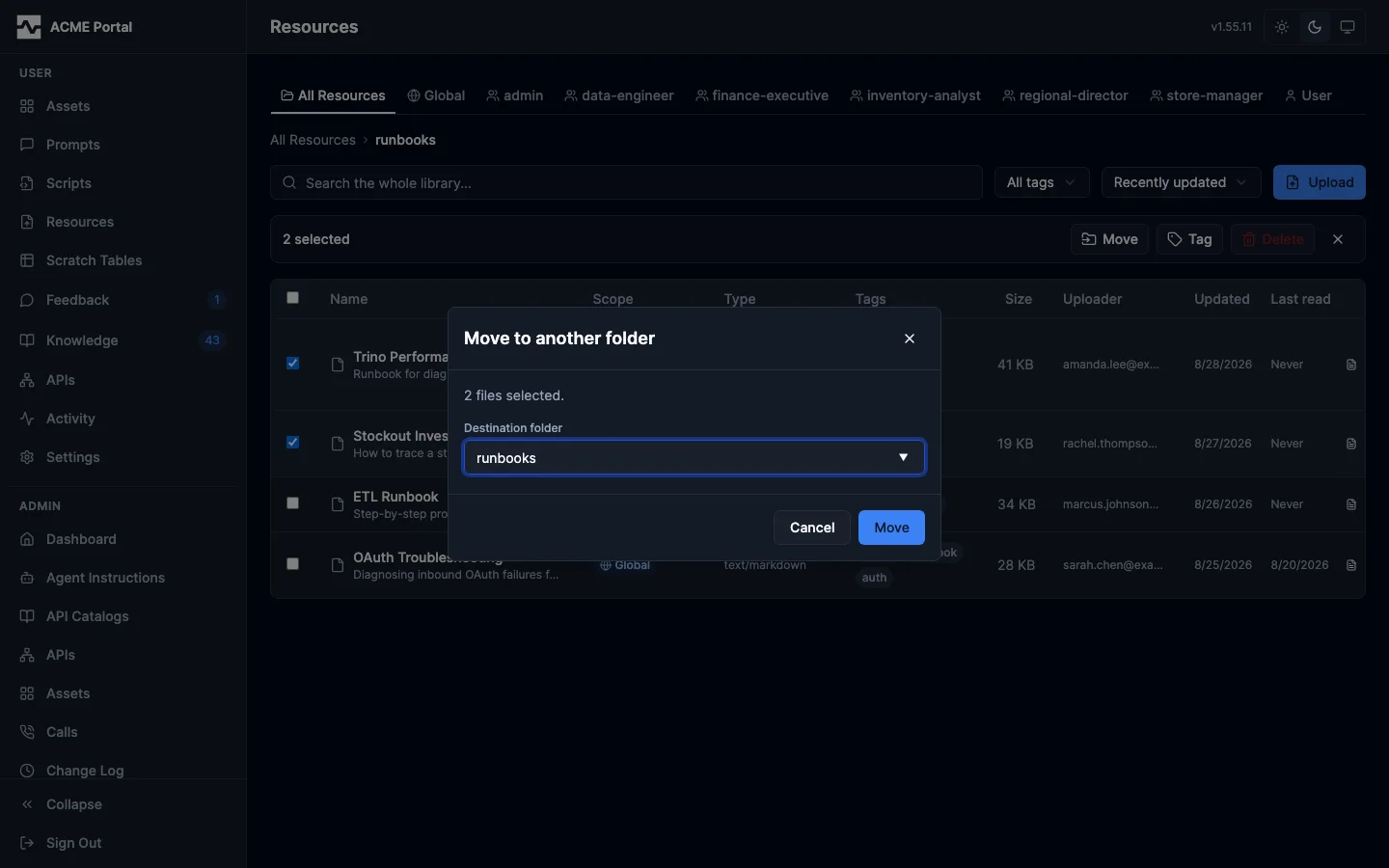
Rows dragged onto a folder row, a tree node or a segment of the path move there, within the same top-level folder. The move happens on the drop and the notice it leaves has Undo, which puts every moved file and folder back where it was. Files dropped from the desktop upload into the folder they were dropped on.
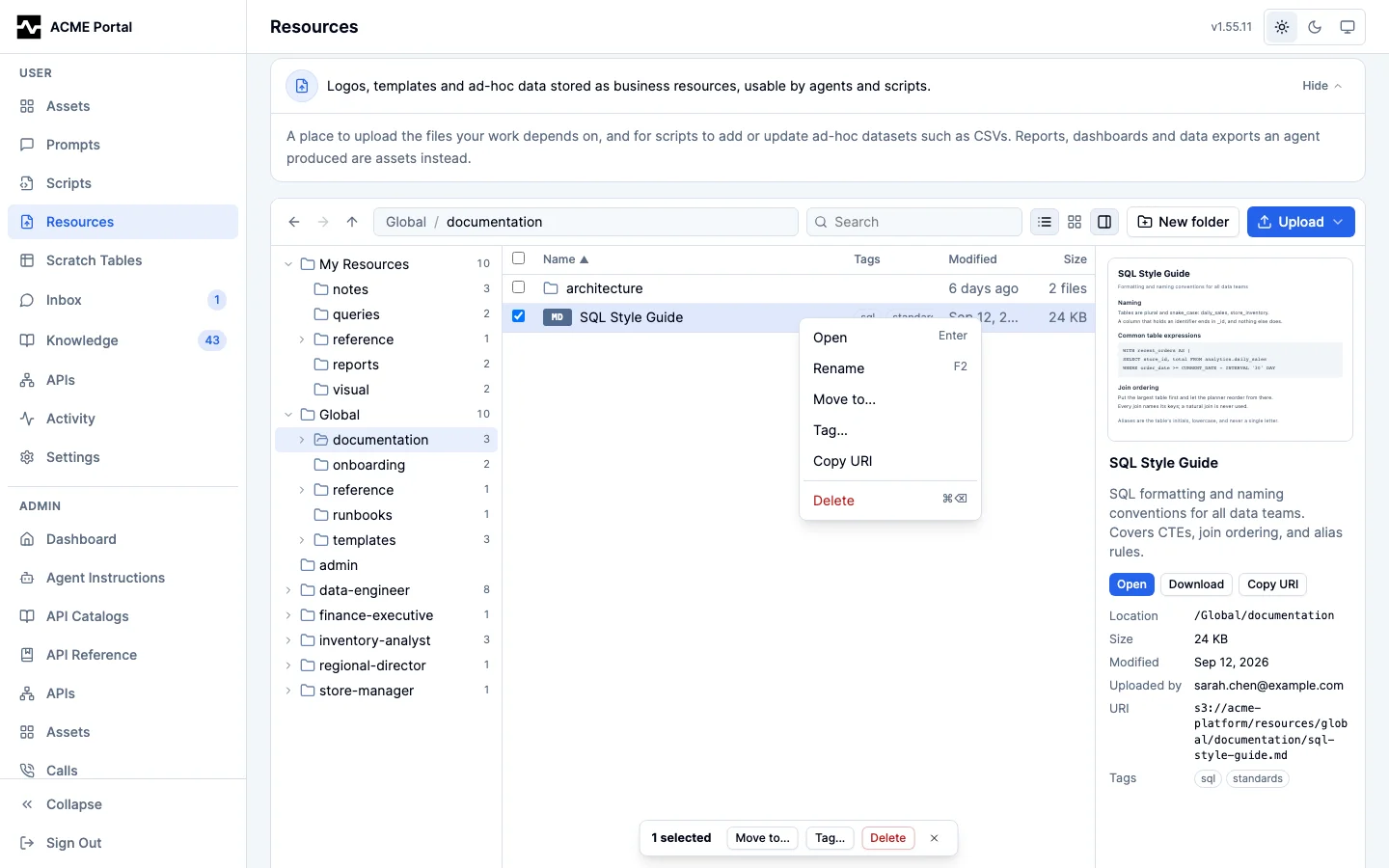
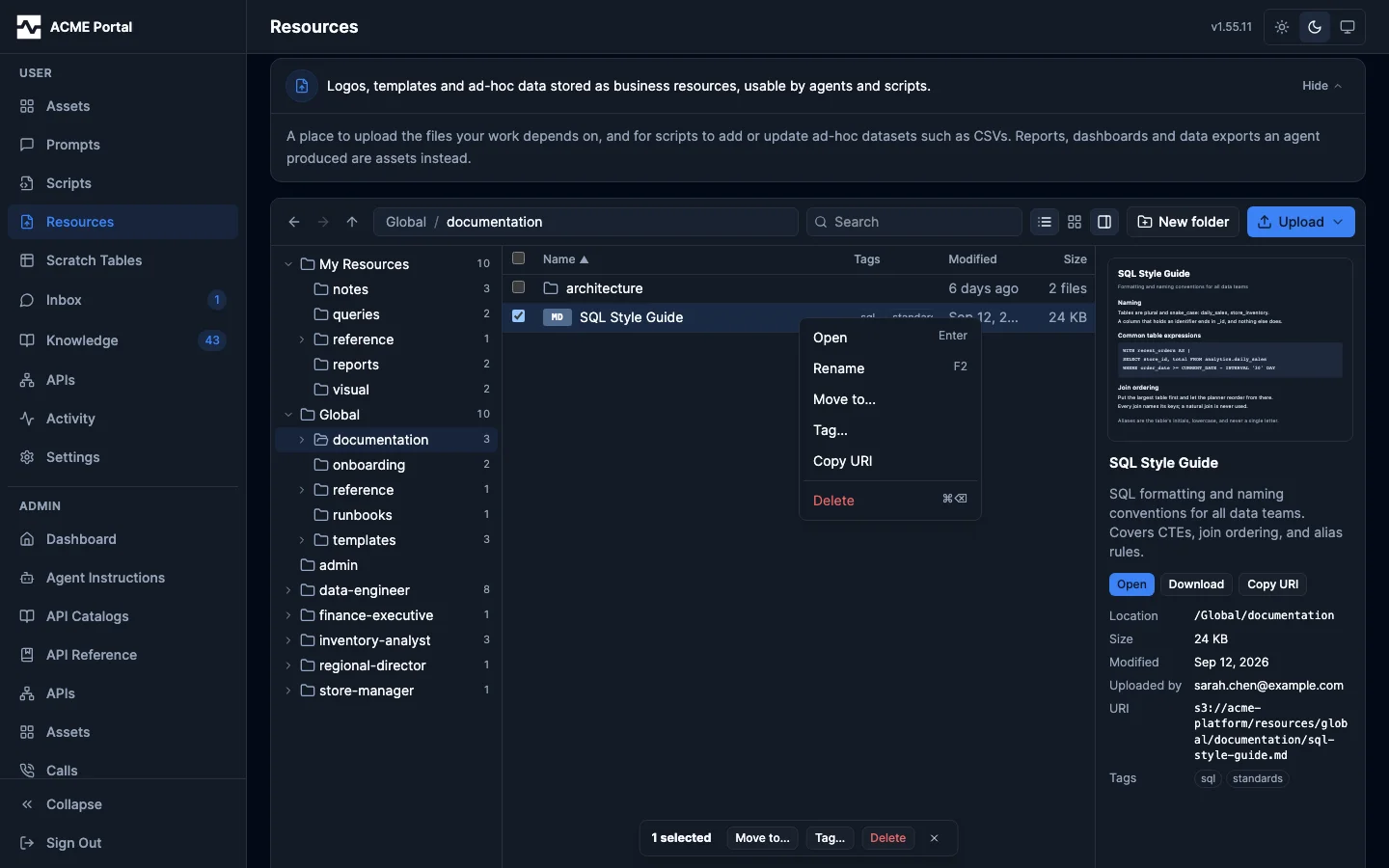
Right-clicking a row opens a menu with Open, Rename, Move to, Tag, Copy URI and Delete; right-clicking empty space offers New folder and Upload here. F2 renames the selected row in place: a file's name, or a folder's last segment. The keyboard follows the same model: Up and Down move through the rows, Shift extends the selection, Enter opens, Backspace goes to the enclosing folder, and Cmd- or Ctrl-Backspace (or Delete) deletes.
Delete on a selection that includes a folder names everything that will go before anything does. The dialog opens at once and counts the files inside the folder itself, showing Counting files... with its Delete button held until the count is in, and a count that fails is shown in the dialog with Retry. It then deletes each file inside the folder through the same route a single delete takes (its stored content and versions go with it), and finally the folder, which the server removes only once nothing is filed in it (DELETE /api/v1/resources/folders). A folder whose files could not all be deleted stays, with the reason in the report. New folder records an empty folder (POST /api/v1/resources/folders), and needs the same authority an upload into that top-level folder does.
Renaming a folder, or nesting it under another, rewrites the path of every resource beneath it, and of every stored folder beneath it, at every depth, in one transaction: a half-renamed folder is not a state anyone can observe. Each of those resources records the address it left, so a citation written against the old address keeps resolving. The whole move is refused if any destination address is already taken, if you cannot change one of the files beneath the folder, or if it would put a folder inside itself — and a refusal moves nothing. One rename covers at most 500 resources; a larger subtree is refused with its true count rather than moved in part, and is moved a subfolder at a time.
The Resources page provides:
- Folder tree: My Resources, Global, each persona you can read, and, for a platform administrator, People; counts, the current folder highlighted, keyboard navigation
- Path bar: Back, Forward and Enclosing folder, the location as clickable segments that also take a drop, search, the rows/tiles switch, the preview pane toggle, New folder and Upload
- Listing: folders then files in one table with sortable Name, Modified and Size columns (and Last read for an administrator), or as tiles
- Preview pane: the selected file, folder or selection, with its actions
- Selection: click, Shift-click, Cmd/Ctrl-click, Cmd/Ctrl-A and the checkbox column, with Move to, Tag and Delete over what is picked
- Drag and drop: rows onto a folder, a tree node or the path to move them, with Undo; files from the desktop to upload them
- Context menu and keyboard: Open, Rename (F2), Move to, Tag, Copy URI, Delete; New folder and Upload here on empty space
- Status line: the folders and files at this level, and the selection's count and size
- Top-level folder on the Edit dialog: moves a resource to another top-level folder you may put it in (Moving a resource to another library)
Administrators can open, edit, and delete any resource by id, including persona material they do not belong to — otherwise an admin could upload a persona resource and then be unable to manage or remove it. Listing follows the same rule: a library an administrator may write is a library they may list, and their unnarrowed listing spans every library in the deployment. Anything less made the material they had just uploaded unfindable. What search ranks stays membership-scoped whoever asks: an administrator's discovery is not widened to every persona's library, because a search hands a caller material they did not ask for by name. Dereferencing a file the caller did name is a different question, and fetch answers an mcp:resource: reference on the same rule the by-id routes use, so an administrator is not told a file does not exist while the same session can download and replace it. resources/read remains membership-scoped. Every other caller's listing is unchanged: their own library, the personas they belong to, and the global one.
Opening a resource shows which prompts attach it as reference material. Deleting a resource that prompts depend on does not break them: they keep serving and report the material as missing, and the prompt viewer flags the broken link so its author can repair it.
Used by lists the assets whose content references the resource, and flags any of them carrying a public share link — a reference gives the file that asset's audience, so an asset anyone can open makes the file readable by anyone holding the link. Referencing assets you cannot open are counted but not named. Deleting a resource assets reference warns and names them first; the assets keep rendering, with that one file missing.
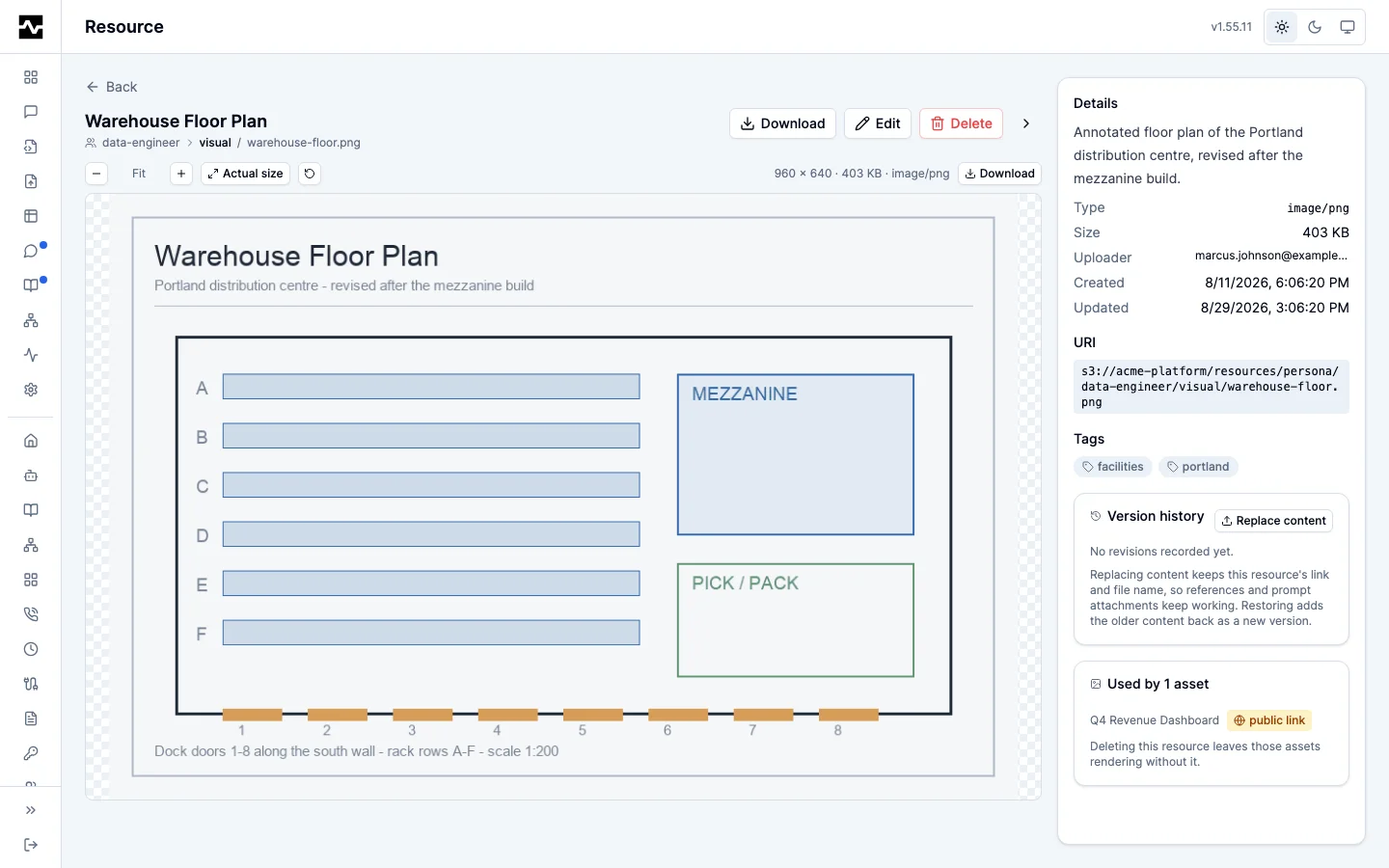
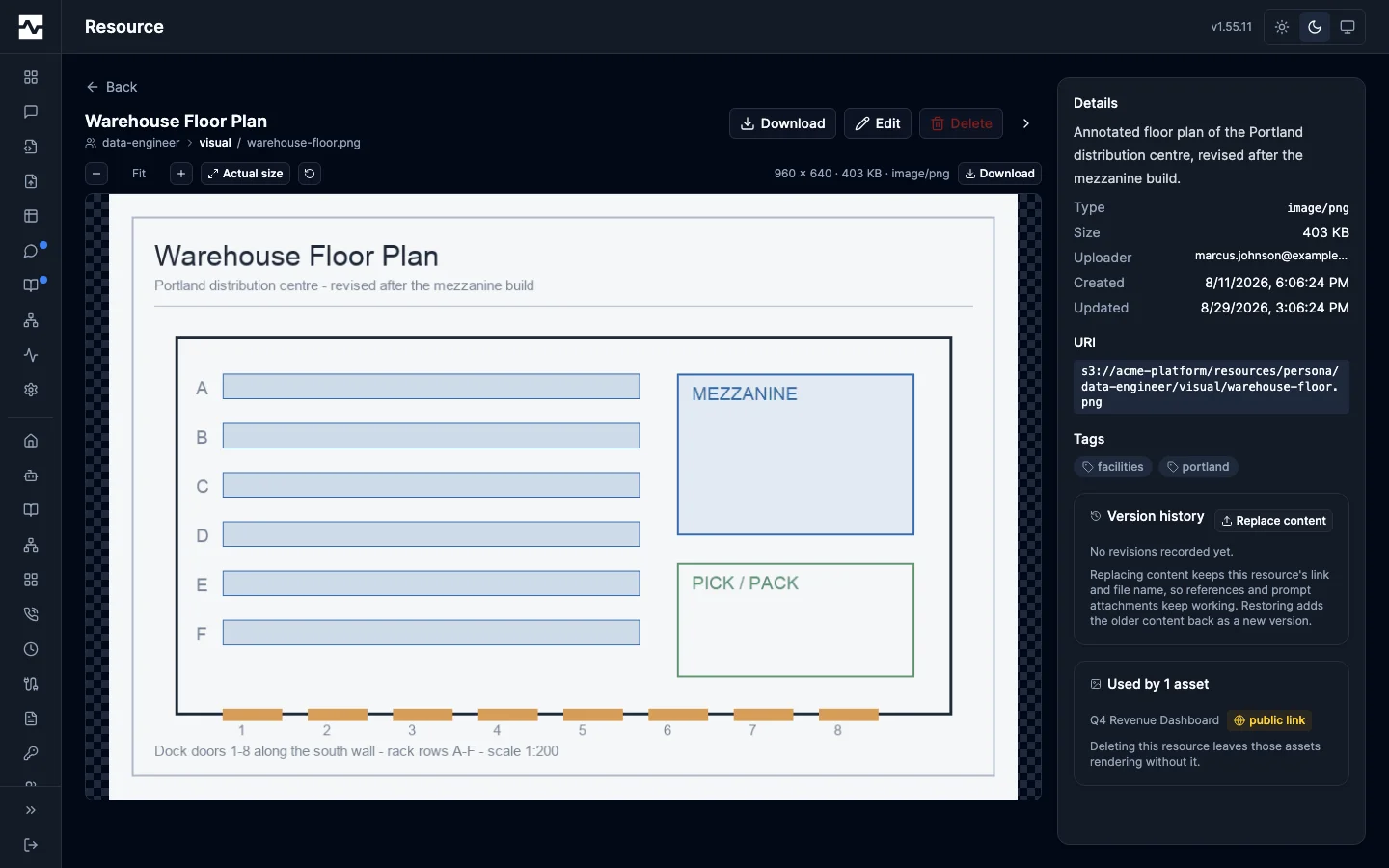
Written by lists what has written the file: every managed script, agent session and person that created or modified it, most recent writer first, each marked as having created the file or having only modified it. A script and a session open on their own page.
Until this existed a resource recorded only its uploader, and for a managed-script run that was the script's name — so renaming the script severed the link, and a script that replaced the content of a file somebody else uploaded left no trace at all. Both are now recorded: a script is identified by its id, so a rename changes only what the row displays, and a file with two writers lists two.
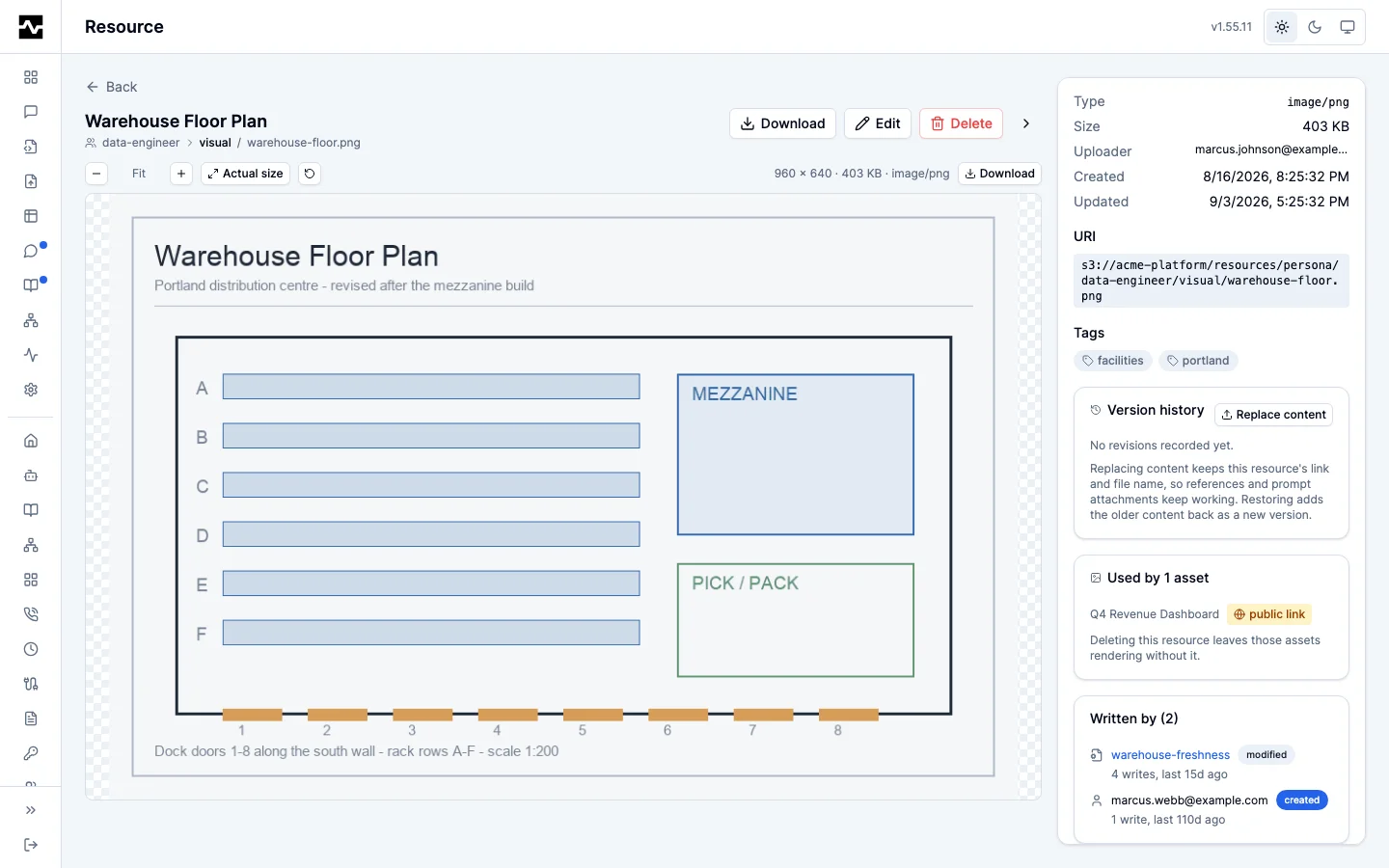
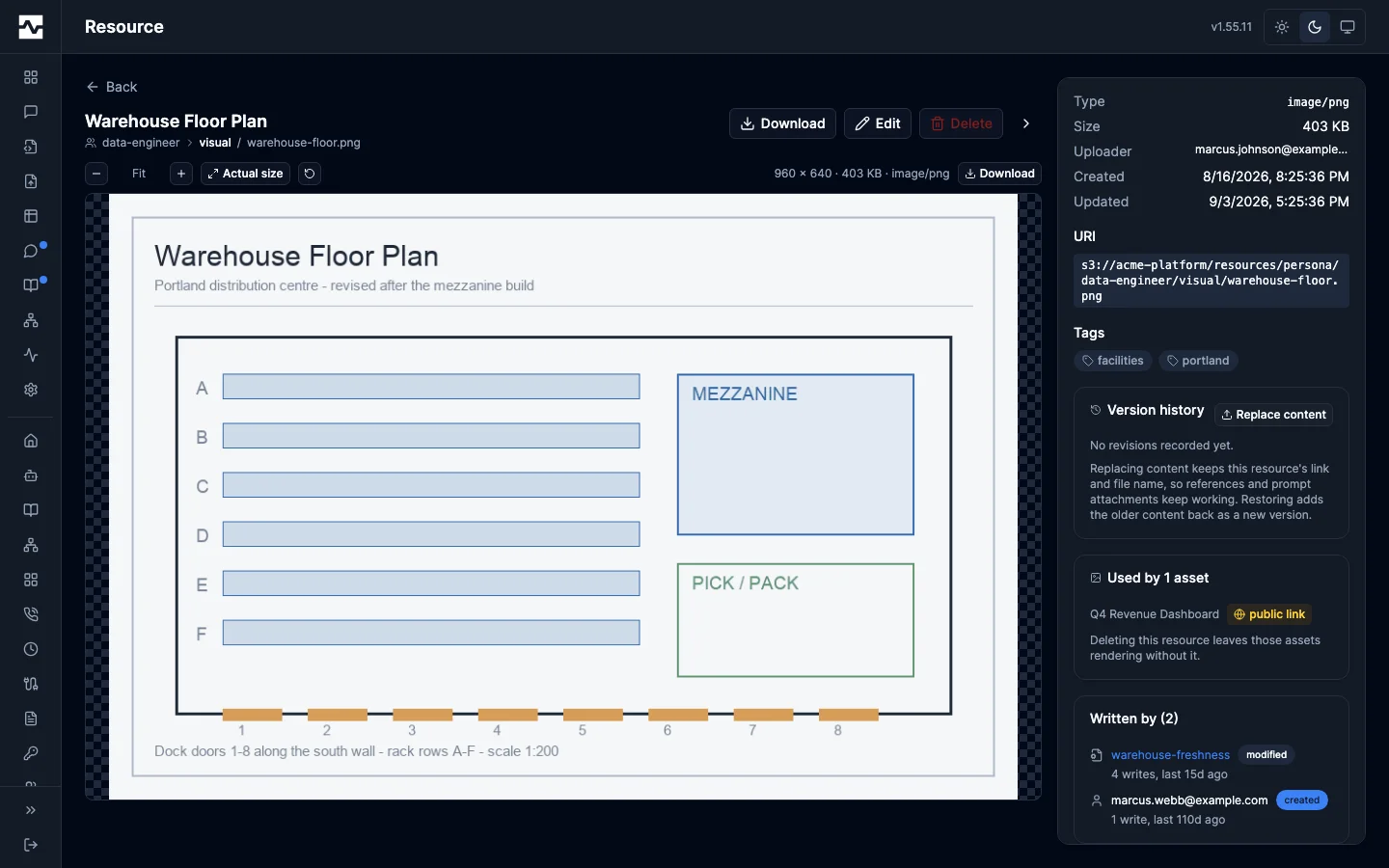
A file uploaded before this shipped shows no panel rather than a guessed writer. The one case the platform can derive without guessing is a resource a managed script uploaded, where exactly one script bears the name it was filed under.
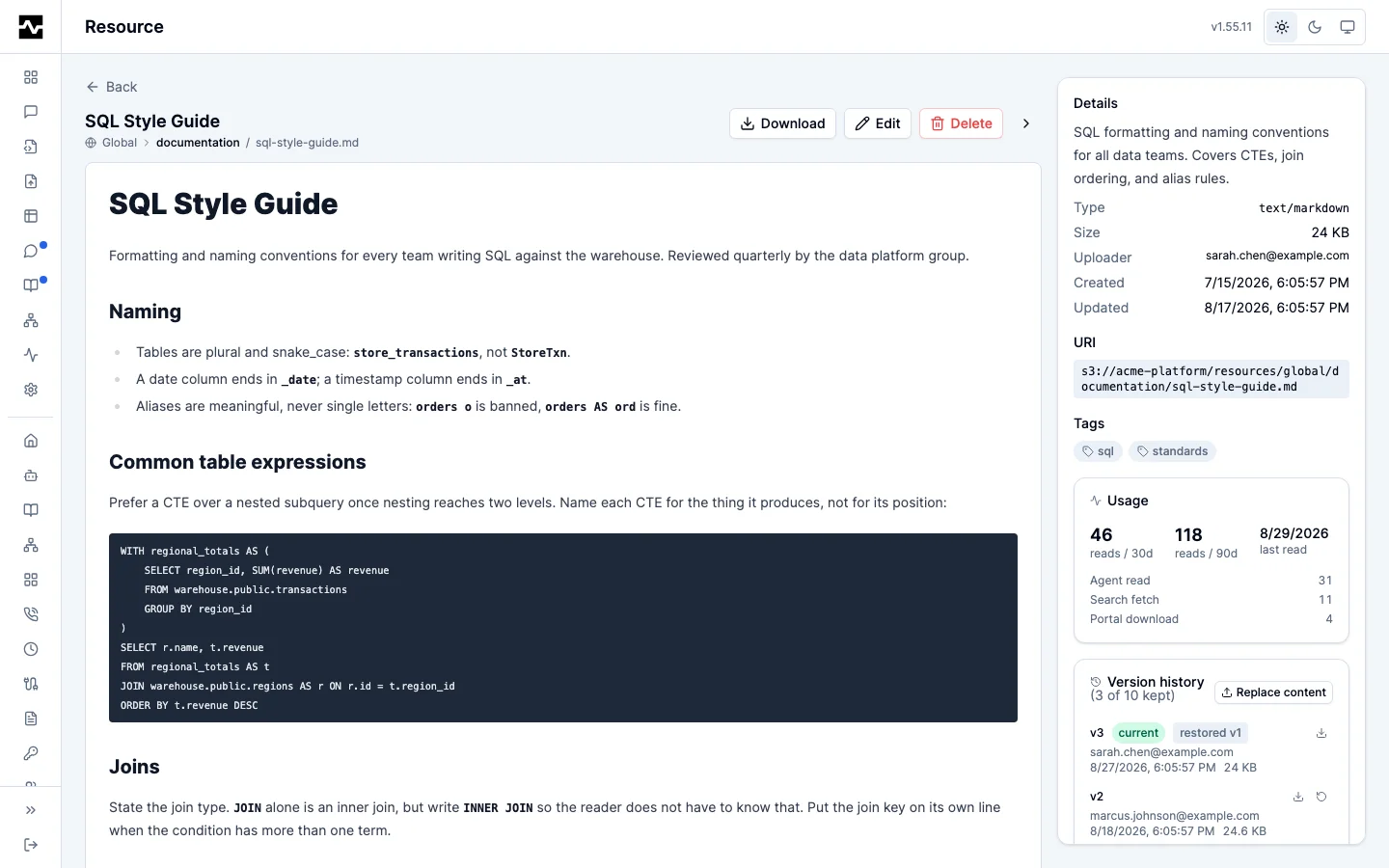
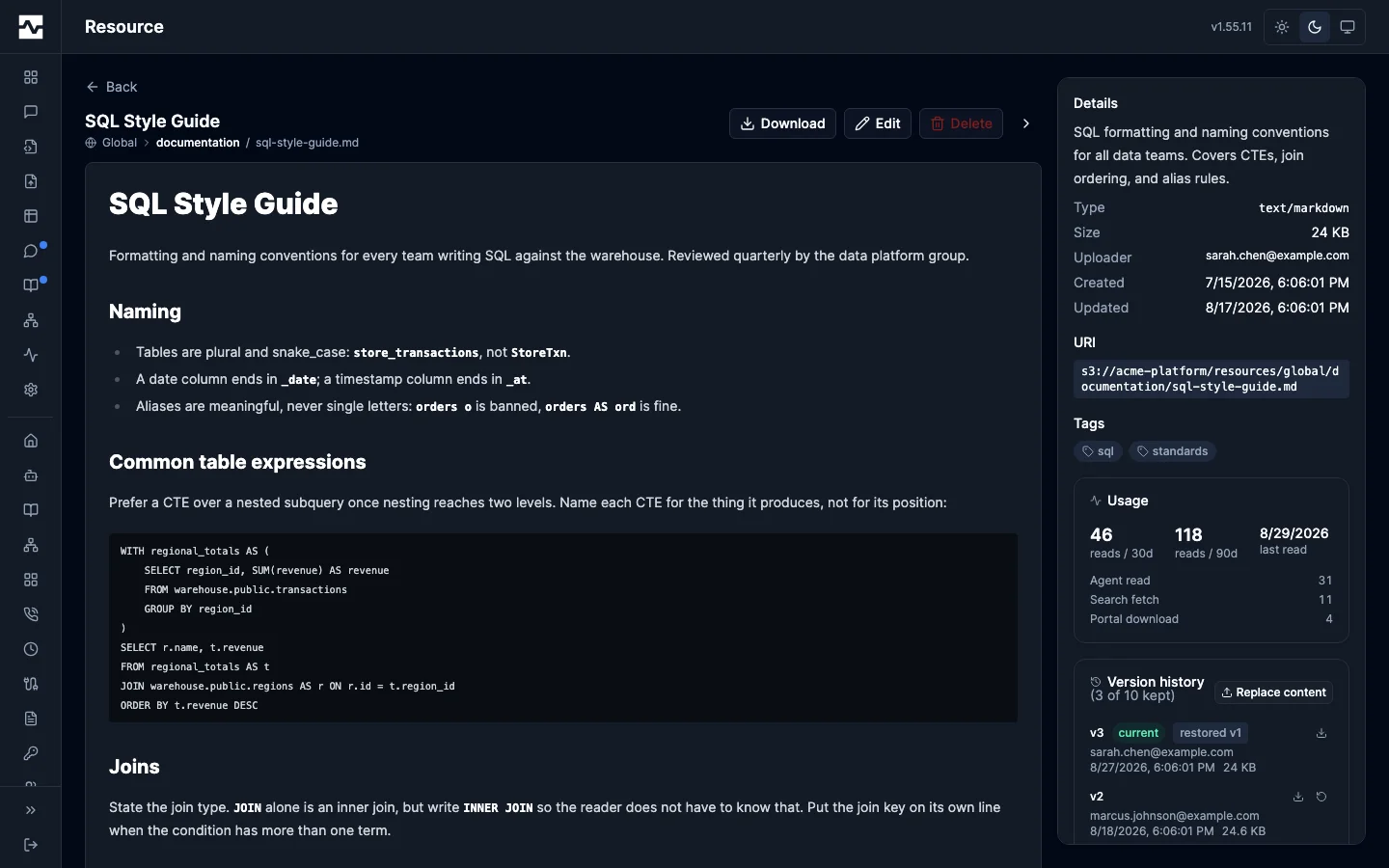
Opening a file (double-click, Enter, or Open in the preview pane) shows the resource at /resources/{id} — /admin/resources/{id} in the administrator's section — so a resource can be linked to, bookmarked, reloaded and opened in a second tab, and Back returns to the folder and the search it was left on. The page takes the same shape a portal asset takes, because a resource is the same kind of object: the content at the full width of the page, and what the resource is beside it — its library, its folder path as a clickable trail back into the library, metadata, canonical URI, tags, read activity, revision trail, table registration, and the prompts that attach it. Download, Edit and Delete are in the page header, so a long document or a deep revision trail never pushes them off the screen. Editing and deleting are still dialogs; they are bounded forms.
Moving a resource to another library
A resource's library used to be chosen once, on the upload form, and never again. The only route from a personal library to a shared one was to upload the file a second time, which mints a second id, a second URI and a second blob, leaves the original in place, and gives the two copies separate version trails, while every asset and prompt that already referenced the first one keeps referencing it.
Top-level folder on the Edit dialog moves the file instead. It offers the libraries you may put it in and nothing else, and it is absent when there are none:
- Your own library, always.
- A persona you belong to. This is looser than uploading, which needs that persona's
persona-admin:{name}role: putting new material in front of a persona's members is the persona administrator's call, while moving in a file you already own and will read yourself is not. - Every persona, the global library, and a named person's library, for a platform administrator. These are offered wherever the dialog is opened from, on your own Resources page and in Admin > Resources alike: the authority is the administrator's, not the page's, and the server grants every one of these targets whichever route the request arrives on.
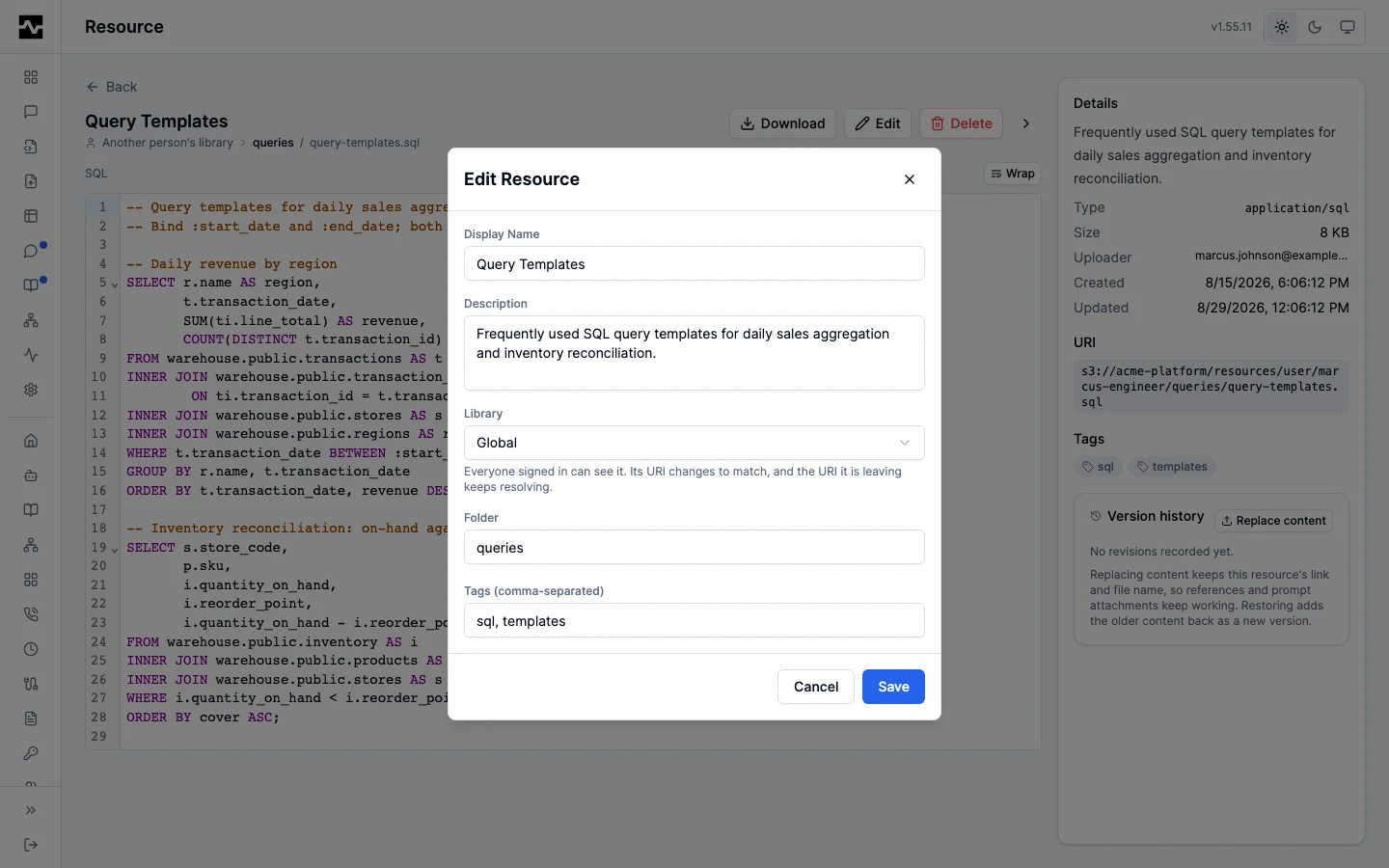
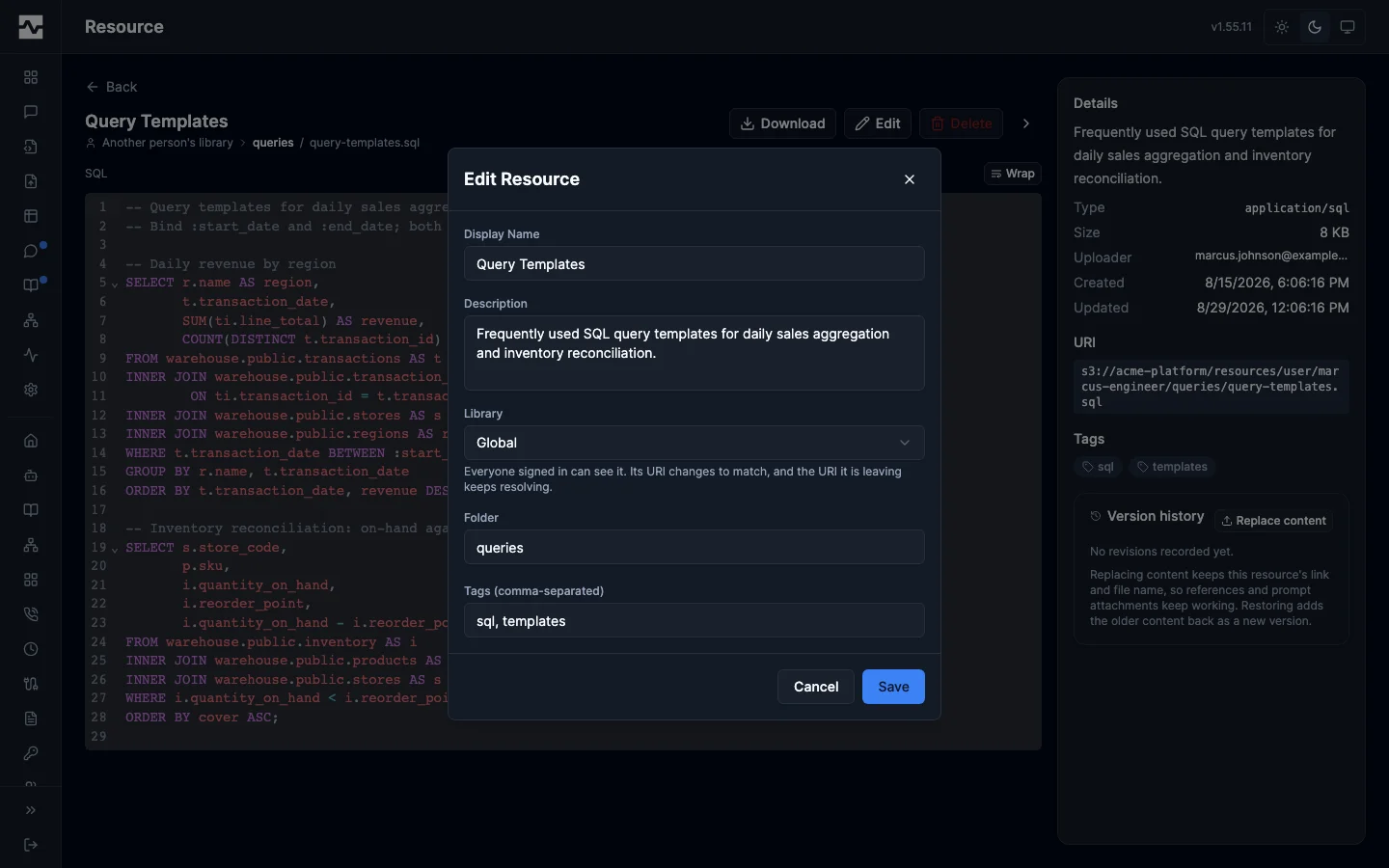
The move rewrites the resource's row, not its content: the id, the stored file, the version trail, the table registration and the read history are all unchanged, and the blob is not copied. What does change is who can see the file and what it is called. The canonical mcp:// URI names the library the file lives in, so it is rewritten to match — a file published to everyone whose URI still read mcp://user/<sub>/... would be a URI that lies.
Nothing that already points at the file breaks, and nothing that writes it stops. An asset that references it and a prompt that attaches it both record the resource's id, and the reference keeps the URI exactly as its author wrote it, so both keep rendering. A scheduled script that refreshes the file goes on refreshing it: the move rewrites where the file is filed and never who uploaded it, so whoever may replace its content before the move may after it, and so may their scripts (Managed scripts). Text that hard-codes the old URI — a knowledge page, a script, a prompt's prose — resolves it by address rather than by id, and that keeps working too: every address a resource has answered to stays resolvable, and a live address always wins over a vacated one, so a file uploaded into the address you left is reached by its own URI and not by the alias.
A move into a library that already holds a file at that folder and name is refused, naming the file it collides with, and changes nothing. The move is recorded in the audit trail with who moved what, out of which library and folder and into which (Resource moves).
Changing the folder works the same way and is the other half of the same address. Editing it rewrites the URI's path exactly as a library move rewrites its prefix, records the address vacated, and refuses a collision by name; a library and a folder changed in the same save produce one URI carrying both, one alias for the one address left, and one audit event. Before this, editing the folder changed where the portal filed the file and left the URI alone, so a resource's own page printed two different paths for it — the breadcrumb from one column and the Details panel from the other.
Agents do not move resources. manage_resource writes, reads and removes files where they are; deciding that a file becomes a persona's or the whole platform's is a human act, and nothing an agent does needs it.
Revising a resource's content
Scrolling the sidebar reaches the rest of the lifecycle surfaces: the read-activity rollup, the version history described below, the prompts attaching the resource, and the assets referencing it.
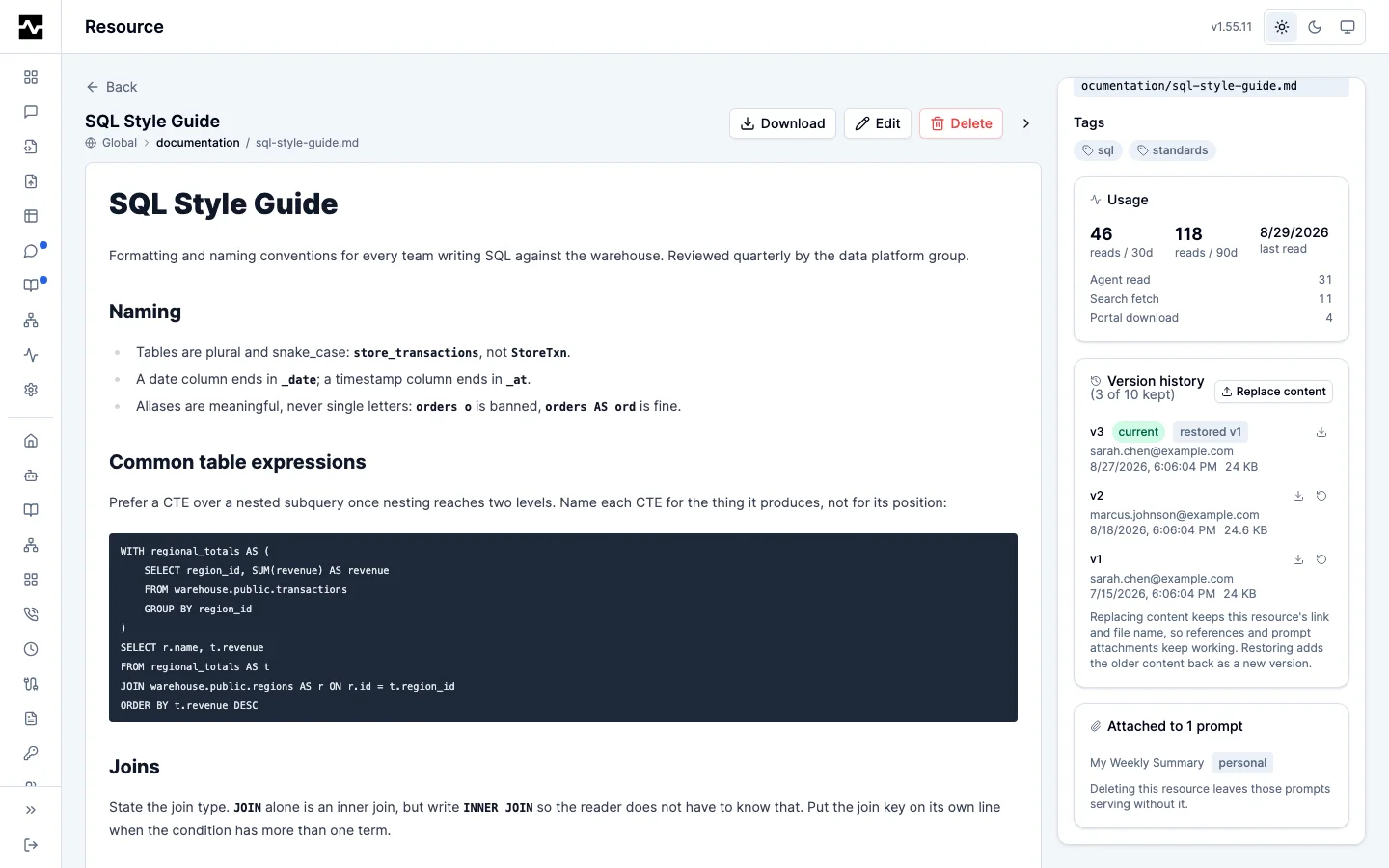
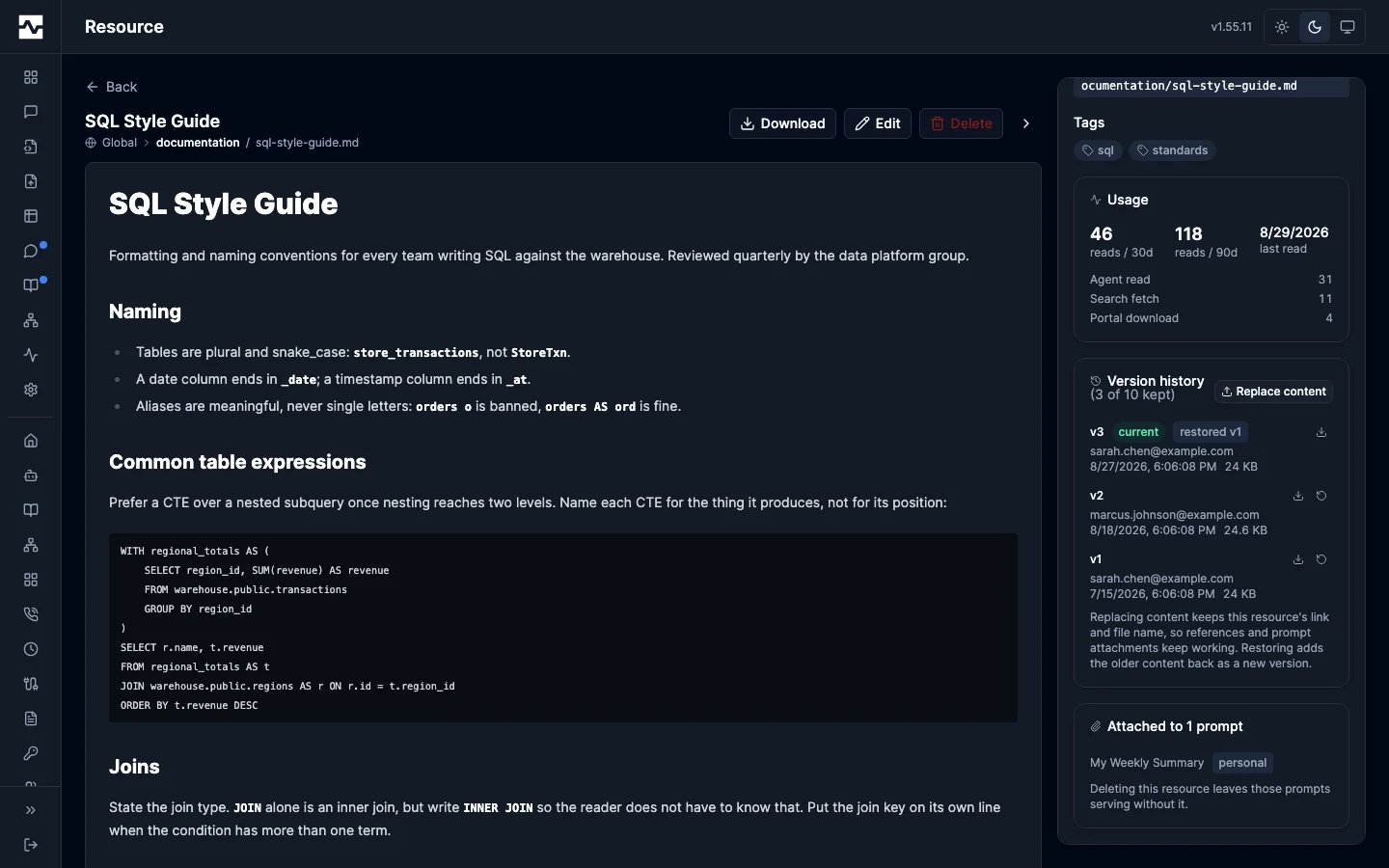
Editing the file in place. A text resource — CSV, JSON, Markdown, YAML, SQL, anything the viewer can show as source — carries a Preview / Source switch above its content for whoever may change it. Source opens the same editor the asset viewer uses, and Save writes what you have typed as the next version of the file. Nothing else about the resource moves: the id, the canonical mcp:// URI and the file name are what they were, so every citation and prompt attachment pointing at it keeps resolving. The version it writes says edited in the portal, which is how Version history tells an edit apart from a file somebody picked off disk. The switch is absent for a reader who may not change the file, for a family that is not text (an image, a PDF), and for a file past the inline preview limit, which is too large to load into an editor; those are replaced rather than edited.
The button beside Download is Edit details — the display name, description, library, folder and tags. It has always edited the record rather than the file, and was called Edit until #1775, where somebody looking at their own CSV pressed the only control by that name and could not touch the contents.
Replace content on the resource page uploads a new file for an existing resource. The resource keeps its id, its canonical mcp:// URI, and its file name, so every mcp:resource:<id> citation and prompt attachment pointing at it keeps resolving — which delete-plus-re-upload does not, since that mints a new id and breaks them all. The uploaded file's own name is ignored for that reason; only the bytes, type, and size change. Agents connected at the time are told the resource list changed, so a client re-reads the new content rather than serving the old.
Every revision is recorded in Version history with its number, who uploaded it, when, and how large it was. Any version can be downloaded, and any prior version can be restored — which re-promotes that version's exact bytes as a new head revision rather than rewinding, so the trail stays append-only and the restored content is itself restorable. A restored revision is labeled with the version it came from. A revision the platform wrote on your behalf — a table registration that had to correct the file before it could read it — carries a line beneath it saying what changed, so a revision nobody uploaded is not mistaken for one somebody did.
History is bounded: a resource keeps its most recent 10 revisions by default (resources.managed.max_versions), and a revision past the cap deletes the oldest version's stored file. The live content is never pruned.
An agent revises through the same path, without the portal step. manage_resource action=replace_content writes new bytes over an existing resource under your own permissions, and the result lands in this Version history like any other revision — same number, same author, same restore — with its change_summary shown beneath it. manage_resource action=create files a new resource the same way. A managed script reaches both, which is what lets a scheduled run refresh the file a dashboard reads without anybody uploading it again. See manage_resource.
An agent that lands the same file every run passes if_exists: replace on the create instead of choosing between the two actions. The first call creates the file and every call after it revises that same file, so the run needs no memory of the id it wrote last time — which matters because a script's state is the thing that gets cleared and rewritten, and a create at an address that is already taken is refused.
Deleting a resource
Delete on the resource page removes the file, its stored bytes and its whole version trail. The Used by panel beside it is the reason to look first: it lists the assets whose content references the file and flags any carrying a public link, so what a delete would break is visible before it happens.
An agent deletes with manage_resource action=delete, naming either the file's reference or the address it is filed at, under the same authority a replacement takes: its uploader, or an administrator of its library. That door is the one that asks first. Two kinds of record point at a resource and neither is a foreign key — an asset's content references it, and a prompt attaches it — because deleting the file must leave the thing that depended on it reporting the material as missing rather than losing the evidence it ever had any. Nothing in the database therefore stops a delete, so the tool refuses one while either of them, or a table registered over the file, still points at it, and says how many of each. force: true deletes anyway, leaving each of those pointing at a file that is not there and dropping any table over it. See manage_resource.
A file an export keeps current
The export tools land here too, which is how a file gets refreshed without its bytes passing through anybody. api_export, trino_export and graphql_export each take a resource destination naming a folder and a filename, and platform.export in a managed script takes destination="resources" with the path as its key. The first call creates the file; every call after it records the next version of that same file, because the path is the identity.
api_export  connection=acme operation_id=listOrders name="ACME orders"
            resource={"path": "datasets/acme", "filename": "orders.csv"}
The response goes from the upstream into storage without being held anywhere whole, so the size a file can be here is the library's own ceiling rather than anything a model or a script could carry. What the write did appears in this Version history like every other revision, and a table registered over the file follows the new version and says so in the result. An upstream that answered with an error is refused rather than landed: the file keeps serving the version it had. See Landing a response in a managed resource.
Files delivered in an archive
An upstream that delivers a monthly .zip holding one CSV is loaded in three steps: land the archive, extract its CSV to a stable address, and register that address as a table once. manage_resource action=extract writes an archive's members out as managed resources, streaming, so the CSV can be as large as the extraction limits allow rather than anything a script could hold. In a managed script:
exp = platform.call("api_export", {
    "connection": "files", "method": "GET", "path": "/deliveries/2026_10.zip",
    "name": "monthly delivery",
    "resource": {"path": "pipelines/feed/raw", "filename": "delivery.zip"},
})
ext = platform.call("manage_resource", {
    "action": "extract", "reference": exp["resource"]["reference"],
    "path": "pipelines/feed/staging", "members": "*.csv",
    "filename": "delivery.csv", "if_exists": "replace",
})
print(ext["members"][0]["uri"], "version", ext["members"][0]["version"])
The first run creates pipelines/feed/staging/delivery.csv. Register it once, with follow left on:
manage_table action=register reference=<ext["members"][0]["reference"]>
             connection=acme-scratch-resources table_name=feed_delivery
Every run after that records the next version of the same file, and the table follows it, which the extraction's table_changes reports. The warehouse load is then one statement against the table, INSERT INTO warehouse.feed.deliveries SELECT ... FROM <the table's query name>, run with platform.call("trino_execute", ...) on a connection that can read the scratch schema and write the warehouse. The statement names only tables, so nothing from the delivery is concatenated into it. The archive itself stays in raw with its own version history, so the delivery a load came from is still there to read. See manage_resource for what an extraction refuses and Archive extraction limits for the limits.
Querying a CSV resource as a table
A CSV, JSON-lines or Parquet resource carries the same Query as a table panel the asset viewer does. A JSON-lines or Parquet file brings every value back exactly, including the line breaks a CSV cell cannot carry, and its columns carry their types; see CSV, JSON lines or Parquet. Registering asks for two things: the connection the table is created on, and what to call it. The name is optional and defaults to a slug of the file name; either way your persona is added as a prefix, because the schema it lands in is shared with everyone else who has that connection.
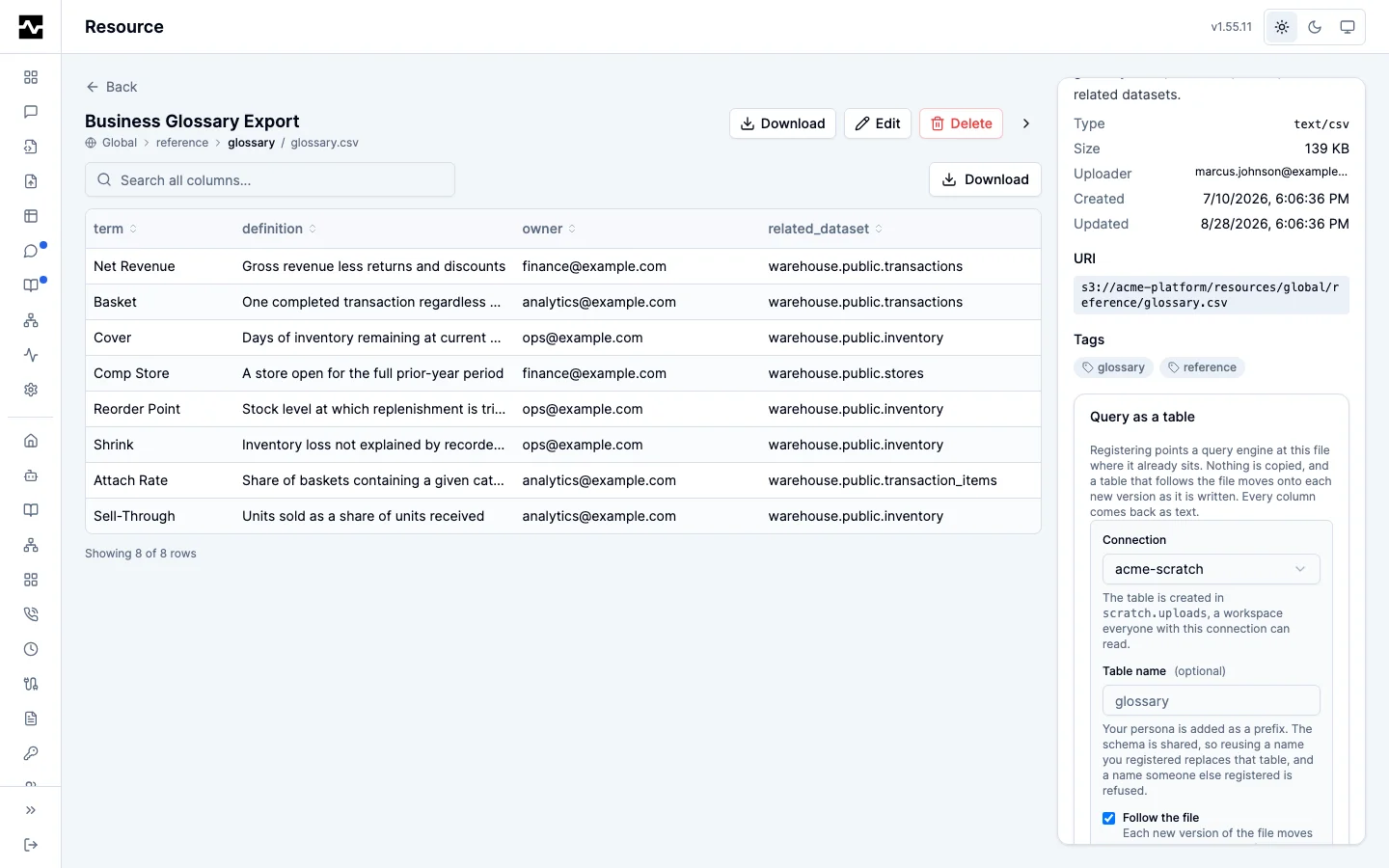
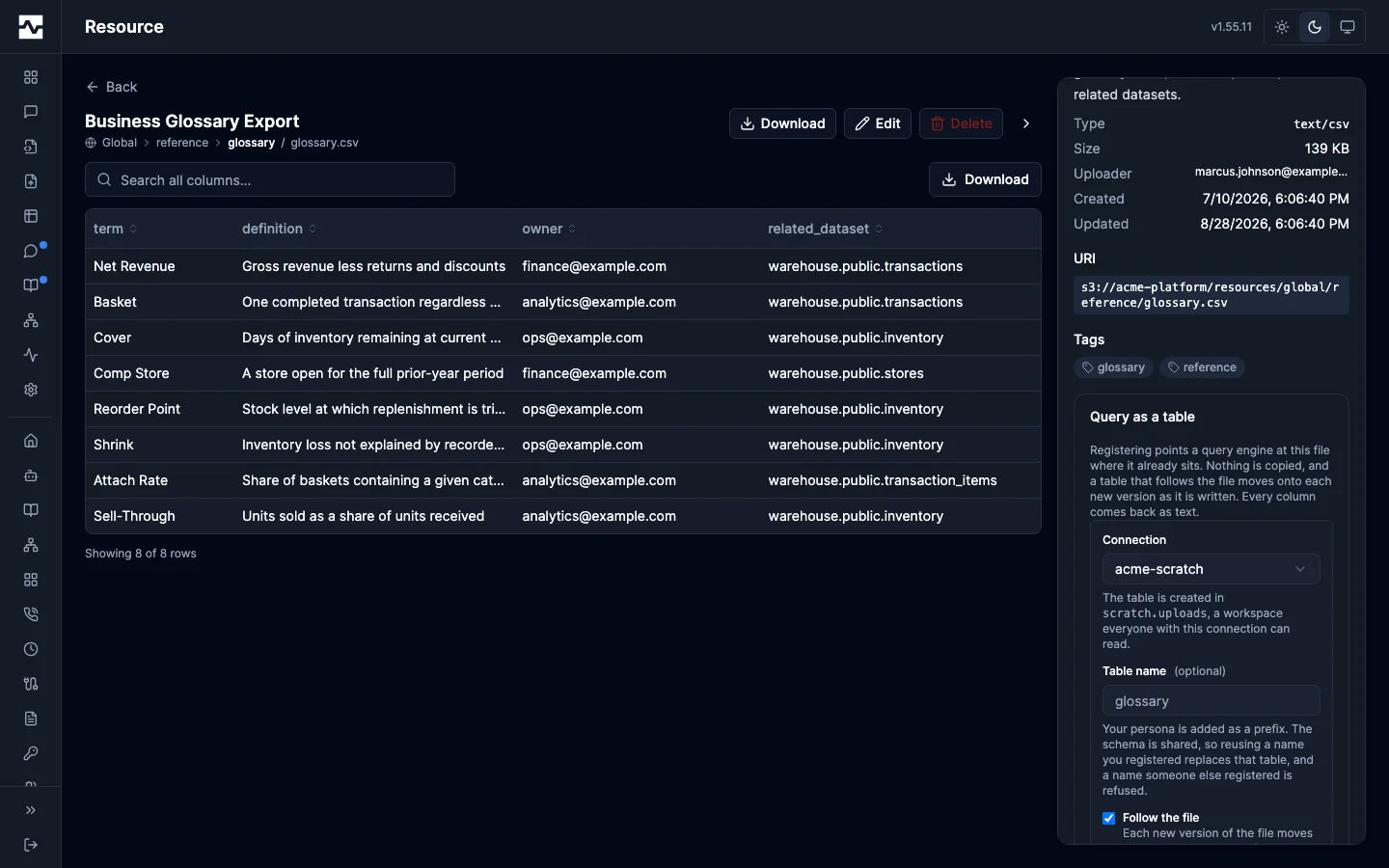
Registering a resource is the uploader's call, the same way registering an asset is the owner's — or an administrator's, including the administrator of the persona a persona-scoped resource belongs to. An agent you are working with can do it for you without the portal step, with manage_table, under the same rule.
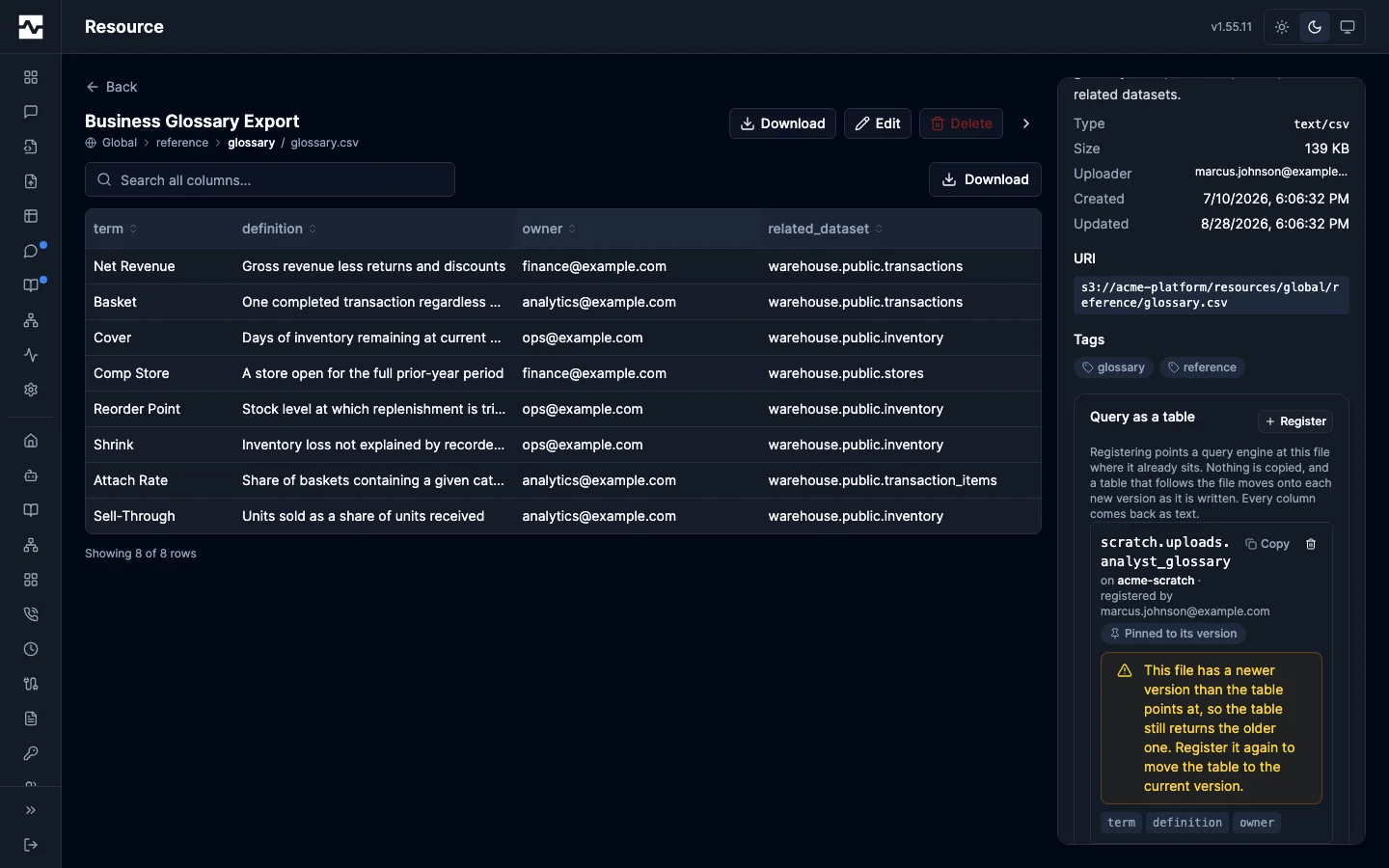
Uploading a new revision moves the file, and the table keeps serving the revision it was registered against. The panel says so, and registering again moves the table to the current revision.
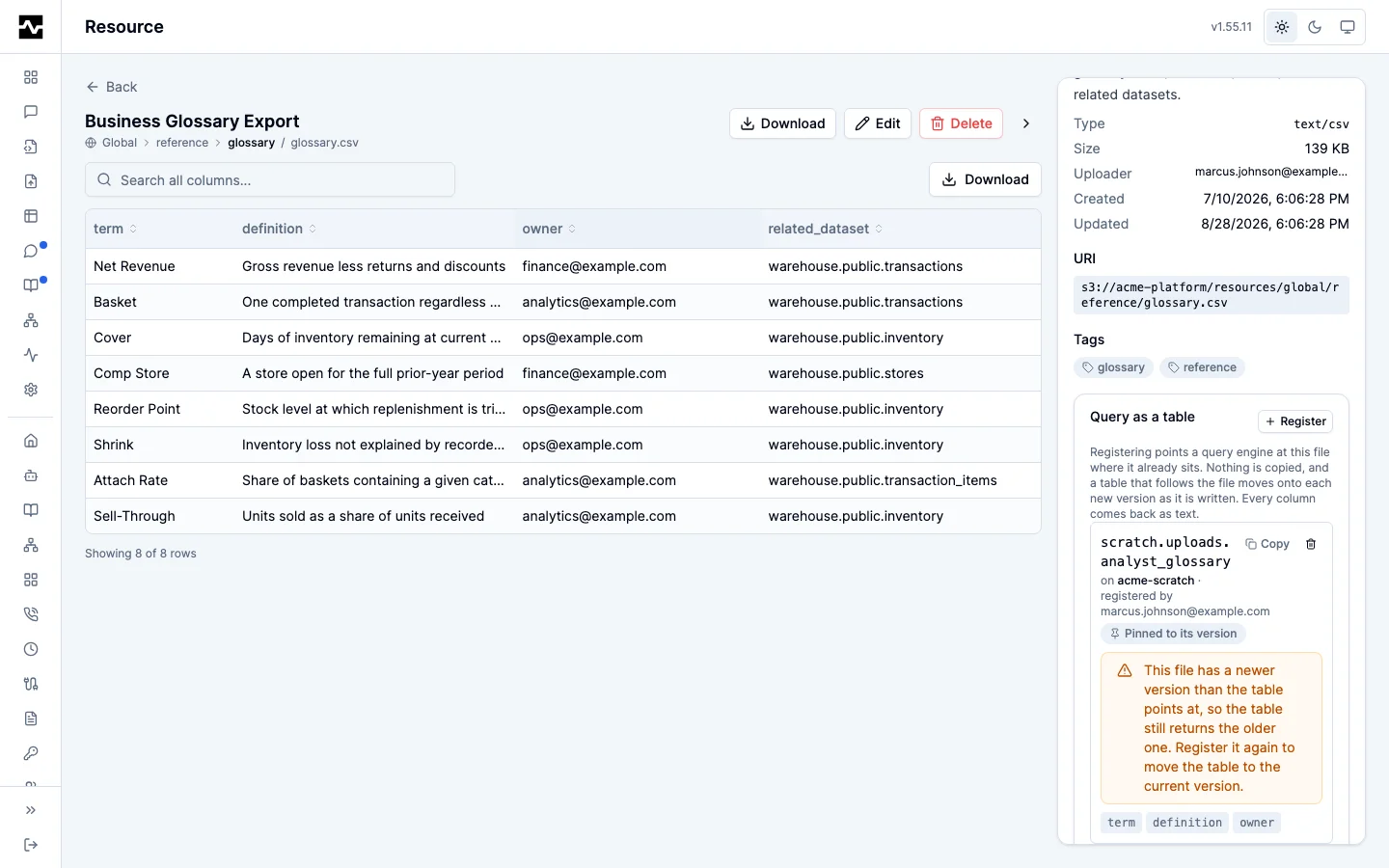
A spreadsheet export often has a line break inside a cell — a multi-line address in one column. A query engine splits records on newlines before it looks at the quotes, so each of those rows would come back torn into fragments with every later field in the wrong column. Registering such a file is refused, and the refusal says how many rows are affected and which columns they are in. A file whose lines end in a carriage return rather than a newline is refused for the same reason: the engine does not split on one, so the records that end in one are run together into a single row.
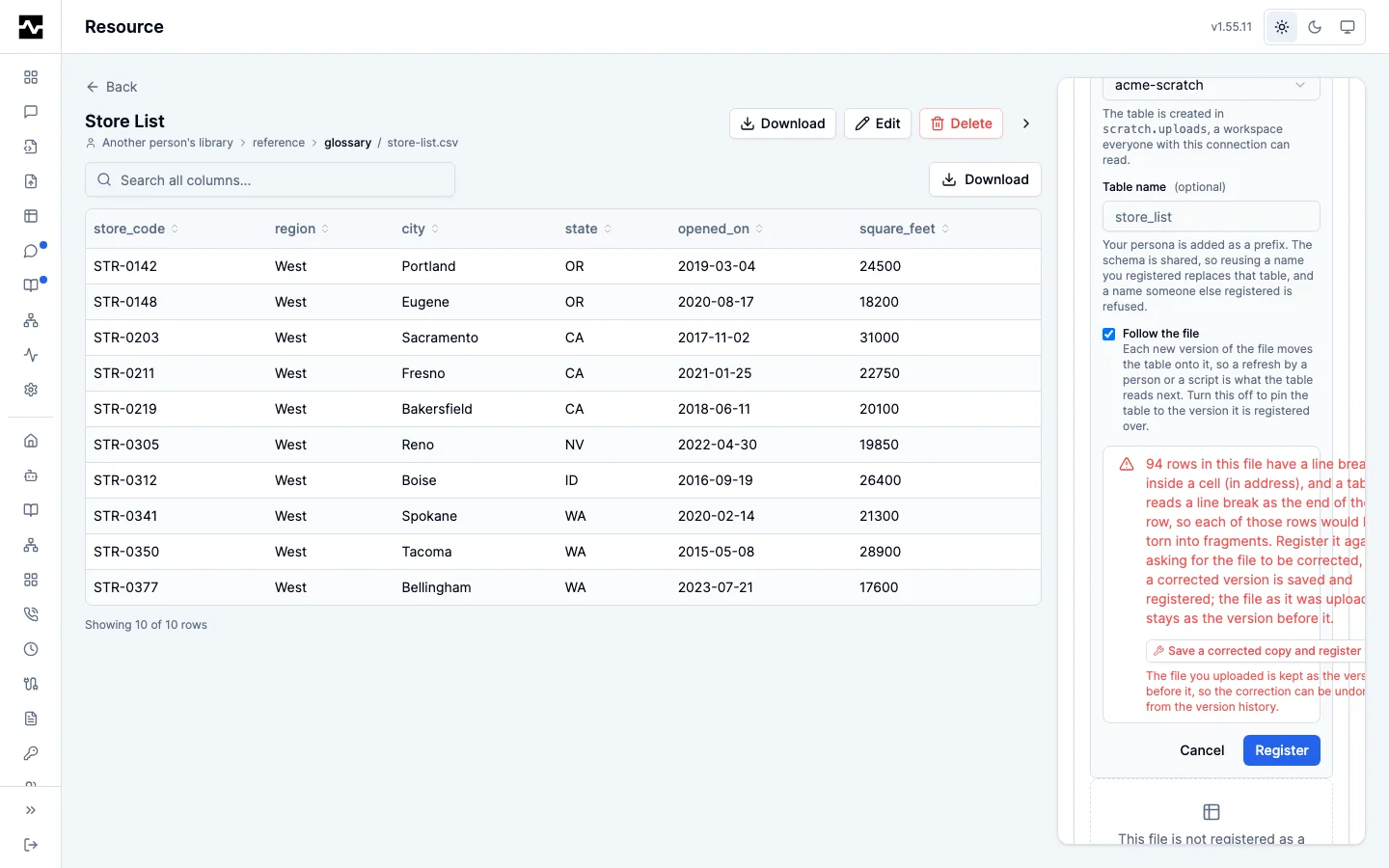
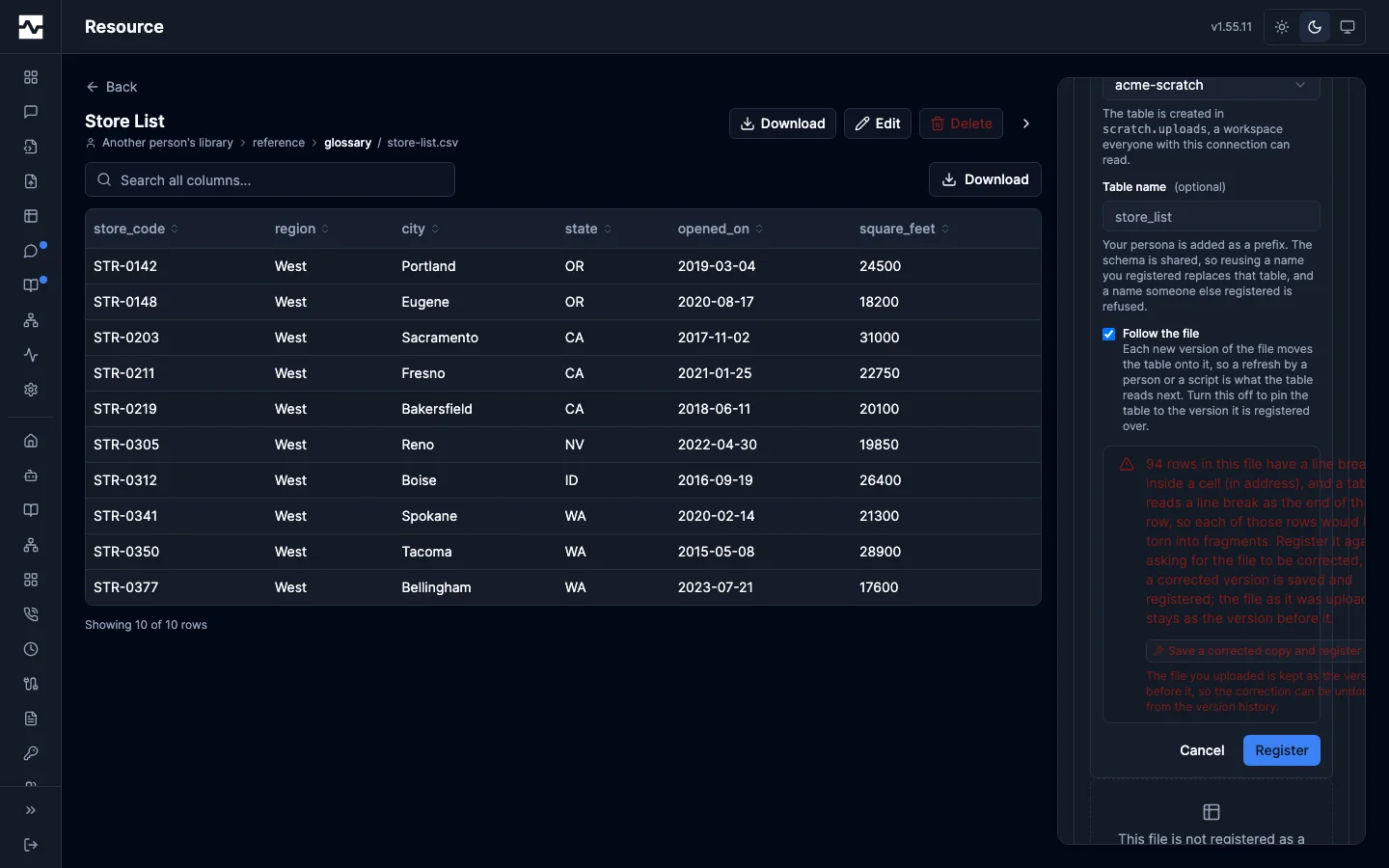
A registration that is refused opens a dialog rather than writing into the sidebar. The reason is several sentences and names the rows and columns it found, which in a 320px column was small red type below the fold; in a dialog it has room to be read, and the action that resolves it is an ordinary button beside Cancel. A refusal with no next step reads the same way, with only a dismiss.
Save a corrected copy and register that does the correction for you: every record gets its own line, every cell goes back onto one line, and the text is converted to UTF-8 if it was not already. The result is a new version of the file itself, so the bytes you uploaded stay as the version before it and the correction can be undone from Version history like any other. The panel then says what changed, and so does the new version's row in Version history.
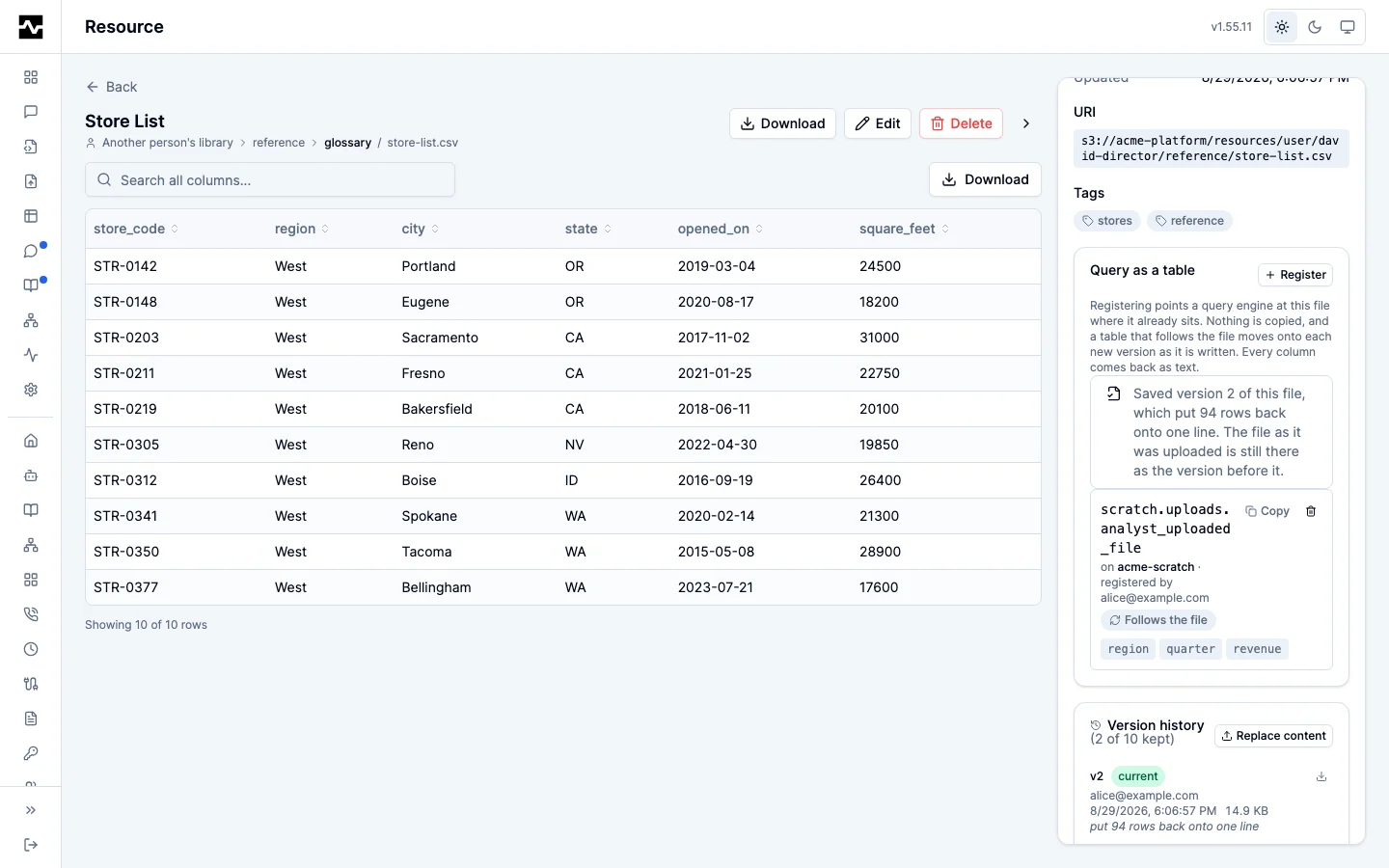
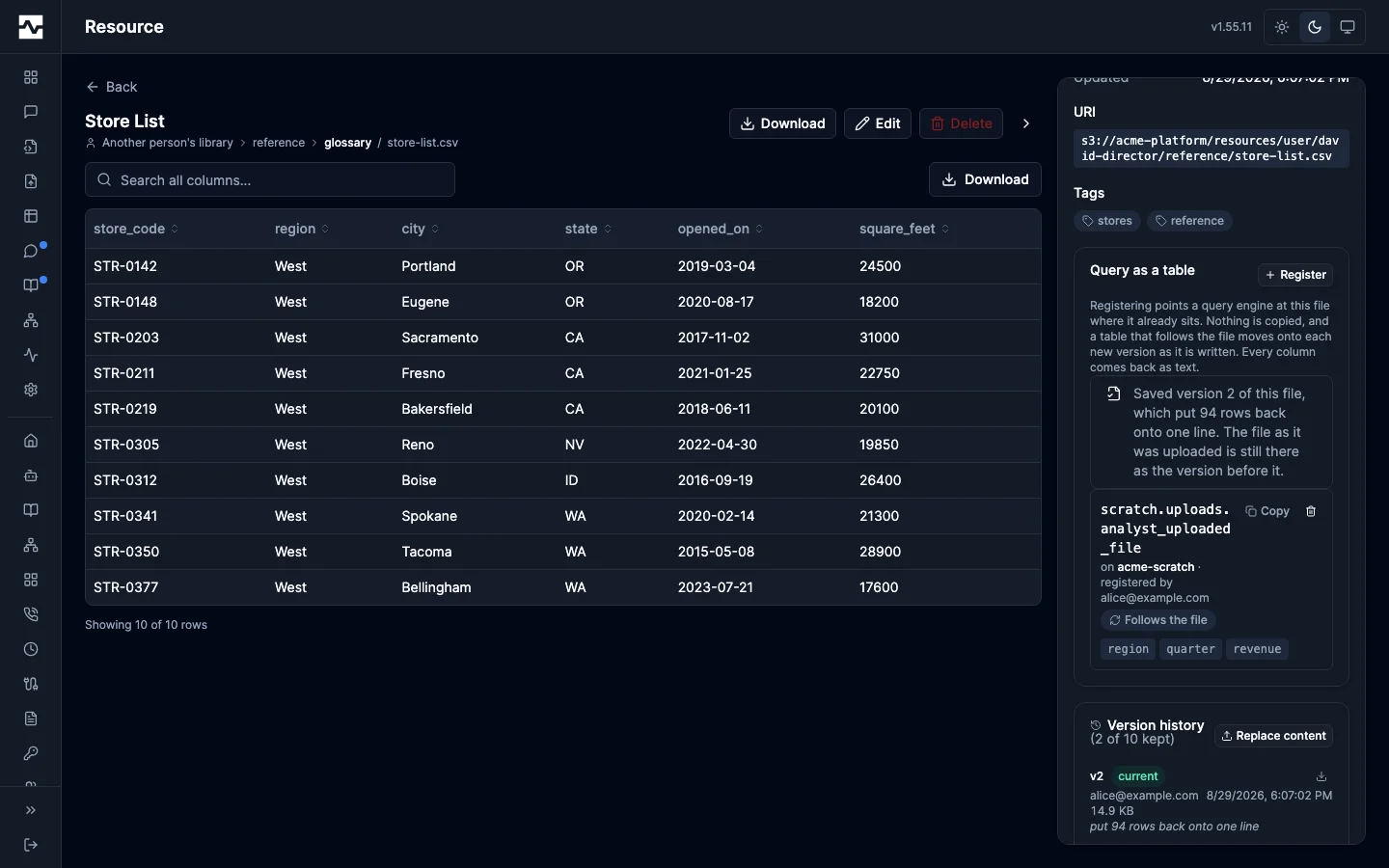
The same description is recorded on the version the correction wrote, so Version history still says why the file changed after this answer is gone. The version below it has none: those are the bytes you uploaded.
A table registered this way goes on correcting the file. If the next revision you upload has the same problem — the same weekly export from the same spreadsheet — the correction is made again, as a new version above the one you uploaded, and the table moves onto it. The revision you uploaded is still there and still restorable, and the reply to the upload says both what happened to the table and what the correction changed. The panel labels such a table Corrects the file. Registering the same name again without asking for the correction turns it off.
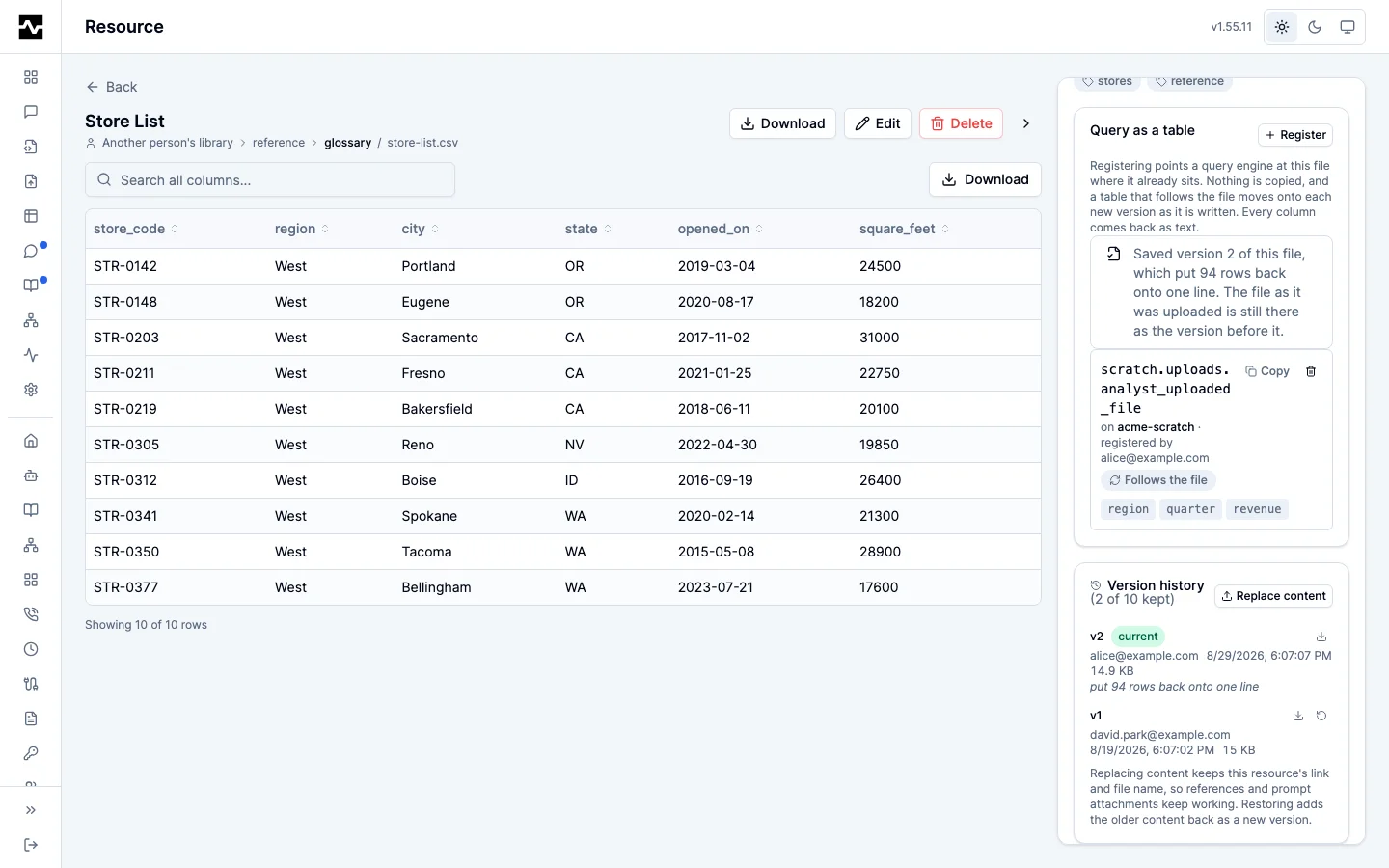
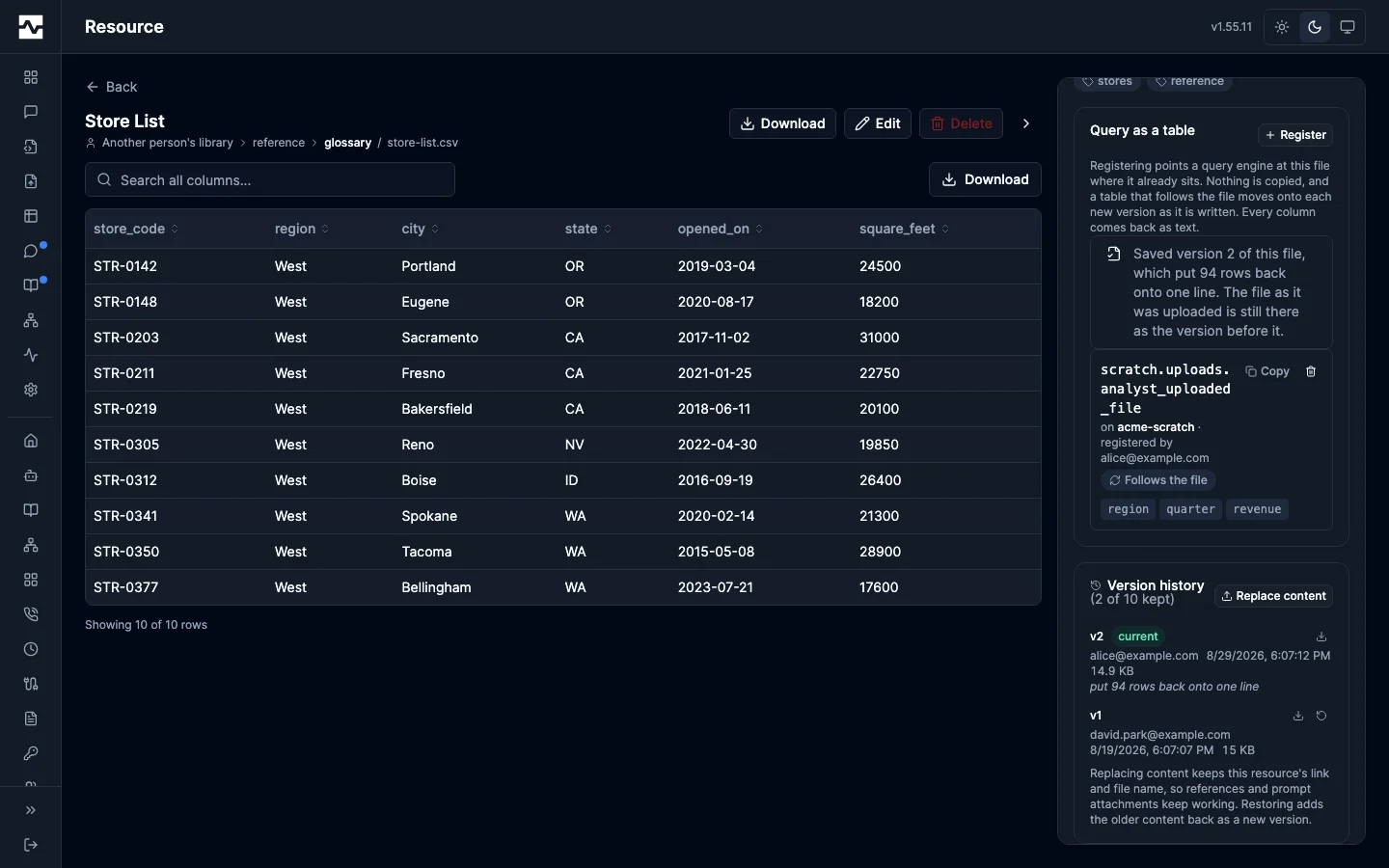
See Registered Tables.
Seeing what is actually used
The detail view shows Usage: reads over the last 30 and 90 days, broken down by which door served the content — an agent's resources/read, a search fetch, or a portal download — plus when it was last read. The admin resources table adds a Last read column and a Recently read sort, so a curator can order the library by recency and find material nothing has touched; a resource never read since it was uploaded over 30 days ago is flagged.
These counts come from the read audit trail, so they are bounded by the deployment's audit retention window, and a deployment with audit.enabled: false records no reads and shows no usage (reads themselves are unaffected). Listing resources is not a read: only content actually served counts.
Attaching resources to a prompt
A prompt is a procedure, and a procedure usually depends on material: the template it fills, the checklist it follows, the brand header it embeds. The prompt viewer has an Attached materials panel where the prompt's owner (or an admin, for shared prompts) attaches resources from a searchable picker, orders them, and detaches them. The order is authored, not incidental, because it is the order the agent receives them in.
Every agent that runs the prompt receives the attached material as authoritative: text files inline, larger or binary files as links it can read on demand.
An attachment must be at least as widely visible as the prompt. A private resource belongs only on your own personal prompts, and a persona resource only on prompts for that same persona. Attaching something narrower is refused with a message naming the resource, and so is requesting promotion of a prompt that still carries it, because a shared prompt whose materials most readers cannot open is worse than one with no materials at all.